

Dynamic MasterStudy Content
Display dynamic content based on the user's engagement with MasterStudy courses and quizzes.
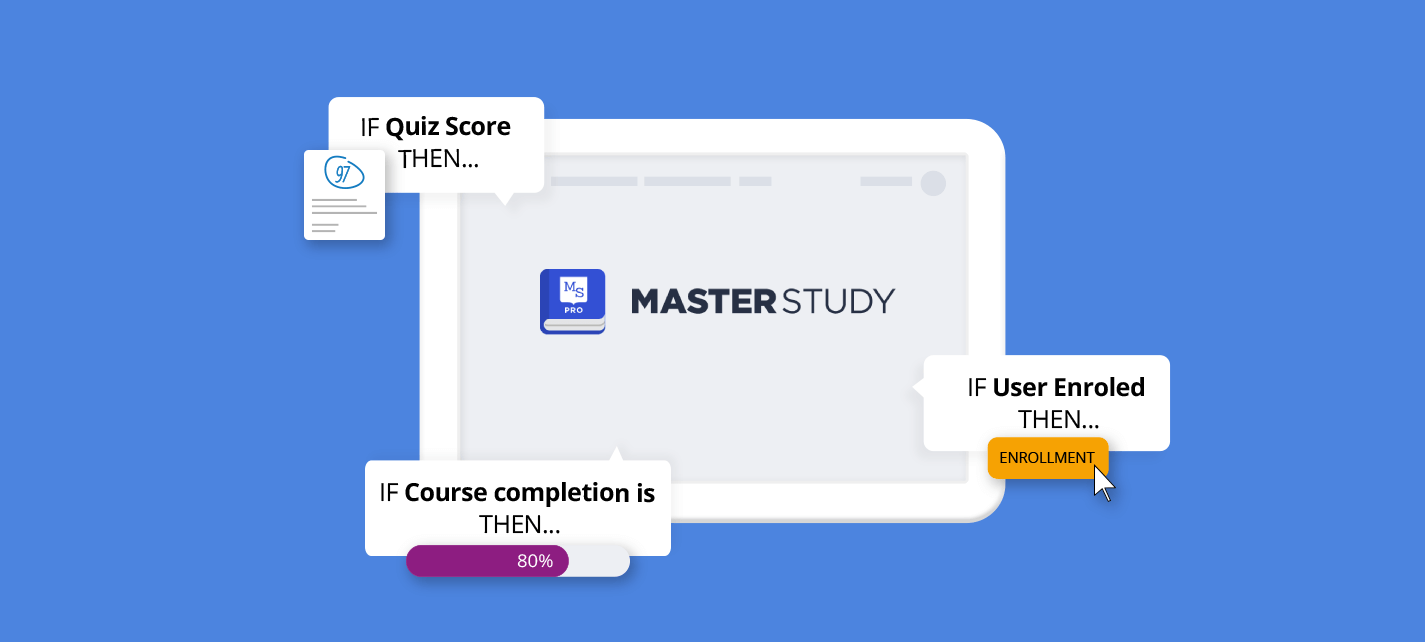
Display Dynamic Content Based on:
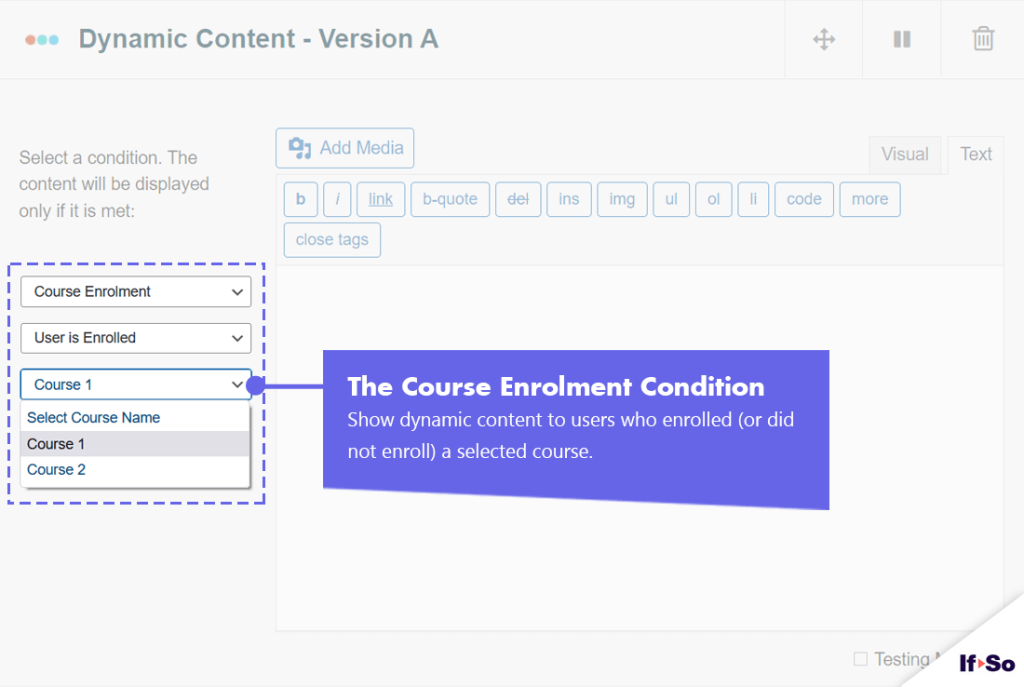
- MasterStudy Course enrolment
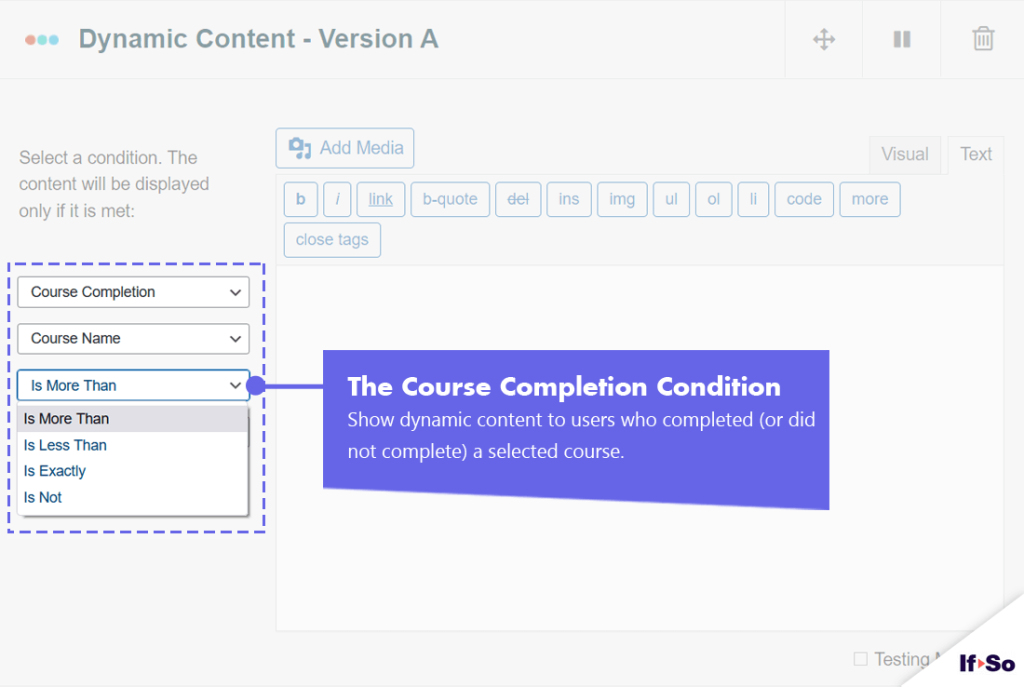
- MasterStudy Course completion rate
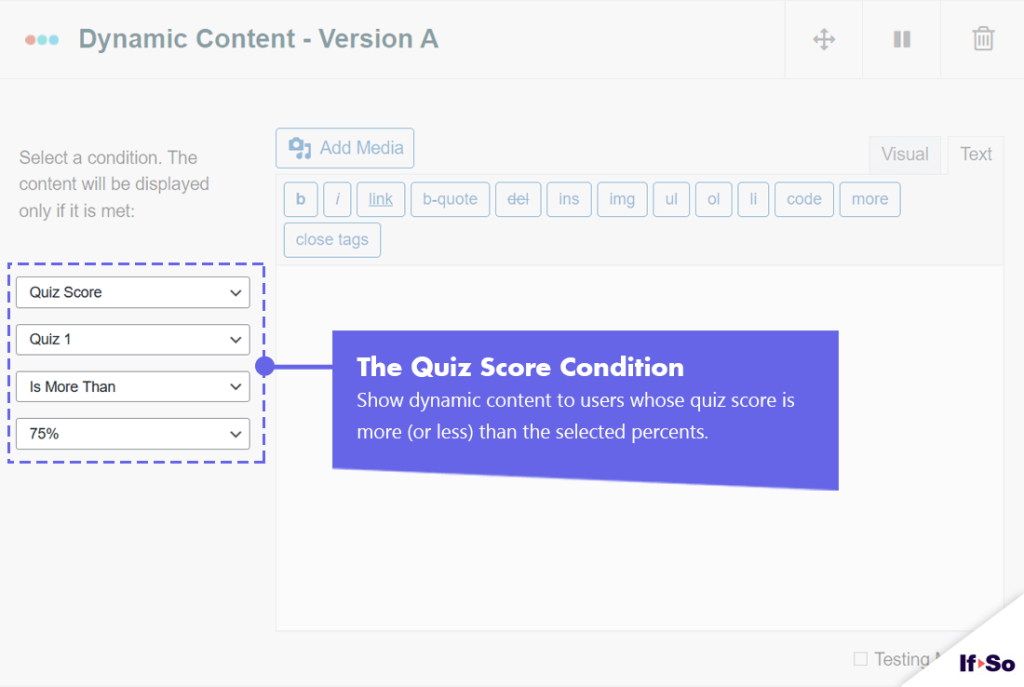
- MasterStudy Quiz score
Use Cases
- If the user completed course #1, suggest course #2.
- Suggest other relevant courses if the user has enrolled in course#1.
- Prompt users to complete a course based on the completion rate.
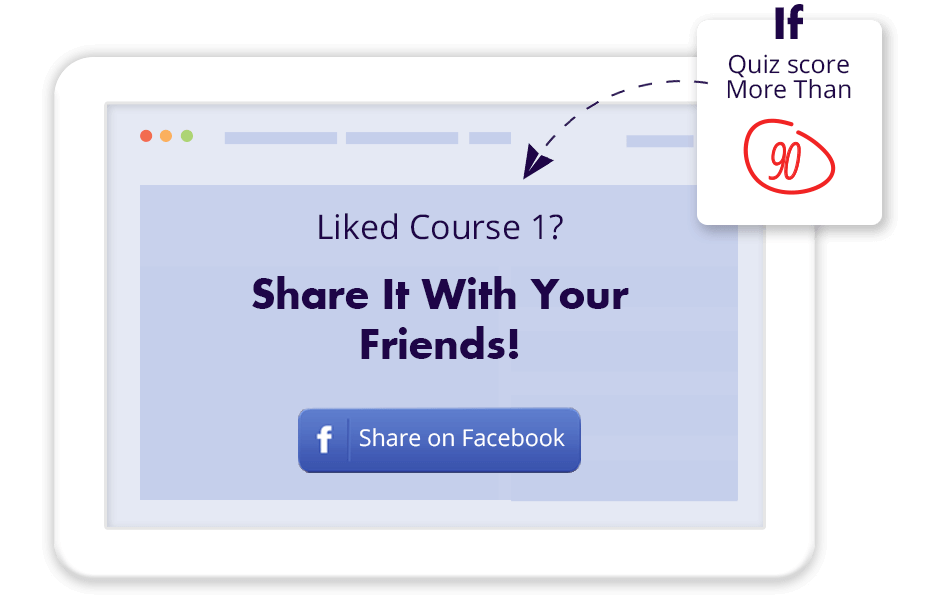
- Prompt users who enrolled in a course to join a Facebook group, submit feedback or answer a question.
If the user completed course #1, suggest course #2

Prompt users who enrolled in a course to share it with their Facebook friends
How to set up dynamic MasterStudy content
All Page Builders
Elementor
Gutenberg
- Make sure you have If-So Dynamic Content WordPress plugin and the If-So & MasterStudy Integration installed.
- On your WordPress dashboard, go to “If-So → Add New Trigger”.
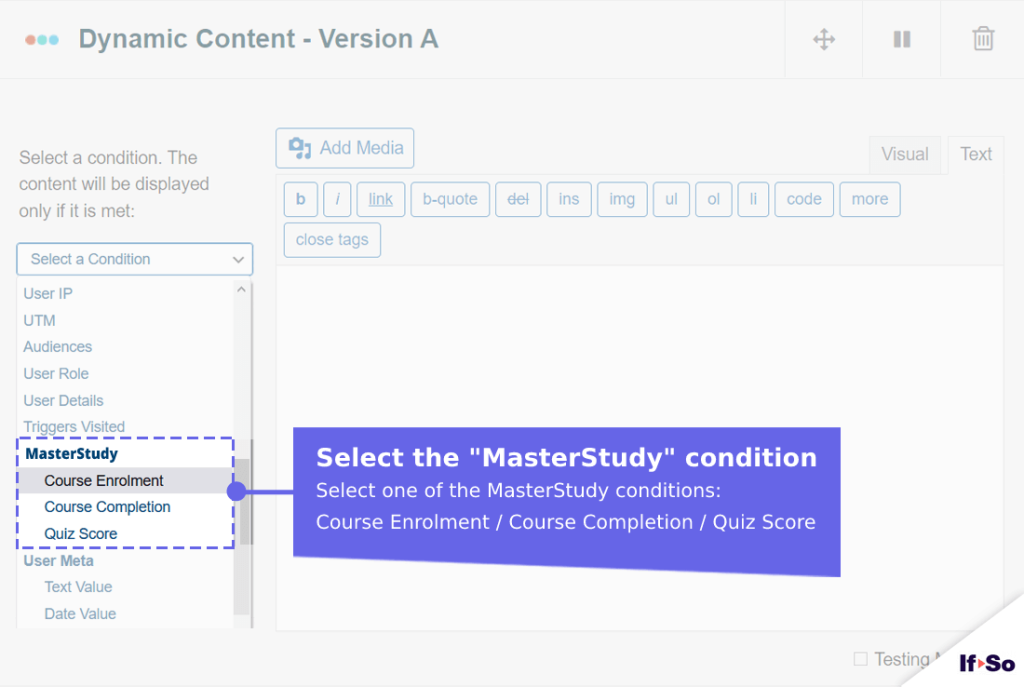
- Click on “Select a condition” and select one of the “MasterStudy” conditions.
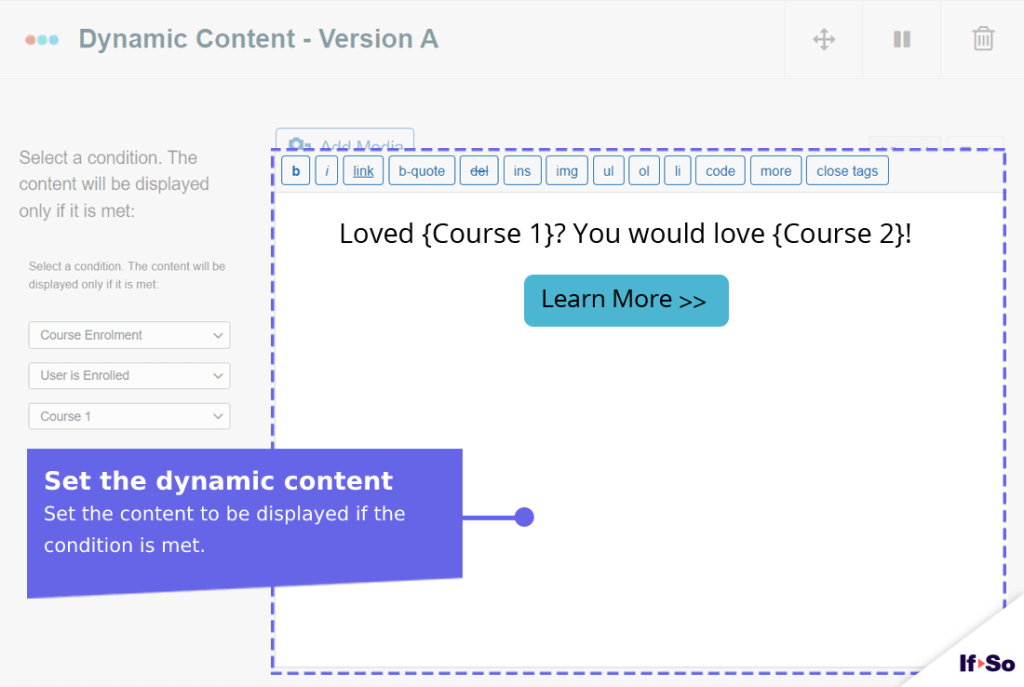
- In the content field, set the content to be displayed when the value matches the user’s specified value.
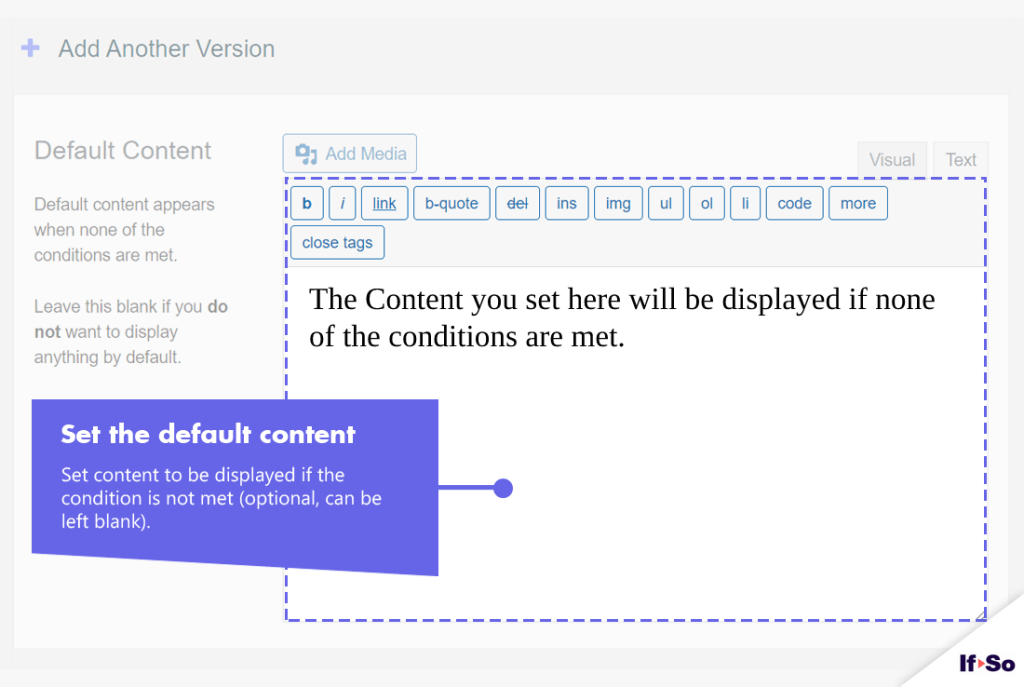
- In the default content field, set content to be displayed if the condition
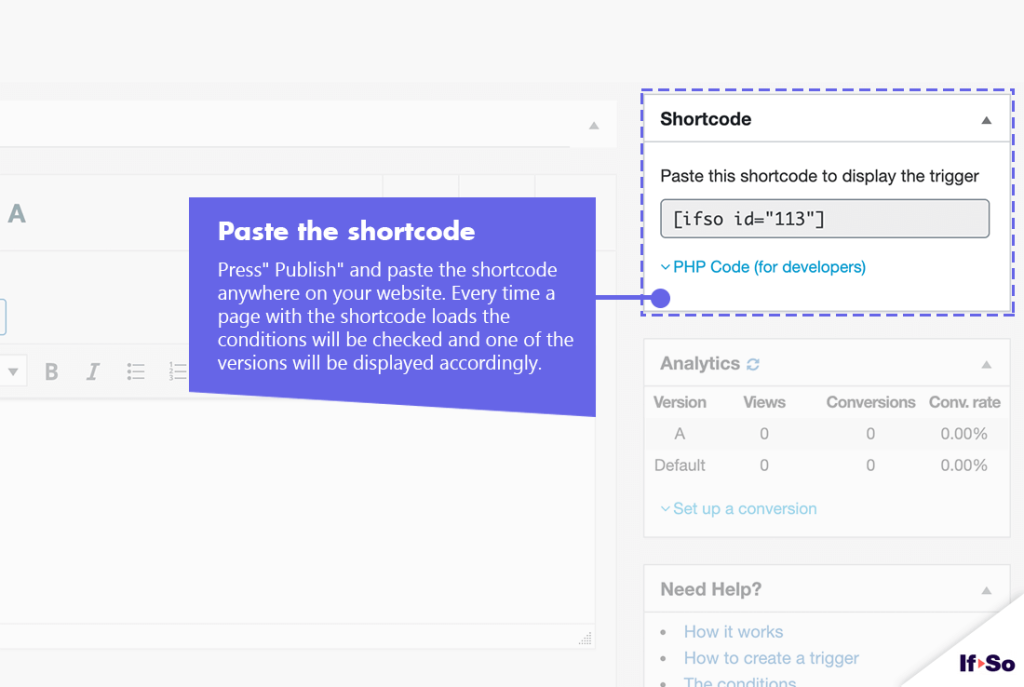
is not met. - Press “Publish” and paste the shortcode generated by If-So on your website.
- Make sure you have If-So Dynamic Content WordPress plugin, the If-so MasterStudy integration and the Conditional Elementor elements integration.
- In the Elementor editor, select the element you want to display based on the user’s engagement with MasterStudy courses and quizzes.
- In the element settings panel, go to the If-So tab.
- Choose the MasterStudy condition.
- Click Update to save the page.
- Make sure you have If-So Dynamic Content WordPress plugin, the If-so MasterStudy integration.
- In the Gutenberg editor, select the block you want to display based on the user’s engagement with MasterStudy courses and quizzes.
- In the block settings sidebar, open the If-So Dynamic Content panel.
- Choose the MasterStudy condition.
- Update or publish the page to save your changes.
Screenshots
MasterStudy Integration
Free
Requirements: If-So Pro