

Dynamic Content for Paid Memberships Pro
Display dynamic content based on the user’s membership level.
How to set up membership-based content
To set up a this condition you’ll need both the If-So plugin and the If-so Paid Memberships Pro integration activated. Once you have that setup, the new condition will be added to the If-So condition’s drop-down menu.
Creating a dynamic If-So trigger is fairly intuitive, but if you want to learn more about If-So and its advanced options, you can start here: How does If-So work.
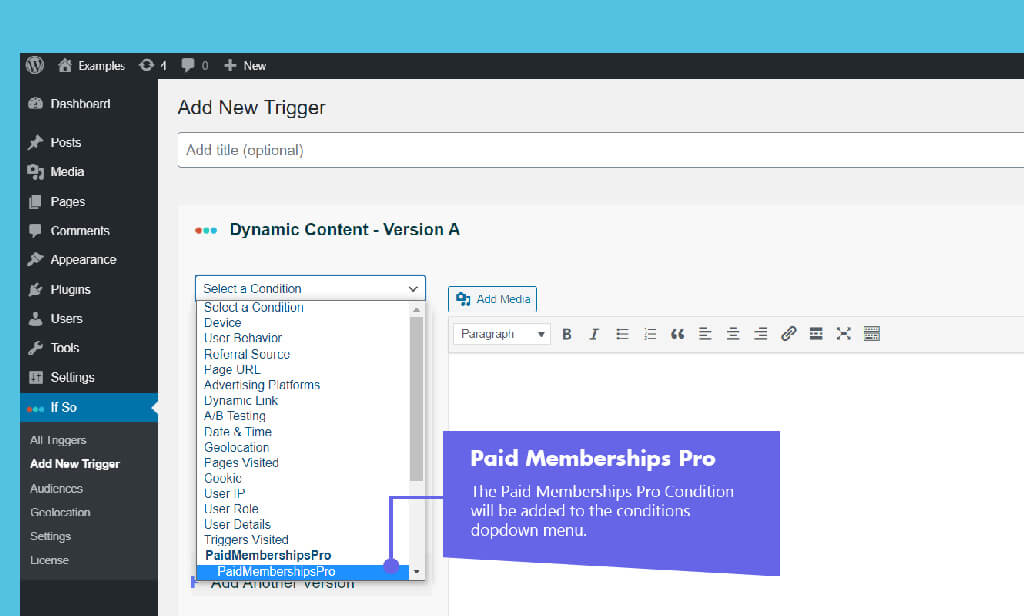
Step-by-step: How to set up the Paid Memberships Pro condition
All Page Builders
Elementor
Gutenberg
- Make sure you have If-So and the If-so Paid Memberships Pro
integration installed. - On your WordPress dashboard, go to “If>So → Add New Trigger”
- Set up the dynamic version:
1. Select “Paid Memberships Pro” from the drop-down menu.
2. Set the content to be displayed if the condition is met. - In the default content field, set content to be displayed if the condition
is not met. - Press “Publish”.
- Copy and paste the shortcode wherever you want to display the trigger’s content (on pages, posts, or widgets).
- Download and activate the Conditional Elementor elements integration.
- In the Elementor editor, select the element you want to display for Paid Membership.
- In the element settings panel, go to the If-So tab.
- Choose the Paid Membership Pro condition.
- Click Update to save the page.
- Make sure you have If-So and the If-so Paid Memberships Pro
integration installed. - In the Gutenberg editor, select the element you want to display for Paid Membership.
- In the block settings sidebar, open the If-So Conditions panel.
- Choose the Paid Membership Pro condition.
- Click Update to save the page.
Paid Memberships Pro Integration
Free
Requirements: If-So Pro