Dynamic Content for Easy Digital Downloads
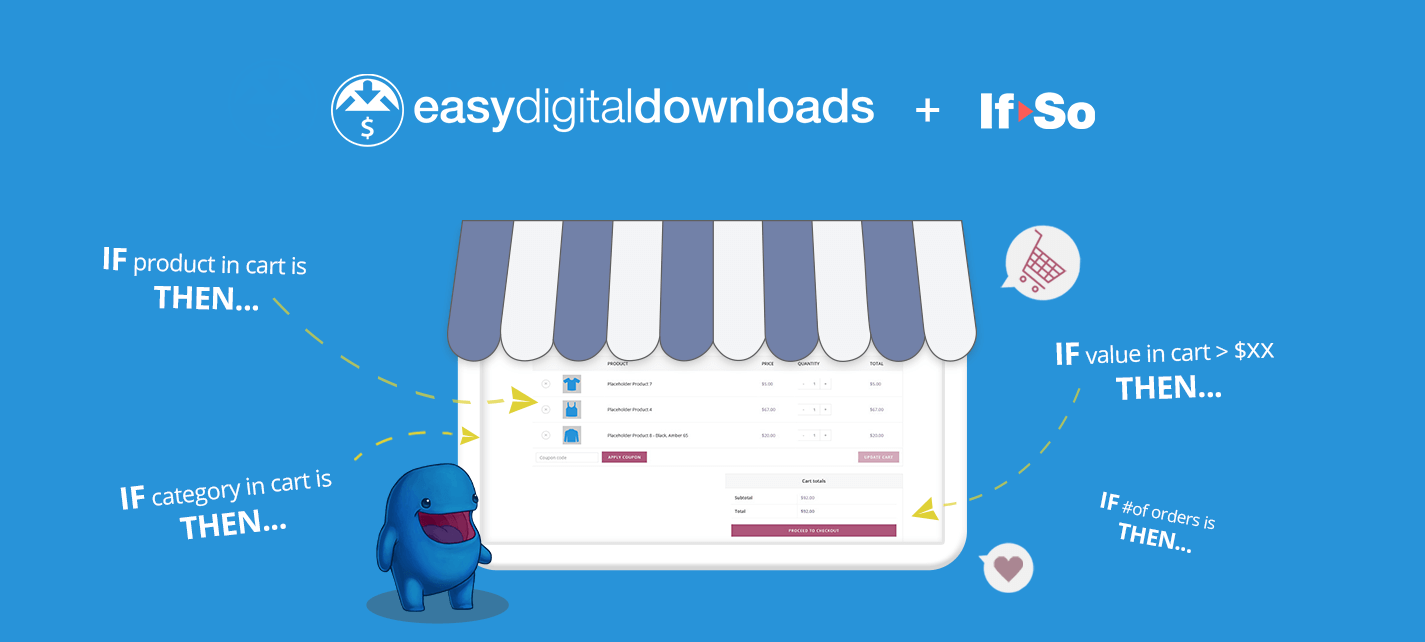
If you’re using Easy Digital Downloads as a sales platform for your digital products, you’re going to love our EDD integration. It’s an easy and simple way to display dynamic content based on a visitor’s interaction on your site with your products. Increase sales, reduce advertising costs, and increase your ROI with immediate results.
TL;DR
Display dynamic content to your visitors based on:
- Total spent on site
- Value of items in cart
- Product/Category in cart
- Product/Category purchased
Easy Digital Downloads and If-So Conditions
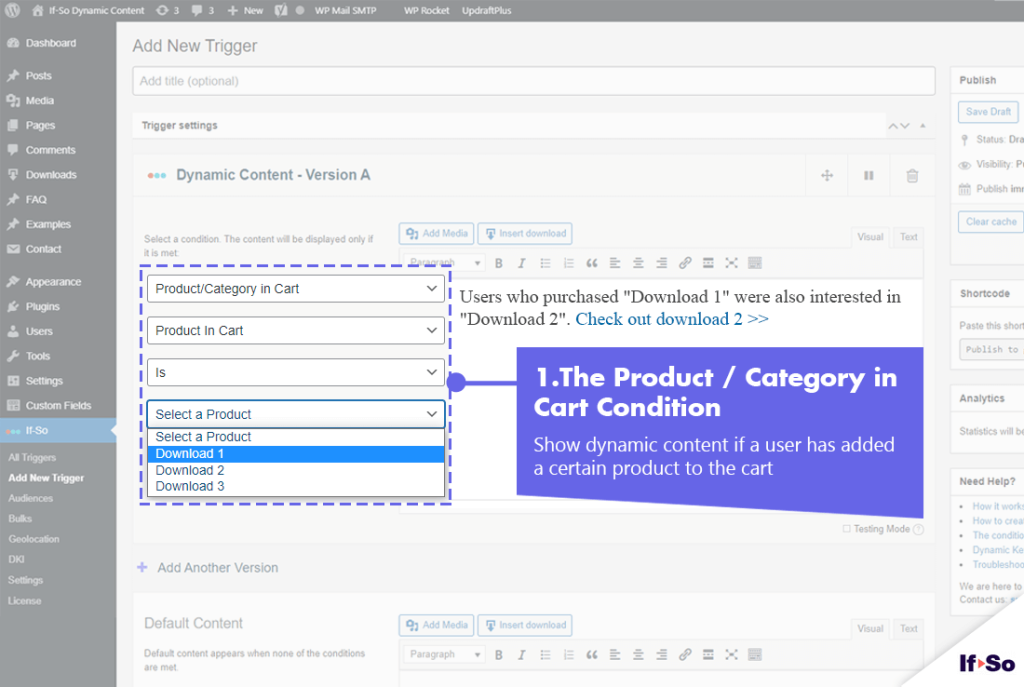
Product/Category in Cart
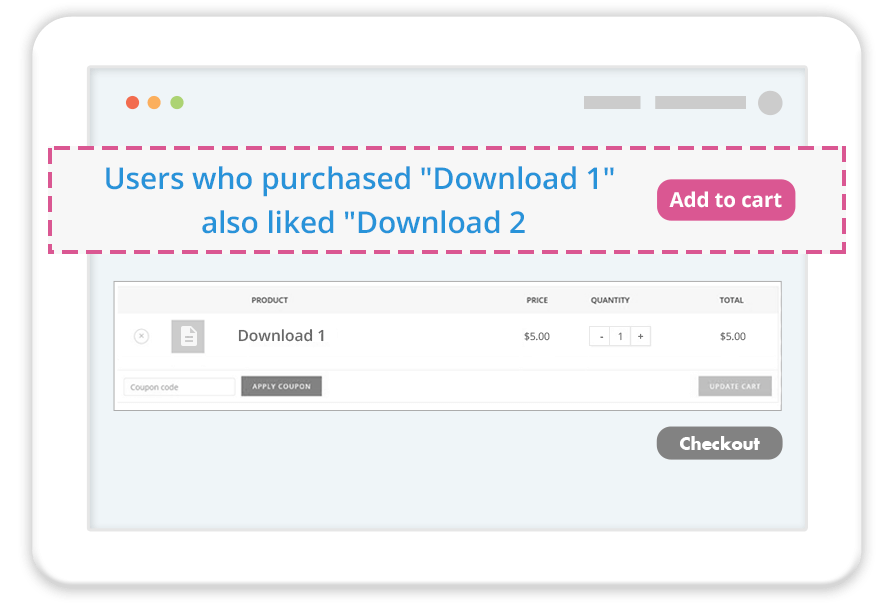
Show dynamic content based on the products or product category your customers place in their cart. This condition is great for cross-selling and up-selling, some of the easiest ways to improve sales and revenue.
Eg. If a customer places a digital copy of your first ebook in their cart, offer its sequel.
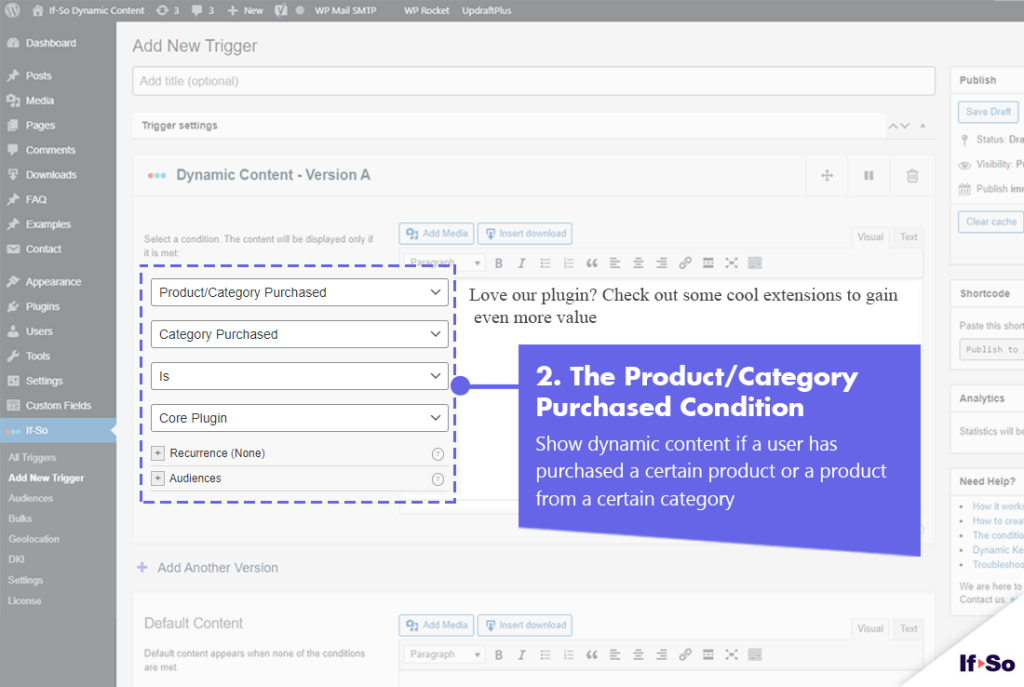
Product/Category Purchased
Show dynamic content based on the products or product category your customers purchased from.
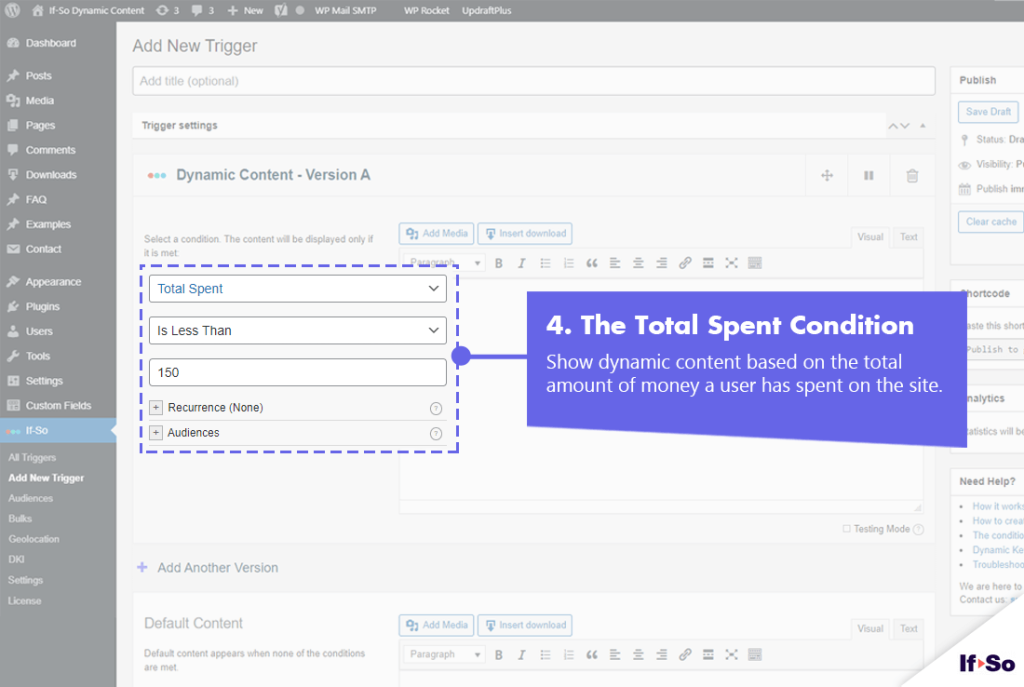
Total Spent on Site
Display different messages based on the total amount a user spent on your site.
Eg. Notify customers of a discount on their orders next month after they reach a certain total spent this month.
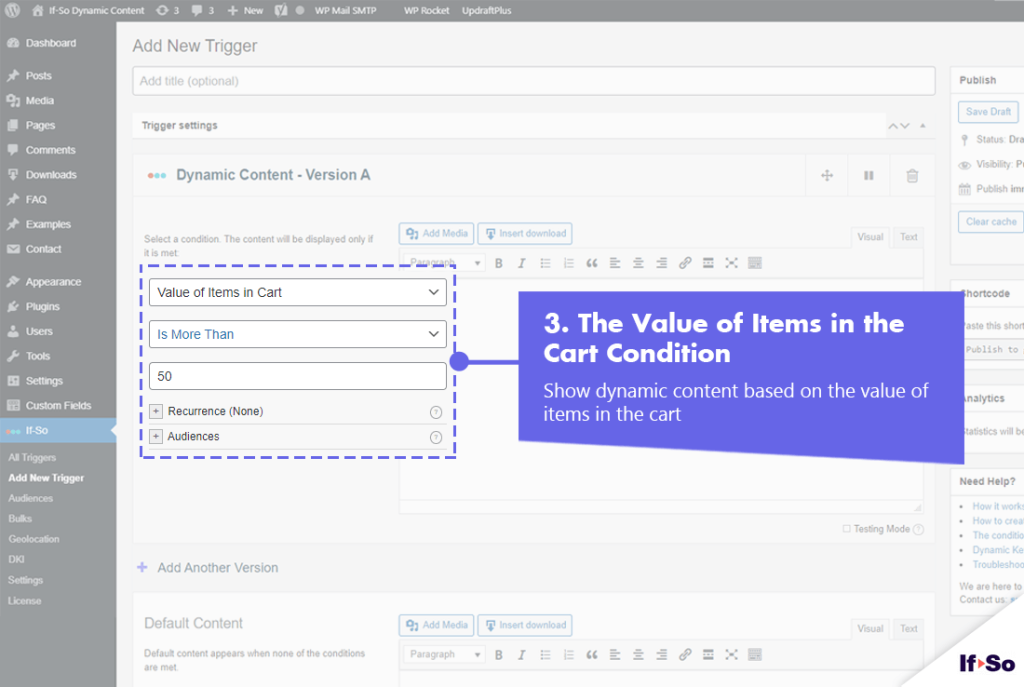
Value of Items in Cart
Display dynamic content to customers when they have a certain value of items in their cart to encourage them to make their purchase.
Eg. Display a message to users when they have surpassed the minimum order on your site to receive a free perk.
How to set up content on your EDD site
To set up an Easy Digital Downloads condition you’ll need both the If-So plugin and the If-So Easy Digital Downloads integration activated. Once you have that setup, a new Easy Digital Downloads condition will be added to the If-So condition’s drop-down menu.
Creating a dynamic If-So trigger is fairly intuitive, but if you want to learn more about If-So and its advanced options, you can start here: How does If-So work.
Step-by-step: The basics of how to set up the Easy Digital Downloads condition
- Make sure you have If-So Dynamic Content WordPress plugin and the If-So Easy Digital Downloads
integration installed. - On your WordPress dashboard, go to “If-So → Add New Trigger”
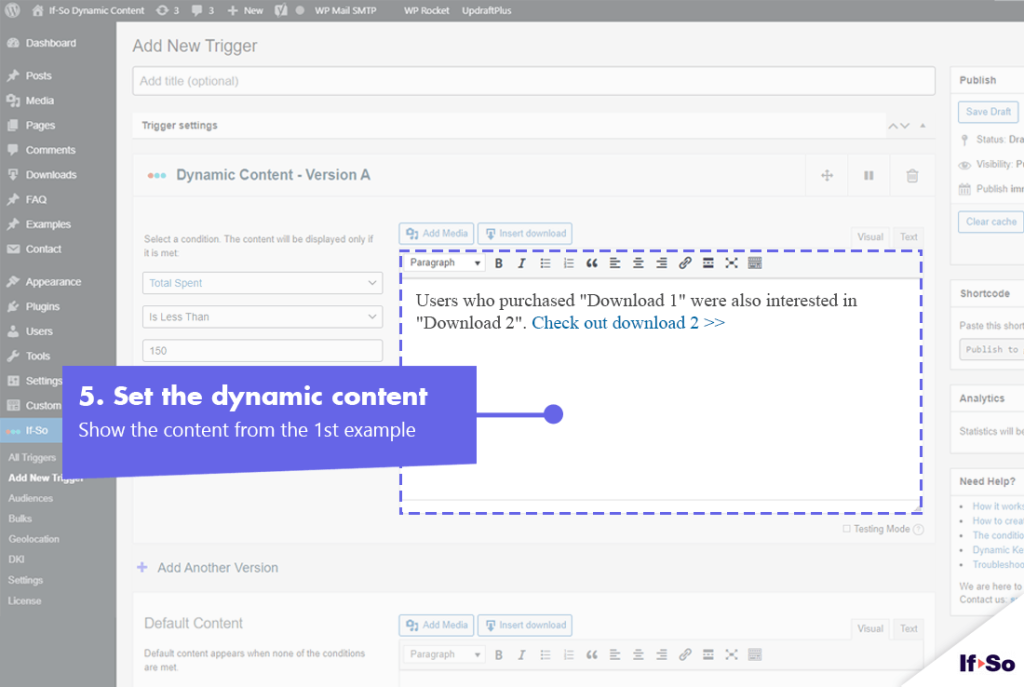
- Set up the dynamic version:
1. Select the relevant Easy Digital Downloads condition from the
drop-down menu.
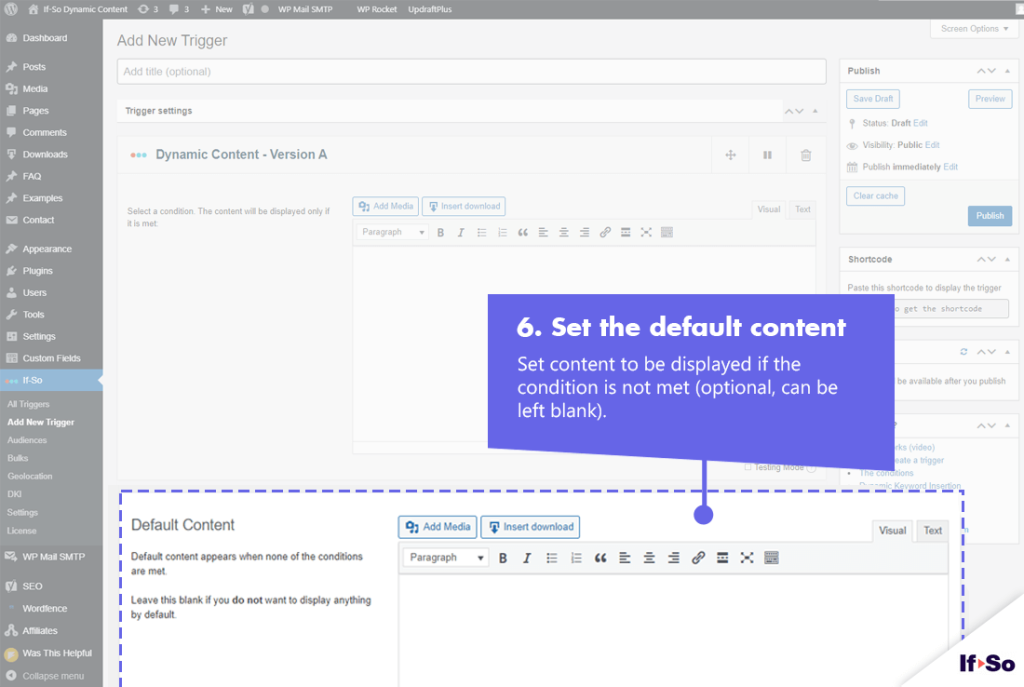
2. Set the content to be displayed if the condition is met. - In the default content field, set content to be displayed if the condition
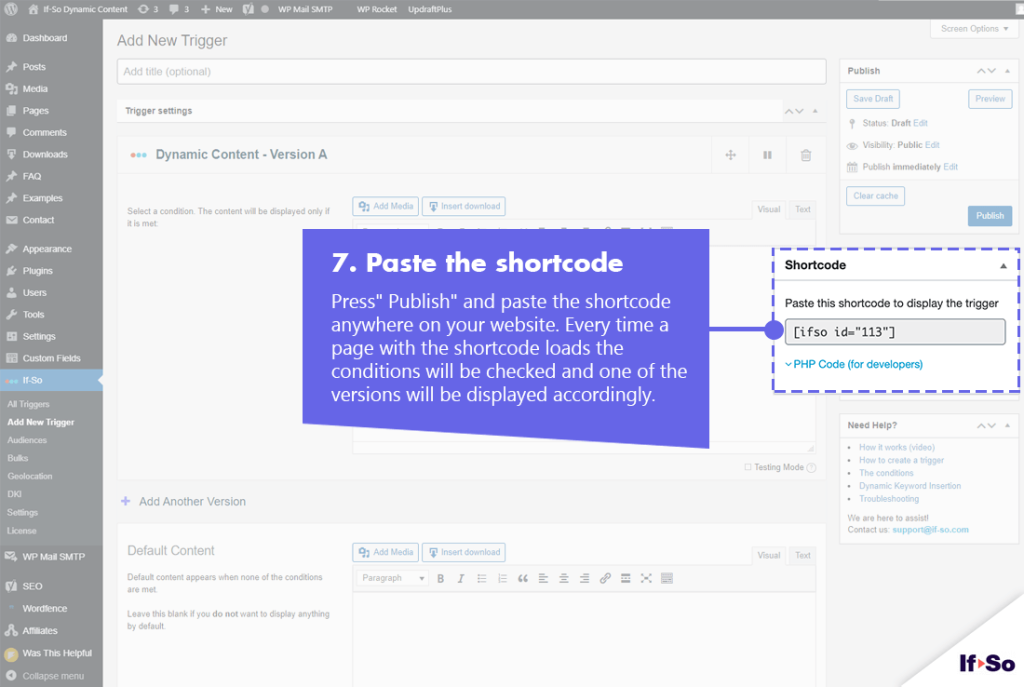
is not met. - Press “Publish”.
- Copy and paste the shortcode wherever you want to display the trigger’s content (on pages, posts, or widgets).
- Make sure you have If-So Dynamic Content WordPress plugin, the If-so Easy Digital Downloads integration and the Conditional Elementor elements integration.
- In the Elementor editor, select the element you want to display based on the visitor’s Easy Digital Downloads activity.
- In the element settings panel, go to the If-So tab.
- Choose the relevant Easy Digital Downloads condition.
- Click Update to save the page.
- Make sure you have If-So Dynamic Content WordPress plugin, the If-so Easy Digital Downloads integration.
- In the Gutenberg editor, select the block you want to display based on the visitor’s Easy Digital Downloads activity.
- In the block settings sidebar, open the If-So Conditions panel.
- Choose the relevant Easy Digital Downloads condition.
- Update or publish the page to save your changes.
Screenshots