Use cases and targeting options
- Allow users to easily reach out
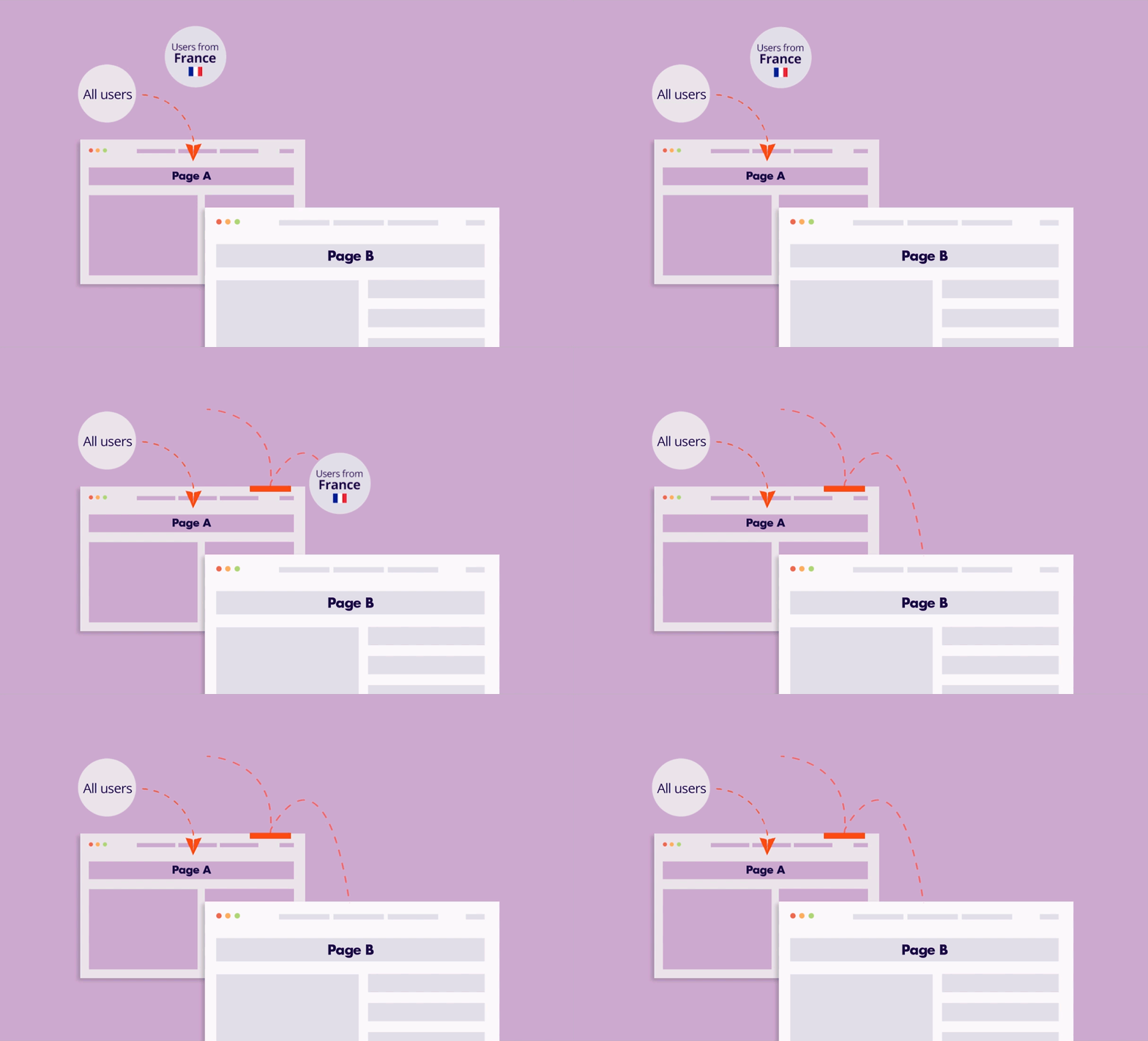
- Show the WhatsApp button only to users from specific locations (save time spent on irrelevant or low-value traffic)
- Show the WhatsApp button only to users who previously visited a particular product page
- Show different WhatsApp buttons to customers who have already purchased and new visitors (pre-sale questions)
Schedule the WhatsApp button to be displayed only when your business is open
Step-by-step: How to apply the template to your site
- Click the “Edit Template” button.
- Customize the template and click “Copy Code“.
- On your WordPress dashboard, go to “If-So → Add New Trigger”.
- Select the condition for displaying the template.
- Paste the template code in the dynamic version’s content field. Make sure you are in “Text” mode.
- In the default content field, enter the content to be displayed if the condition is not met (optional, can be left blank).
- Press “Publish”.
- Paste the trigger’s shortcode anywhere on your website.
Display the template on all website pages
- Download the Trigger Events extension.
- On your WordPress dashboard, go to “If-So → Settings”.
- Paste the trigger’s shortcode into the “Load Extra content on all pages” field.
- Exclude pages for which you don’t want to display the content.
- Click “Save“.