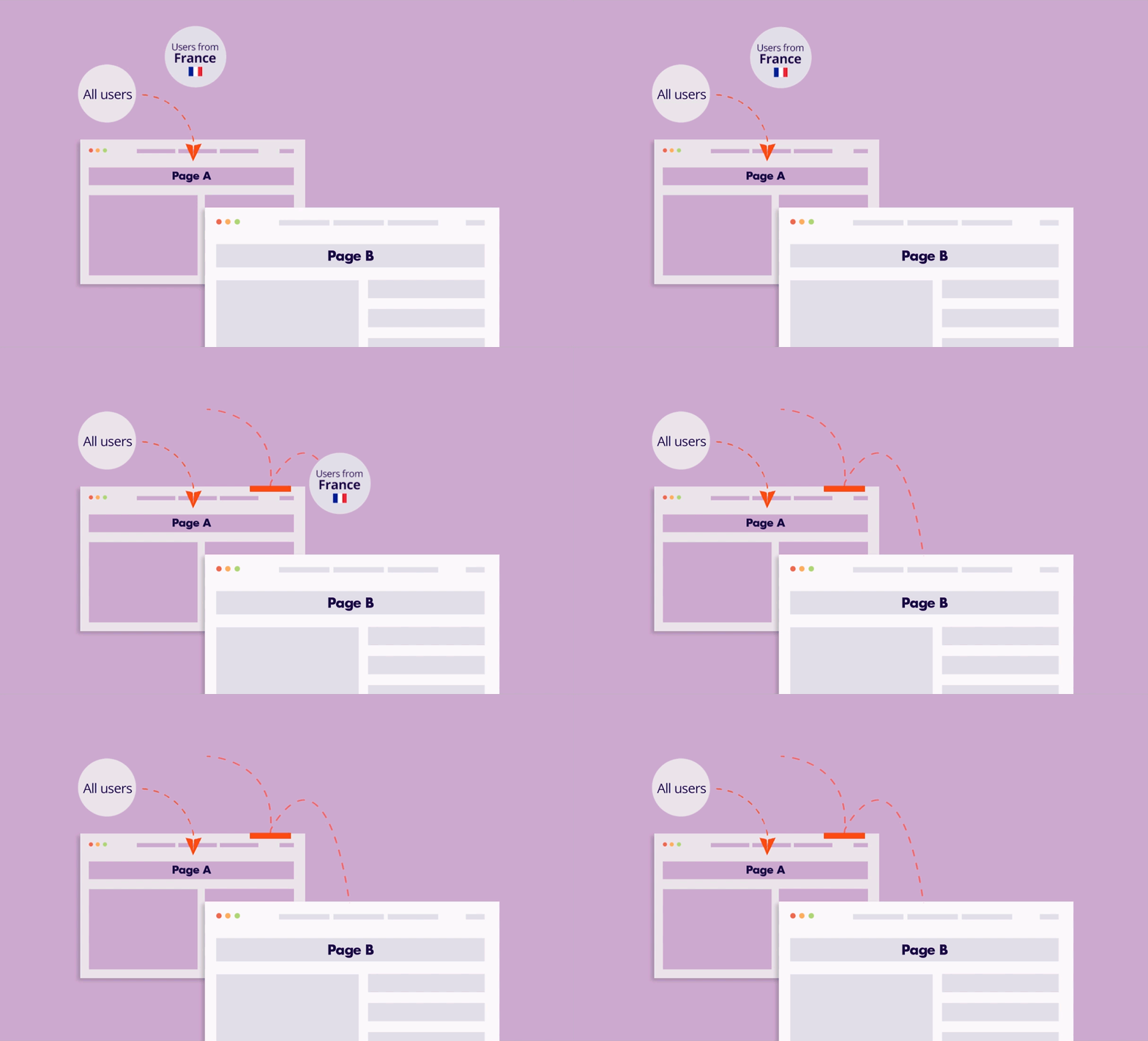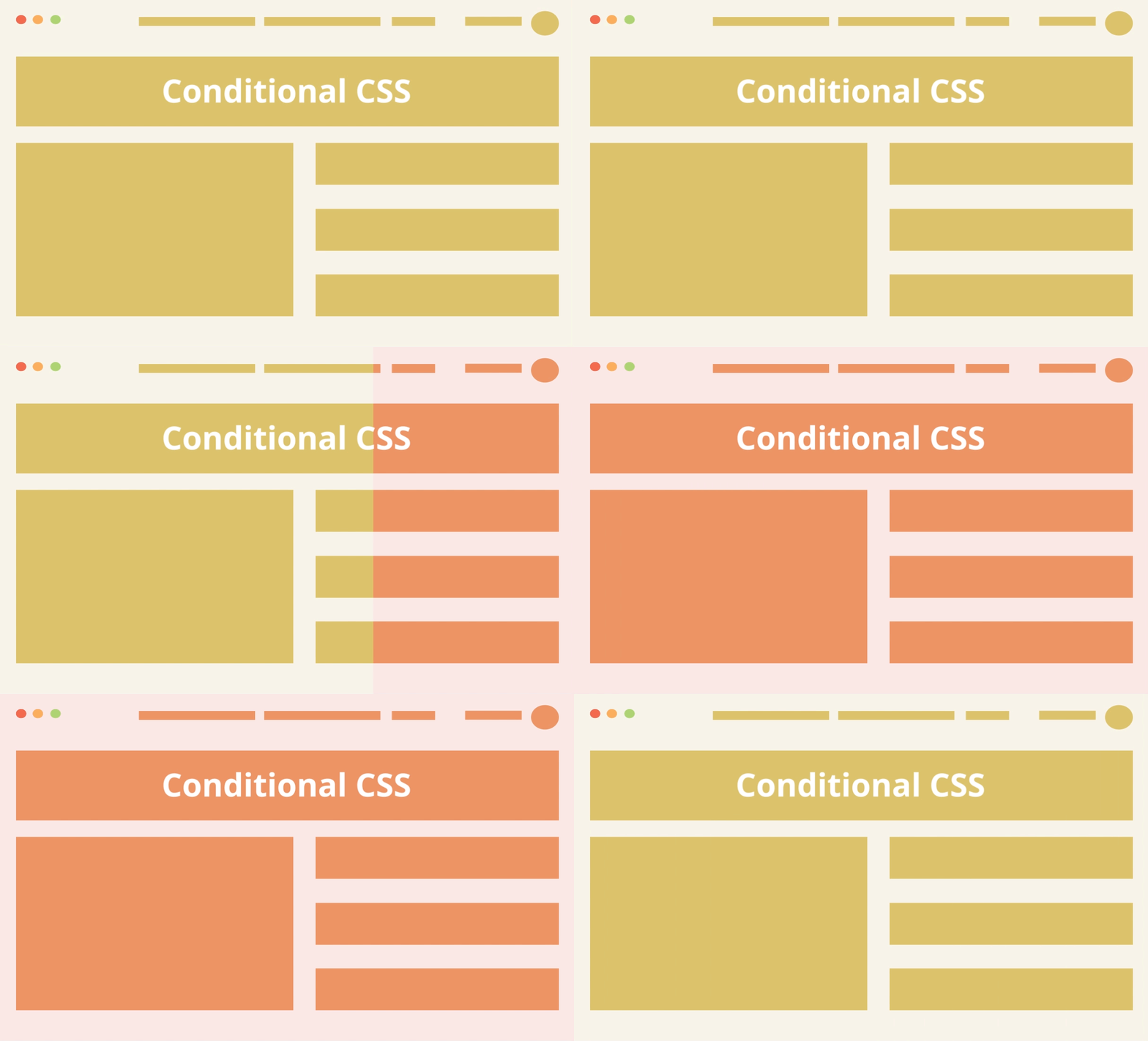
Standard CSS is typically “global,” meaning every visitor loads the same design regardless of who they are or where they come from. Conditional CSS changes this by allowing you to inject specific styling rules only when a visitor meets a certain condition (such as their location, the time of the day, or the campaign they arrived from).
Key Features
- Targeted Design Delivery: Custom CSS is only added to the page’s source code when the condition is met. If the visitor doesn’t match the criteria, the extra design weight is never sent to their browser.
- Theme-Independent Customization: Modify the look of specific blocks or pages without editing your theme’s core files, allowing you to launch visual campaigns instantly.
- Enhanced Visual Memorability: By delivering a design that perfectly aligns with the visitor’s context (like a local landmark color or a specific ad’s aesthetic), you create a stronger psychological imprint, making your brand more memorable than a generic “one-size-fits-all” website.
Use Cases
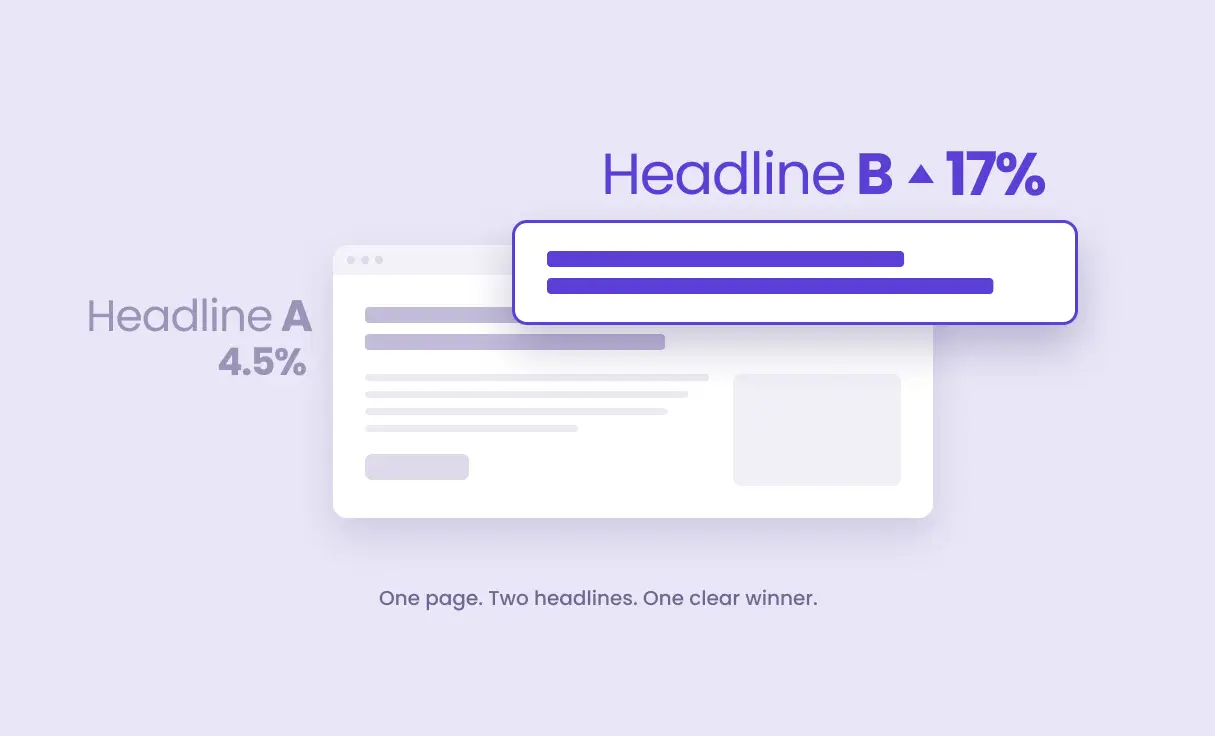
- A/B Testing Visual Elements: Test different font sizes, banners, button colors or background gradients, measuring which design drives higher conversion rates.
- Location-Based Branding: Change your site’s primary colors or font styles to match the aesthetic preferences or seasonal branding of specific countries (e.g., displaying a “warm” color palette for users in tropical regions).
- Holiday & Event Promotions: Set custom styles inside a “Schedule” condition to automatically turn your site header orange for Halloween or red for a Flash Sale, without needing to manually revert the code afterward.
- Member-Only Visuals: Provide a distinct “Premium” look for logged-in users by applying specialized border styles or background textures that are hidden from the general public.
Step-by-Step: Adding Conditional CSS
- Create a New Trigger: On your WordPress dashboard, navigate to If-So → Add New Trigger.
- Select Your Condition: Choose the rule that will trigger the new design (e.g., Geolocation, A/B Testing, Page URL).
- Switch to Text Mode: In the conditional version’s content field, ensure you are in Text or Code mode.
- Add the Style Tags: Wrap your CSS rules inside
<style>tags. For example:
- Save and publish: Click Publish, then paste the trigger’s shortcode on your page or in the footer (if you want the style to be applied across all pages of the site).
The CSS will now only be injected into the page when a visitor matches the version’s requirements.