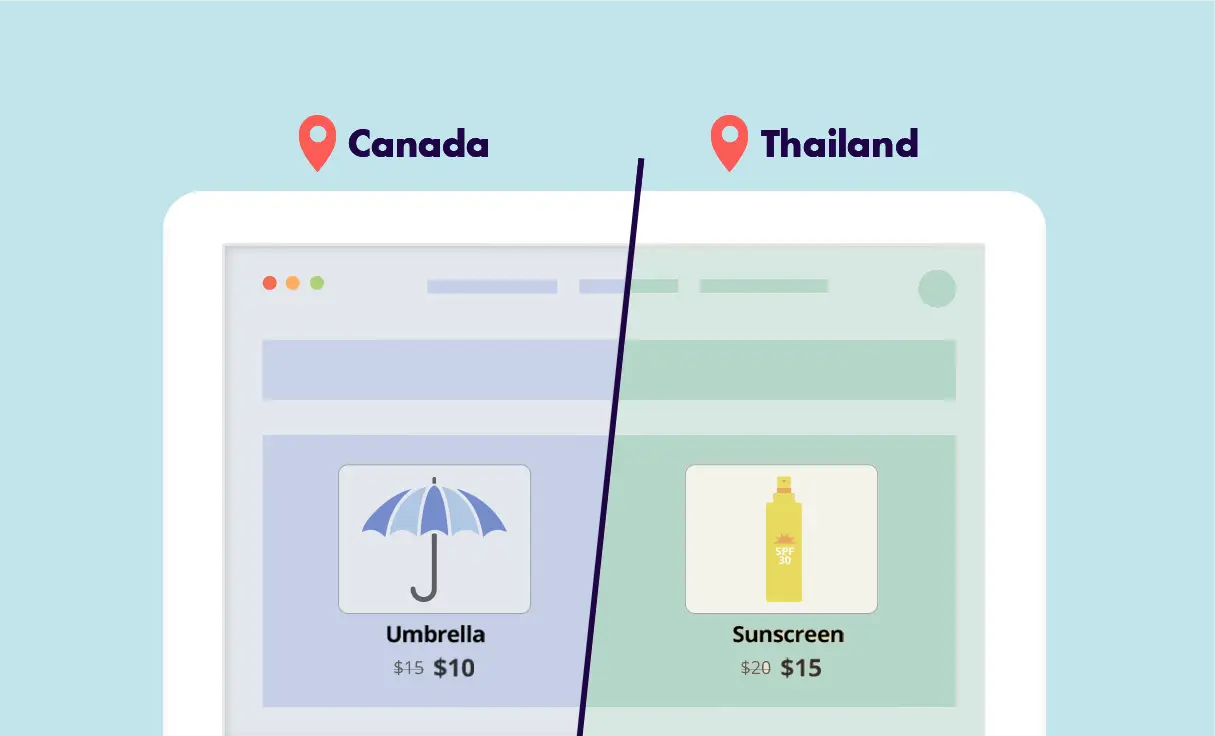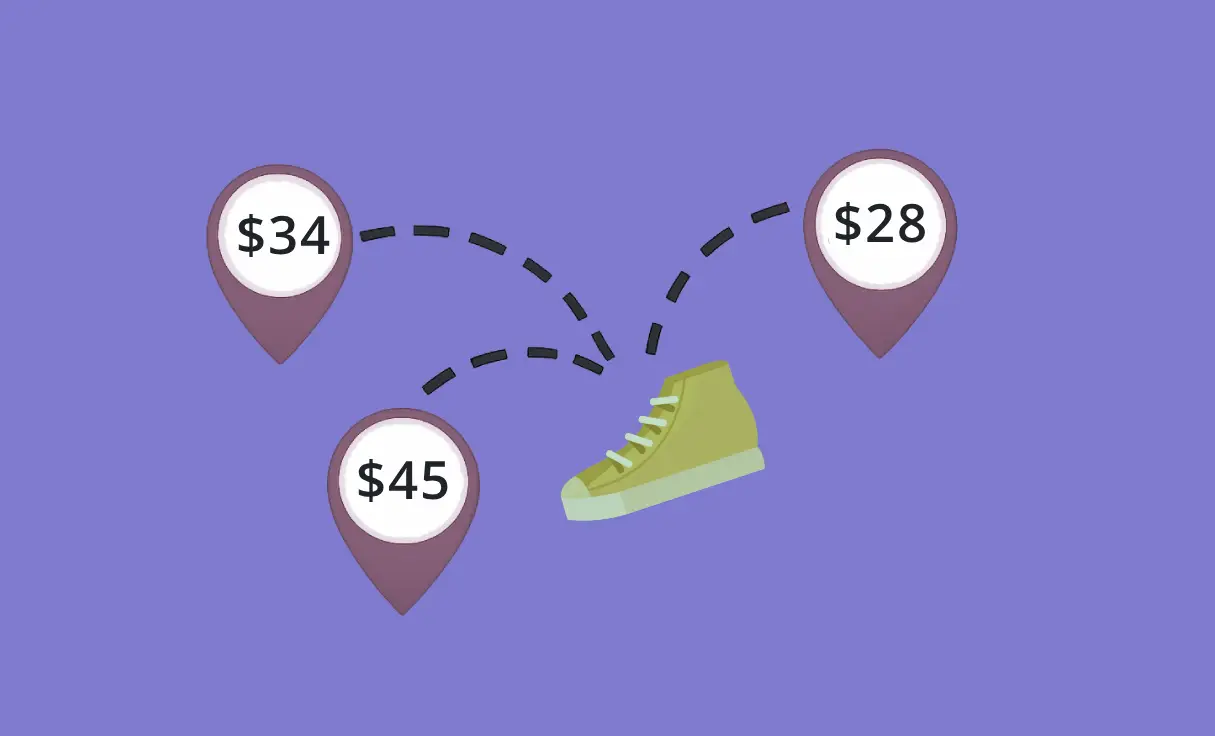
Adjust your product pricing or currency dynamically based on the visitor’s location to align with regional market strategies and maximize global revenue.
To implement geolocation-based pricing, you will create a duplicate of your product page and modify its price and/or currency settings. If-So then uses geographic rules to swap these versions, ensuring a visitor only sees the product category intended for their specific region while the “original” version remains hidden.
The system manages regional visibility through several technical layers:
- Category-Based Price Control: Automatically displays specific versions of products with adjusted pricing for visitors in targeted geographic zones.
- Consistent Price Display: Ensures that the localized price is reflected in all areas of the site, including search results, related products, and cart summaries.
- Direct Link Protection: Utilizes optional redirection to ensure that if a user accesses a product page intended for a different region, they are guided to the version with the correct local pricing.
Use cases
- Market-Specific Pricing: Set higher or lower price points for the same product in different countries to account for local purchasing power, competition, and logistics costs.
- Currency Familiarity: Show prices in the customer’s native currency (e.g., CAD for Canada, AUD for Australia) to reduce cart abandonment caused by “currency confusion” at checkout.
- Tax and Duty Inclusive Pricing: Display “all-in” prices that already include regional taxes or duties for specific international markets, providing total transparency from the start.
- Regional Sales and Clearances: Run a localized promotion in a specific currency for one state or country (e.g., a “Labor Day Sale” in USD) without affecting your global price list.
- Wholesale vs. Retail Territories: Show specialized pricing tiers to visitors from regions where you operate primarily as a wholesaler, while maintaining retail margins in other areas.
For Digital Agencies
Utilizing geolocation-based pricing and currency solves the challenge of international store fragmentation by providing a unified, automated financial structure. Designing these localized revenue systems demonstrates a commitment to operational efficiency, allowing agencies to build sophisticated e-commerce infrastructures that adapt to the complexities of global trade and regional economic shifts.
Step-by-Step: Setting Up WooCommerce Localized Pricing & Currency
- Assign Product Categories: In your WordPress dashboard, assign a specific category to the products you wish to hide or show (e.g., “UK_Only”).
- Access Geolocation Settings: Navigate to If-So → Settings, click the Add-ons tab, and scroll to the WooCommerce Geolocation section.
- Define the Rule: Select the product category you created and choose whether to Show or Hide it based on the visitor’s location.
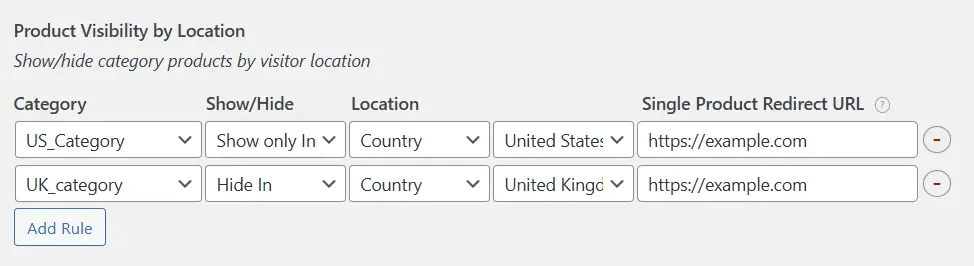
- Set the Geographic Target: Enter the specific countries, states, or cities where the rule should apply.
- Configure Redirection (Optional): Enter a redirect URL for single product pages. If a user tries to access a restricted product via a direct link, they will be sent to the page of your choice.
- Save and Verify: Save your settings. The products will now be automatically filtered from the site display and search results for the specified locations.