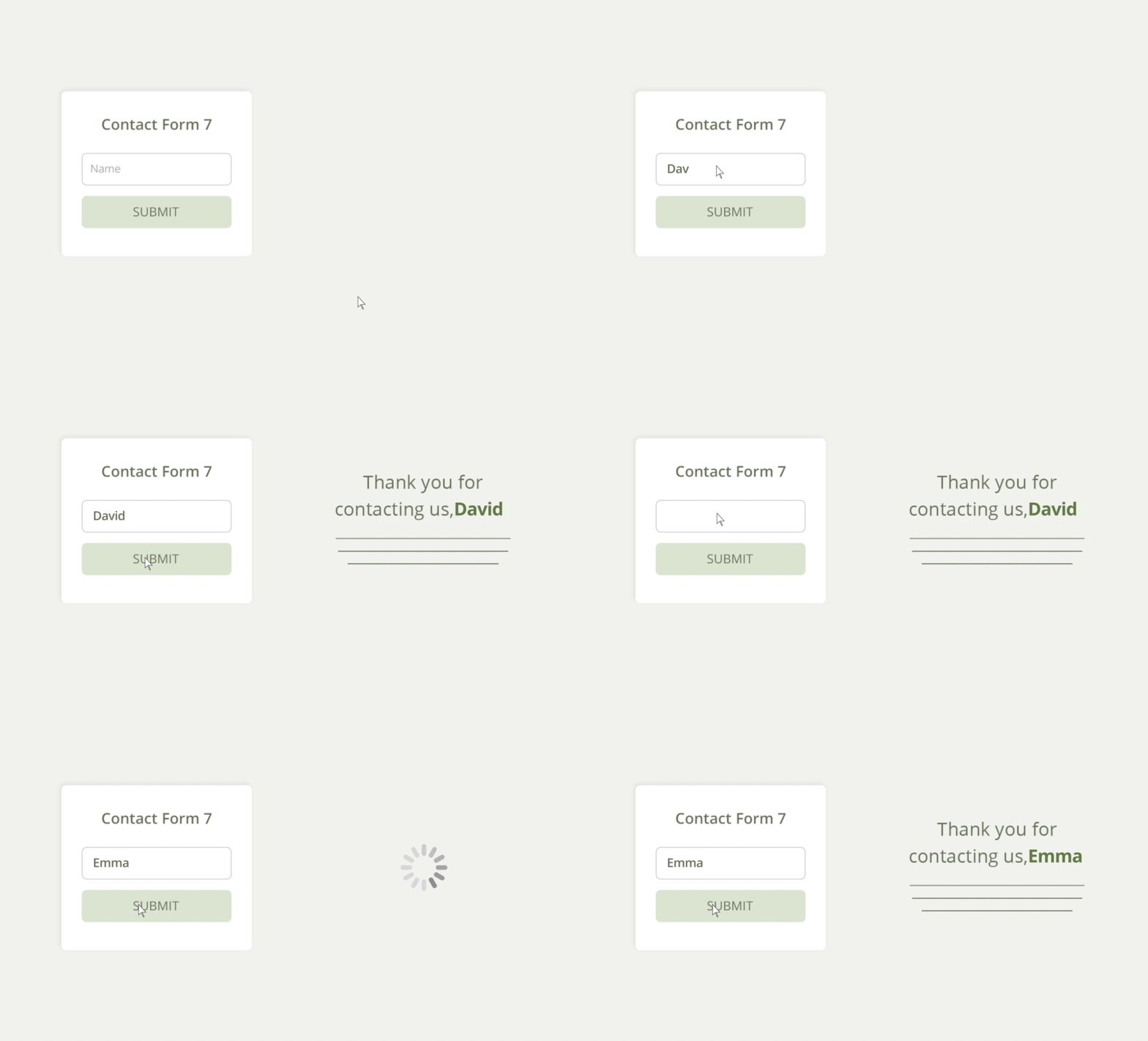
A standard “form submitted” message is often a missed opportunity for further engagement. CF7 Form-Based Dynamic Content allows you to capture the data a user just entered—such as their name, industry, or specific interests—and use it to personalize the very next page they see.
While this example focuses on Contact Form 7, this method is compatible with any form plugin or lead-capture tool that allows passing parameters to a redirect URL. By mapping form fields to URL parameters, you can create a seamless, data-driven transition from submission to conversion.
Use cases
- Personalized Gratitude: Pass the user’s name through the URL to greet them personally: “Thanks for reaching out, [Name]!”
- Industry-Specific Resources: If a user selects “Real Estate” in your form, automatically display a link to a Real Estate case study on the redirect page.
- Direct Data Display: Show the exact values the user entered (like a selected service or location) to confirm their request was received accurately.
- Service-Specific CTAs: Show a different calendar booking link depending on which service the user selected in the form.
Try it!
Enter your name and favorite color in the form below to see the result:
The ROI Connection: Immediate Lead Validation
Personalizing the first touchpoint after a form submission builds exceptional trust and accelerates your sales cycle. By delivering immediate, context-aware feedback, you transform a static confirmation page into a strategic tool that reinforces your authority and keeps momentum high while the lead is most engaged.
How to Display Dynamic CF7 Content Based on User Input
To dynamically display the user input from of a Contact Form 7 form, we will follow these 3 steps:
- Capture: You set up your form fields to collect the user’s information.
- Pass: A small script “grabs” that data and carries it over to your redirect URL.
- Display: If-So reads the URL on the new page and automatically swaps out content to match the user’s input.
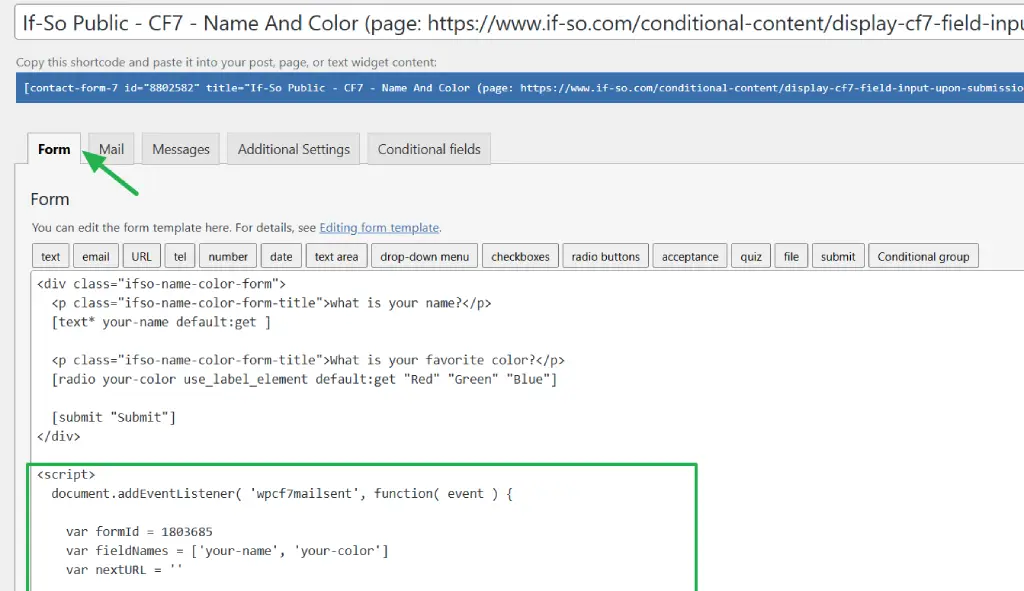
Step 1: Set Up the Contact Form
Create your form and identify the fields you want to track. In this example, we use your-name and your-color.
<p >what is your name?</p>
[text* your-name default:get ]

<p >What is your favorite color?</p>
[radio your-color use_label_element default:get "Red" "Green" "Blue"]

[submit "Submit"]
Step 2: Redirect and Pass Data via URL
Paste the JavaScript code below at the end of your form or directly into the page with your content form. It captures the inputs and appends them to your thank-you page URL as query strings.
Make sure to update the formId, fieldNames, and nextURL variables to match your site.
<script>

document.addEventListener( 'wpcf7mailsent', function( event ) {
  var formId = 111111
  var fieldNames = ['_name', 'your-color']
  var nextURL = 'https://example.com'

  if(event.detail.contactFormId == formId){
    let fields = event.detail.inputs.filter(input => fieldNames.includes(input.name))
    if ('URLSearchParams' in window) {
      var searchParams = new URLSearchParams(window.location.search)
      fields.forEach(field => searchParams.set(field.name, field.value));
      var newPath = nextURL ? nextURL : window.location.pathname
      var newPathQuery = nextURL + '?' + searchParams.toString();
      window.location = newPathQuery
    }
  }
}, false );
</script>
Step 3: Display the Dynamic Content
Once the user is redirected, use If-So to handle the data in one of two ways:
Option A: Direct Value Display (DKI)
To automatically “echo” exactly what the user typed (like their name), use the Query String DKI shortcode:
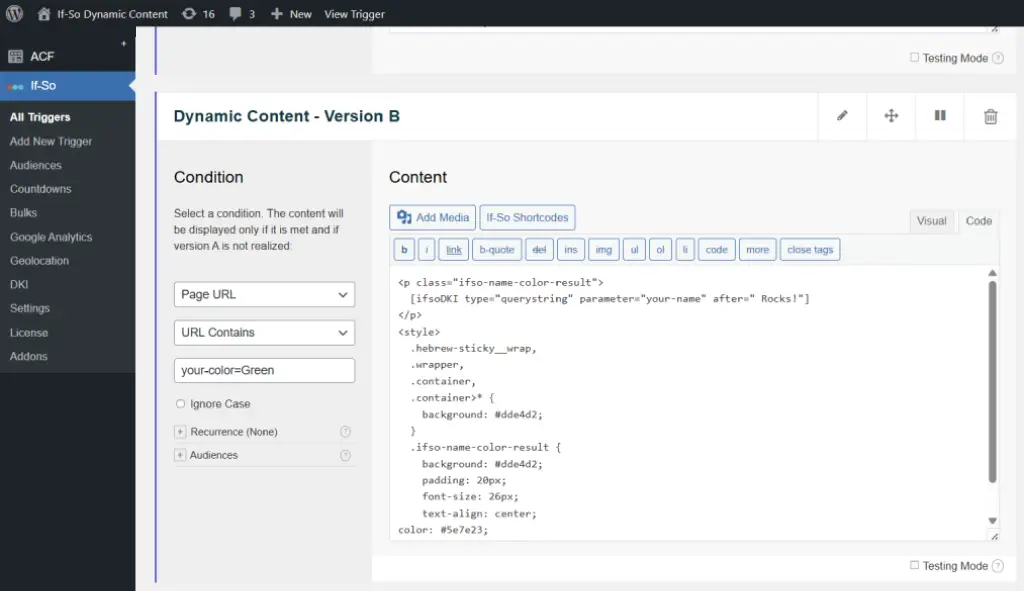
Option B: Conditional Content (Trigger)
To show specific content based on a choice (like changing the page style for “Red”), follow these steps:
- Create a new If-So Trigger.
- Select the Page URL condition and the URL Contains operator.
- Enter your parameter and value (e.g., your-color=Red).
- Add the unique content for that version and repeat for other values (Green & Blue in our example).
- Paste the Trigger shortcode onto your thank-you page.
Screenshots