Use cases
- “Complete the Look”: Suggest a matching accessory (like a phone case or charger) based on the specific product currently in the cart.
- Bulk Discount Nudge: If a user has one item in their cart, offer a “Buy 2 more and get 20% off” pop-up to increase Average Order Value (AOV).
- Best-Seller Cross-Sell: Recommend your most popular low-cost item as a “last-minute grab” similar to the checkout aisle in a physical store.
- Extended Warranty Offer: Trigger a pop-up offering a 1-year protection plan just as the user navigates to the checkout page for electronics or appliances.
Targeting options
Use the pop-up for upselling and cross-selling based on the visitor’s interaction with the site.
- Suggest products based on a product the user has added to the cart
- Suggest products when the user clicks the checkout button
- Suggest products based on the user’s previous purchases
- Suggest products on discount if the total value of items in the cart is greater than…
- Offer a discount on exit intent
Implementation Overview
Setting it up is extremely simple:
1. Create an If-So trigger: Target the relevant locations by listing specific cities or regions to cover your entire service area.
2. Choose your copy and style: Customize your preferred template from the gallery above and paste the code into the trigger’s content field.
3. Go live: Add the trigger’s shortcode to your site (with If-So, you can easily place the trigger at the top of every page at once).
Ready-to-Use Templates for Quick Implementation
To make implementation as easy as possible, we’ve included pre-designed layouts you can use instantly. While you are free to build your own from scratch, these mobile-optimized templates allow you to simply select a style, add your address, and go live in minutes.
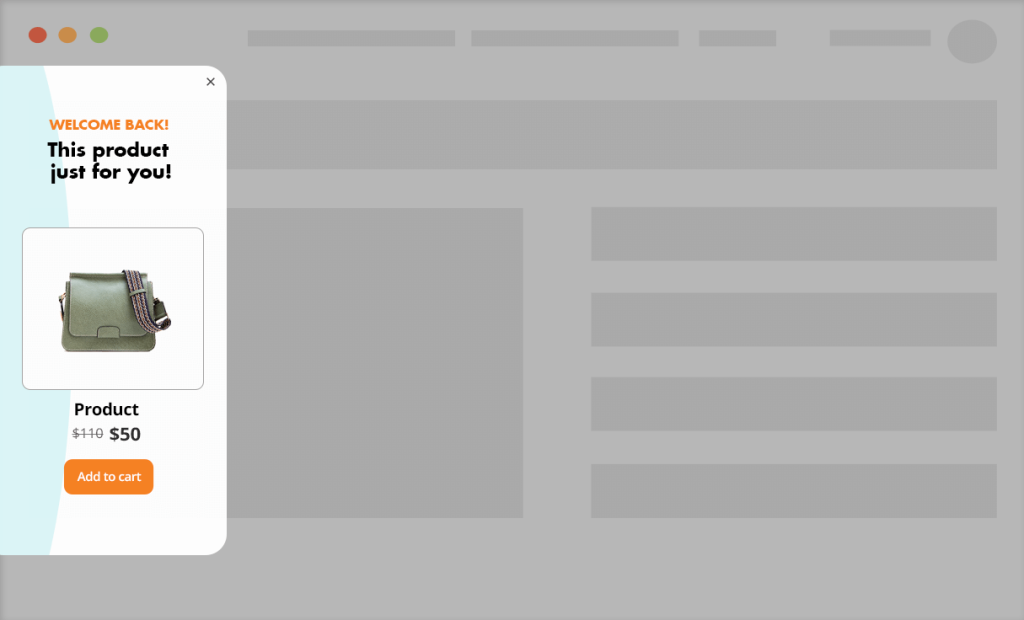
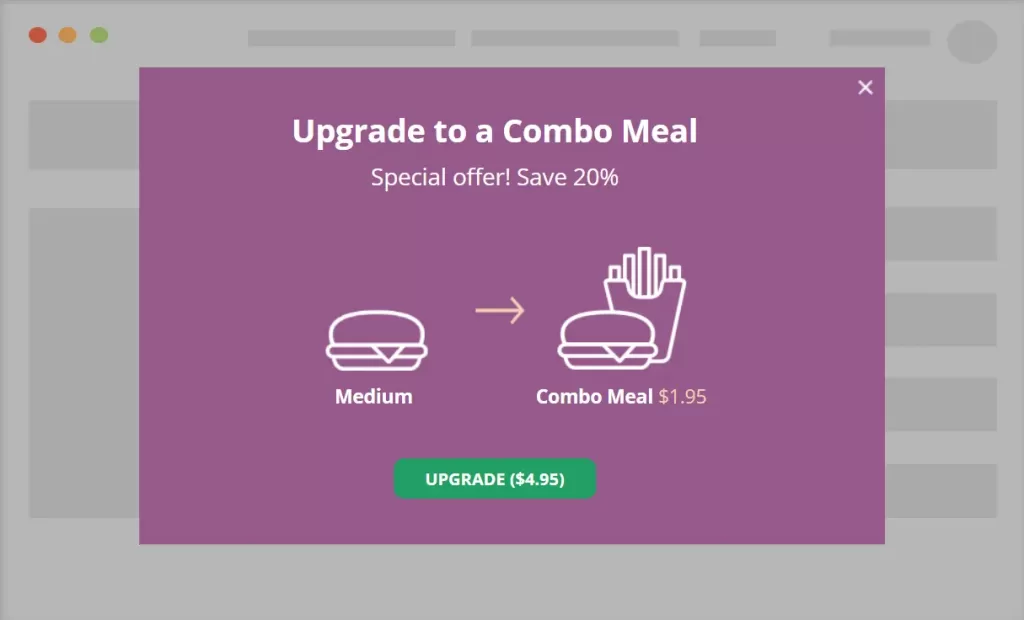
Display the pop-up when the user clicks the “checkout” button
If-So allows you to choose one trigger that will be displayed right after the user clicks the checkout button. Combined with our “Replace a product” shortcode, you can use this option to increase the customer’s average order value by offering special discounts if they add another product or replace the product on their cart.
The pop-up will be displayed only if the condition is met, for example: If: Product in the cart > Is > “Computer” Then: “Click this button to add a mouse at 20% off”.
To set the trigger that will be displayed at checkout, add the code below to your functions.php. Make sure to replace the shortcode’s ID (123) with the ID of your chosen trigger.
add_filter('ifso_woocommerce_before_order_modal_content_trigger_id', function($id){return 123;});The “Replace a product” button
this template is commonly used with the “Replace product” shortcode. The shortcode allows you to display a button that removes certain items from the cart and replaces them with others.
The button can be used both for up-selling, and cross-selling.
To create the button, simply copy and paste the shortcode below to your site, and select the products and the number of units you want to replace.
[ifsoWC type='replace-product-button' add='123' remove='234' amount='2' submit='BTN TEXT' reload='yes' ajax='yes']Click here to learn more about the “replace Product” shortcode