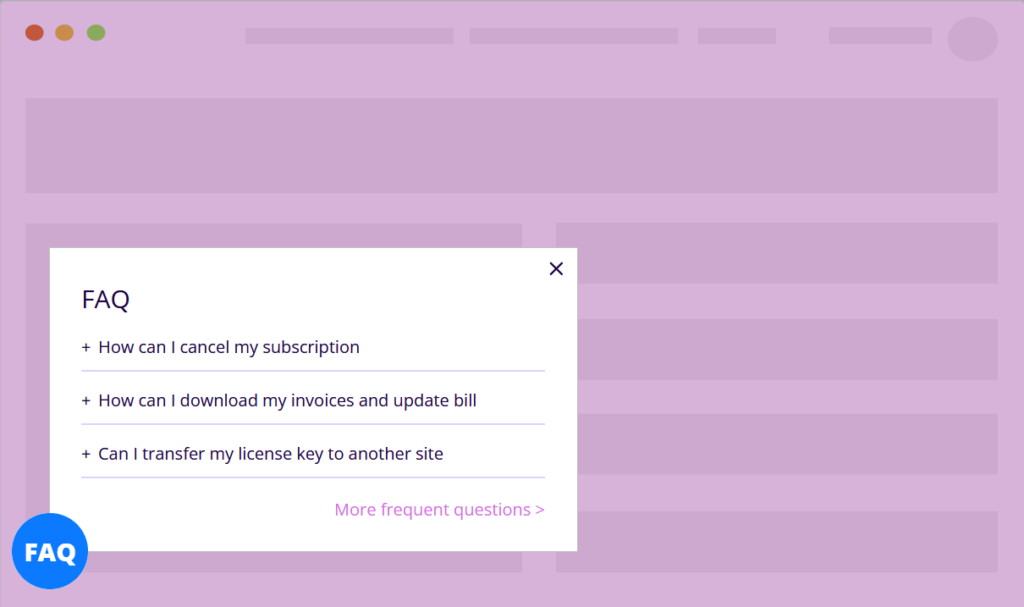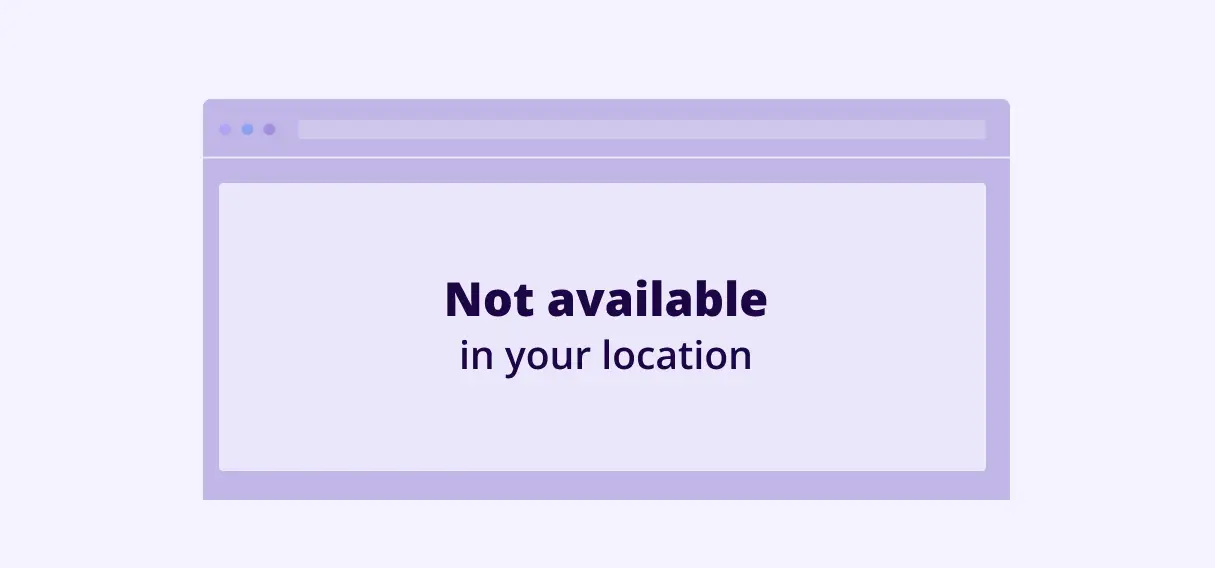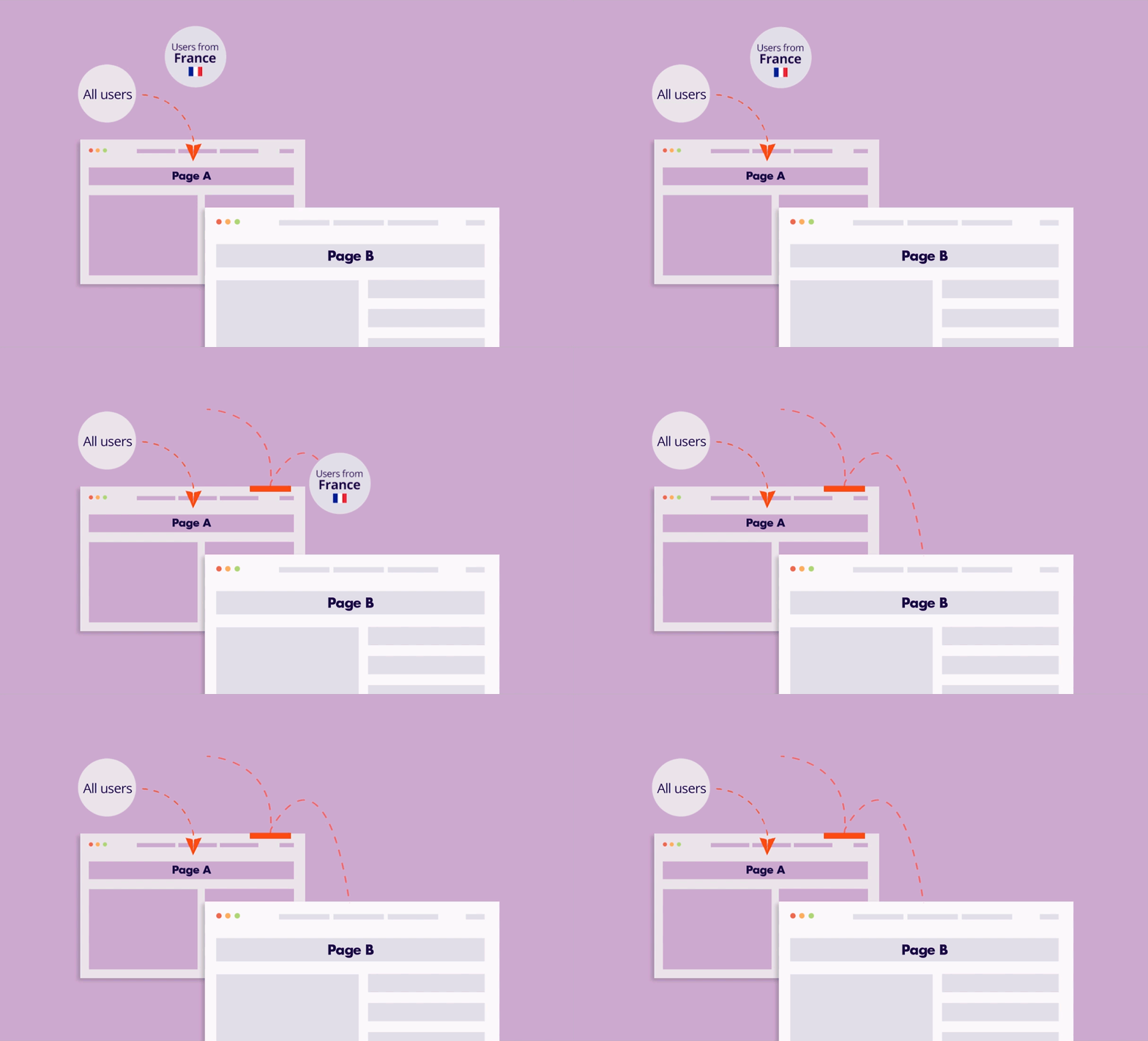
Use cases & Targeting options
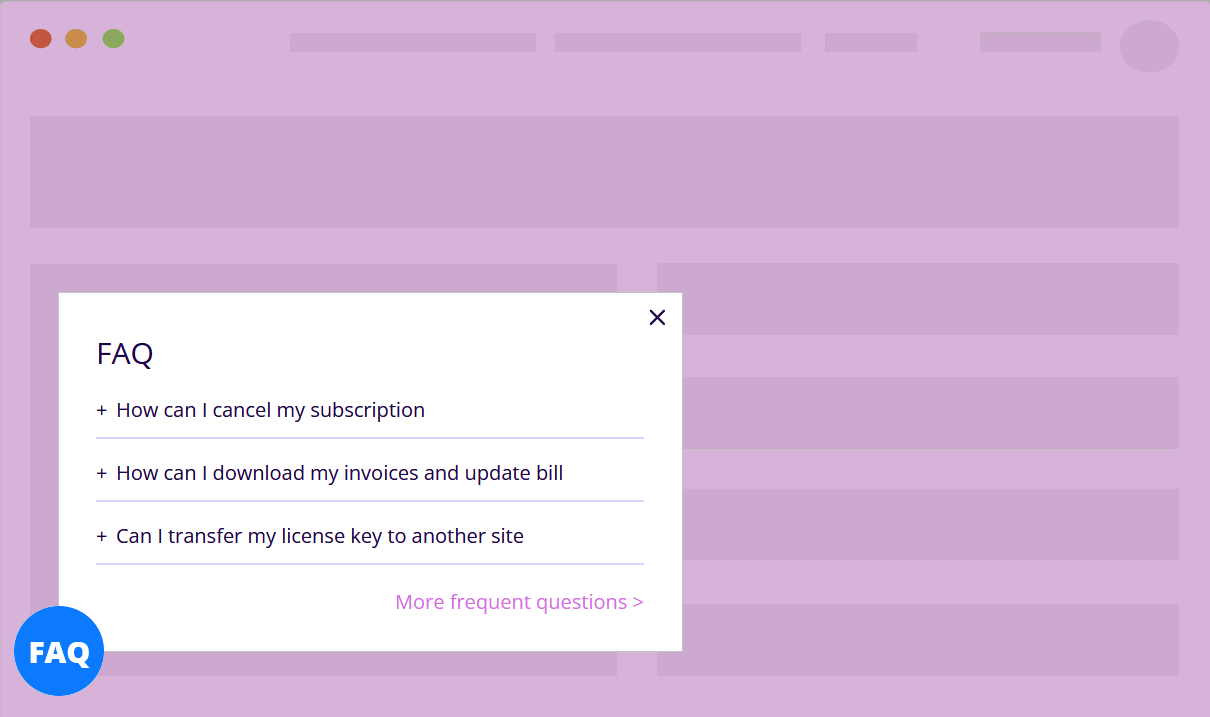
- Show common questions relevant to the product the user has just purchased
- Overcome sales resistance
- Reduce the number of support tickets by directing users to relevant information
- Display relevant answers to users arriving at your site through a link in your product’s microcopy
Implementation Overview
Setting it up is extremely simple:
1. Create an If-So trigger: Target the relevant locations by listing specific cities or regions to cover your entire service area.
2. Choose your copy and style: Customize your preferred template from the gallery above and paste the code into the trigger’s content field.
3. Go live: Add the trigger’s shortcode to your site (with If-So, you can easily place the trigger at the top of every page at once).
Ready-to-Use Templates for Quick Implementation
To make implementation as easy as possible, we’ve included pre-designed layouts you can use instantly. While you are free to build your own from scratch, these mobile-optimized templates allow you to simply select a style, add your address, and go live in minutes.