

Troubleshooting

If the issue you encountered is concerning our geolocation service please check out our geolocation troubleshooting guide and geolocation FAQ page.
General
- Troubleshooting – The Geolocation Condition
If you have set up a geotargeted content and it doesn’t seem to be working as expected, follow the troubleshooting steps below. Each step covers a common issue and how to verify it.
1. Are you testing the site on a local server or internal environment?
The geolocation condition uses an external API to identify the visitor’s location. It can only work on a live, publicly accessible website. Local or internal environments do not support IP-to-location lookups.
2. Is there a communication issue between your server and ours?
- In your WordPress dashboard, go to If-So → Geolocation.
- Look at the value next to “Sessions used this month.”
If it shows 0/0, it usually means your server cannot reach our geolocation service.
Please fill out this form and our support team will take it from there.
3. Are you testing the site using a VPN?
If-So’s geolocation condition may not take action when browsing the site through some VPNs. If you don’t see the geo-targeted version, it doesn’t necessarily mean the condition isn’t working properly.
Instead, try:
- Targeting your own actual country to verify the trigger – Set the condition to “Is” > {your country} to confirm the content displays correctly, or set it to “is not” > {your country} to verify that the fallback or default version appears.
- Here is the corrected and polished version:
- Try testing the page using an online proxy server or a different VPN. We use NordVPN for our testing.
4. Are you using a caching plugin or CDN?
Caching shows visitors a pre-rendered version of the page. If you use a caching plugin, server cache, CDN, or any type of page caching, enable If-So’s Page Caching Compatibility option to ensure your geotargeted content loads via Ajax after the cached page is served.
- Go to If-So → Settings.
- Enable the Page Caching Compatibility options
Elementor users:
In adittion to the steps above, go to Elementor → Settings → Performance (tab) → Change the Element Cache to Disable, and let me know if it solves the problem.
For a deeper explanation of page caching and If-So’s caching compatibility.
5. Is your location being detected inaccurately?
No IP-to-location service is 100%. The accuracy of a location depends on many factors, the most important being the ISP of the address. The accuracy is generally higher for fixed lines than it is for cellular networks. Learn more here about geolocation accuracy.
Below is how If-So recognizes your location. If you have set up a trigger targeting your actual location but the detected value is incorrect, the dynamic version will not be displayed as expected.
Continent:
Country:
State:
City:
Timezone:
Do you see the correct location in the above list?
✅ Yes → Double-check that your dynamic content is being loaded via Ajax (see the step above).
❌ No → Check out the three options below:
- Accuracy issues can be corrected within 24 hours – Fill out this form and we will ask our database provider to review and correct the IP record.
- If you are targeting users at the city level, consider using our HTML5 Geolocation API instead of, or in addition to, the IP-to-location service.
- Consider adding a Location Override Form to let users select their correct location manually.
6. Do you have enough geolocation session credits?
Unlike other If-So conditions, geolocation usage is limited by monthly sessions. If you run out of credits, the default content (fallback content) will be displayed instead of the geotargeted version.
To view your monthly session usage, go to If-So → Geolocation in your WordPress dashboard.
7. Are you using Cloudflare?
From time to time we encounter conflicts between our geolocation service and Cloudflare. We can solve them! Paste the following code at the end of your functions.php file and try again. If it doesn’t solve the problem, please contact our support.
add_filter('ifso_user_ip',function(){
$ip = null;
if (!empty($_SERVER['HTTP_CF_CONNECTING_IP']))      //Cloudflare
$ip = $_SERVER['HTTP_CF_CONNECTING_IP'];
elseif (!empty($_SERVER['HTTP_CLIENT_IP']))
$ip = $_SERVER['HTTP_CLIENT_IP'];
elseif (!empty($_SERVER['HTTP_X_FORWARDED_FOR']))
$ip = explode(',',$_SERVER['HTTP_X_FORWARDED_FOR'])[0];
else
$ip = $_SERVER['REMOTE_ADDR'];

if(!empty($ip)){
$ip = explode(':',$ip)[0];
}

return $ip;
});
None of the above solutions worked?
Please contact our support team and provide the following information:
- A screenshot of how you have set up the geo-targeted content (editing interface).
- A link to a live testing page where you have pasted the following content:
Country: [ifsoDKI type='geo' show='country' ajax=’yes’ fallback='']
State: [ifsoDKI type='geo' show='state' ajax=’yes’ fallback='']
City: [ifsoDKI type='geo' show='city' ajax=’yes’ fallback='']
Continent: [ifsoDKI type='geo' show='continent' ajax=’yes’ fallback='']
Related FAQs
- The geolocation session count doesn't seem accurate
The geolocation service is powered by an IP-to-location API. When a user visits a page with a geolocation condition or DKI shortcode for the first time during their session, a request is sent to the geolocation database to compare the user’s IP with the location information stored in the database.
What is a geolocation session?
A geolocation session starts when a visitor first accesses a page with a geolocation trigger or a Geolocation DKI shortcode and lasts until the visitor closes their browser or has been inactive for 25 minutes (note that this time frame may vary slightly depending on the browser and server hosting the website).
Not every page view should count as a session!
- The geolocation session is initiated only when a visitor accesses a page with a geolocation trigger or a geolocation DKI shortcode, and a request to the IP-to-location API is made to compare the visitor’s IP with the location in the database.
- If the user browses several pages within the same visit, it will still be considered a single session. The session will end when the visitor closes the browser or after 25 minutes of inactivity, though this duration may vary slightly depending on the browser and server.
Blocking IPs from the geolocation service
If-So offers two options to help identify and block bots — we recommend using both.
- “Block Bots” mode – automatically blocks search engines and bots that declare themselves as bots.
- Manual blocking – logs all geolocation requests, provides a list of IPs that extensively tri
Click here to learn how to activate these options.
- The geolocation session is initiated only when a visitor accesses a page with a geolocation trigger or a geolocation DKI shortcode, and a request to the IP-to-location API is made to compare the visitor’s IP with the location in the database.
- Communication Failure (Geolocation service)
If the value of the “Sessions used this month” is 0/0 then it’s probably a communication failure between your server and ours. Don’t worry, we can easily solve it. Please try to activate geolocation or a free-trial license and use the form below to send us your domain:
- Pop-up not displaying
If your conditional pop-up isn’t appearing as expected, don’t worry – follow the steps below to identify the issue and resolve it quickly.
1. Isolate the problem
Test how the trigger displays when not used as a pop-up
First, verify whether the issue is with the pop-up itself or with the dynamic content/condition inside it.
- Add a text indication to each version of the trigger (e.g., “This is version A” and “This is the default version”).
- Create a new blank test page and paste the trigger shortcode directly into the main content area – not as a pop-up.
- Publish the page and view it in a new incognito window.
- Check whether you see the trigger’s content and which version appears.
Do you see the content of one of the versions?
- ✅ Yes → The trigger works. Check if you see the correct version.
- ❌ No → The problem is with the trigger content, dynamic conditions, or geolocation. Continue below.
Do you see the correct version of the tirgger?
- ✅ Yes → The condition works. The issue is likely related to pop-up configuration or caching.
- ❌ No → The condition may be misconfigured, or caching is preventing the correct version from loading. Try another condition to see whether the issue is with the condition setup. If you are using a geolocation condition, check our geolocation troubleshooting guide.
2. Review the pop-up configuration
If the trigger and condition work, the next step is verifying your pop-up settings.
Check the following:
- Make sure the Trigger Events Extension is insttalled and active on your site.
- The display rule (page load, delay, click, exit intent, inactivity) is correctly configured and tested correctly.
- The pop-up is not restricted by a duration or identifier you previously tested (idealy, make each test in a new incgnito window to avoid cookies).
- The pop-up shortcode is placed on the page you are testing.
- The trigger was embeded on the page using the pop-up shortcode.
✅ A pop-up shortcode
[ifso id="123" ajax="yes" display="modal"]❌ A trigger shortcode
[ifso id="123"]Still doesn’t work? We’ll help!
If the issue persists, please contact our support team and include the following:
- Where the pop-up is placed (page, trigger, element, WooCommerce, etc.).
- Which condition you’re using (geolocation, date/time, query string, etc.).
- Whether the trigger works without the pop-up.
- Whether it works on a blank test page.
We’re happy to take a look and help troubleshoot further. Contact support.
- Redirect feels slow or delayed
If your redirect doesn’t fire immediately, the issue is usually related to how the trigger is loaded. Here’s how to ensure the redirect runs as quickly and smoothly as possible:
Why Ajax affects redirect speed
When a trigger loads with Ajax, the dynamic content is fetched after the static part of the page has already loaded from the cache. This means the redirect can only occur once the Ajax request finishes — resulting in a short delay.
Strong caching paired with inefficient site construction can cause redirects to feel slower.
How to speed it up
To make the redirect fire instantly:
- Make sure to load the trigger without Ajax. The best practice is to add the parameter ajax=”no” to the trigger’s shortcode so that even if you change the Ajax settings on your site in the future, the trigger with the redirection will not be affected.
Disabling Ajax means the page must be excluded from caching, so weigh this decision based on SEO needs, performance, your specific use case, and how well the page performs without caching - Use a 301 or 302 redirect (and not a JS redirect).
- Consider embedding the If-So trigger to the page using a PHP code directly in the page template.
- Make sure to load the trigger without Ajax. The best practice is to add the parameter ajax=”no” to the trigger’s shortcode so that even if you change the Ajax settings on your site in the future, the trigger with the redirection will not be affected.
- A long delay before content appears
The delay occurs due to Ajax loading, where the page initially loads from the cache, and dynamic content is rendered only after the page finishes loading. This process is necessary when utilizing both page caching and dynamic content.
The page cache is actually a ‘snapshot’ of the page that is being served to the user. Dynamic content, which changes based on the user, needs to be loaded separately.
Solution 1: Exclude the page from the cache, and load the dynamic content without Ajax
A straightforward solution is to exclude the page from the cache and load the dynamic content without Ajax.
Loading a specific trigger without Ajax can be achieved by simply adding the parameter “ajax=”no” to the trigger’s shortcode.
Nonetheless, this approach involves a tradeoff between page cache utilization and dynamic content functionality. When making the decision there are two factors that are worth to consider:
1. The loading speed of the page without page cache.
2. The importance of the page for SEO, including its ranking and potential to rank higher.Solution 2: Optimize the user experience
If excluding the page from the cache is not an option, you can explore the following solutions to optimize the dealy:
1. Configure what If-So displays between the appearance of cached content and dynamic content
If-So offers three options:
- Displaying a loader animation
- Showing nothing
- Displaying default content.
In many cases, displaying default content can be an optimal solution, particularly when the size of the default content closely matches that of the dynamic content. For instance, if the dynamic content is a button and the size of both the default and dynamic buttons is similar, users may hardly notice the content change.
More information about the animated loader option and instructions on how to set it up.2. Technical Optimization (requires a developer)
- Consider upgrading the server’s resources to improve performance
- Optimize the site for faster loading by reducing server response time and streamlining the site’s structure
- Minimize the size and complexity of content loaded via Ajax. This may involve compressing images, and eliminating unnecessary elements to enhance loading speed
- "Communication Error" Notice
It appears that there is a communication issue between our server and yours. No need to worry though, we can resolve it. Kindly follow these two steps:
- Please attempt to activate a license on your site. Although the activation may not be successful, the information necessary for troubleshooting will be automatically sent to our team (you can get a free license here).
- Fill out the form below, providing us with your website’s URL.
- I don't see the content/correct version
Stay calm and refer to our Geolocation Troubleshooting guide for assistance.
- The geolocation session count appears to be inaccurate.
Inaccurate session counts can occur when bots visit the website. Learn about possible solutions to address this issue.
- Location override form - Country flags not visible
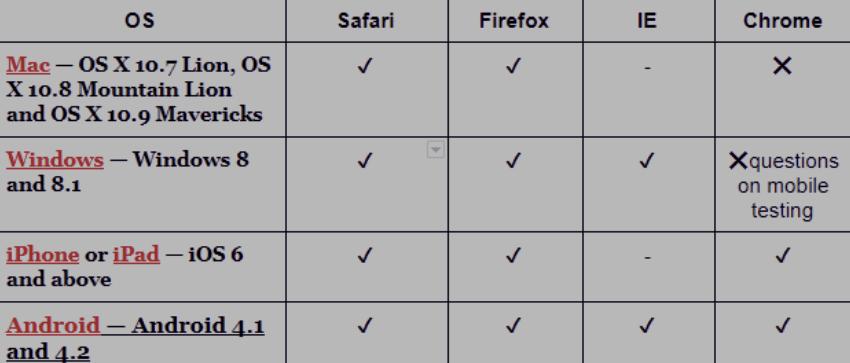
If you are unable to see the country flags, it is likely because your browser does not support emoji display by default (Google Chrome on a desktop for example).
Browsers that have built-in support for displaying emojis
- I'm not seeing the correct version
If you are not seeing the correct version or only observe it under specific conditions (such as being logged in, using a particular browser, or on a specific device), it is most likely that the issue is related to viewing a cached version.
This problem can be easily resolved by utilizing our Page Caching Compatibility (Ajax loading) option.
Please be aware that when using Ajax to load content, there may be a slight delay between the display of static content and dynamic content. Learn more about Ajax loading and its functionality.
To load the content using Ajax, follow these steps:
Dynamic Triggers
Add the parameter ajax=”yes” to the trigger’s shortcode. Alternatively, go to If-So > Settings on your WordPress dashboard and enable the Ajax Loading (page caching compatibility) option to apply it to all of your triggers by default.
[ifso id='123' ajax='yes']DKI shortcodes
Add the parameter ajax=”yes” to the trigger’s shortcode.
[ifsoDKI type='geo' show='country' ajax='yes' fallback='']Conditional Elementor and Gutenberg Blocks
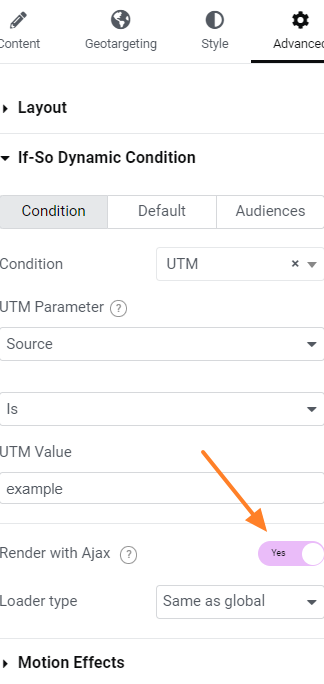
Enable the Ajax Loading option separately for each conditional element/block. The option can be found below the element/block condition.
- Versions are deleted after publishing/updating
This issue might be caused due to a low value at the max_input_vars parameter.
To fix this problem, go to PHP settings (either php.ini directly or some GUI) and change the max_input_vars parameter(3000-3500 is probably a good range to start with). Learn how to do it.
*What is PHP max input vars?
The PHP Max Input Vars is the maximum number of variables your server can use for a single function.Please note that if you have a need to create many versions, we highly recommend exploring our CSV Extension as an alternative to dynamic triggers. This approach offers several advantages, including faster content loading and easier management in both the short and long term.
- Conversions in the built-in analytics are not being recorded
Before you proceed: Make sure you’re conducting the test while logged out of the site (or logged in as a non-admin user). The easiest way to do this is by opening the page in a private (incognito) window while performing the test.
1. Check Analytics Settings
Go to If-So > Settings > Analytics- Ensure that “Disable analytics” is unchecked
- Try changing the status of “Use Ajax for analytics calls” — toggle it and test again
2. Clear Your Site Cache
If you’re using caching on your site, make sure to purge the cache before testing.3. Still Not Working?
Try temporarily disabling other plugins or caching layers to rule out conflicts - Conditional redirect not working
If your conditional redirect isn’t working as expected, don’t worry – follow the steps below to identify the issue and get it resolved quickly.
1. Isolate the problem
Test the redirect outside the trigger
Paste the redirect shortcode directly into the main content field of a new test page (without using a trigger).
- Create a new blank test page.
- Paste the redirect shortcode directly in the main content area (without using a trigger or dynamic content).
- Visit the page and see whether the redirect works.
Did it work?
✅ Yes → The redirect code works. Move on to checking your condition.
❌ No → The issue is likely with the redirect setup. Jump to the “Redirect shortcode issues” section.Verify that the condition is being met
- In your trigger (or dynamic content block), add a simple text indicator before the redirect — e.g., “This is a version A”.
- Add a text indicator to the default version — e.g., “This is the default version.”
- Visit the page in an incognito window (to avoid admin/existing-cookie interference).
Does it work?
✅ Yes → If you the correct version the issue is either the redirect type or a caching issue.
❌ No → If you don’t see the correct version → The condition may be misconfigured, or caching is preventing the dynamic version from loading.Works? The issue is likely related to the redirect shortcode itself, or a caching conflict.
❌ Didn’t work? The condition may be misconfigured or the content might be blocked by caching.2. Check caching settings
Caching is the most common reason redirects don’t fire as expected.
- Try loading the trigger with and without Ajax (Page Caching Compatibility) to determine if caching is interfering. How to enable/make sure the Ajax loading is enabled.
- Try switching to a JavaScript redirect by adding the parameter type=’js’ to your redirection shortcode. For example:
[ifso-redirect url='https://example.com' type='js']If JavaScript redirection works, the issue is almost certainly caching-related.
Try loading the content with and without Ajax (Page Caching Compatibility) to determine if caching is interfering. How to enable/make sure the Ajax loading is enabled.
Still not working? We’ll help!
If the issue persists, please contact our support and share the following:
- Where the redirect is placed (page, trigger, element, popup, etc.).
- Which condition you’re using.
- Whether the redirect works on a blank test page.
We’re happy to take a look and help troubleshoot further. Contact support
- Content is not functioning correctly while dynamic content is loaded using Ajax
When you choose to load the dynamic content using Ajax, the content is loaded in a separate request to the server after the static content loads from the cache (click here to learn more about how Page Cache works).
In some cases, JavaScript-based content does not function correctly when loaded using the If-So AJAX option. This happens because JavaScript that is loaded dynamically (via AJAX) does not always execute properly, especially if the script relies on the initial page load to run.
Why Does This Happen?
When a page loads normally, all scripts included in the page’s HTML are executed as part of the initial rendering process. However, when content is loaded dynamically via AJAX:
- The new content is injected into the page, but the JavaScript inside it does not automatically reinitialize.
- Certain scripts may be missing required event listeners or dependencies.
- Some JavaScript libraries (such as jQuery plugins or animations) only execute on the initial page load and do not detect new elements added via AJAX.
Make sure the problem is caused due to the Ajax Loading
To check if the problem is caused by the Ajax loading, go to If-So > Settings (on your WordPress dashboard) and disable the Page Caching Compatibility option. Alternatively, depending on how you have set the dynamic content, you can disable the Ajax loading specifically for the content that’s experiencing problems:
- Dynamic triggers: Add the attribute ajax=”no” to the trigger’s shortcode.
- Gutenberg / Elementor blocks/elements: Make sure the “Ajax Loading” option is off.
Solutions:
Before checking the possible solutions, bear in mind that If-So allows you to disable the Ajax loading for a specific trigger by adding the parameter ajax=”no” to the trigger’s shortcode.
There might be use cases in which page caching is not relevant or crucial, so excluding it from the cache might be the best option. Two popular use cases in which you might prefer excluding the page from the cache:
- If you are using one of the query-strings conditions (UTM Parameters, the Dynamic Link, or the Page URL conditions) – Most caching plugins do not cache URLs with query strings anyway. If you are using the UTM Parameters, the Dynamic Link, or the Page URL conditions (with query parameters), your pages aren’t cached anyway (or can be cached separately).
- No significant meaning to the loading speed – If the page on which you use the dynamic content is an internal page with no significant value to its loading speed (your ‘thank-you’ page, for example).
Elementor users
If the issue you experience is related to an Elementor element, paste the code below on your functions.php file:
wp_register_script( 'ifso-dummy-enqueue-to-attach-to', '',);
wp_enqueue_script( 'ifso-dummy-enqueue-to-attach-to' );
wp_add_inline_script( 'ifso-dummy-enqueue-to-attach-to', "
document.addEventListener('ifso_ajax_triggers_loaded',function(){
 elementorFrontend.init();
});");
All other cases except Elementor (dev skills are required)
If-so provides javascript events that are fired after the Ajax content has been loaded, making it easy to initialize your content after the dynamic content has been loaded:
ifso_ajax_content_loaded – Fires after any type of dynamic content has been loaded via Ajax – triggers, standalone conditions, and bulks.
Example:
document.addEventListener('ifso_ajax_content_loaded',function(){  document.getElementById('myClickButton').addEventListener('click',myClickCallback);
});
Fire the event only after a specific type of dynamic content was loaded via Ajax
Ifso_ajax_triggers_loaded – Fires when the dynamic content created using If-So triggers present on the page has been loaded.
Ifso_ajax_conditions_loaded – Fires when the dynamic content in all of the If-So standalone condition widgets (Gutenberg, Elementor) present on the page has been loaded.
ifso_ajax_bulks_loaded – Fires when dynamic content created using the If-So Bulks (CSV) extension was loaded.Workaround #1 (for non-developers) – Using CSS to Control Content Visibility Instead of JavaScript Execution
Instead of loading JavaScript-based content dynamically via AJAX, a more reliable approach is to load all versions of the content initially and control visibility using CSS. This ensures that JavaScript executes as expected without needing to reload scripts after the content is inserted.
Step-by-Step Guide to Implement the Solution
- Assign Unique IDs to the Content Sections
- Identify the different versions of content that need to be conditionally displayed.
- Assign unique IDs to each version to enable targeted visibility control (e.g., #versionA, #versionB, etc.).
- Use an If-So Trigger to Control Visibility
- Create an If-So trigger based on the desired condition (e.g., geolocation, user behavior, referral source).
- Instead of dynamically replacing content via AJAX, use CSS to hide/show sections.
- Apply CSS to Hide Content by Default
- When adding content in Text Mode (HTML mode) inside the If-So trigger, wrap it with <style> tags to ensure visibility is controlled via CSS. For example, the following CSS will hide the section with the ID #versionA.
<style> #versionA { display: none; } </style>- Insert the Trigger at the Bottom of the Page
- The relevant CSS will be excuted based on the triggers condtions.
*Don’t forget: If you were previously using Elementor conditions or other built-in display rules, remove them so that all content versions load together on the page. The If-So trigger will handle visibility instead.
By following this method, you ensure that JavaScript-dependent content functions correctly while still achieving dynamic, condition-based personalization.
Workaround #2 (for non-developers)
A non-elegant solution that works in some cases is to include an invisible (hidden with CSS) copy of the dynamic content and load it without Ajax. This would allow the initialization routine to run in addition to the content loaded with Ajax.
To hide the content from the user, wrap the content in a div with a display:none attribute and apply it to the page inside an HTML/code module.
If you’re not familiar with HTML and CSS, you can copy and paste the following code to your site. Just make sure to replace the trigger’s ID (123) with the ID of your trigger.
[ifso id="123" ajax="yes"]<p style="display:none;">[ifso id="123" ajax="no"]</p> - Conditional content stops displaying after a few hours
This issue occurs on websites that utilize caching and load dynamic content via Ajax.
The issue arises because the dynamic content is loaded via an Ajax request, while the page itself is cached. In WordPress, a security token called a nonce is used to verify that the request is legitimate. However, when the page is cached, the nonce generated for the initial page load may not match the nonce expected by the Ajax request. This mismatch prevents the proper loading of the dynamic content, leading to the issue.
The Solution
The key is to get the Cache Lifespan value set just low enough that the cache will expire before the nonce does. We strongly recommend setting the cache lifespan to 6 hours or less.
How to set the cache lifespan in some of the most popular caching plugins:
- WP Super Cache
- W3 Total Cache
- WP Rocket
- WP Fastest Cache
- WPOptimize
WPOptimize users
If you are using WPOptimize, there’s another configuration that might cause a similar issue. Follow the instructions below if setting the cache lifespan to 6 hours didn’t work:
- On your WordPress dashboard, go to wp optimize->minify->javascript
- Add the following string (exactly as it is) to the Exclude JavaScript from processing field:
/wp-content/plugins/if-so/public/js/if-so-public.js
- Warning: session_start() open error
If you encounter a warning that starts with:
Warning: session_start(): open(/var/cpanel/php/sessions/....)Or with:
Warning: session_start(): Failed to read session data: (path: /var/cpanel/php/sessions/...)It’s probably because of a lack of PHP writing permissions to the directory where sessions are set to be saved (you can see the path on the error message).
To fix this, you could either select “Disable use of PHP sessions” in if-so settings (on your WordPress dashboard), or contact your hosting company and ask them to change the session saving path (or allow PHP write access to it).
- Dates in your session log are not being displayed due to incorrect formatting.
Coming soon…
If you encounter this problem, please feel free to contact us at support@if-so.com.
- The geolocation session count doesn't seem accurate
The geolocation service is powered by an IP-to-location API. When a user visits a page with a geolocation condition or DKI shortcode for the first time during their session, a request is sent to the geolocation database to compare the user’s IP with the location information stored in the database.
What is a geolocation session?
A geolocation session starts when a visitor first accesses a page with a geolocation trigger or a Geolocation DKI shortcode and lasts until the visitor closes their browser or has been inactive for 25 minutes (note that this time frame may vary slightly depending on the browser and server hosting the website).
Not every page view should count as a session!
- The geolocation session is initiated only when a visitor accesses a page with a geolocation trigger or a geolocation DKI shortcode, and a request to the IP-to-location API is made to compare the visitor’s IP with the location in the database.
- If the user browses several pages within the same visit, it will still be considered a single session. The session will end when the visitor closes the browser or after 25 minutes of inactivity, though this duration may vary slightly depending on the browser and server.
Blocking IPs from the geolocation service
If-So offers two options to help identify and block bots — we recommend using both.
- “Block Bots” mode – automatically blocks search engines and bots that declare themselves as bots.
- Manual blocking – logs all geolocation requests, provides a list of IPs that extensively tri
Click here to learn how to activate these options.
- The geolocation session is initiated only when a visitor accesses a page with a geolocation trigger or a geolocation DKI shortcode, and a request to the IP-to-location API is made to compare the visitor’s IP with the location in the database.
- Problems activating my license key
If your plugin license key won’t activate, please check the following:
Ensure that you are attempting to activate the license in the correct field.
- Free trial and Pro licenses – should be activated in the “Pro License” field.
- Geolocation licenses – should be activated in the “Geolocation License” field.
Check if there’s a Communication Error between our server and yours
Navigate to If-So> Geolocation on your WordPress dashboard and check for a “Communication Error” notice. If such a notice appears, please follow the provided instructions.
Is your license activation being blocked by one of your security plugins?
Some WordPress security plugins may interfere with your license key and stop it from working. To check this, deactivate your security plugin and enter the license key again.
If you are using iThemes Security plugin, it might be a setting called ‘Filter Suspicious Query Strings in the URL’ which causes this problem. Disabling this setting will fix the issue. If you’re using a different security plugin then look for a setting with a similar name.
Are you using a Coming Soon or Maintenance Mode plugin?
If you’re using a coming soon or maintenance mode plugin then it is likely to block your license key from being activated. To resolve the issue, simply deactivate the maintenance mode or coming soon plugin. If you need to leave it active, deactivate it temporarily to test the license key activation process and then reactivate the plugin.
Are you using CloudFlare?
If you are using CloudFlare as a CDN, Caching Layer or SSL provider then we recommend you configure CloudFlare to bypass cache for all URLs that contain the following string:
/edd-sl. CloudFlare support will be able to help you with this if needed.Is your license activation being blocked by special .htaccess rules?
Some websites have special rules in the .htaccess file which block certain IP addresses or add additional protection to the site. If you’re having license key problems, try removing these rules and then activating your license key. If this fixes the problem then you need to adjust the rules so that they don’t interfere with the license key.
Are you seeing one of the following errors?
Error: cURL error 28: Operation timed out after 15001 milliseconds with 0 bytes received
If you see this error when you try to activate the license key then you need to contact your hosting company or server administrator. Ask them to increase the cURL timeout limit. If they say this isn’t possible, please send us a support request with your WordPress logins and we will activate your license key manually.
Error: SSL23_GET_SERVER_HELLO (or similar)
This error means that your host is using an old version of OpenSSL which is not compatible with our licensing server. Please ask your host to update OpenSSL to the latest version. If this isn’t possible, please send us a support request with your WordPress logins and we will activate your licence key manually.
Error: Forbidden
This 403 error means that something on your website is blocking the communication with our licensing server. For example, this can be caused by a security plugin. WPBeginner have provided an excellent article on How to Fix the 403 Forbidden Error in WordPress which will help you to find the cause of the problem. If you can’t find a solution, please send us a support request with your WordPress logins and we will activate your license key manually.
If you do not see a “communication error” notice, kindly reach out to our support team for assistance.
- My license deactivation doesn’t work
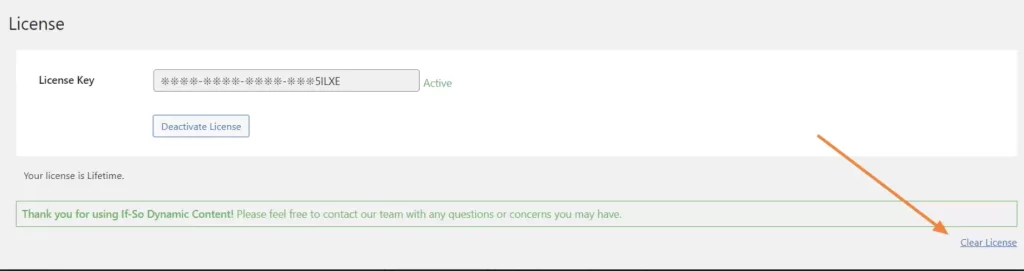
Encountering difficulties with deactivating your license often happens when migrating your site or changing the domain. To resolve this, simply click the “Clear License” button located at the bottom right corner of the license box.
- 502 or 503 Errors
In some rare cases, 502 and 503 errors might occur while using an If-So trigger in some places on your site. In 99% of the cases, the errors will be resolved through the plugin’s settings.
- On your WordPress dashboard, go to If-So > Settings.
- Change the status of the “Page Caching Compatibility” option and check if it solves the problem.
- Change the status of the “the content” filter option, hit “Save”, and see if it solves the problem.
If none of the above helps, please contact our support. We will probably be able to solve it.
- 504 error when shortcode is embedded
Stay calm. Go to If-So -> Settings and change the status of the “the_content” filter checkbox. If it doesn’t solve the issue please contact our support.
- WordPress Pagination not functional within If-So Trigger
When the WordPress pagination function is used within an If-So trigger, it does not function properly. The problem arises from the order in which the functions responsible for loading our dynamic content and handling pagination are executed.
Please note that the reverse scenario, which involves applying dynamic content within the paginated content, is indeed possible.
- 500 error while editing SiteOrigin page
If you are using the SiteOrigin page builder and experience a 500 error after publishing a page that contains an If-So trigger, try disabling the “the_content” filter option on the If-So plugin settings page. This should resolve the issue.
- Content duplication at the bottom of the page
If you are experiencing content duplication at the bottom of the page:
- Access your WordPress dashboard and navigate to If-So > Settings.
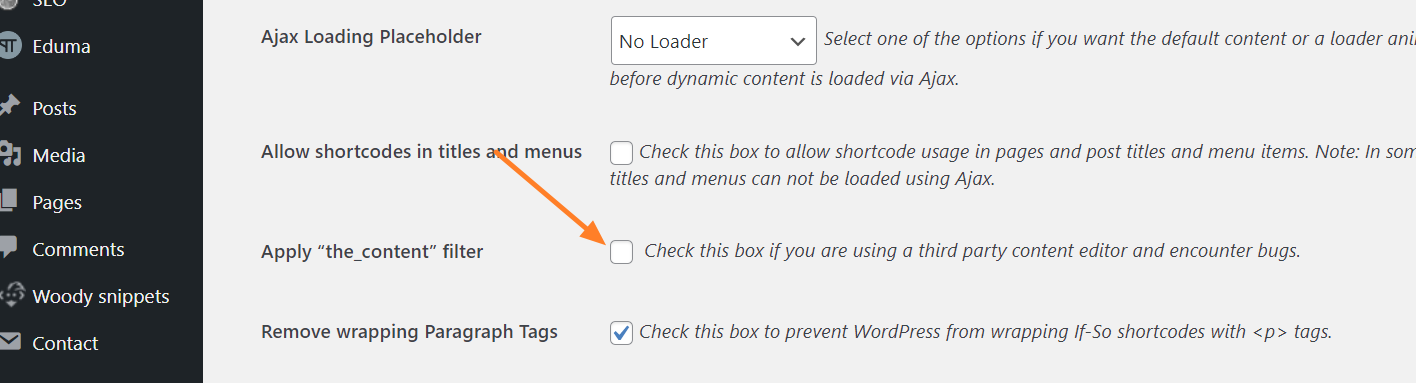
- Locate the “Apply ‘the_content’ filter” option and uncheck it.

- Elementor button element doesn't render shortcodes
The Elementor button element does not automatically render shortcodes in the “text” field.
If you wish to include an If-So shortcode within an Elementor button field to display dynamic text on the button, you can add the following code snippet to the end of your functions.php file.
//Elementor button - render shortcode in URL add_filter('elementor/widget/before_render_content',function($el){ if($el->get_name()==='button'){ $link_setting = $el->get_settings('link'); if(!empty($link_setting)){ $link_setting['url'] = do_shortcode($link_setting['url']); } $el->set_settings('link',$link_setting); } }); - Problem loading triggers with Ajax & Elementor
To prevent Elementor from escaping the output and hindering our triggers from rendering correctly in Ajax mode, you can add the following code to the website’s functions.php file:
add_filter( ‘elementor_pro/dynamic_tags/shortcode/should_escape’, ‘__return_false’ );
It’s important to note that Elementor intentionally restricts content rendering using Ajax with a dynamic shortcode for security reasons. Changing this setting doesn’t imply that your site becomes vulnerable to attacks by hackers who are not logged in.
- Fix: Elementor Videos Not Loading with Ajax
If your conditional Elementor video element isn’t loading with Ajax enabled in If-So, add this code snippet to the end of your theme’s functions.php file:
add_action('wp_enqueue_scripts',function(){ if(!function_exists('wp_add_inline_script')) return; wp_add_inline_script( 'if-so', " document.addEventListener('ifso_ajax_triggers_loaded',function(){ if(document.querySelectorAll('.elementor-video').length<=0) return; var initFrontendIfPossible = function(){if(typeof(YT)!=='undefined'){elementorFrontend.init();return true;}return false;} initFrontendIfPossible(); var interval = setInterval(function(){ if(initFrontendIfPossible()) clearInterval(interval); },1000) });"); },100); - Unwanted padding when element is not displayed
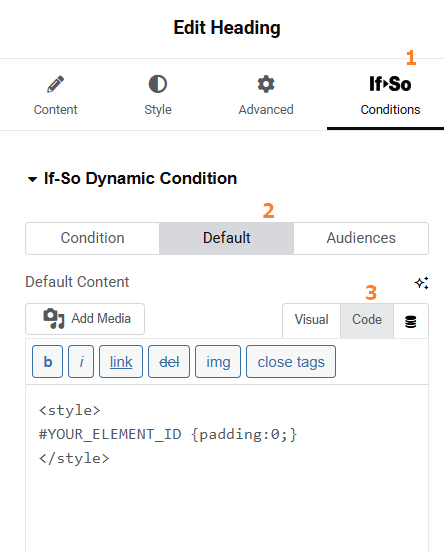
When you apply a condition on a text block in Elementor that has custom padding, only the text is hidden if the condition isn’t met—the padding remains visible. This happens because the condition affects the content inside the block, not the block’s structure itself.
One possible solution is to change the structure of the element so that another wrapper element receives the padding instead, if possible.
Or, the simpler option is to load CSS that sets the padding to zero when the condition is not met.
To do so:
- Click the Conditional Element
- Click the Default Content tab
- Switch the content field to HTML mode
- Paste the following code into the content field:
<style>
#YOUR_ELEMENT_ID {padding:0;}
</style>
Make sure to replace YOUR_ELEMENT_ID with the ID of your element. You can either use the ID automatically generated by Elementor or assign one manually using Elementor’s CSS ID field.
More about CSS ID in Elementor (the official Elementor documentation) - White screen when accessing trigger editing page
If you encounter a ‘white screen’ when visiting the trigger’s editing page, it’s likely due to insufficient WP_MEMORY_LIMIT allocated to your theme.
Increasing the WP_MEMORY_LIMIT can be done by modifying the constant in the wp-config.php file. Most hosting companies offer assistance with this as part of their basic support services.
- What is my location?
No IP-to-Location service is 100% accurate. The accuracy of a location depends on many factors, most importantly the ISP of the address. Accuracy is generally higher for fixed lines than it is for cellular networks.
If our service fails to detect your location, please send us an email including your IP and your actual location at support@if-so.com. It usually takes about 72-96 hours for the database to be updated.
You can learn more here about geolocation accuracy.
You might be interested
The locations on this page are displayed using our Geolocation DKI shortcodes. You can do the same on your website using If-So.


