Troubleshooting inaccurate geolocation session count
If you are experiencing issues with your session count, it is most likely due to bots visiting your site and consuming your session quota.
If-So offers two options to help identify and block bots — we recommend using both.
- “Block Bots” mode – automatically blocks search engines and bots that declare themselves as bots.
- Manual blocking – logs all geolocation requests, provides a list of IPs that extensively trigger sessions, and allows you to block them at your discretion.
Block Bots mode
The Block Bots mode automatically prevents bots from accessing the geolocation service based on their user agent.
When enabled, visitors whose user agent includes one of the following terms will be blocked from using the geolocation service:
bot | crawl | slurp | spider | mediapartners | curl | wgetThese include most common and well-known crawlers and automated bots.
Bots will still be able to access your site normally, but instead of using the geolocation service, they will be served the default content version (or the fallback content if you are using the Geolocation DKI shortcodes).
To enable the “Block Bots” mode, follow these steps:
- Ensure that you have both the If-So plugin and the If-So Geolocation extension installed on your WordPress site.
- Access your WordPress dashboard and navigate to If-So → Settings.
- Under the Geolocation section, select the “Block Bots” option.

Limitations of the Block Bots mode
The Block Bots mode is designed to prevent well-known and legitimate crawlers (such as search engine bots and other identifiable automated services) from consuming your geolocation sessions.
Naturally, malicious bots usually do not identify themselves as bots and therefore will not be blocked by this protection.
If your site experiences unusually high bot traffic or excessive geolocation session usage, read below to learn about the Log geolocation requests option and additional protection methods.
Log geolocation requests
While the “Bot Blocking” mode captures legitimate traffic, it won’t block malicius since those are usualy not identify as bots.
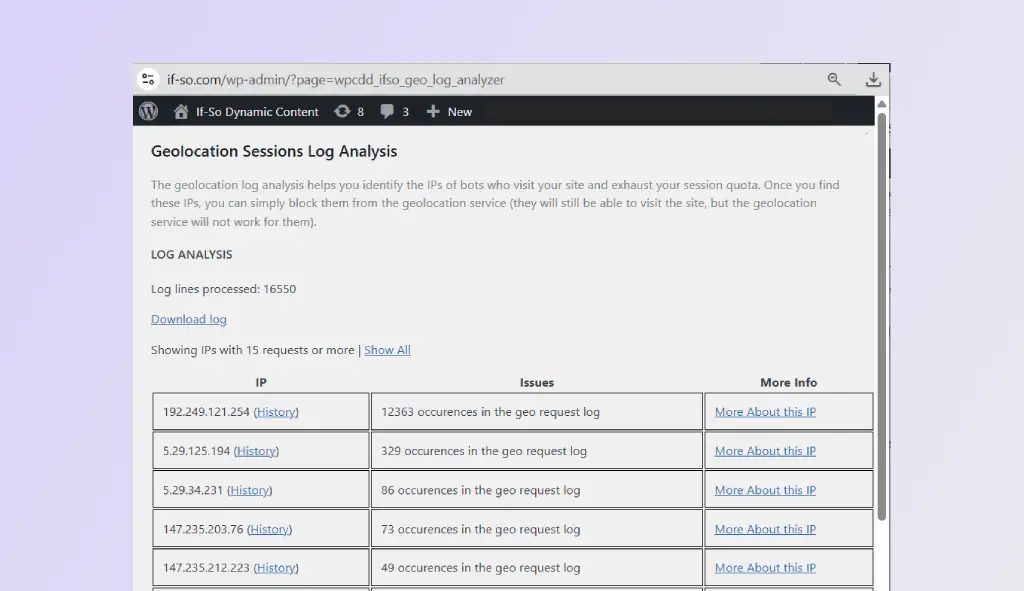
The Log geolocation requests feature creates a log of all geolocation requests, including the visitor’s IP address and a timestamp of each request.
Once sessions are logged, If-So analyzes the data and pinpoint the IPs that drove a drastic amount of sessions, so you can review them and manoualy blcok them by their IP.
Custom IP blocking
Step-by-step: Blocking bots from the geolocation service
- Download and install our If-So Geolocation Extension.
- Go to If-So → Settings and check the “Log geolocation requests” checkbox. Checking the option will create a log file that includes the IP and the exact time of each geolocation request.

- Allow some time for the log file to collect data. After sufficient time has passed (depending on your website traffic), go to the If-So menu in your WordPress dashboard and click on “Analyze Geolocation Request Log”.
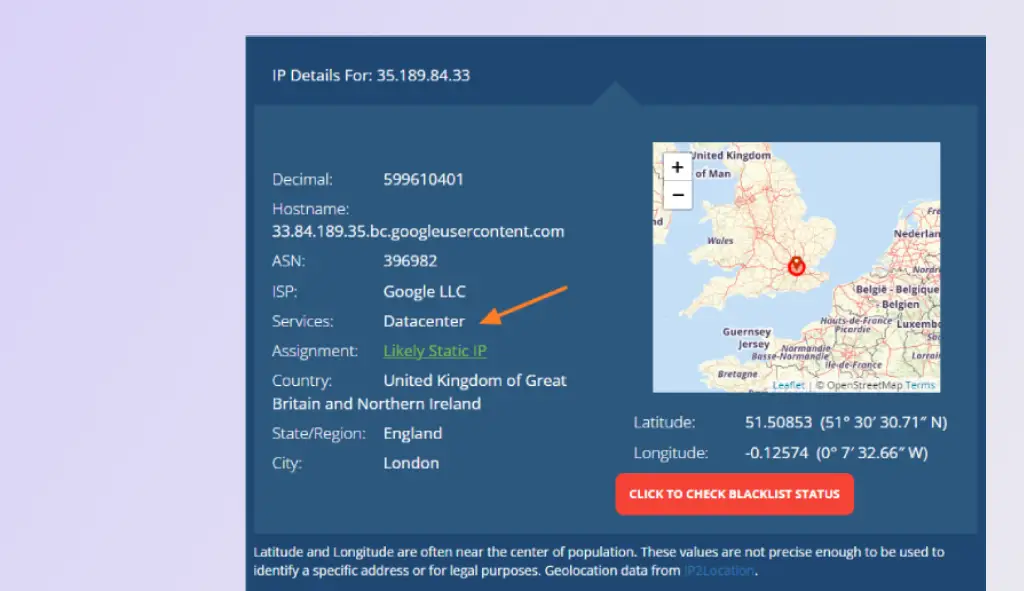
- Look for IPs with a large number of geolocation sessions. If you find such IPs, click the “More About this IP” button to gather more information about their source. If the IP points to a data center (like Google, Amazon, etc.), it may indicate that it’s a bot.
- Blocking an IP Address: If you decide to block certain IP addresses, add the following code to your function.php file, and replace the XX.XX… and YY.YYY… placeholders with the IPs you want to block.
Need more flexibility? See Advanced IP matching at the bottom of this page for additional examples, including IP ranges, partial IP matches, and custom whitelisting rules.
add_filter('ifso_exclude_from_geo',function($exclude){ $exclude['ip'] = ['XX.XX.XXX.XXX','YY.YYY.YYY.YYY']; return $exclude; });*Please note that enabling the geolocation log file may slightly affect the loading speed of pages with geolocation conditions, although the impact is usually not noticeable. It is recommended to disable the log file after collecting the necessary information.
Advanced Blocking Options
Whitelisting IPs
Whitelisting IPs
To exclude a specific IP from being blocked by the “Bots Block” mode, you can whitelist the IP address by adding the following shortcode at the end of your functions.php file:
add_filter('ifso_geo_whitelist',function($allow){
    $allow['ip'] = ['X.XX.XX.XXX','Y.YY.YY.YYY'];
    return $allow;
});
Please ensure to replace ‘X.X.X.X‘ and ‘Y.Y.Y.Y‘ with the respective IP addresses you wish to whitelist.
Blocking adittional bots by user agent
Block bots by user agent
If you’re seeing a high volume of bot visits from sources like Facebook, Google, or other user agents, and these visits originate from various IPs, you can block them by their user agents instead of manually specifying each IP address.
To block these bots using their user agents, you can implement the following code:
add_filter('ifso_block_bots_extra_blocked_user_agents', function($uas) {
    $uas[] = 'Google';
    $uas[] = 'Facebook';
    $uas[] = 'SOMETHING ELSE';
    return $uas;
});
*For the code to work, please make sure the Block Bots mode is enabled in the plugin’s settings: If-So → Settings → Geolocation tab.
Keep in mind, this means that when the Google crawler visits your site, it will crawl the default content (not the geo-targeted version).
Tips for bot blocking by user agent
When adding user agents to the blacklist, make sure to escape special characters (., +, *, ?, ^, $, (, ), [, ], {, }, |, \) by placing a backslash (\) in front of them.
- Avoid using a version number for the HTTP client (such as
1.1in the example below) so the rule will cover a broader range of bots (i.e $uas[] = ‘Go-http-client’; instead of $uas[] = ‘Go-http-client\/1\.1‘; - When adding user agents to the blacklist, make sure to escape special characters (., +, *, ?, ^, $, (, ), [, ], {, }, |, \.) with a \ in front of them.
Advanced IP matching (contains, starts with, IP ranges)
In addition to blocking specific IP addresses, you can use custom logic to block or allow visitors based on IP patterns. This is useful when you need to exclude a group of IPs, an IP range, or any other custom criteria.
Block IPs that contain a specific string
Use the ifso_exclude_from_geo filter to block visitors whose IP address contains a specific string.
add_filter('ifso_exclude_from_geo',function($exclude){
     $user_ip = \IfSo\Services\GeolocationService\GeolocationService::get_instance()->get_user_ip();
     if (strpos($user_ip, '%EXCLUDE_IF_CONTAINS_IP%') !== false)
         $exclude['blockme'] = true;
     return $exclude;
});
Block IPs that start with a specific string
Use the following example to block visitors whose IP address starts with a specific value.
add_filter('ifso_exclude_from_geo',function($exclude){
     $user_ip = \IfSo\Services\GeolocationService\GeolocationService::get_instance()->get_user_ip();
     if (strpos($user_ip, '%EXCLUDE_IF_IP_STARTS_WITH%') === 0)
         $exclude['blockme'] = true;
     return $exclude;
});
Block IPs within a range
The following example blocks visitors whose IP address falls within a specific IPv4 range.
add_filter('ifso_exclude_from_geo',function($exclude){
     $user_ip = \IfSo\Services\GeolocationService\GeolocationService::get_instance()->get_user_ip();
     $start_ip = '%MY_START_IP%';
     $end_ip = '%MY_END_IP%';

     if (ip2long($user_ip) >= ip2long($start_ip) && ip2long($user_ip) <= ip2long($end_ip))
         $exclude['blockme'] = true;

     return $exclude;
});
Other custom conditions
The examples above demonstrate a few common use cases, but you can implement any custom PHP logic. For example, you can block or allow visitors based on IP ranges, IP patterns, user roles, cookies, request parameters, or any other condition available in WordPress.
Screenshots