

Browser Type, Operating System, and User Agent
Tailor your website content according to the visitor’s browser type (Chrome, Firefox, Safari, etc.) or operating system (Windows, Mac, Linux, etc.).
In this article: About the Browser Type & Operating System Condition | How to Set Up | Usage Examples
The Browser Type condition is a free add-on. Make sure to download and activate the add-on so that the condition will be added to your list of conditions.
Use cases
- Display different download links based on the user’s operating system
- Customize content based on the user’s browser
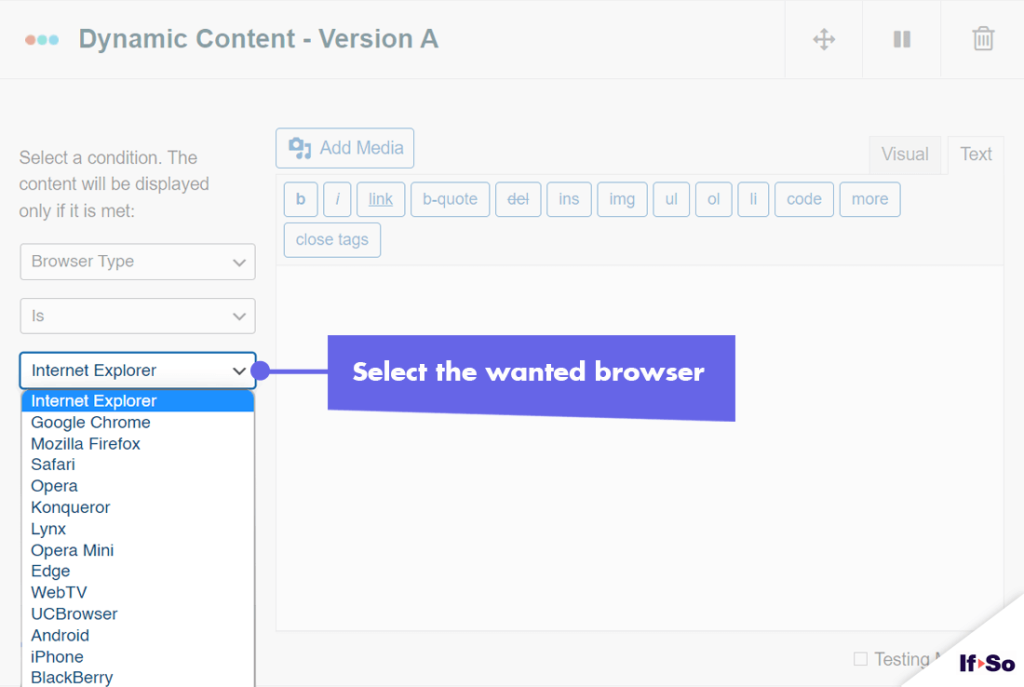
Targetable browser types
- Internet Explorer
- Google Chrome
- Mozilla Firefox
- Safari
- Opera
- Konqueror
- Lynx
- Opera Mini
- Edge
- WebTV
- UCBrowser
- Android
- iPhone
- BlackBerry
- Nokia Browser
- Samsung Browser
- MSN Browser
- Netscape Navigator
Targetable operating systems
- Windows
- Windows CE
- Apple (Mac Os)
- Linux
- iPhone
- BlackBerry
- Nokia
- FreeBSD
- OpenBSD
- NetBSD
- SunOS
- OpenSolaris
- Android
- Roku
- Apple TV
- Fire OS
- SMART-TV
- Chrome OS
How to set up the Browser Type or Operating System Condition
All Page Builders
Elementor
Gutenberg
- On your WordPress dashboard, go to “If-So → Add New Trigger”.
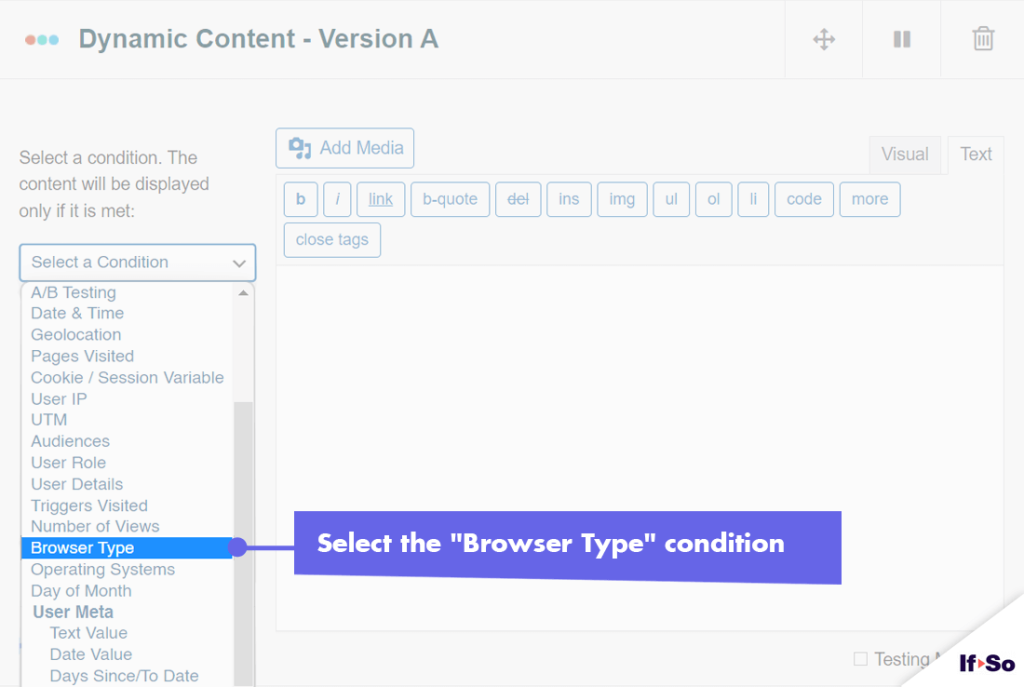
- Click on “Select a condition”. Select “Browser Type” or “Operating Systems”.
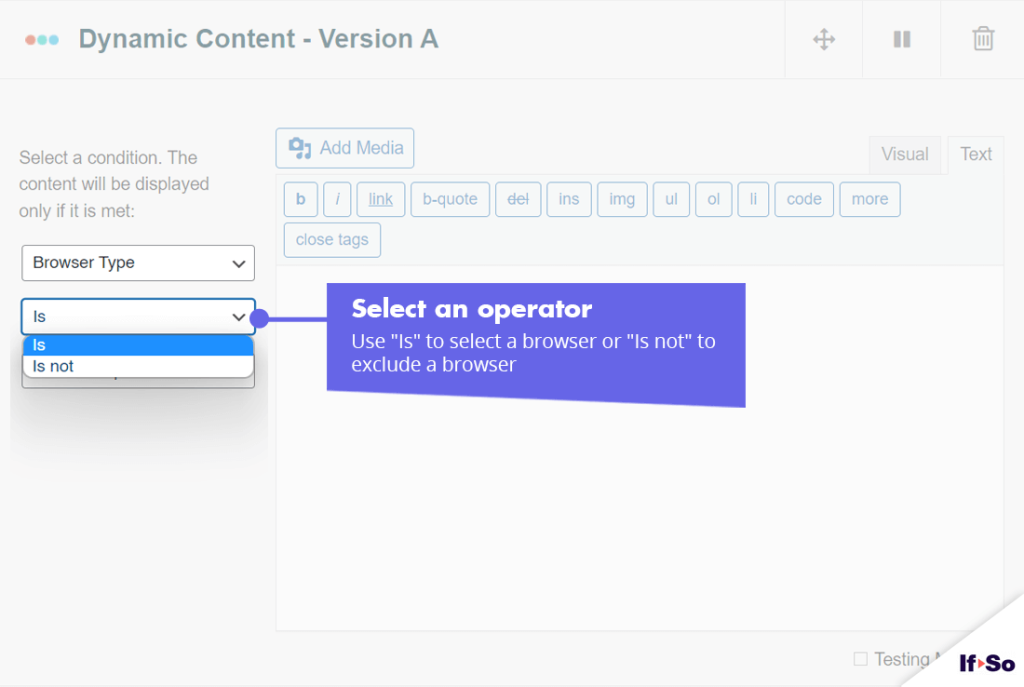
- Select an operator: “Is” / “Is Not”.
- Select a browser type or an operating system.
- In the content field, set the content to be displayed if the condition is met.
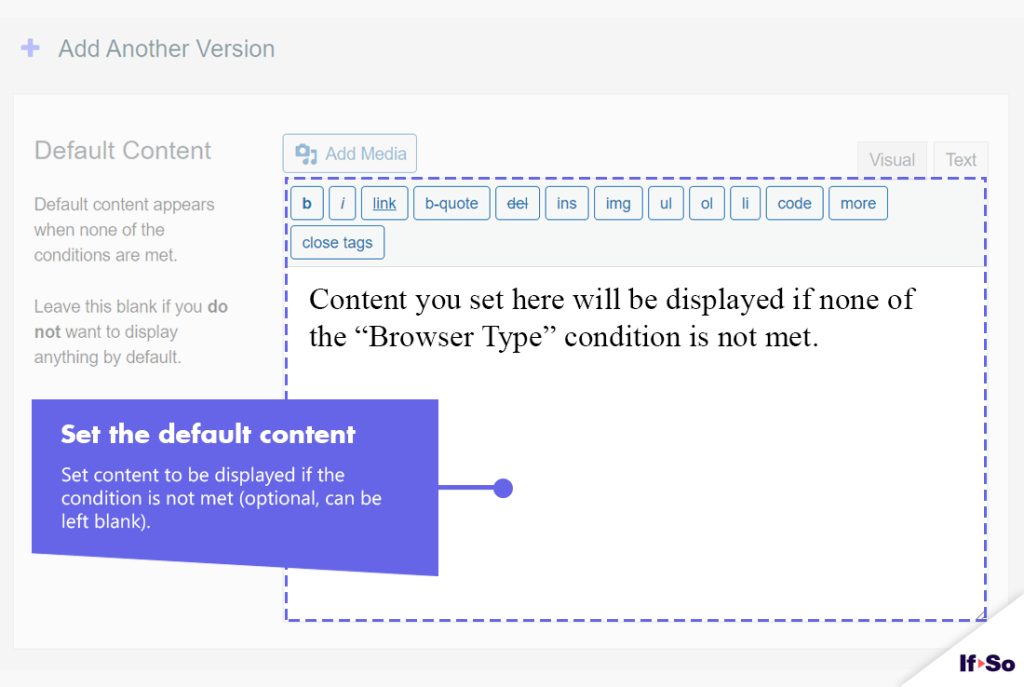
- In the default content field, set the content to be displayed if the condition is not met.
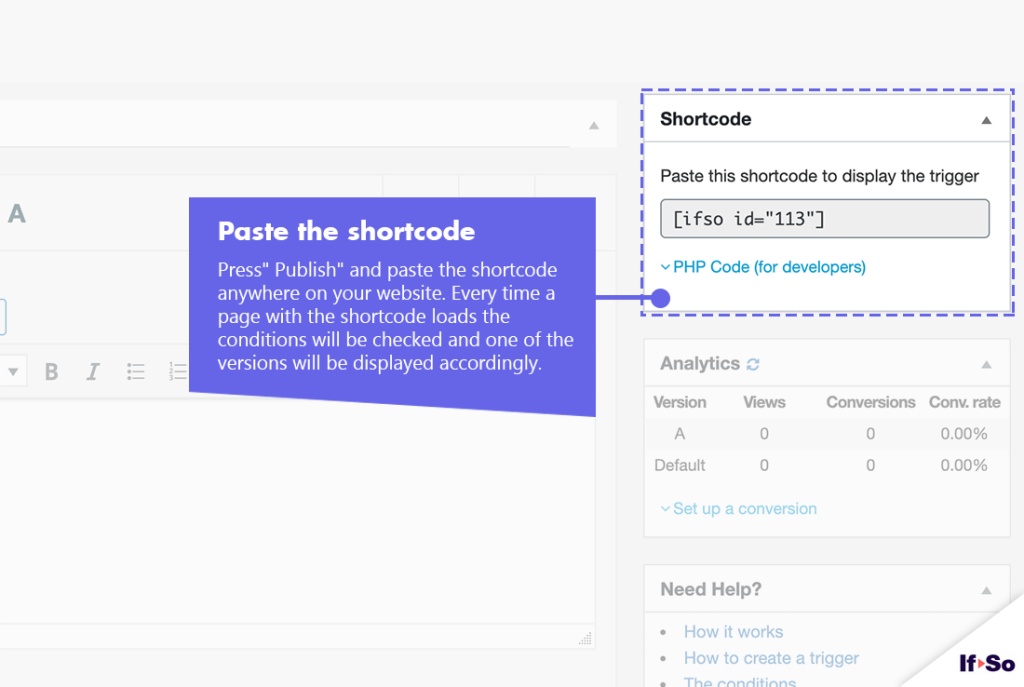
- Press “Publish” and paste the shortcode generated by If-So on your website.
- Download and activate the If-So Dynamic Content WordPress plugin and the Conditional Elementor elements integration.
- In the Elementor editor, select the element you want to display based on browser type or operating systems.
- In the element settings panel, go to the If-So tab.
- Choose the “Browser Type” or “Operating Systems” condition.
- Choose an operator: is / is not.
- Select a browser type or an operating system.
- Click Publish to save the page.
- Download and activate the If-So Dynamic Content WordPress plugin.
- In the Gutenberg editor, select the block you want to display based on browser type or operating systems.
- In the block settings sidebar, open the If-So Conditions panel.
- Choose the “Browser Type” or “Operating Systems condition.
- Choose an operator: is / is not.
- Select a browser type or an operating system.
- Click Update to save the page.
Screenshots

Didn’t find what you need?
Browser Type, Operating System, and User Agent (add-on)
Price: FreeRequirements: If-So Pro