

Page URL
Add or replace content on your website based on the page’s static URL or the URL Parameters.
What is the page URL condition?
The Page URL condition allows you to add or replace content on your website based on the page’s static URL or the URL Parameters.
Dynamic content can be displayed based on the exact URL or part of the URL.
For example, the condition If > Page URL > Contains > /category1 will be met both if the URL is exmpale.com/category1 and if the URL is example.com/category1/product1.
How to set up the Page URL condition:
All Page Builders
Elementor
Gutenberg
- Download and activate the If-So Dynamic Content plugin.
- On your WordPress dashboard, go to “If-So → Add New Trigger”
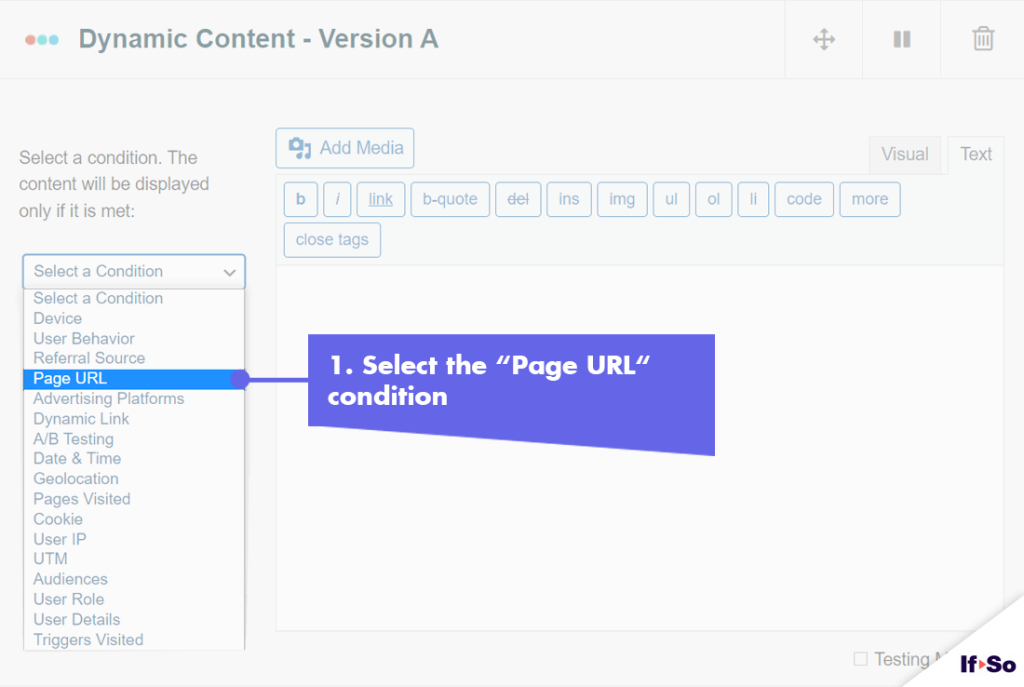
- Click on “Select a condition” and select “Page URL”.
- Select “URL”.
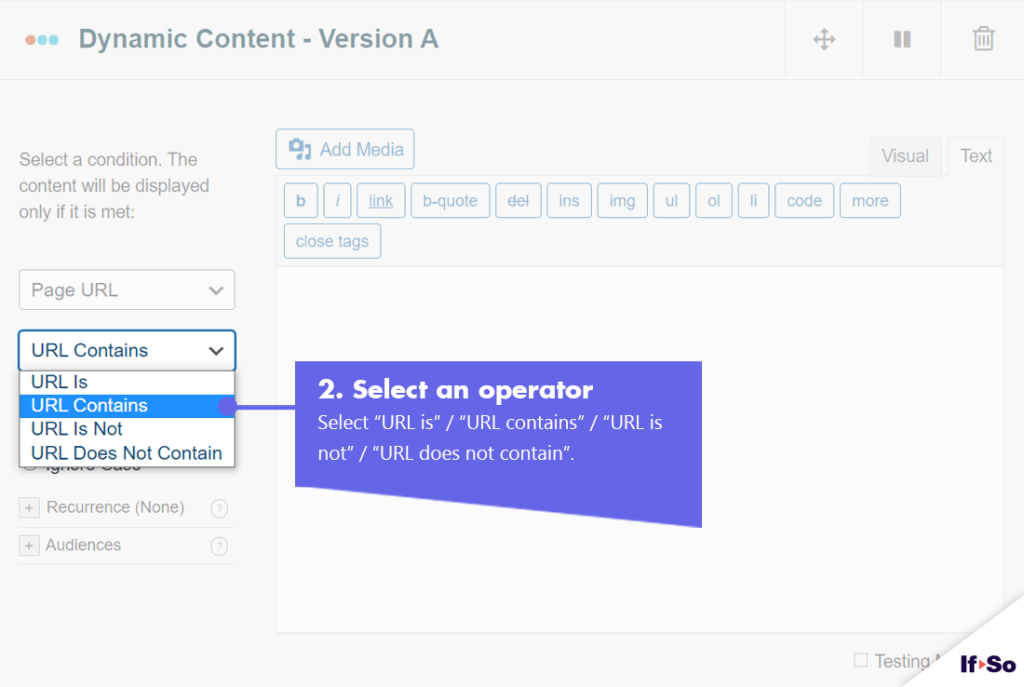
- Select an operator: “URL is” / “URL contains” / “URL is not” / “URL does not contain”.
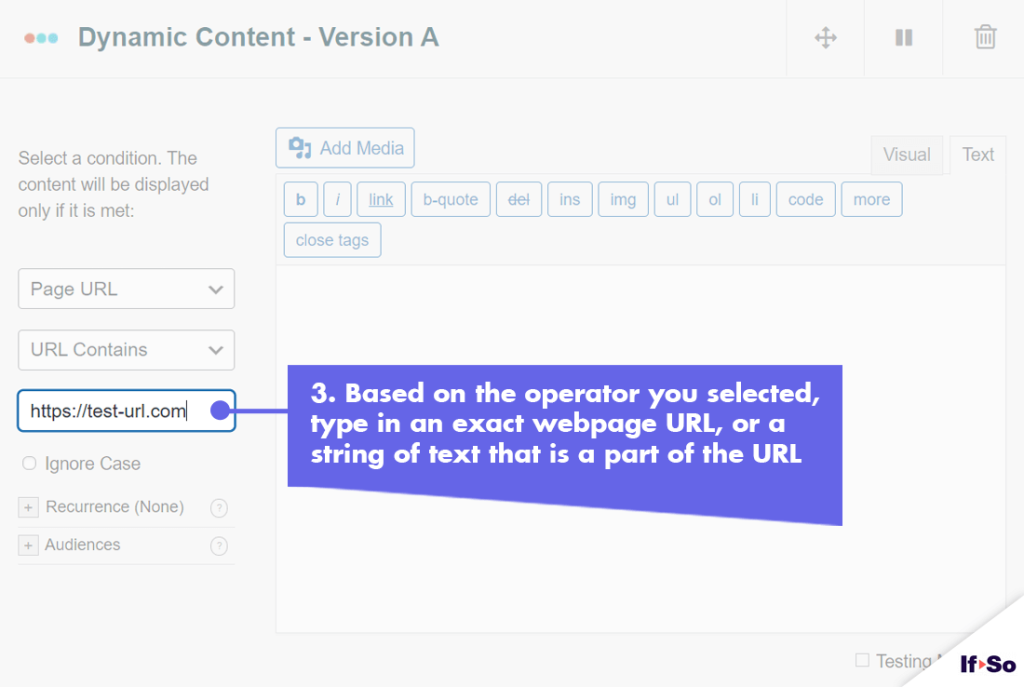
- Type in a domain, a webpage URL, or a term.
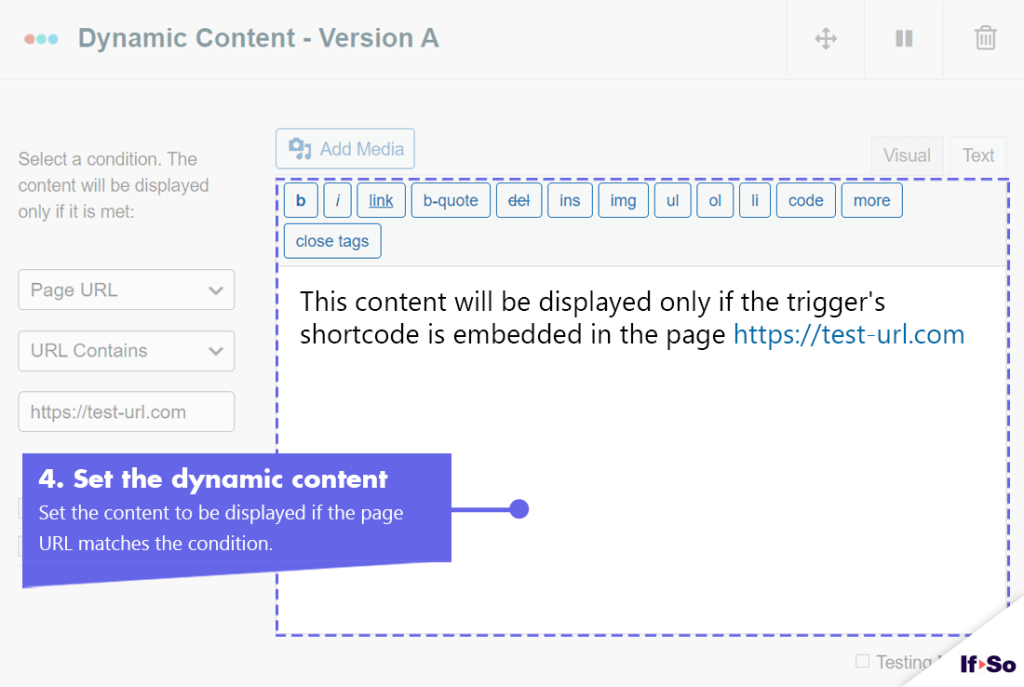
- In the content field, set the content to be displayed if the condition is met.
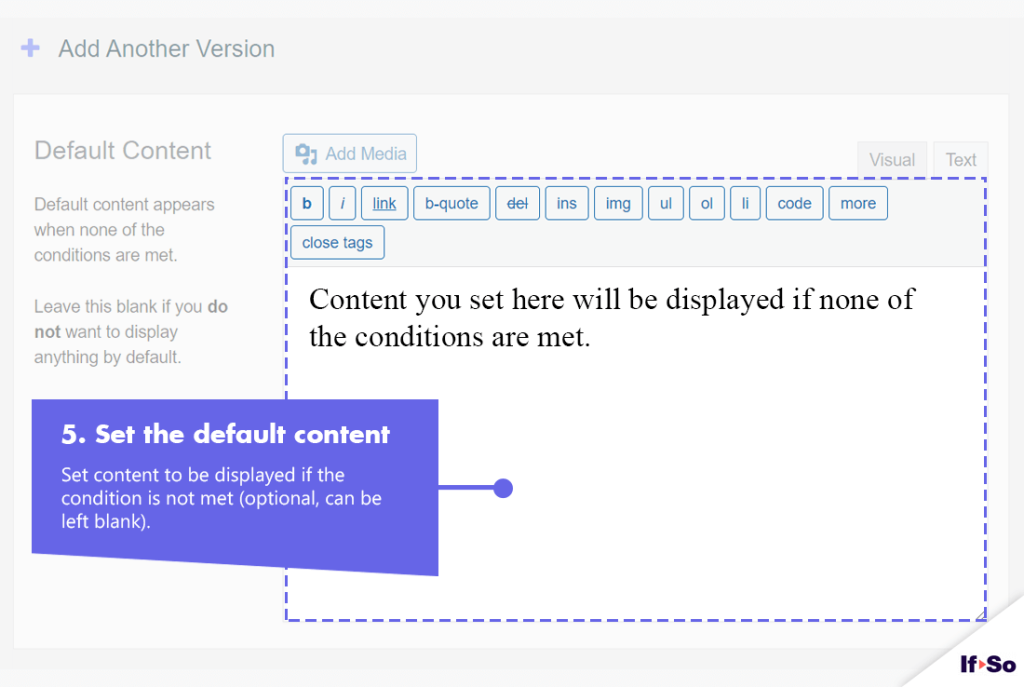
- In the default content field, set content to be displayed if the condition is not met (optional, can be left blank).
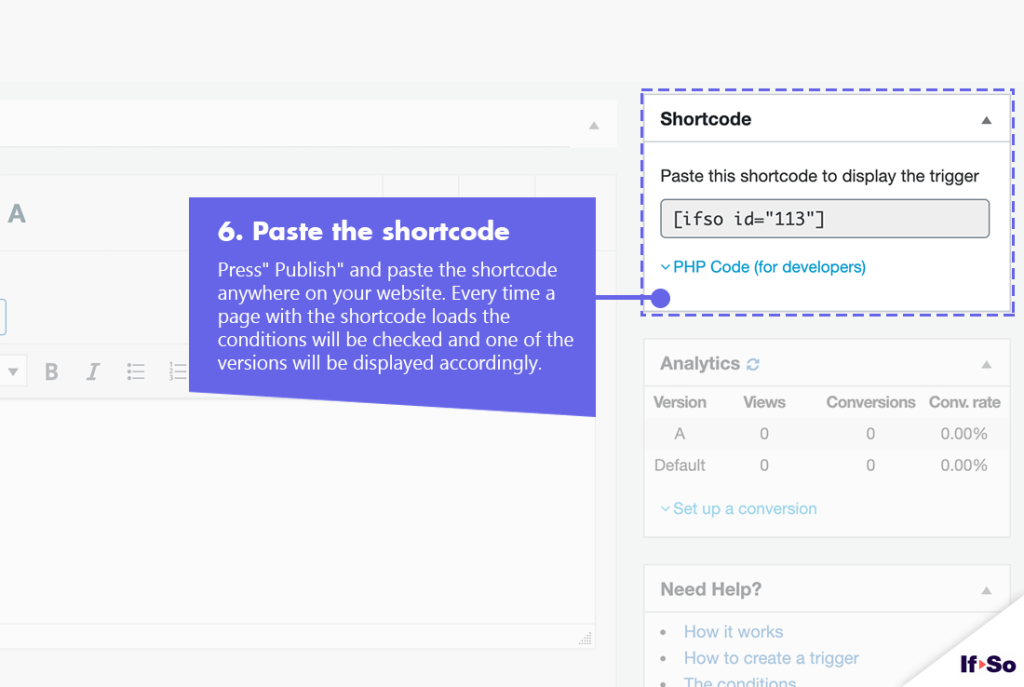
- Press “Publish” and paste the shortcode generated by If-So in your website
- Download and activate the If-So Dynamic Content WordPress plugin and the Conditional Elementor elements integration.
- In the Elementor editor, select the element you want to display based on a Page URL Condition.
- In the element settings panel, go to the If-So tab.
- Choose the Page URL condition and select an operator: “URL is” / “URL contains” / “URL is not” / “URL does not contain”.
- Type in a domain, a webpage URL, or a term.
- Click Publish to save the page.
- Download and activate the If-So Dynamic Content WordPress plugin.
- In the Gutenberg editor, select the block you want to display based on a page URL condition.
- In the block settings sidebar, open the If-So Conditions panel.
- Choose the Page URL condition and select an operator: “URL is” / “URL contains” / “URL is not” / “URL does not contain”.
- Type in a domain, a webpage URL, or a term.
- Click Update to save the page.
Screenshots
FAQs
- Does If-So work with caching plugins and server-side caching?
Yes.
Whether you are using a caching plugin or server caching, you can navigate to the plugin settings and enable the “Page Caching Compatibility” option.
With the option enabled, dynamic triggers will be rendered in a separate request that will take place after the loading of the cached version.
- Is it possible to set up conditional redirects (redirecting users to different pages based on conditions)?
Yes, you can set up conditional redirects based on any If-So condition.