Elementor Display Conditions & Dynamic Visibility
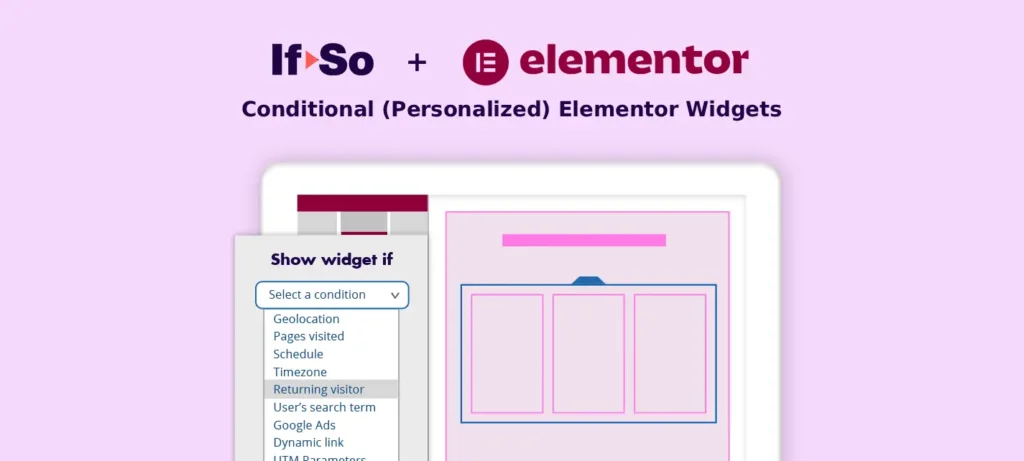
Smart Elementor display conditions, powered by If-So
Show or hide specific sections, columns, or widgets based on who the visitor is, where they are located, and how they interact with your site.
These display conditions are powered by If-So’s broader personalization engine, helping you build smarter, conversion-focused experiences with advanced personalization logic across your site.
Why use If-So for Elementor Conditional Logic?
Unlike other dynamic content for Elementor plugins that merely “hide” content using CSS (leaving the code to load in the background), If-So delivers true Elementor dynamic visibility:
- Server-Side Rendering: If a condition isn’t met, the element is not rendered in the HTML at all. This keeps your pages lightweight and ensures superior site performance.
- Real Visitor Context: Our elementor conditional logic reaches far beyond basic page structure. It includes assigning users to audiences for a consistent site-wide experience, as well as setting up conditional redirects, WooCommerce products, and more.
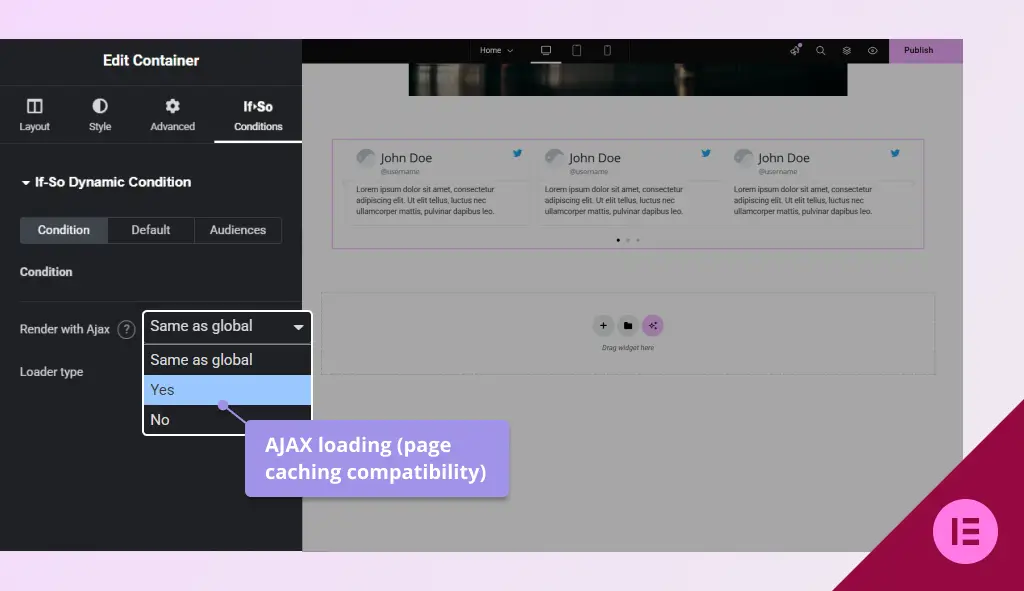
- Page Caching Friendly: Enjoy powerful personalization without sacrificing speed. Conditional elements load via a separate AJAX request after the cached page content is served.
- Works on Element: Apply elementor conditional display rules to any widget, section, or column – from simple text and buttons to complex headers and footers.
Dozens of Conditional Display Rules
Dozens of conditions to fit any use case:
- Geolcation: Target visitors by Country, City, State, or Timezone.
- Marketing: Logic based on UTM parameters, Referral sources, or Google Search terms.
- User Info: Show content to specific User Roles, Membership levels, or Logged-in users.
- E-commerce: Display elements based on past purchases or items currently in the cart.
Step-by-Step: Setting Up Elementor Conditional Display
- Ensure you have the If-So Plugin (free download) and the Elementor Extension (free download) active.
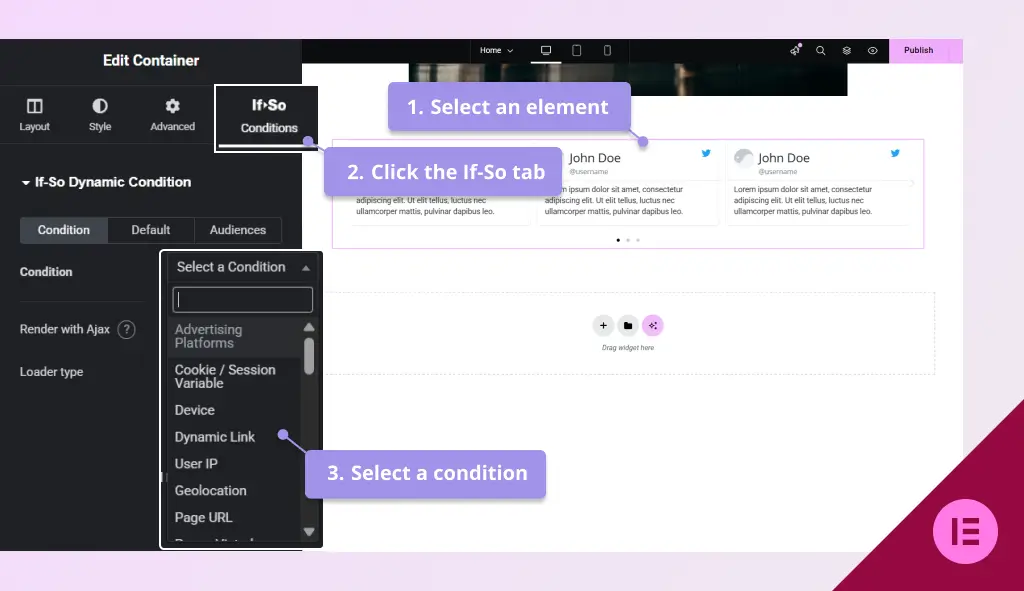
- Open the page in the Elementor editor and select the element or section you want to control.
- Click the If-So tab, and select a condition. Screenshot
- When using caching plugins, toggle AJAX loading to Yes. Screenshot
- Save and publish the page.
Setting Up Fallback Content
If a condition isn’t met, the element is hidden by default. To show a “fallback” version:
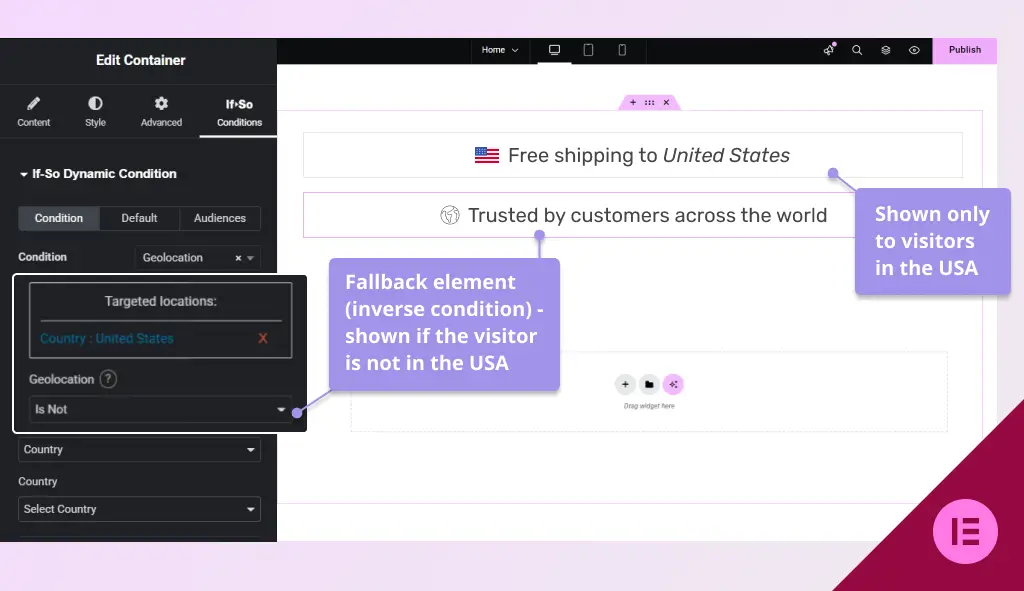
- Duplicate the conditional element and customize it to fit your secondary version.
- Apply the inverse condition to the duplicate to prevent overlapping rules. For instance, if the primary element is configured as ‘If > User Location > Is > USA‘, set the secondary version to ‘If > User Location > Is Not > USA‘. Screenshot
This method creates a seamless “if-else” logic, allowing you to swap entire content blocks based on the visitor’s location.
Assigning users to an audience (Optional)
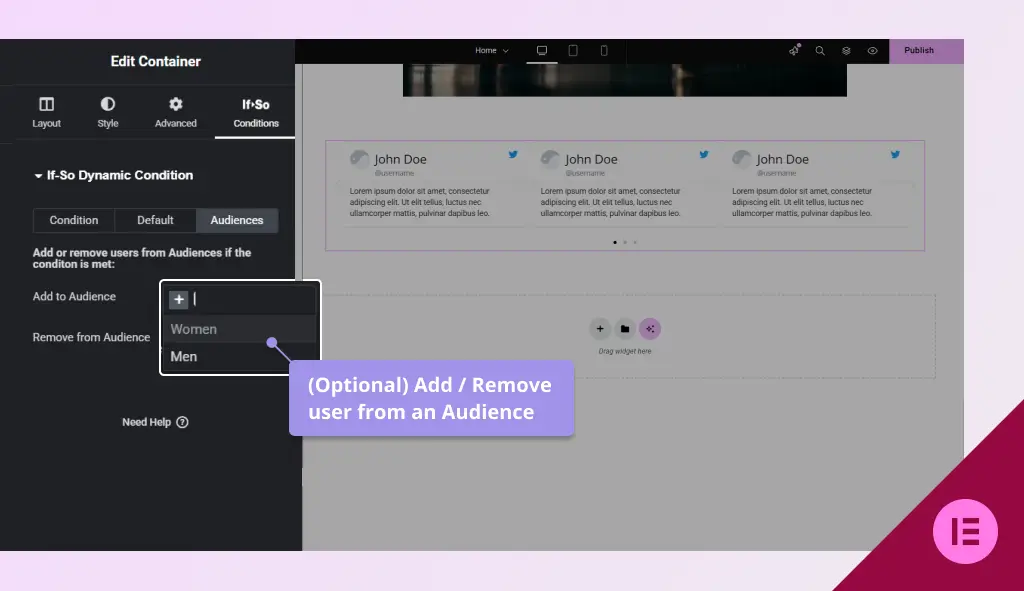
- Create a cohesive journey by “tagging” visitors. When a condition is met, you can assign the user to an audience (via cookies) and show them relevant dynamic visibility for Elementor elements across your entire site. Screenshot
For more information and options for assigning users to an audience
Advanced logic (AND/OR conditions)
While Conditional Elements are ideal for element-level control, some scenarios are better handled using Conditional Triggers.
Choose the trigger-based approach when:
- You need multiple content versions for the same location
- The same conditional logic is reused across multiple pages
- You want built-in analytics or performance tracking
- Elementor-designed fallback content must be managed centrally
In these cases, Conditional Triggers provide a structured way to manage advanced Elementor conditional logic beyond individual elements. More about conditonal triggers.
Conditional Elements vs Dynamic Triggers: Method Comparison
While Conditional Elements are ideal for quick, element-level control, certain scenarios are better handled using Conditional Triggers. You should choose the trigger-based approach if:
- You want centralized fallback management: Use a trigger if you prefer to manage your default Elementor content from a central dashboard rather than duplicating and editing multiple elements directly on the page.
- You require built-in analytics: Triggers allow you to track the performance of your content, providing data on views and conversion rates for each version.
- Complex scenarios and multi-version logic: Triggers are ideal when you need to go beyond a simple “Show or Hide” rule. They allow you to create a sophisticated logic stack (If > Then, Else If > Then, Else If > Then) to display multiple different versions of content to different segments of your audience, followed by a final default version for anyone who doesn’t meet the specific criteria.
Note: If you are just starting out, Conditional Elements are the fastest way to begin. Switch to Triggers as your personalization strategy becomes more data-driven.
Screenshots