
User Role Condition
Display dynamic content based on the various user roles on your site.
In this article: About the User Role condition | How to set up the condition using If-So
What is the User Role Condition?
If-So automatically pulls the list of user roles from your WordPress site and adds them to the dropdown menu of the User Role condition.
Custom User Roles (Created by Third-Party Plugins)
Custom user roles created by third-party plugins will automatically appear on the condition’s user roles list for you to choose from.
How to set up a User Role condition
All Page Builders
Elementor
Gutenberg
- On your WordPress dashboard, go to “If-So → Add New Trigger”.
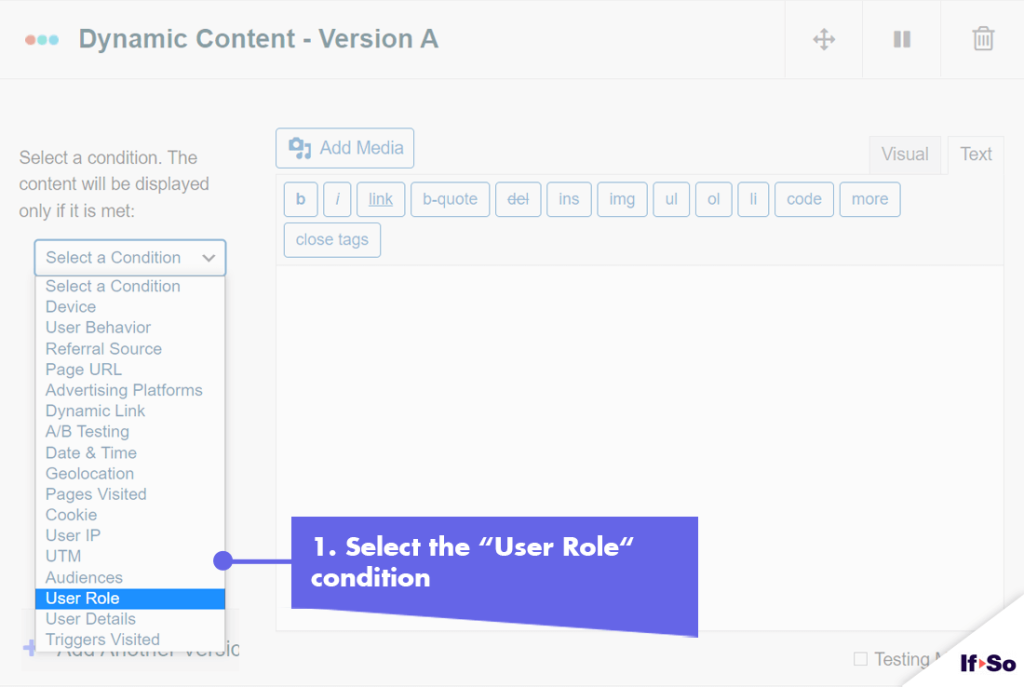
- Click on “Select a condition” and select “User Role”.
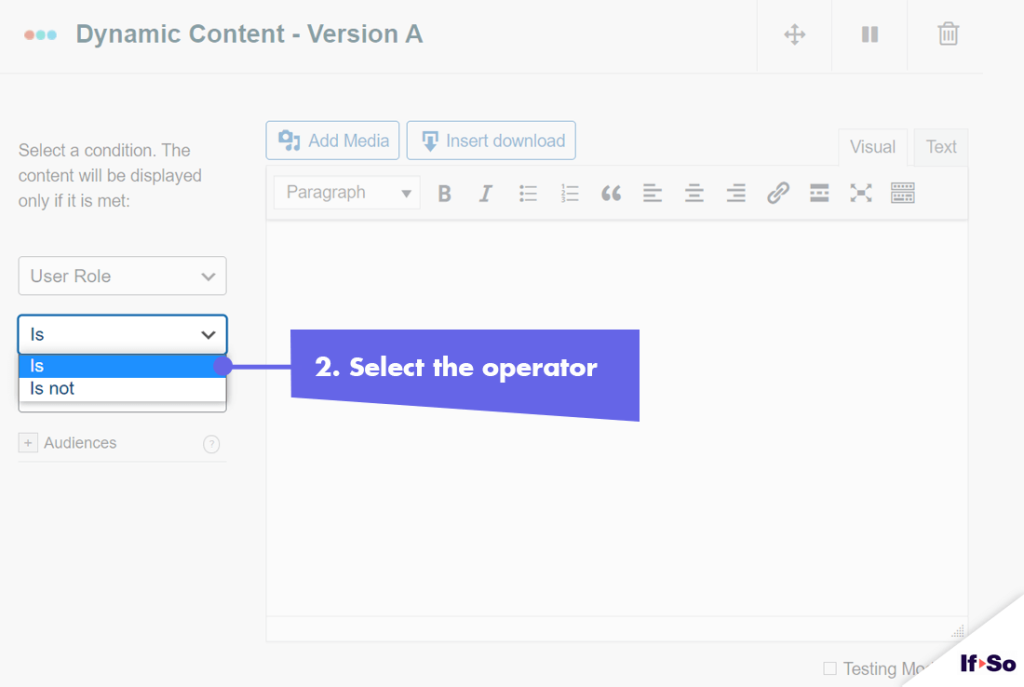
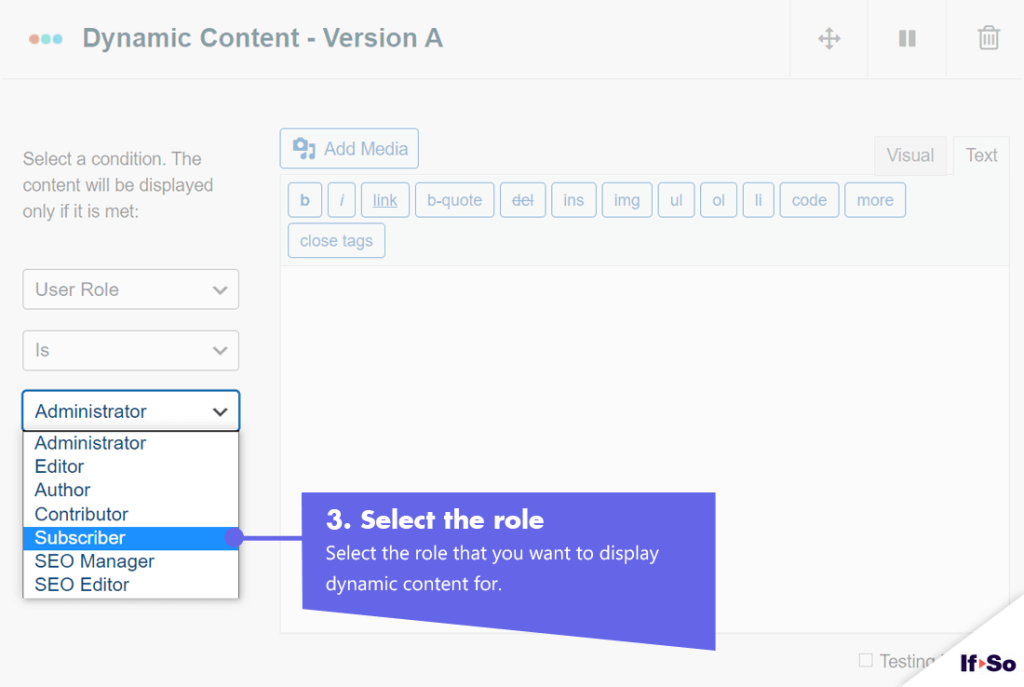
- Select the role for which you want to create dynamic content.
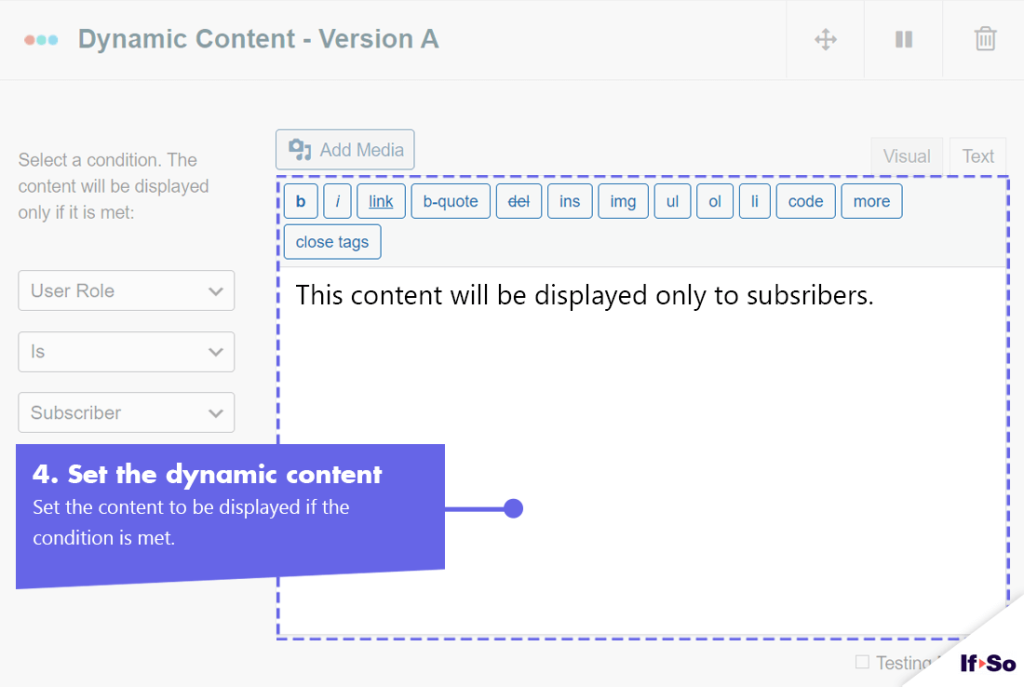
- In the content field, set the content to be displayed if the condition is met.
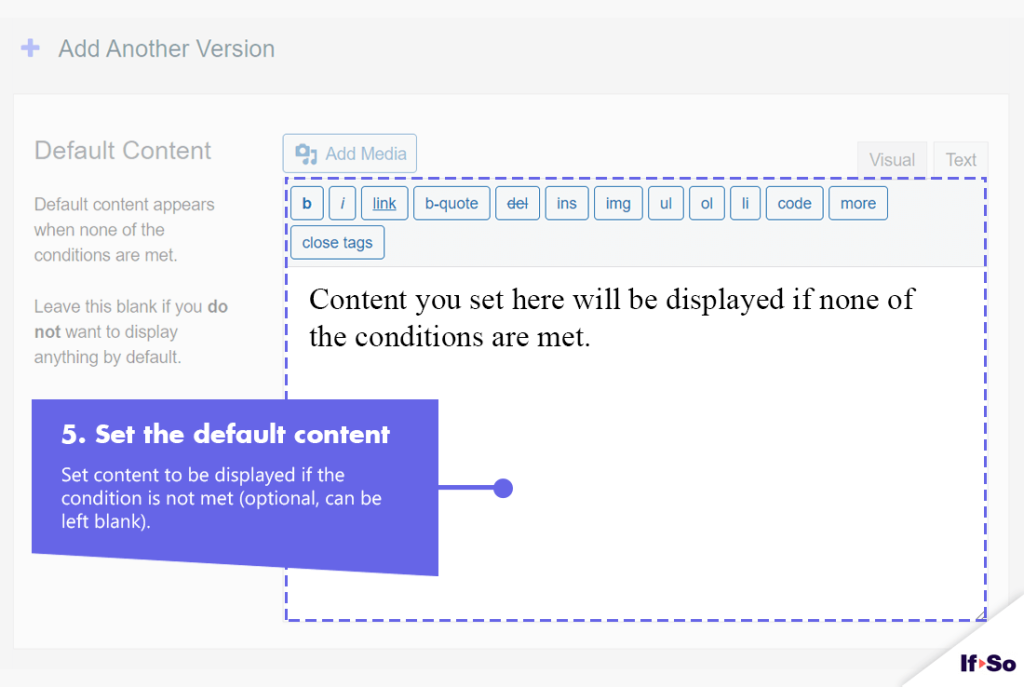
- In the default content field, set content to be displayed if the condition is not met (optional, can be left blank).
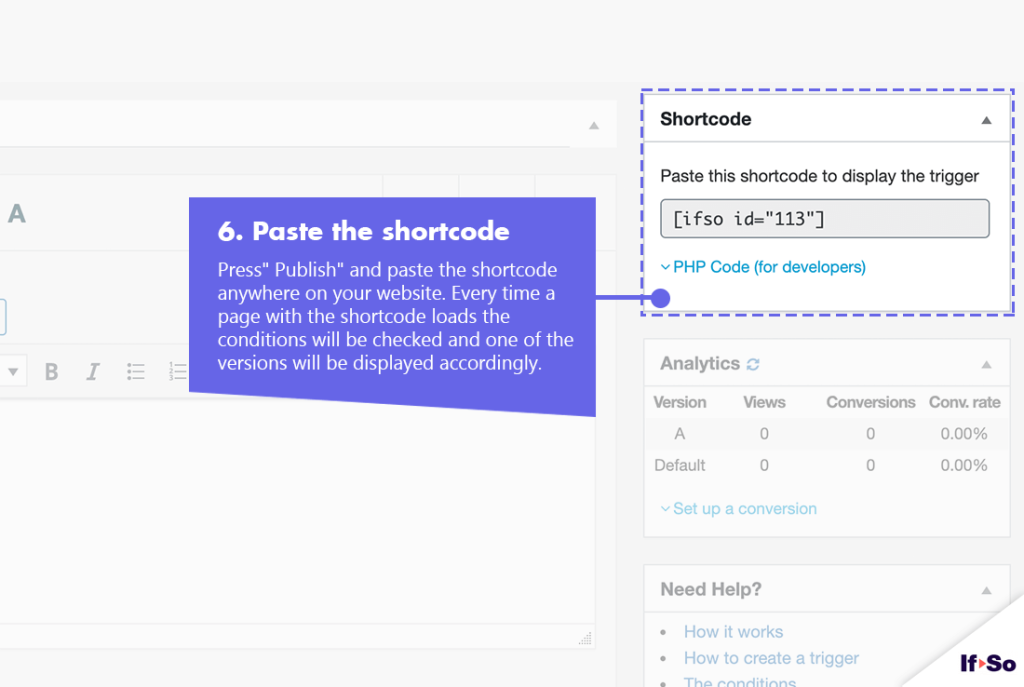
- Press “Publish” and paste the shortcode anywhere you want on your site.
- Download and activate the If-So Dynamic Content WordPress plugin and the Conditional Elementor elements integration.
- In the Elementor editor, select the element you want to display based on user roles.
- In the element settings panel, go to the If-So tab.
- Choose the User Role condition and select the role for which you want to create dynamic content.
- Click Publish to save the page.
- Download and activate the If-So Dynamic Content WordPress plugin.
- In the Gutenberg editor, select the block you want to display based on user role.
- In the block settings sidebar, open the If-So Conditions panel.
- Choose the User Role condition and select the role for which you want to create dynamic content.
- Click Update to save the page.
Screenshots
FAQs
- Does If-So work with caching plugins and server-side caching?
Yes.
Whether you are using a caching plugin or server caching, you can navigate to the plugin settings and enable the “Page Caching Compatibility” option.
With the option enabled, dynamic triggers will be rendered in a separate request that will take place after the loading of the cached version.
- Is it possible to set up conditional redirects (redirecting users to different pages based on conditions)?
Yes, you can set up conditional redirects based on any If-So condition.