Design trigger content with Elementor
How it works
If you need full design flexibility, you can build the content as an Elementor template and insert it into the trigger using the template’s shortcode.
Common use cases
- Show a different Elementor-designed hero section for visitors from a specific country.
- Display a custom Elementor pricing block only to logged-in users.
Before you start: Two cases where a simpler approach works
Before you start, it’s helpful to consider two scenarios where a simpler approach might be a better fit:
- If your conditional logic is straightforward – for example, “if geolocation is X, show content X; otherwise show content Y” – you may prefer using Elementor’s conditional elements instead of creating a trigger with multiple versions.
- If your dynamic content is text-only or relatively simple – there’s no need to create an Elementor template. You can insert the content directly into the trigger editor, and it will automatically inherit the styling of the surrounding Elementor widget (for example, trigger content placed inside a Title widget will appear as a heading).
Step-by-step: Creating a conditional trigger
Overview: The setup involves two main steps: (1) creating an Elementor template, and (2) inserting its shortcode into the relevant trigger version.
Step 1: Design your content as an Elementor template
- In the Elementor page you’re working on, create the section or block you want to display dynamically (for example, a banner, call-to-action, or pricing box).
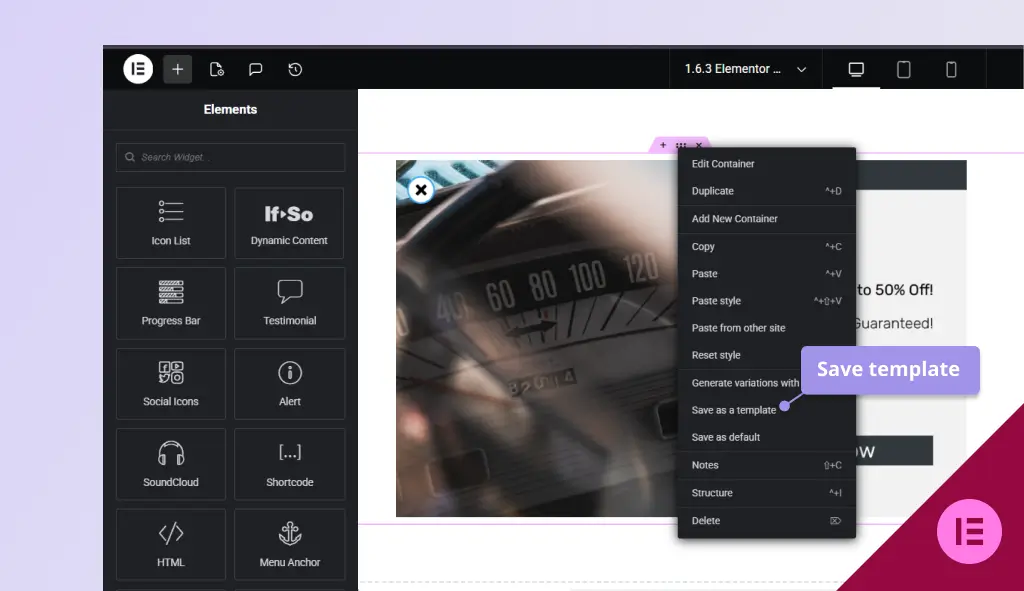
- Right-click the section’s handle (the element menu), then select Save as Template. Screenshot
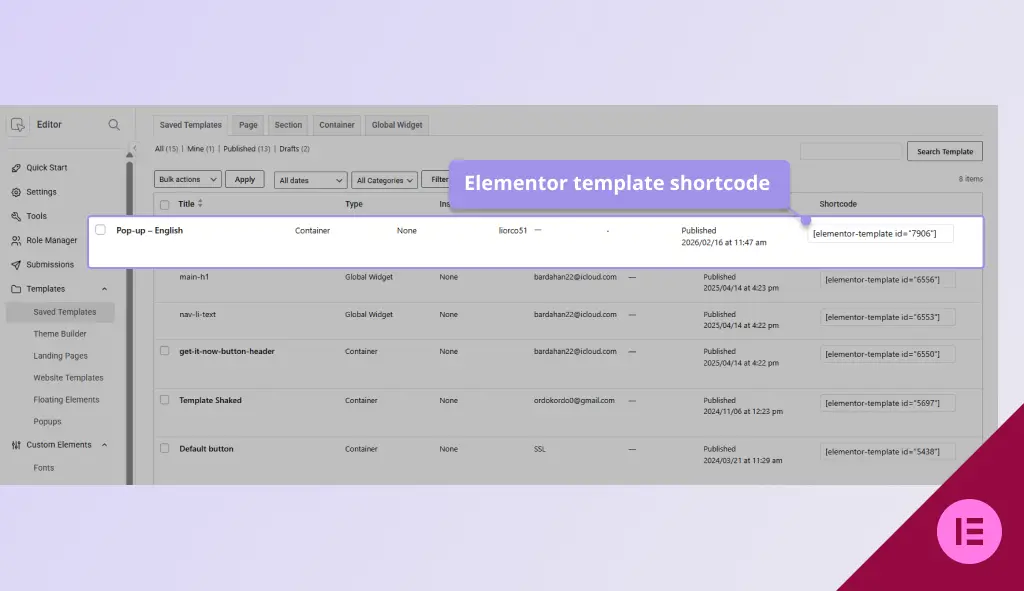
- On your WordPress dashboard, go to Templates → Saved Templates to view your saved templates.
- Copy the template shortcode –
- Elementor Pro – copy the shortcode from the template list. Screenshot
- Free Elementor version – install a third-party plugin that enables template shortcodes (such as Piotnet Addons or a similar solution).
More about creating and managing templates in Elementor’s official documentation.
Step 2: Add the template to a trigger version as dynamic content
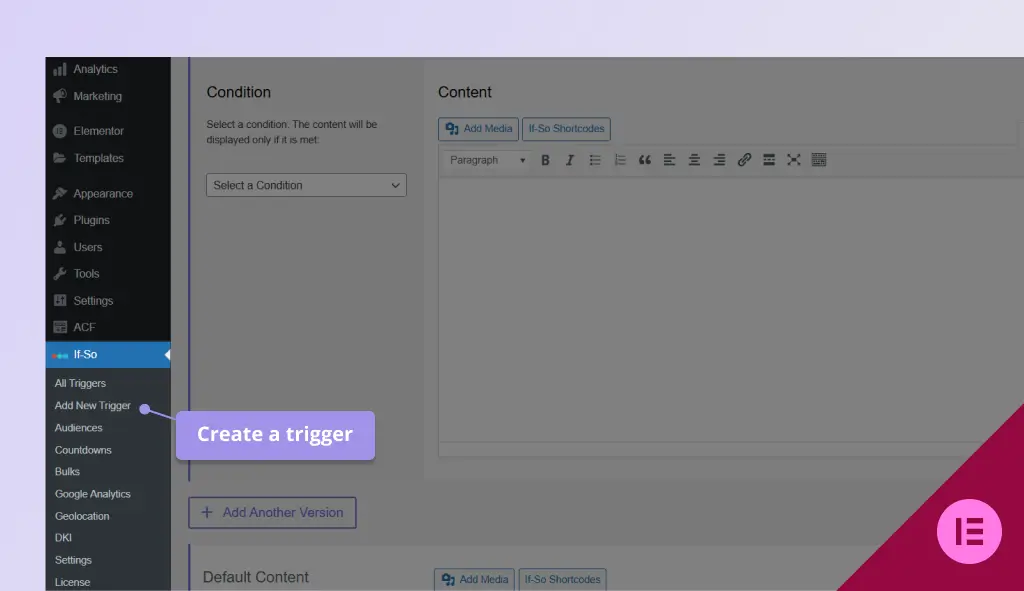
- On your WordPress dashboard, go to If-So → Add New Trigger. Screenshot
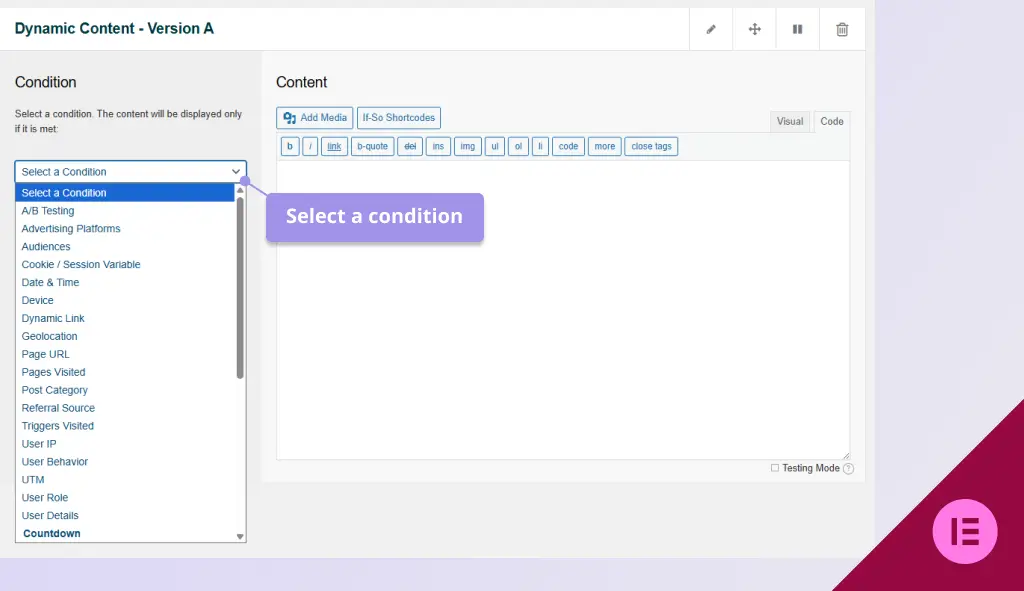
- Click Select a condition and choose the condition you want. Screenshot
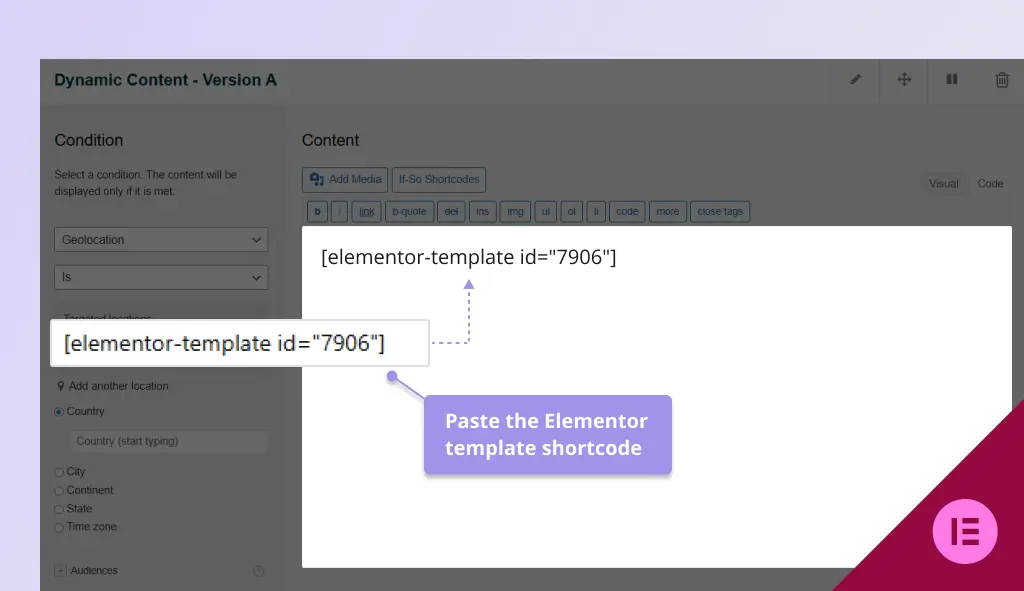
- Paste the Elementor template shortcode into the content field of the relevant version (See ‘Getting the template shortcode’ below for instructions). Screenshot
- Add additional versions if needed, each with its own condition.
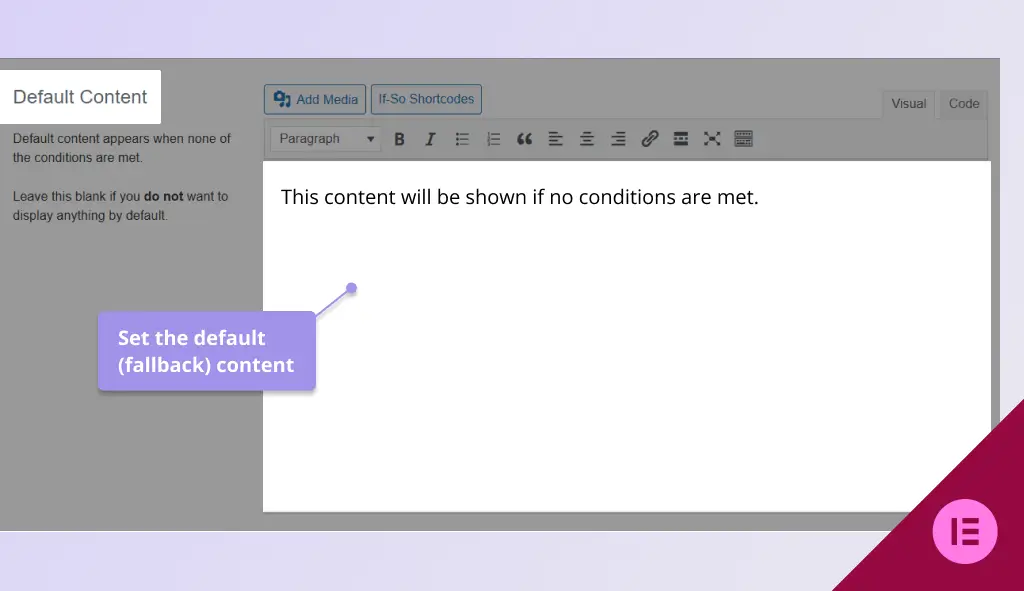
- Set default content that will be shown if no conditions are met. Screenshot
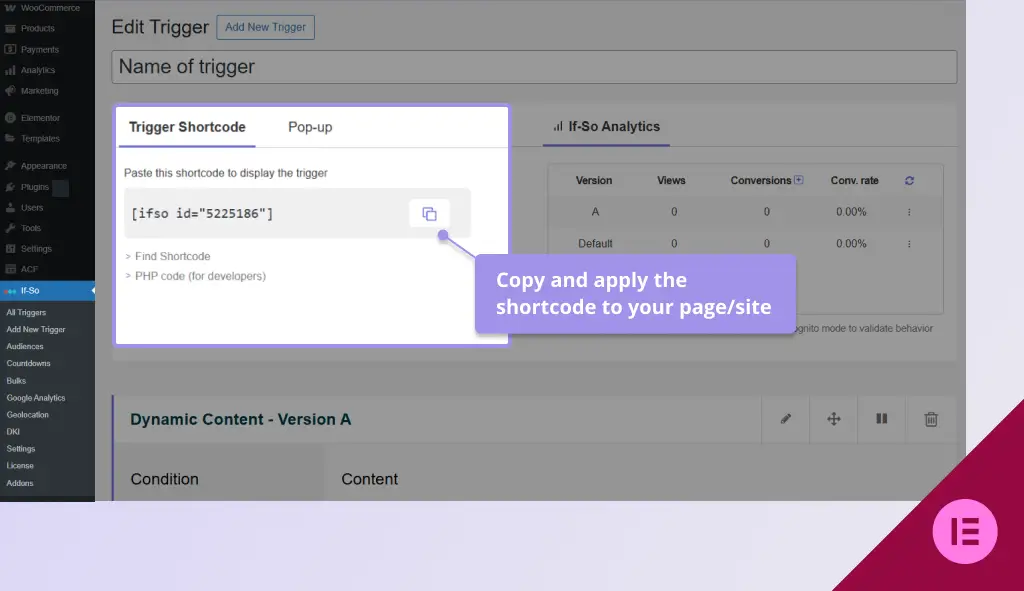
- Click Publish and place the trigger shortcode on your page. You can use a text, title, or shortcode element. Screenshot
FAQ
Do I need Elementor Pro to use templates inside triggers?
No. Elementor Pro includes built-in template shortcodes, but free Elementor users can enable this using a third-party plugin.
Can I use multiple Elementor templates in one trigger?
Yes. You can insert different Elementor template shortcodes in different trigger versions to display unique designs per condition.
Screenshots