Conditional Triggers – Smarter logic for advanced Elementor control
In some scenarios, it’s better to manage your Elementor display logic using If-So conditional triggers instead of element-level conditions. Triggers give you more flexibility, advanced logic options, and access to built-in analytics.
When to use conditional triggers instead of conditional Elementor Elements
Conditional triggers are the right option when:
- You need advanced “if not” logic (for example: if condition A is met, show version A; if not, check condition B, then C).
- The condition you need is only available in triggers (for example: A/B testing)
- You want to track performance using If-So’s built-in analytics.
- You want to reuse the same logic across multiple pages.
AND/OR condition logic in conditional triggers
Triggers evaluate content versions in order. If the first version’s condition is met, it is displayed. If not, If-So checks the next version, and so on. If no conditions match, the default content is shown.
You can create as many versions as needed.

Designing dynamic trigger content with Elementor
If your content needs are relatively simple – such as text, images, or headings – you can create the content directly inside the trigger using the built-in editor. The content will automatically inherit the styling of the surrounding Elementor element.
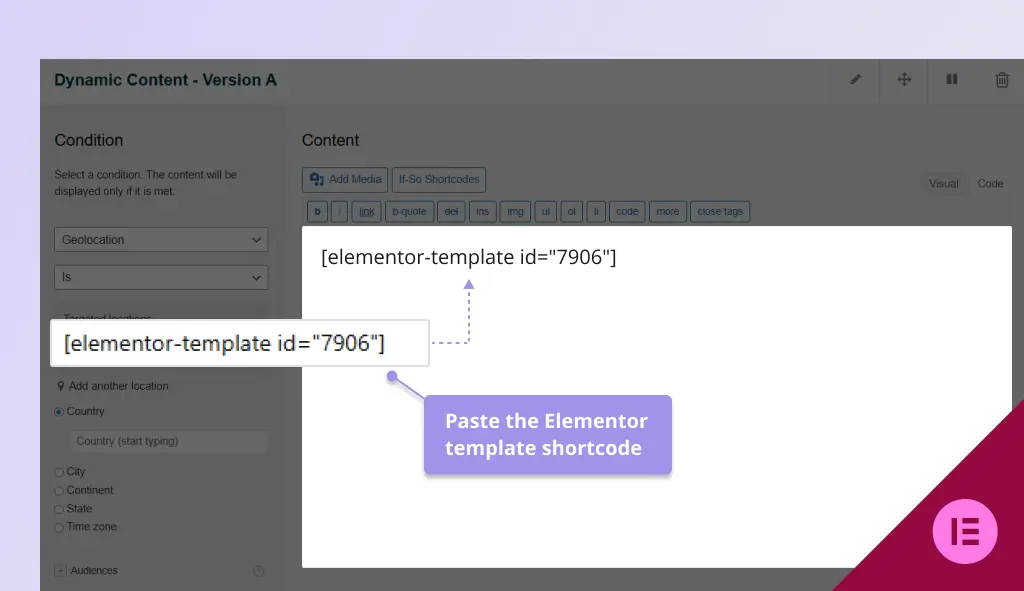
For full design control, create your content as an Elementor template and insert the template shortcode into the relevant trigger version.
Step-by-step: Creating a conditional trigger
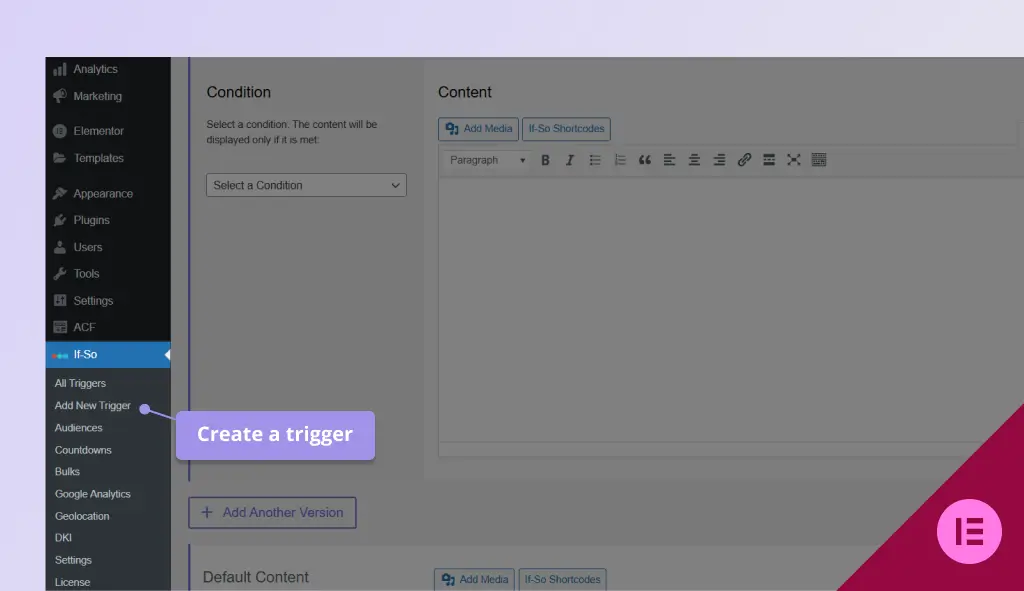
- On your WordPress dashboard, go to If-So → Add New Trigger. Screenshot
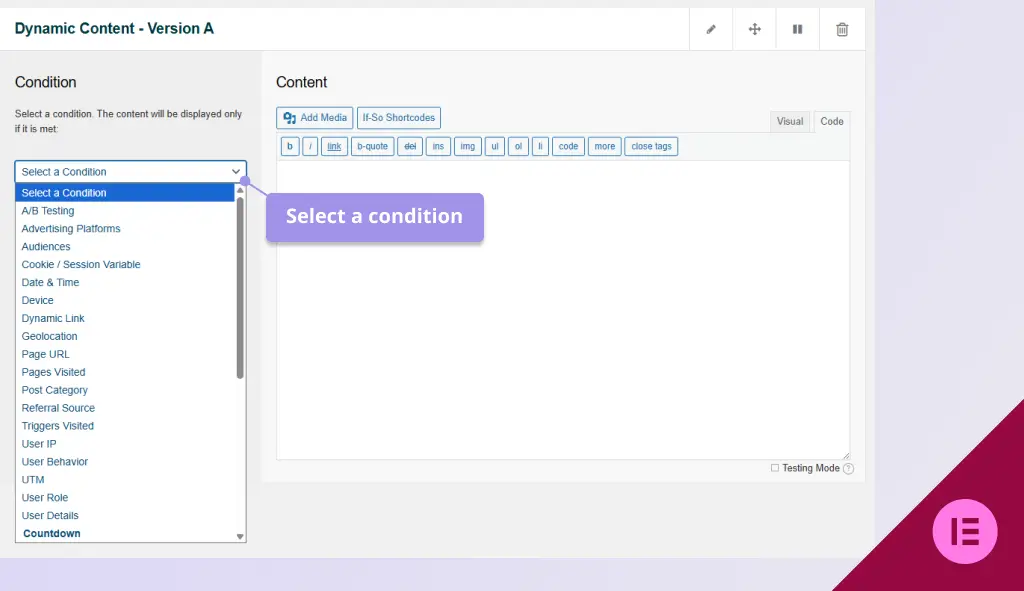
- Click Select a condition and choose the condition you want. Screenshot
- Add the content that should appear when this condition applies. Want to build it in Elementor? Click here for instructions.
- Add additional versions if needed, each with its own condition.
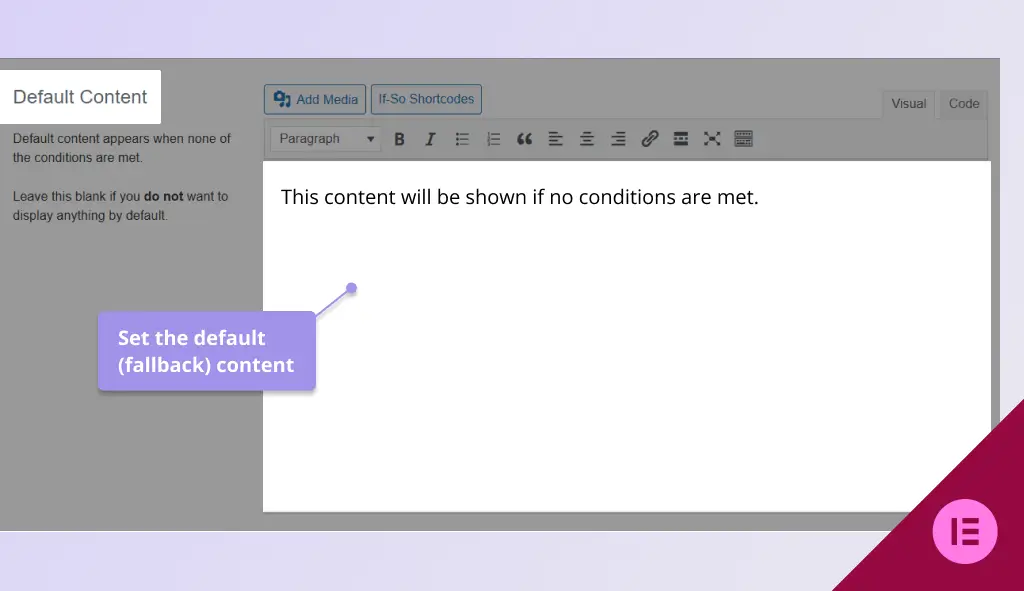
- Set default content that will be shown if no conditions are met. Screenshot
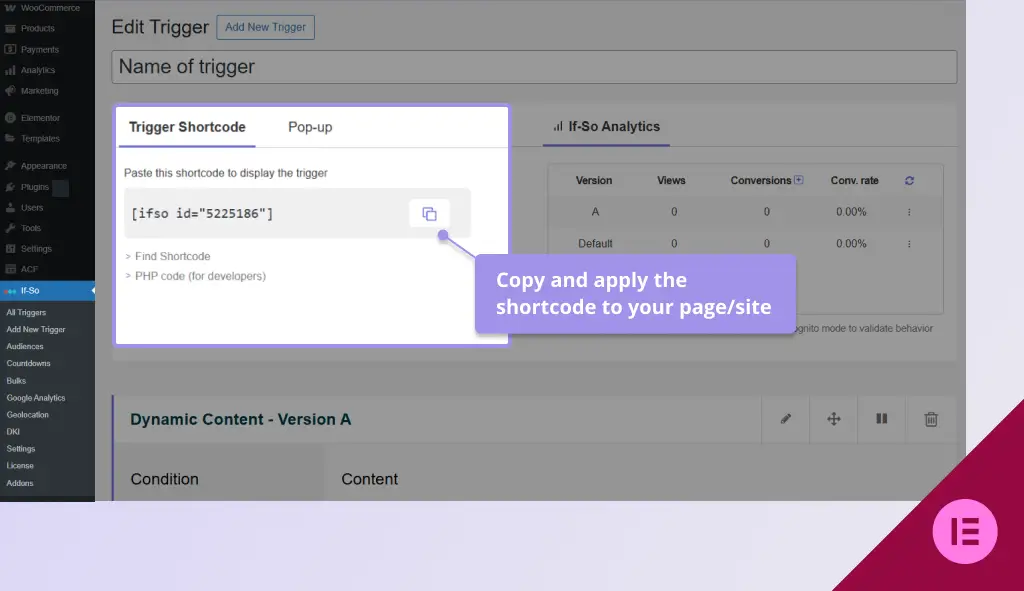
- Click Publish and place the trigger shortcode on your page. You can use a text, title, or shortcode element. Screenshot
Screenshots