Show/Hide posts by geolocation (or any other condition)
Control post visibility by location (continent, country, state, or city) and other dynamic rules.
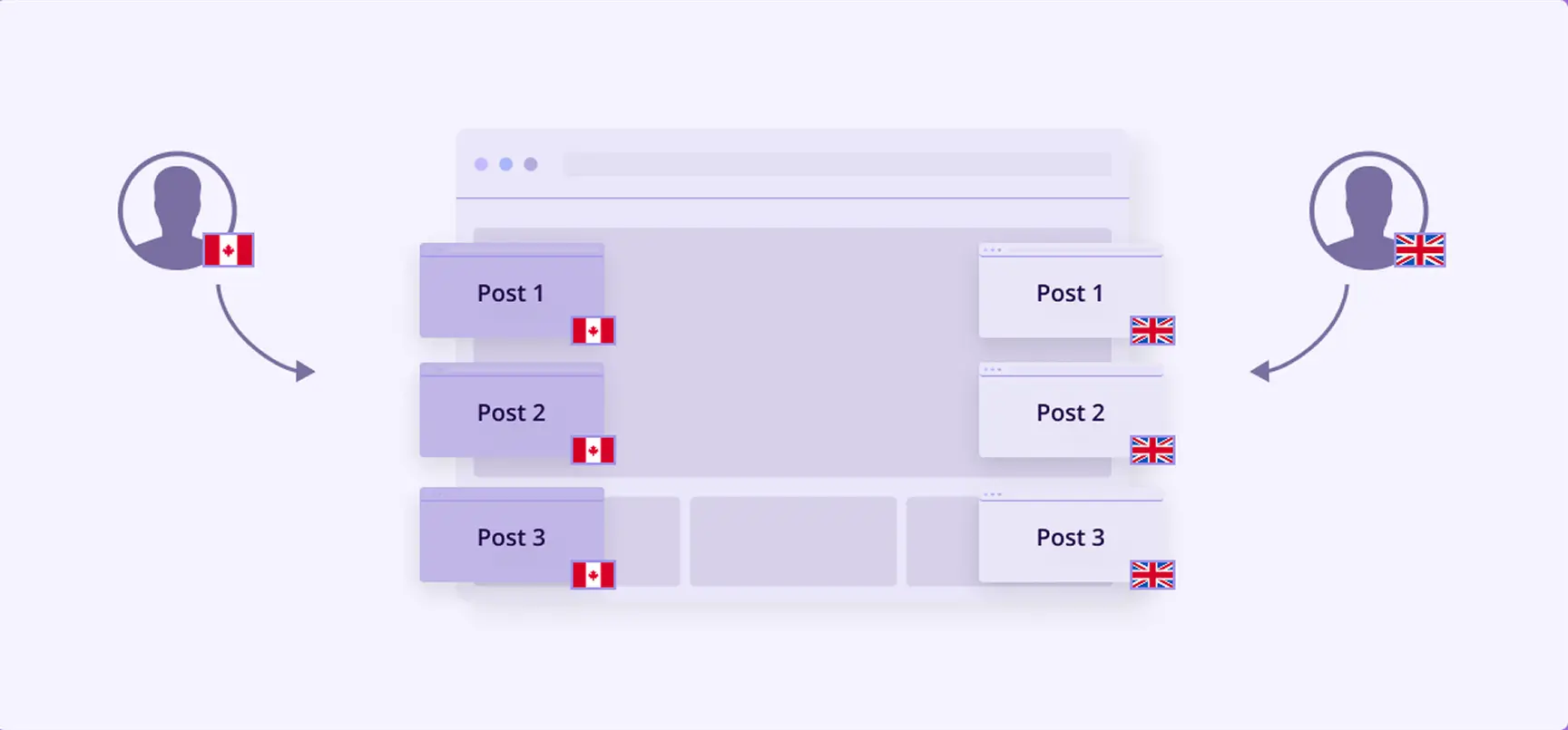
This option applies to all posts and pages except WooCommerce products. If you’re looking for WooCommerce localized pricing and products please click here.
How does the show/hide posts by geolocation work?

If-So allows you to show or hide pages and posts by geolocation (and other If-So conditions) – no coding required.
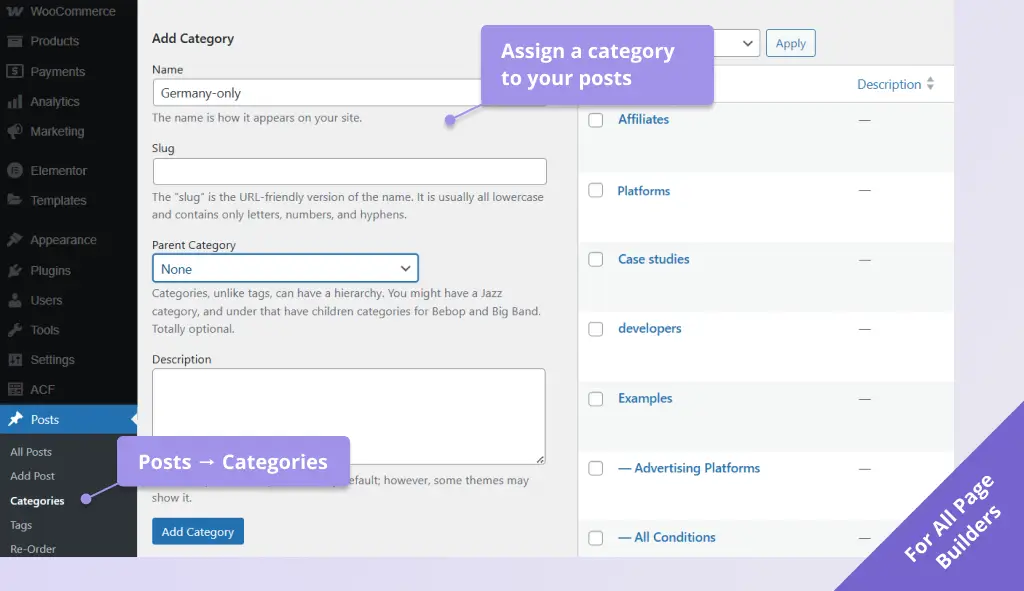
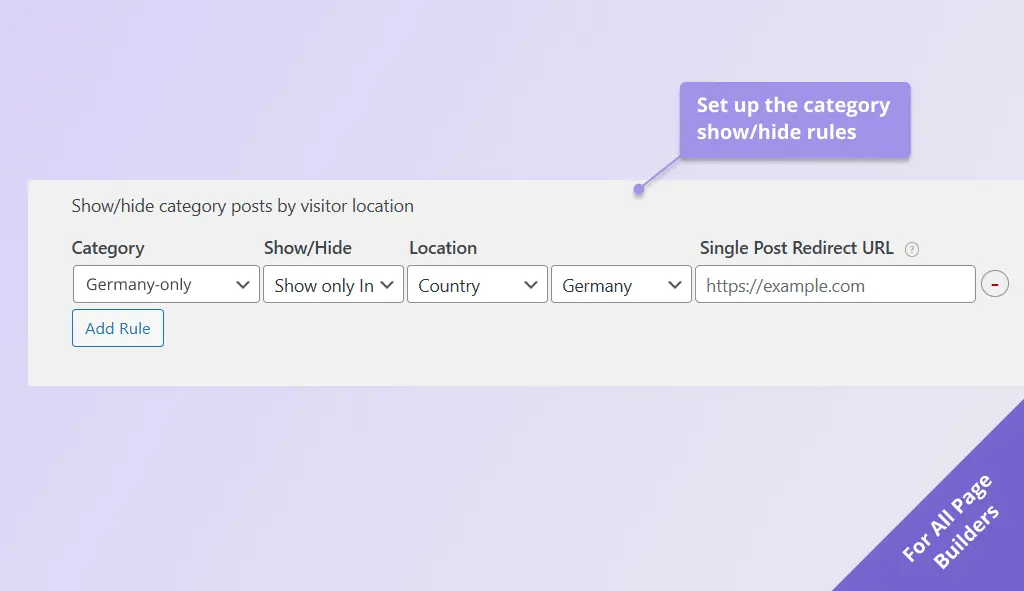
The show/hide posts by geolocation feature works by assigning a category to the relevant page or post, and then using If-So to define whether posts in that category should be hidden or shown only in specific locations.
How hidden posts are handled
- Excluded from post listing pages (for example, the main blog page).
- Excluded from post listings created with page builder blocks or elements
- Excluded from the site’s internal search (when enabled and configured according to WordPress guidelines)
- Still accessible via direct links, with an option to redirect visitors to a different page
How does If-So detectes the user’s location?
The user’s location can be detected automatically using an IP-to-location database or more precisely through the HTML5 Geolocation API, which requires the visitor’s consent. Additionally, a manual self-location selection option is available, allowing users to override the detected location if needed.
Use cases
- Display country-specific prices or promotions.
- Offer localized discounts or deals by country.
- Hide posts for countries where the content is not relevant or available, including site search results.
- Show unique products or posts to previous purchasers, new customers, or returning customers (using other If-So conditions).
- Localize case studies, or news by country, state, or city.
Step-by-step: How to show or hide posts by geolocation
- Download and activate the If-So Dynamic Content plugin and the If-So Geolocation Extension.
- Assign a unique category to the posts you want to show or hide. Screenshot
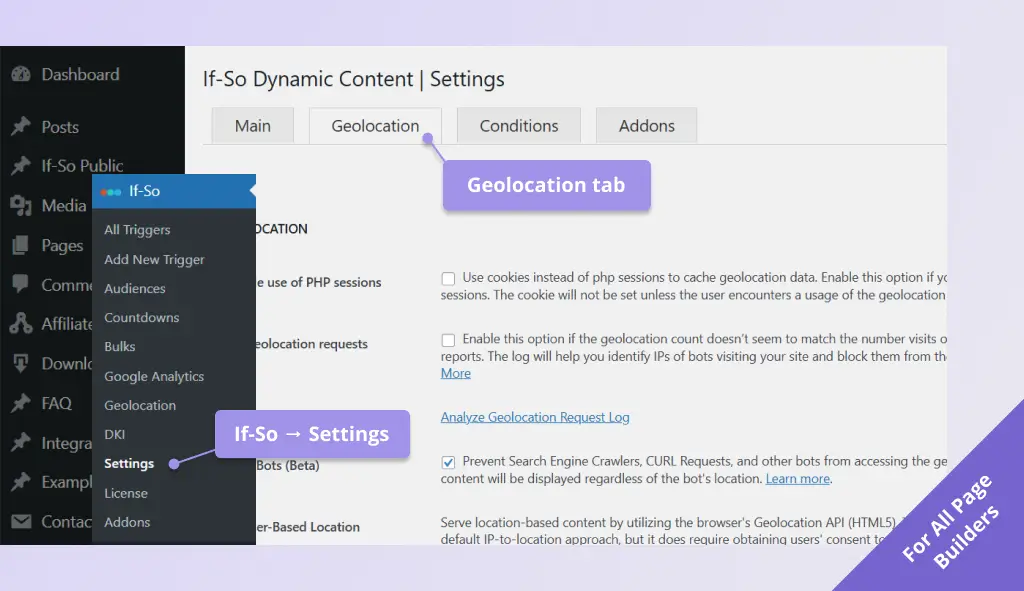
- On your WordPress dashboard, go to If-So → Settings → Geolocation tab. Screenshot
- Under Post visibility by location, click Add rule, then set the category, the location, and a Redirect URL (optional, for users who reach a hidden post via a direct link). Screenshot
- Click Save settings.
- Visit a VPN or testing tool to simulate locations and verify that categories are shown/hidden as expected.
Screenshots