WooCommerce Localized Pricing and Products
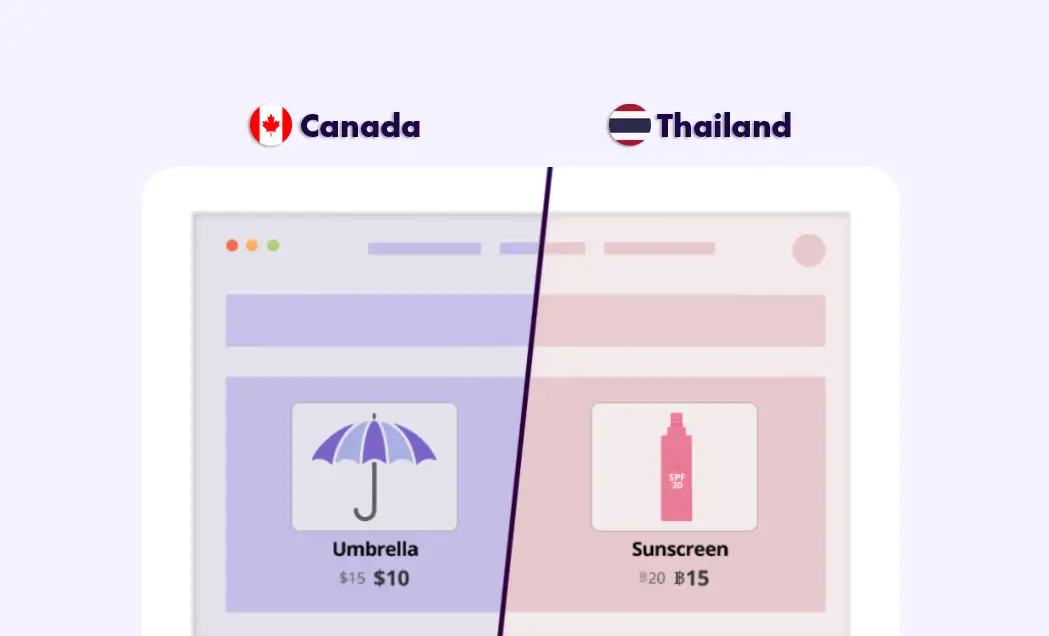
Display different WooCommerce products and apply localized pricing based on the visitor’s location.
How does the WooCommerce localized pricing feature work?

If-So allows you to personalize your WooCommerce store with localized pricing and product visibility based on each visitor’s location – no coding required.
The WooCommerce geolocation feature automatically detects a user’s country, region, or city and adjusts the content they see.
Based on the detected location, you can show or hide products, apply localized pricing or currency, and highlight local promotions.
Real-life use cases for WooCommerce geolocation
WooCommerce localized pricing and products is designed to help you display the most relevant products, pricing, and shipping options based on each visitor’s location.
Here are the most common ways it’s used in online stores:
- Show or hide products by country/region
Display specific WooCommerce products only to visitors from selected countries or regions, and hide them from others. - WooCommerce Localized pricing and currency adjustments
Adjust pricing dynamically based on user location. No need for multiple stores or complex tables. - Geolocation Shipping Rules
Show only shipping options and products available in the visitor’s area. - Localized Promotions & Content
Display country-specific discounts, tax info, or legal notes.
Step-by-Step: How to set up WooCommerce localized pricing and product display
- Download and activate the If-So Dynamic Content plugin, the If-So Geolocation Extension and the If-So WooCommerce Integration.
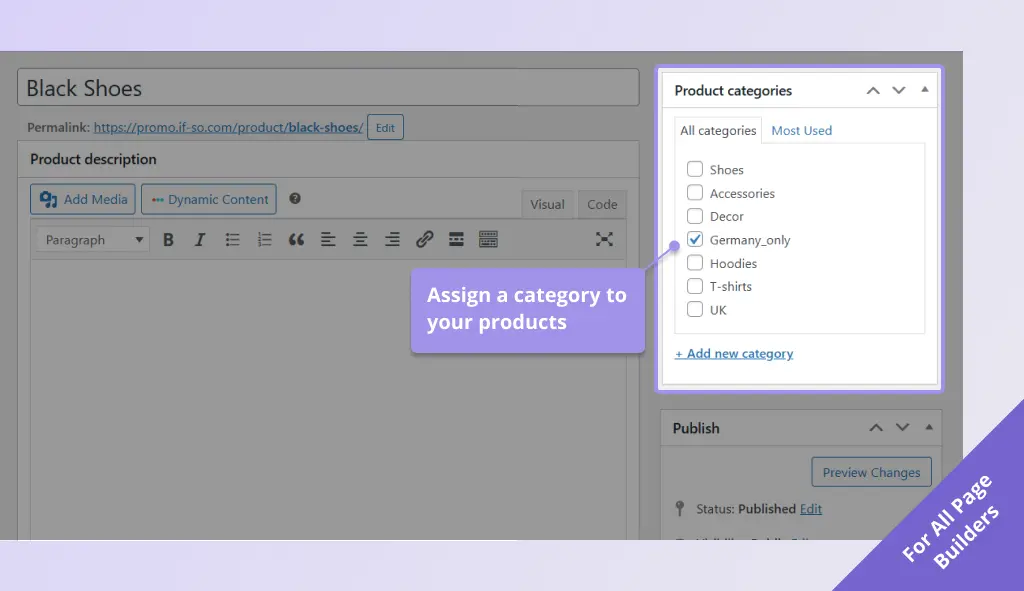
- Assign a category to all WooCommerce products you want to hide (or show). For example, if you want certain products to appear only in Germany, assign a category like “Germany_only” to those products. Screenshot
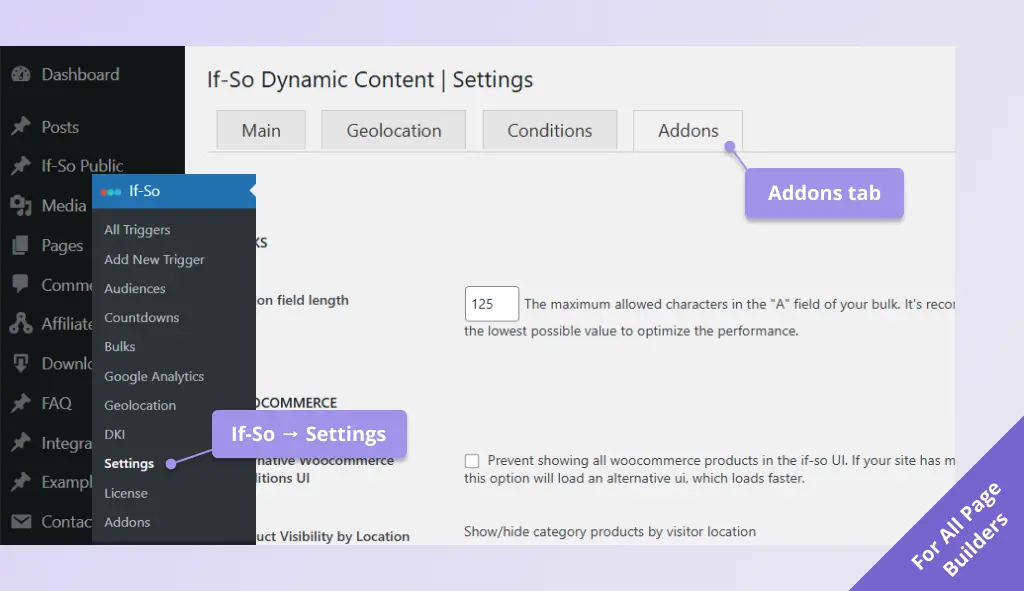
(WooCommerce Documentation – Assigning Categories). - Set up your location-based rules: on your WordPress dashboard, go to If-So → Settings → Add-ons, then scroll to the WooCommerce Geolocation section. Screenshot
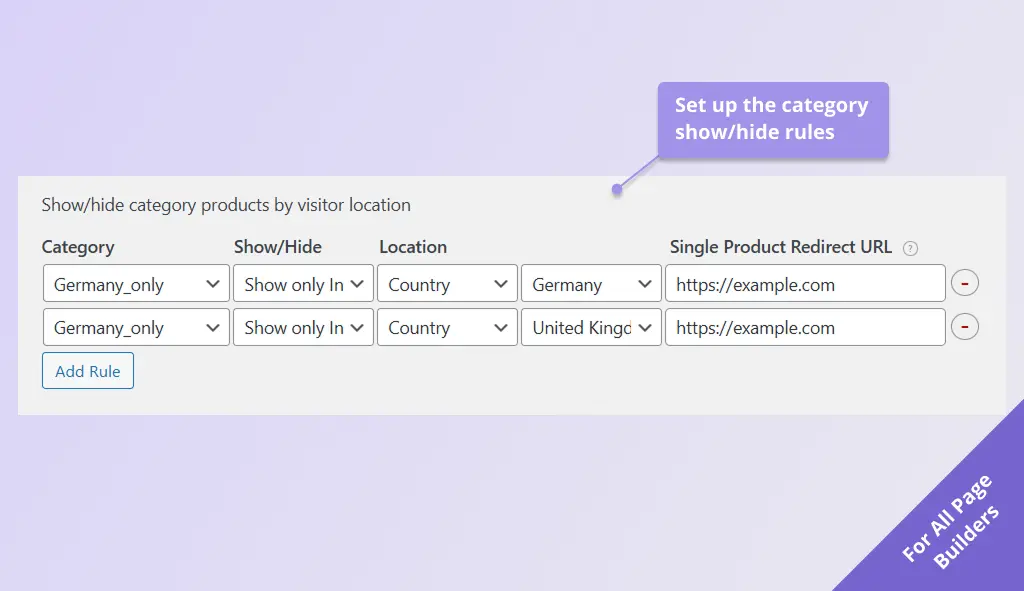
- Define the display rules for products in those categories – show or hide them based on the user’s location. Screenshot
- Optional: add a redirect URL so that if a user opens a hidden product via a direct link, they are redirected to a page you choose.
Note: Without a redirect configured, a hidden product can still be accessed via its direct URL.
Screenshots