Country Block & Geo Restrictions – 3 options

How does the Country Block option work
The Country Block option is an IP-based solution. No complicated setup is required – the plugin handles everything for you and works seamlessly on any WordPress website.
As If-So is a server-side WordPress block country plugin, restricted content is never loaded (unlike solutions that simply hide content using CSS).
Country Block can be applied at three levels:
- The entire site
- A specific page
- Pages, posts, or WooCommerce products in a specific category (Click here if you are interested in this option)
Use cases
- Block visitors from countries where your service is not legally permitted.
- Limit site access for countries with elevated security risks.
- Restrict access to products that cannot be sold or shipped to certain countries.
- Block promotional pages in countries where the offer is not valid.
- Block content to avoid processing leads from unsupported countries.
Step-by-step: How to set up country block using the If-So WordPress plugin
- Download and activate the If-So Dynamic Content WordPress plugin.
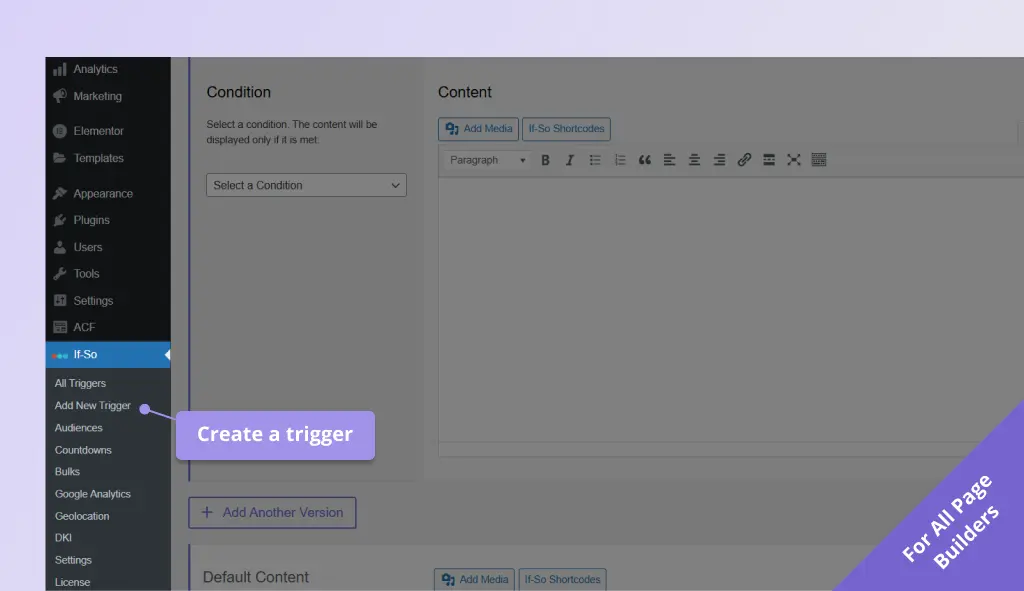
- On your WordPress dashboard, go to If-So → Add New Trigger. Screenshot
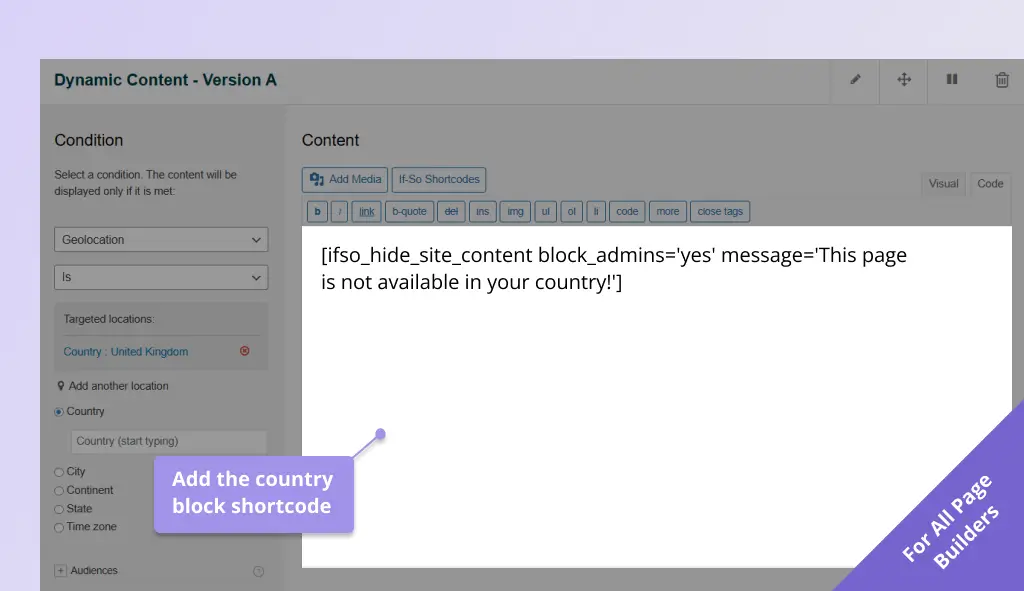
- In Version A, select the Geolocation condition and choose the continent, country, state, city, or timezone you want to target. Screenshot
- Paste the shortcode below into Version A’s content field. Screenshot
[ifso_hide_site_content block_admins='yes' message='This page is not available in your country!']- Leave the Default version empty if you do not want any action when the condition is not met.
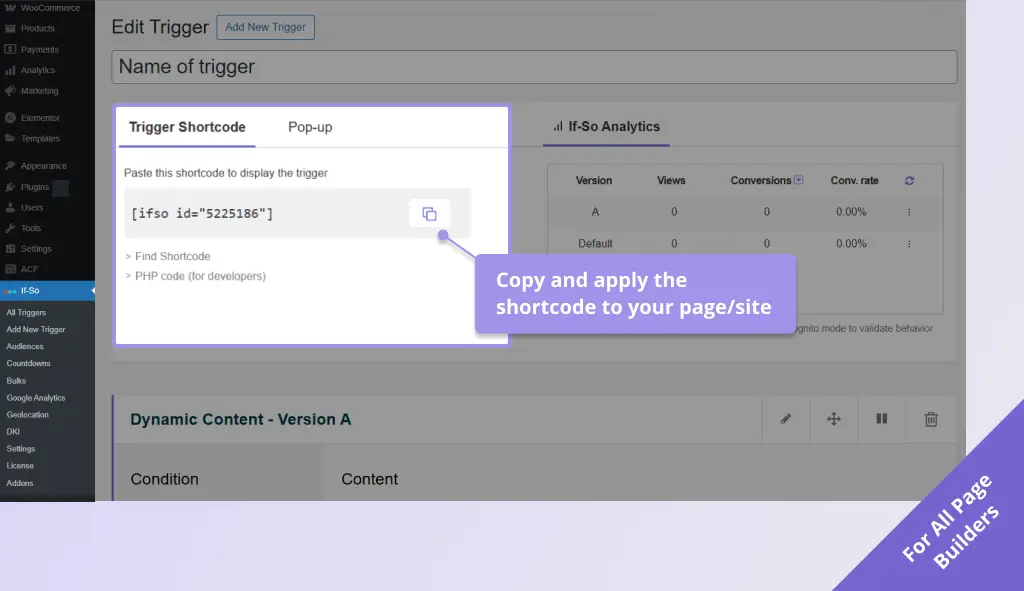
- Click Publish and paste the trigger’s shortcode on your page, or add the shortcode to the site header to set up site-level blocking (using If-So or any other method). Screenshot
!
If your site uses page caching, you’ll need to install our Trigger Events extension for this block to work correctly
!
These steps apply to page-level blocking. For site-level blocking, see the All page builders tab.
- Download and activate the If-So Dynamic Content WordPress plugin and the Conditional Elementor elements integration.
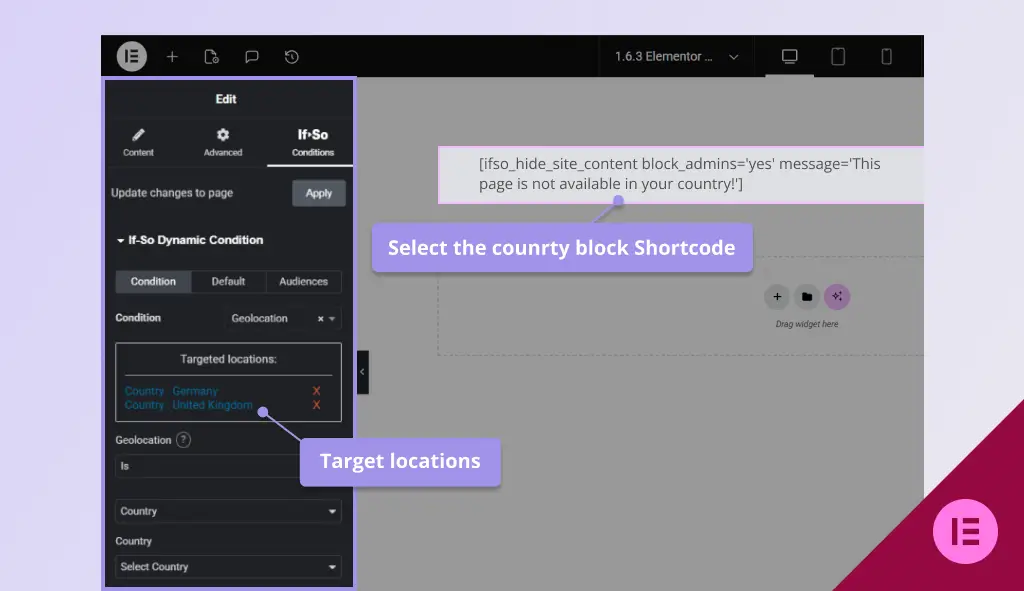
- On the page where you want to block users, drag a Shortcode Element to the top of the layout and paste the following shortcode:
[ifso_hide_site_content block_admins='yes' message='This page is not available in your country!']- With the Shortcode widget selected, go to the If-So conditions tab and open the If-So Dynamic Content section.
- Choose the Geolocation condition and select the countries / states / cities you want to block. Screenshot
- Click Update to save the page.
!
These steps apply to page-level blocking. For site-level blocking, see the All page builders tab.
- Download and activate the If-So Dynamic Content WordPress plugin.
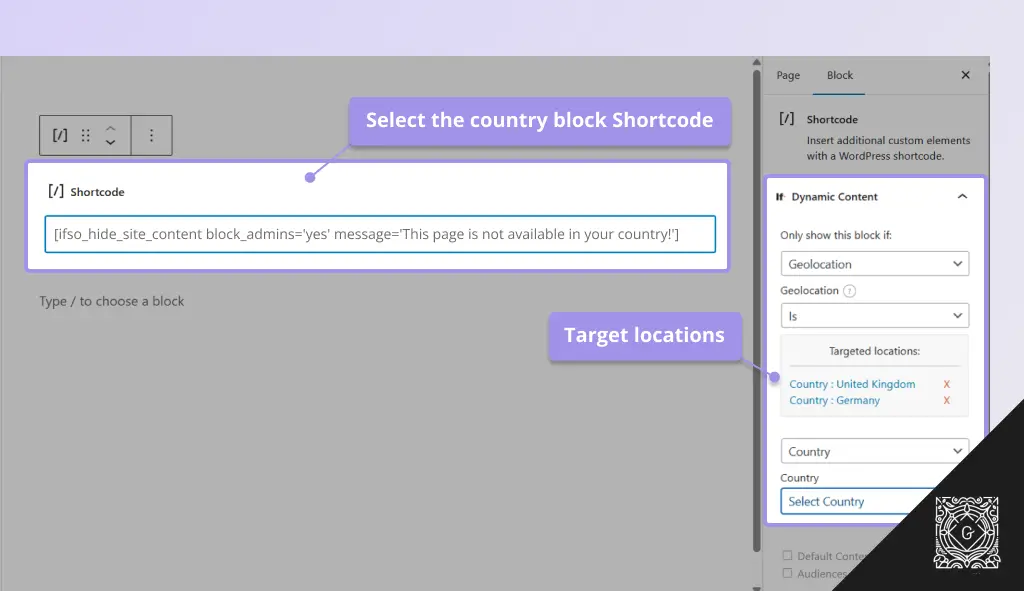
- On the page where you want to block users, add a Shortcode Gutenberg Block to the top of the layout and paste the following shortcode:
[ifso_hide_site_content block_admins='yes' message='This page is not available in your country!']- With the Gutenberg shortcode block selected, go to the If-So conditions tab and open the If-So Dynamic Content section.
- Choose the Geolocation condition and select the countries / states / cities you want to block. Screenshot.
- Click Update to save the page.
FAQ
Can users bypass the country block?
Yes. Visitors using VPNs or proxy services may bypass country-based restrictions by masking their real location.
Is the blocked content hidden with CSS?
No. The Country Block works on the server side, so blocked content is never loaded or rendered.
Does this work with caching?
Yes. If-So works with all caching systems.
Can I block only part of a page instead of blocking the entire page?
Yes. You can make specific elements on a page location-based, so they load only for visitors from selected locations.
Screenshots