Dynamic WordPress Menus – 3 min setup
Set up dynamic WordPress menu items that automatically adjust based on a predefined set of conditions.

Use cases
- Set up a dynamic WordPress menu item that points to the nearest branch.
- Display a Start here menu item for visitors who haven’t yet visited the Start here page.
- Disaply a “Special Deal” dynamic menu item for users visiting from a specific country.
Step-by-step: How to set up location-based menu item
The setup involves two main steps: (1) creating a trigger that defines the locations and their corresponding menu items, and (2) adding that trigger to your WordPress menu.
- Download and activate the If-So Dynamic Content plugin.
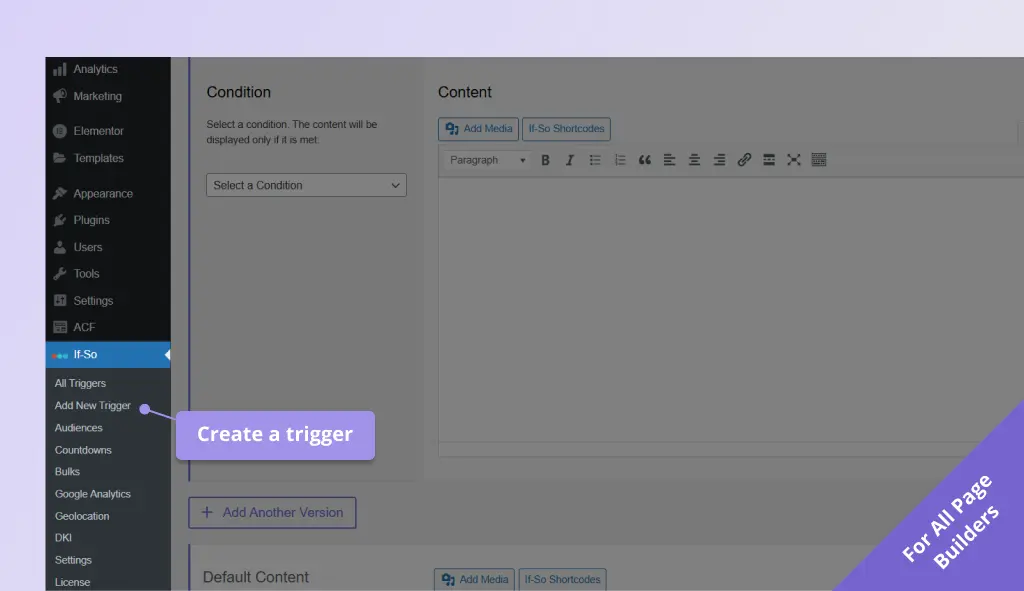
- On your WordPress dashboard, go to If-So → Add New Trigger. Screenshot
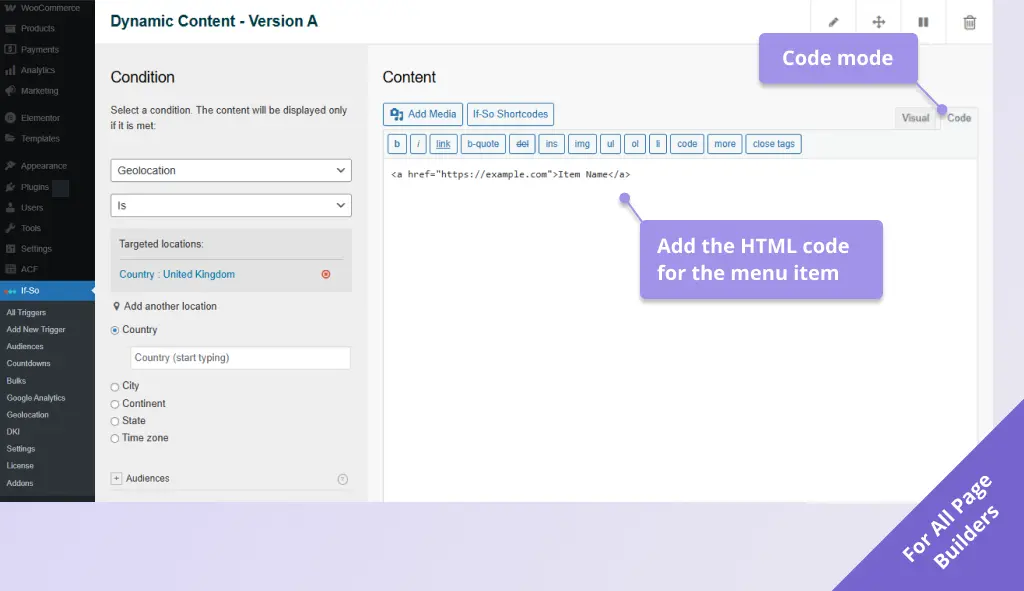
- In version A, select the condition under which the dynamic menu item should appear. Screenshot
- In the version A content field, switch the WYSIWYG editor to Code mode and paste the HTML line below, while replacing
https://example.comwith the page URL you want the menu item to lead to and Item Name with your desired label. Screenshot
<a href="https://example.com">Item Name</a>- On your WordPress dashboard, go to Appearance → Menus.
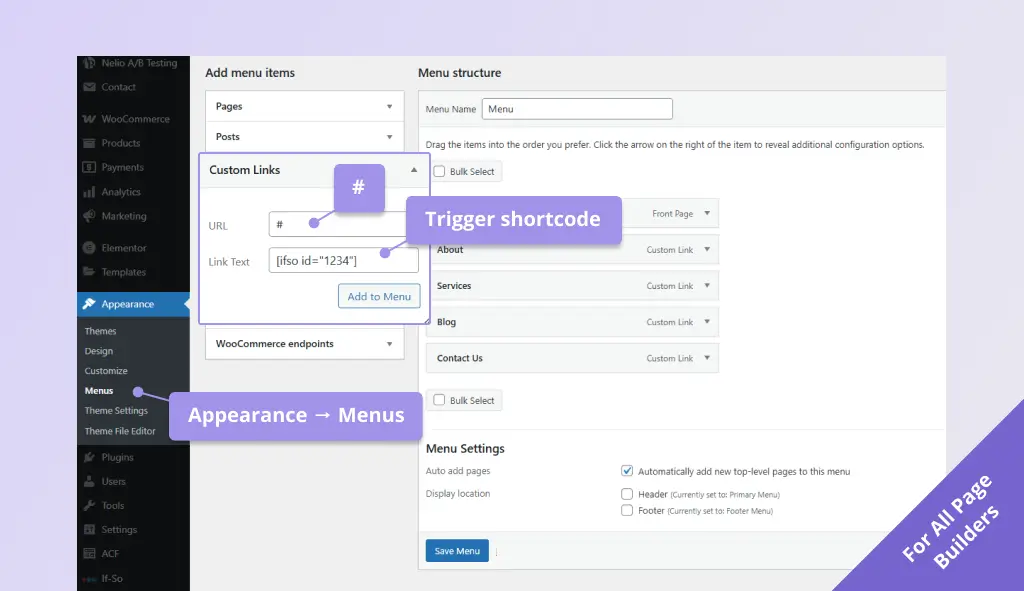
- Click Custom Links to add a new custom menu item, paste the trigger’s shortcode in the Link Text field, and enter
#in the URL field. - In the Link Text field, paste the trigger’s shortcode. Screenshot
FAQ
Does the dynamic menu item display work with page caching?
Yes. If-So’s dynamic WP menu items work seamlessly with all caching systems by using AJAX loading. The correct menu version is loaded after the cached page is served, ensuring each visitor sees the right menu items based on the set conditions without affecting performance.
Screenshots