
How to Display Content Based on Location in WordPress?
This page covers how to display content based on visitor location in WordPress with If-So – creating a trigger with a geolocation condition, setting the content and the default version, adding it to the page with Gutenberg, Elementor, or a shortcode, understanding the monthly session limit, and confirming it works.
For a feature overview, see the Location-Based Content feature page →
Step-by-step: How to set up location-based content?
The setup involves two steps: (1) creating a trigger with a geolocation condition, and (2) adding a redirect shortcode that sends matching visitors to the target URL.
- Download and activate the If-So Dynamic Content plugin.
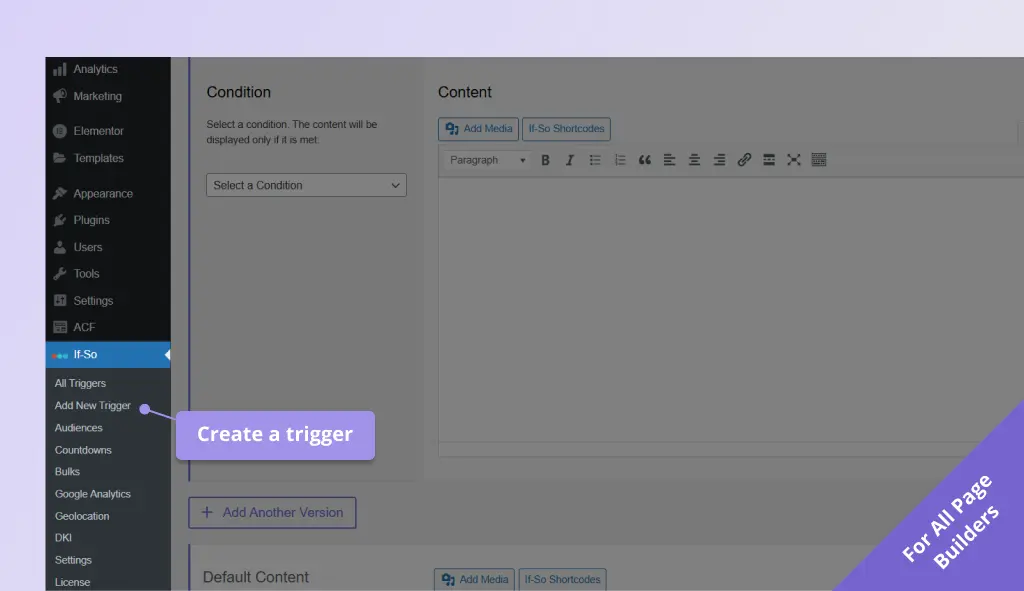
- On your WordPress dashboard, go to If-So → Add New Trigger. Screenshot
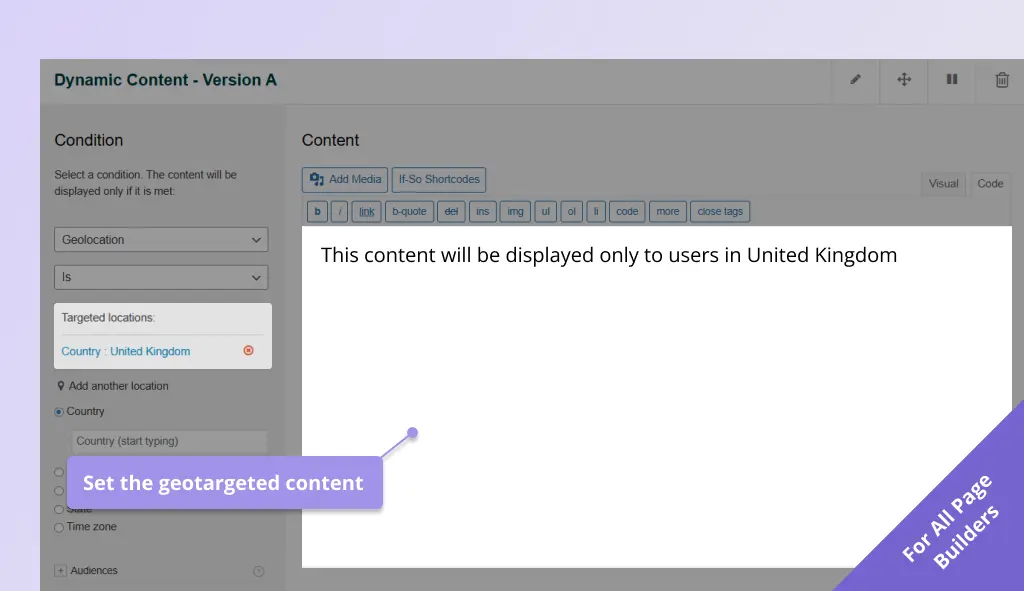
- In version A, select the geolocation condition and choose the locations you want to target. Screenshot
- In the version A content field, enter the content that will be displayed when the visitor’s location matches your targeting. Screenshot
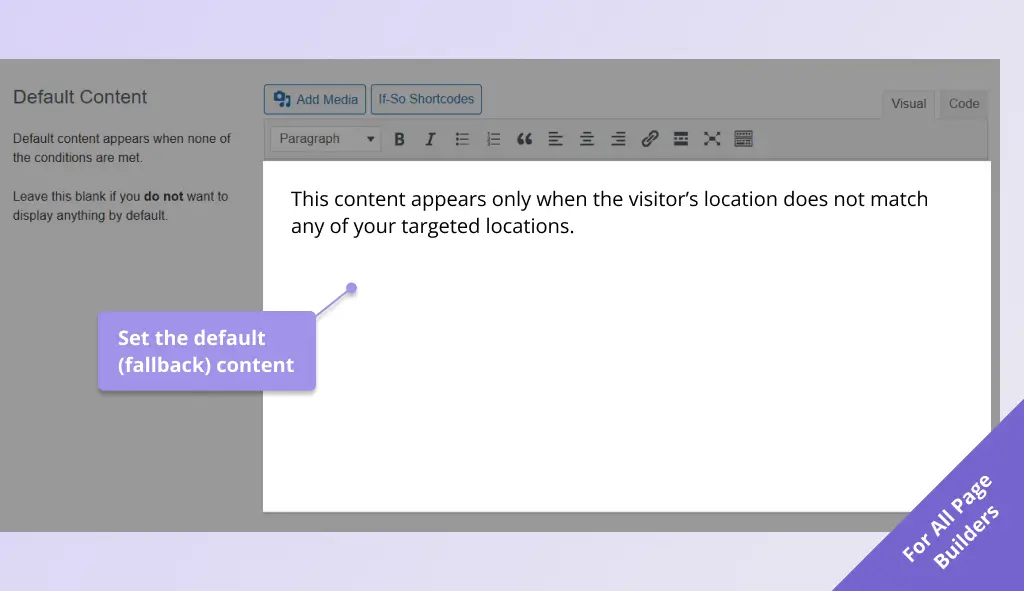
- In the default content field, enter the content to display when the visitor’s location does not match any of your targeted locations. Leave this field empty if you prefer not to show anything in these cases. Screenshot
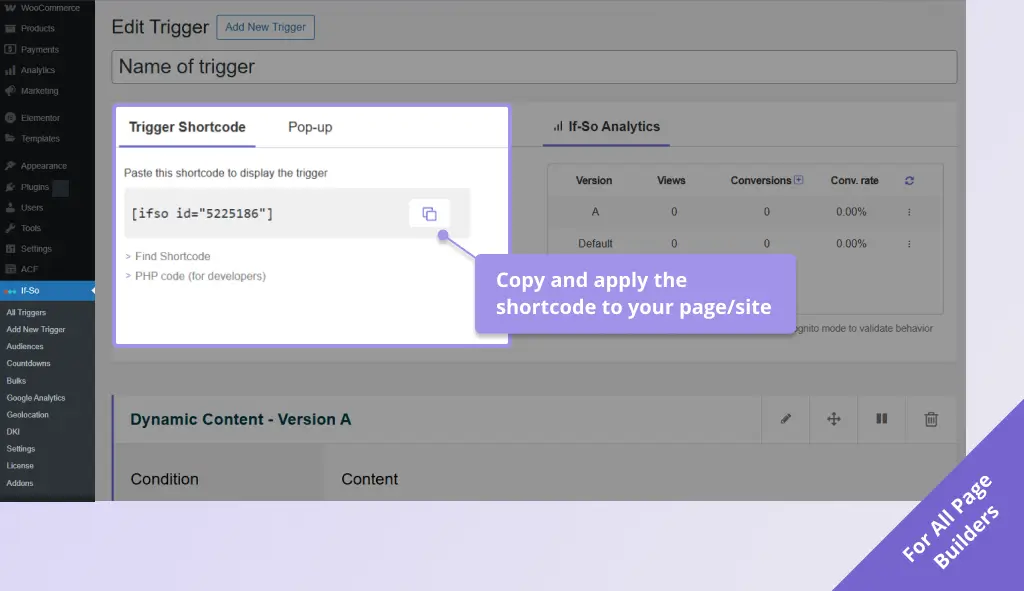
- Click Publish and paste the shortcode generated by If-So anywhere on your website where you want the content to appear. Screenshot
- Download and activate the If-So Dynamic Content WordPress plugin and the Conditional Elementor elements integration.
- In the Elementor editor, select the element you want to use as location-based content.
- In the element settings panel, go to the If-So tab.
- Choose the Geolocation condition, and select the location type (country, state, city, etc.), then pick the specific locations you want to target. Screenshot
- Click Update to save the page.
- Test your location-based content using a VPN to simulate different locations.
- Download and activate the If-So Dynamic Content WordPress plugin.
- In the Gutenberg editor, select the block you want to use as location-based content.
- In the block settings sidebar, open the If-So Conditions panel.
- Choose the Geolocation condition and select the location type (country, state, city, etc.), then choose the specific locations you want to target. Screenshot
- Update or publish the page to save your changes.
- Test your location-based content using a VPN to simulate different locations.
Monthly Session Limit
Geolocation usage is limited by the number of monthly sessions (it’s the only If-So condition that is limited). The beginning of a session is defined as when a visitor first visits a page with a geolocation trigger. The end of a session is when either a visitor closes the browser, or there have been more than 25 minutes of inactivity (it may vary slightly between browsers).
Click here for the geolocation pricing options.
Troubleshooting the Geolocation Condition
If you set up a geolocation trigger and it seems to not be working properly, there are a few common reasons to consider. Click here for the geolocation troubleshooting guide.
Screenshots


Why If-So for geolocation based content?
- No coding, no setup
- Country, state, and city precision
- Cache-safe
- Works with any page builder
- Always a fallback version
- Get started for free — see it working on your site