
Number of Version Views
The Number of Version Views condition is a free add-on. Make sure to download and activate the add-on so that the condition will be added to your list of conditions.
About the Number of Version Views condition
The Number of Version Views condition allows you to display a content version for a set number of views. After the set number of views is reached, the version will no longer be displayed and If-So will keep checking the condition of the next content versions and displaying content accordingly.
Use cases
- Create a special promotion for the first X users who visit a page.
- Combine with other conditions (dynamic links, UTM, referrer source, Google Ads) – create special offers for the first X users arriving from a specific campaign.
How does it work?
The number of views count is based on If-So’s built-in analytics views count.
A “view” is counted whenever a version is displayed on the page, even if it’s below the fold and the user didn’t scroll and see it.
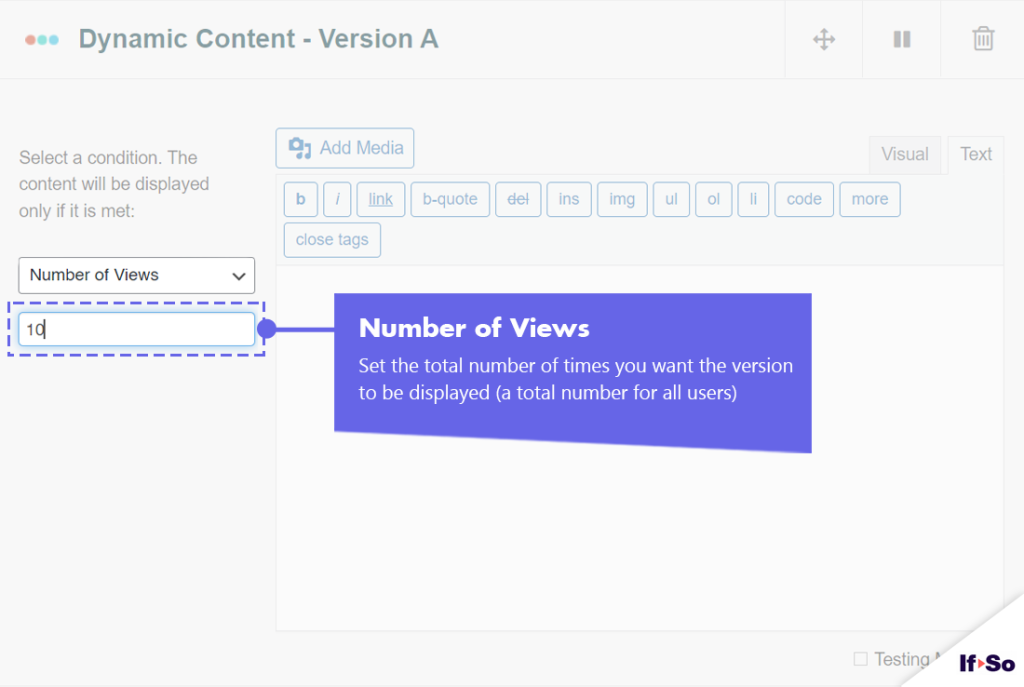
The number of views is the total number of times a version was displayed (to all users).
How to set up the Number of Version Views condition
- On your WordPress dashboard, go to “If-So → Add New Trigger”.
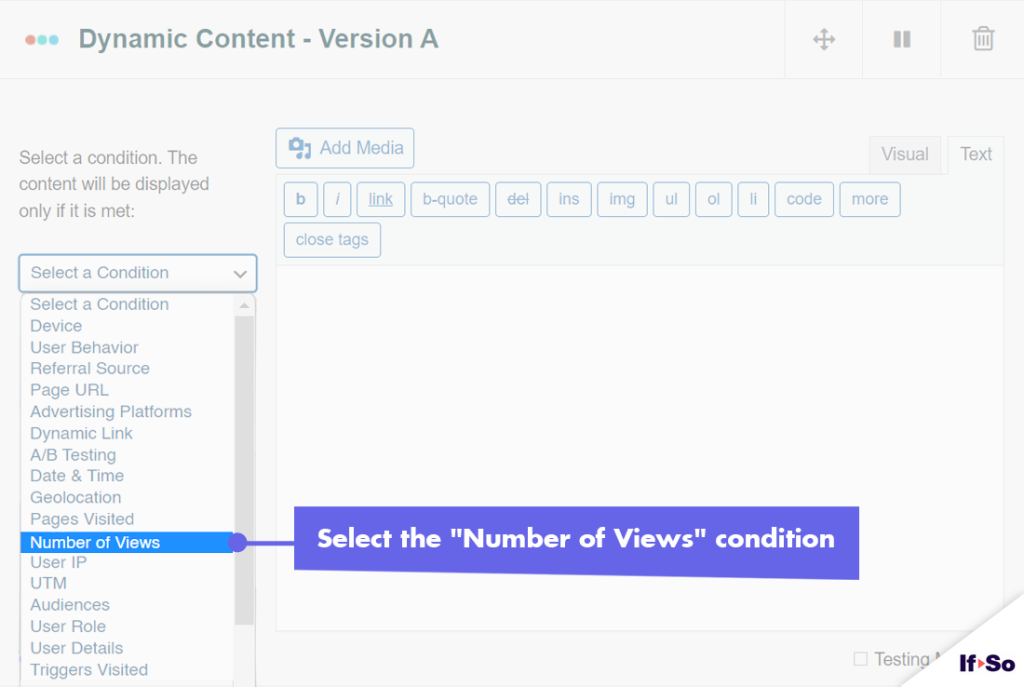
- Click on “Select a condition” and select “Number of Views“. Screenshot
- Set the number of views limiter.
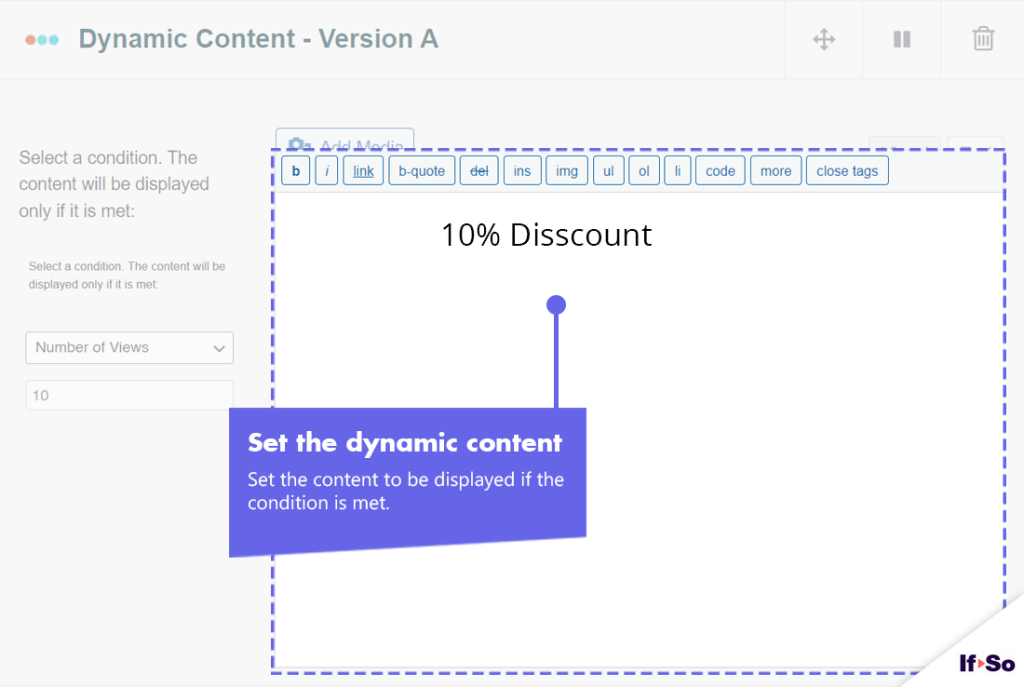
- In the dynamic version content field, set the content to be displayed if the condition is met. Screenshot
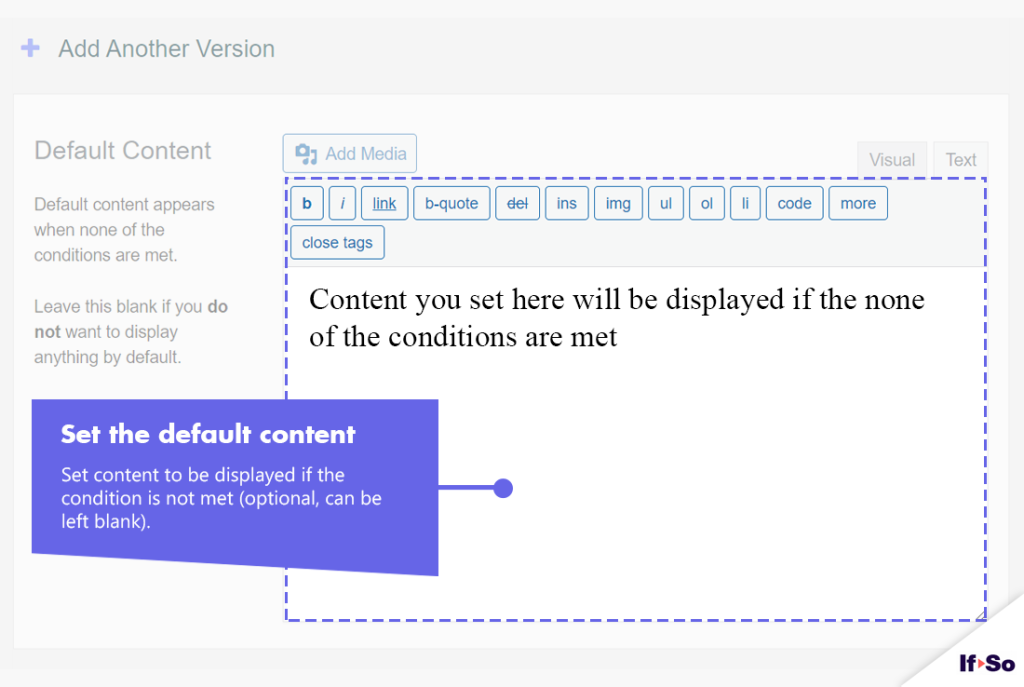
- In the default content field, set the content to be displayed after the limit is reached (optional, can be left blank).
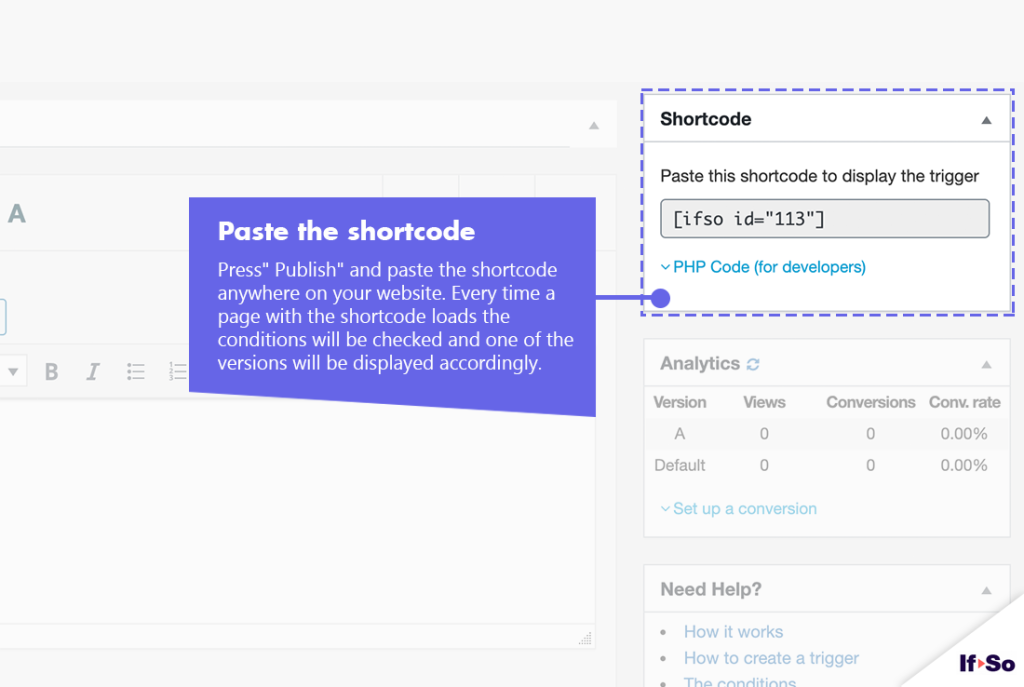
- Press “Publish” and paste the shortcode generated by If-So on your website.
- Download and activate the If-So Dynamic Content WordPress plugin and the Conditional Elementor elements integration.
- In the Elementor editor, select the element you want to display based on number of views.
- In the element settings panel, go to the If-So tab.
- Choose the Number of Views condition and set the number of views limiter.
- Click Publish to save the page.
- Download and activate the If-So Dynamic Content WordPress plugin.
- In the Gutenberg editor, select the block you want to display based on number of views.
- In the block settings sidebar, open the If-So Conditions panel.
- Choose the Number of Views condition and set the number of views limiter.
- Click Update to save the page.
Screenshots
Didn’t find what you need?
Number of Version Views (add-on)
Price: FreeRequirements: If-So Pro