
WooCommerce Conditions
How it works
The If-So WooCommerce integration extends your existing If-So triggers by adding WooCommerce-based conditions and functionality.
Once installed, new WooCommerce conditions become available directly within your triggers, as well as in the conditional display settings of Gutenberg and Elementor elements.
These conditions allow you to add or replace content on your pages based on user and store data such as cart contents, purchase history, or customer details.
The integration is fully compatible with any WordPress theme and page builder, and requires no coding to set up or use.
Condition types
The WooCommerce integration includes the following condition groups:
Cart-based conditions
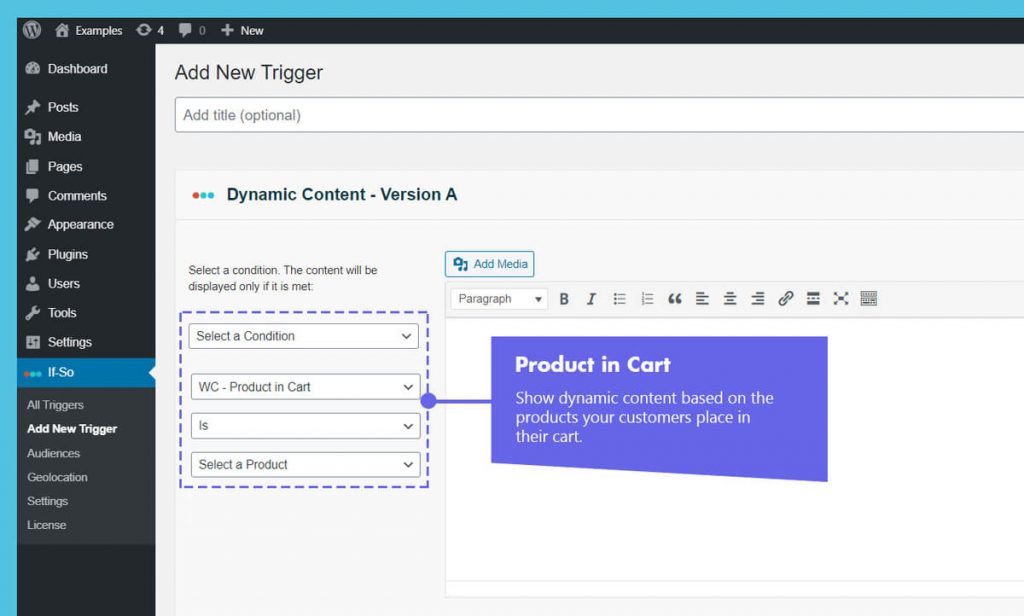
- Product in cart
- Product category in cart
- Number of items in cart
- Value of items in cart
Purchase-based conditions
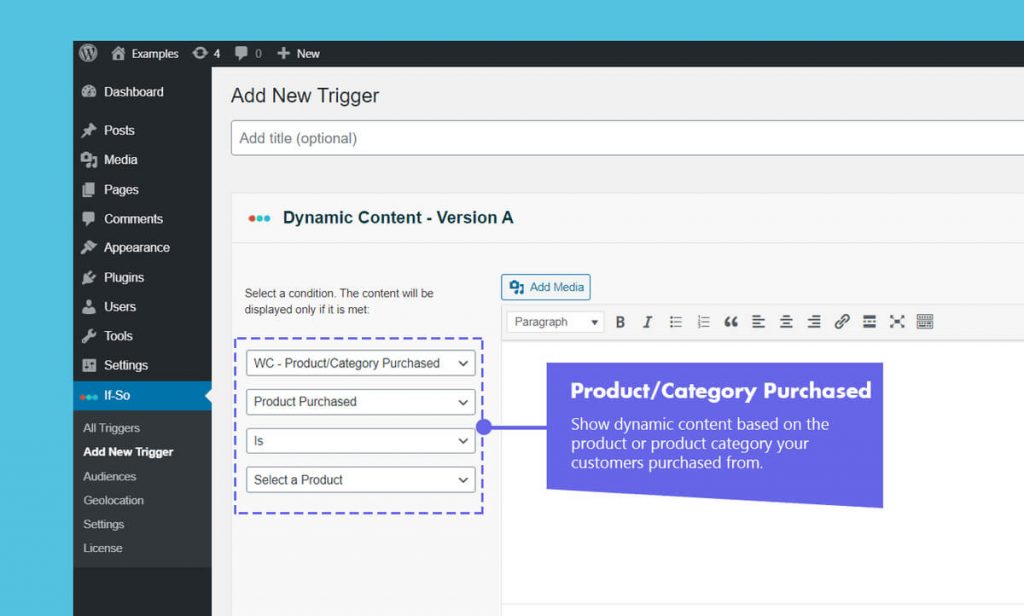
- Product purchased
- Product category purchased
- Total spent
- Number of orders
- Average order value
- Product last purchase date
Customer-based conditions
- Billing address details
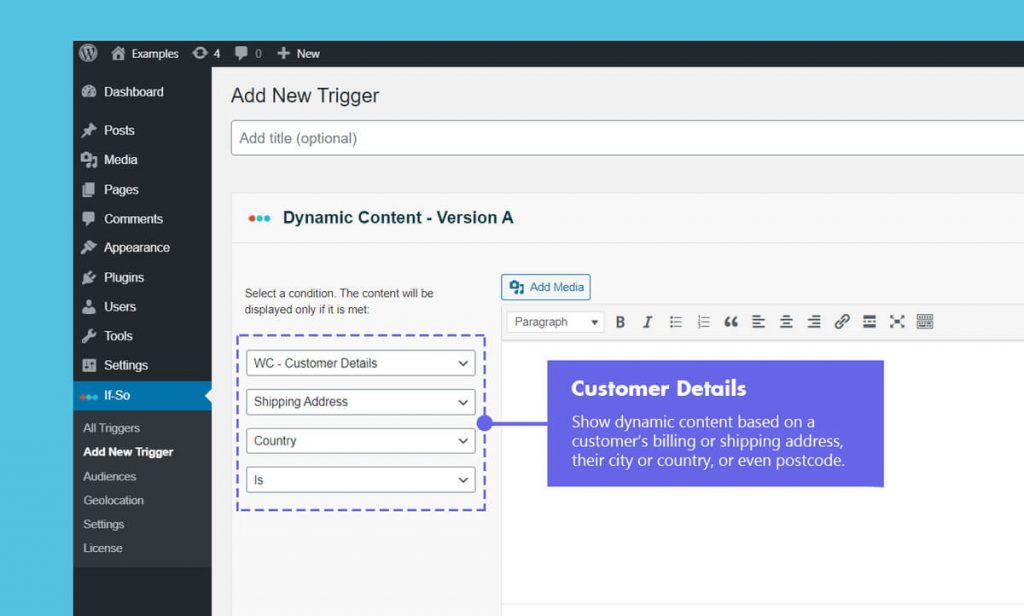
- Shipping address details
- Country, state, city, and postcode
Inventory-based conditions
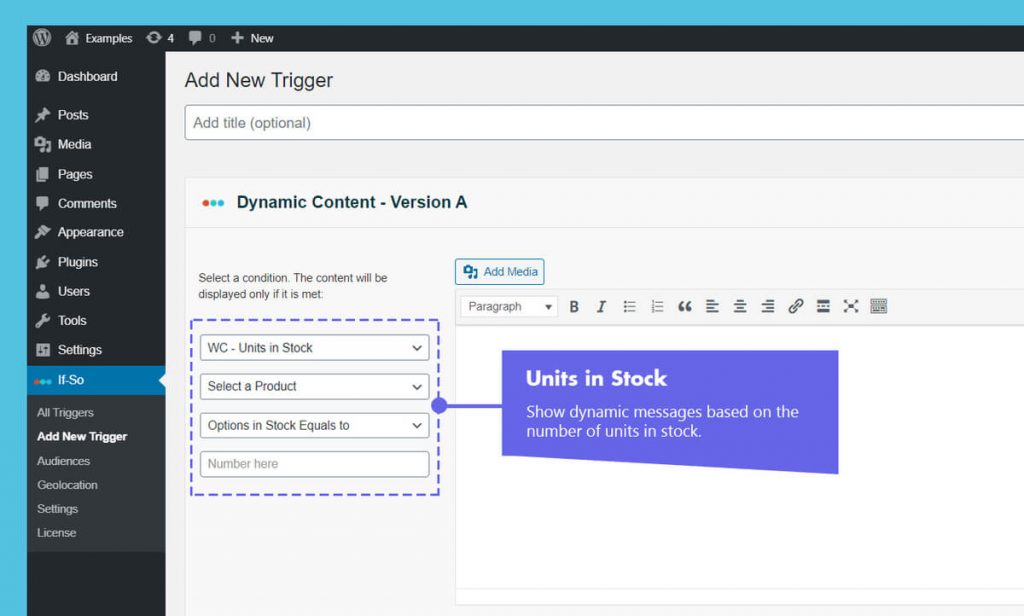
- Units in stock
Cart-Based Conditions
Product in cart
Targets customers based on specific items they are currently planning to buy.
Use cases
- Offer a complementary accessory (upsell) for the specific item in the cart.
- Provide a discount code if a high-margin product is added to the selection.
Product category in cart
Triggers actions when any item from a specific department is being purchased.
Use cases
- Apply a “Buy 3, Get 1 Free” deal across an entire clothing category.
- Show a specialized shipping notice for fragile items like “Glassware” or “Ceramics.”
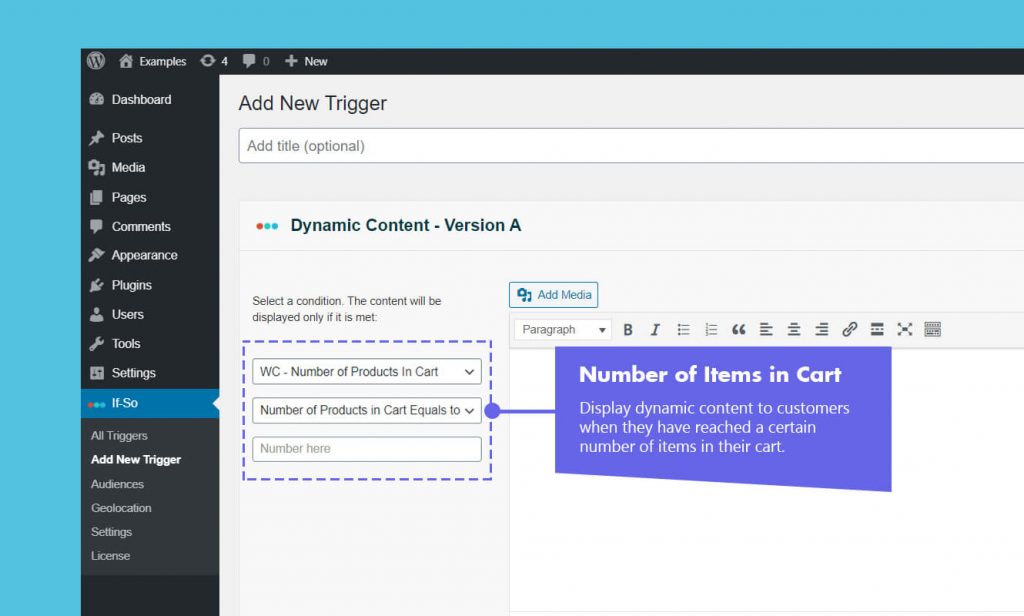
Number of items in cart
Analyzes the volume of the current session to encourage larger hauls.
Use cases
- Unlock a free gift once the customer has five or more items in their basket.
- Display a progress bar showing how many more items are needed for a bulk discount.
Value of items in cart
Focuses on the total monetary strength of the current active shopping bag.
Use cases
- Offer free express shipping once the cart value exceeds $100.
Purchase-Based Conditions
Product (or product category) purchased
Tracks whether a customer has ever bought a specific item in the past.
Use cases
- Offer a discounted replacement or “refill” kit specifically to customers who purchased the main hardware or starter pack.
- Prevent the display of “New Customer” pop-ups or entry-level lead magnets to someone who has already purchased a product.
- Hide “Introductory Offer” banners for users who already own the flagship product.
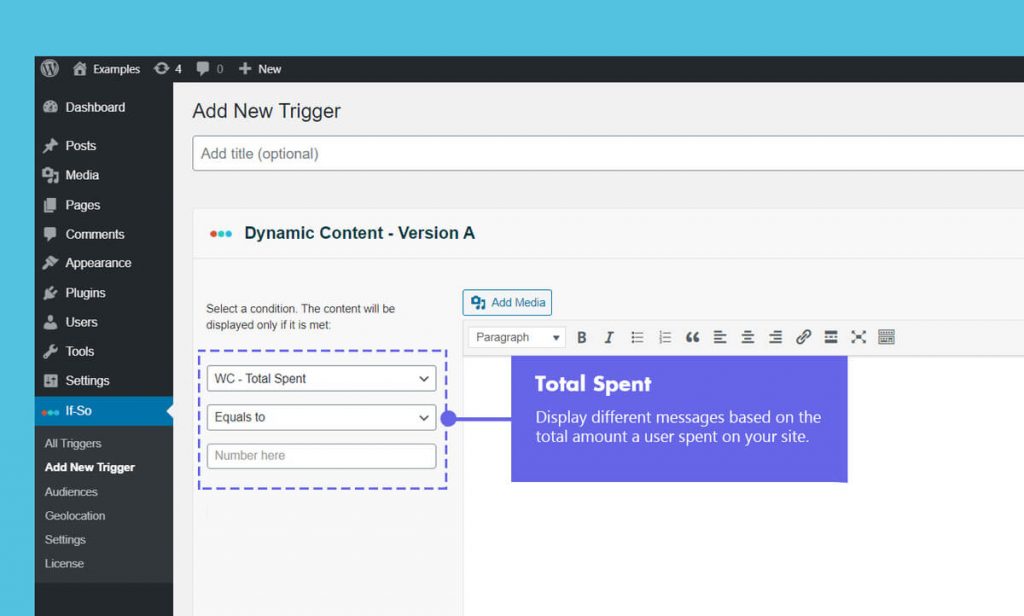
Total spent
Show dynamic content based on the total amount spent by the user throughout their lifetime as a customer.
Use cases
- Encourage low-spend customers to reach the next loyalty tier by showing a progress bar indicating how much more they need to spend for a permanent discount.
- Promote high-end, premium collections specifically to big spenders while showing budget-friendly clearance items to those with lower lifetime totals.
- Offer a free 1-on-1 strategy session or a physical gift to customers once their cumulative spending crosses a significant milestone.
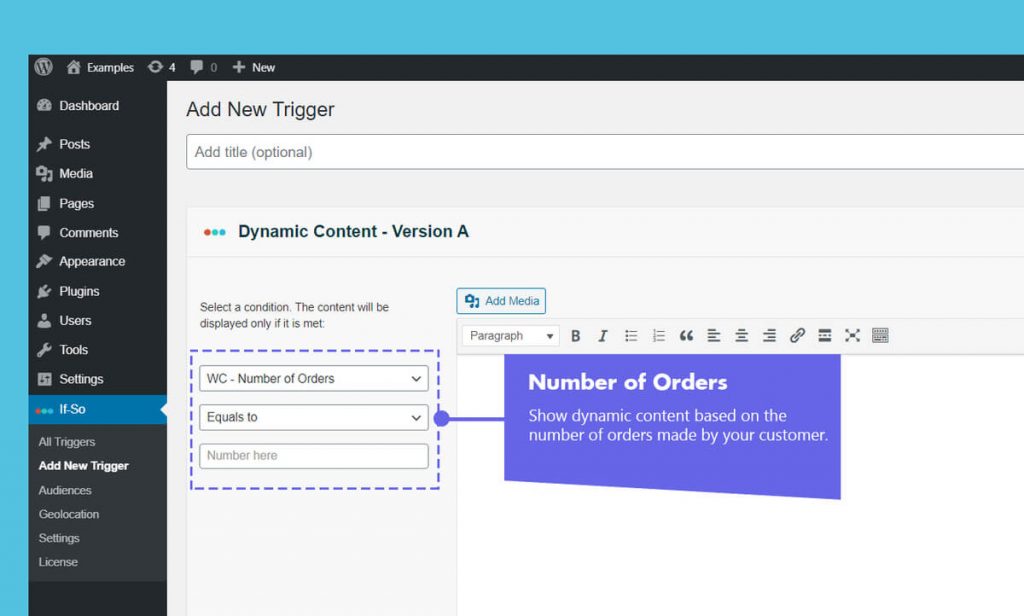
Number of orders
Focuses on the frequency and loyalty of the customer’s interaction with your store.
Use cases
- Give a “Second Order” discount to encourage a one-time buyer to become a repeat customer.
- Reward customers on their 10th order with a significant “Anniversary” store credit.
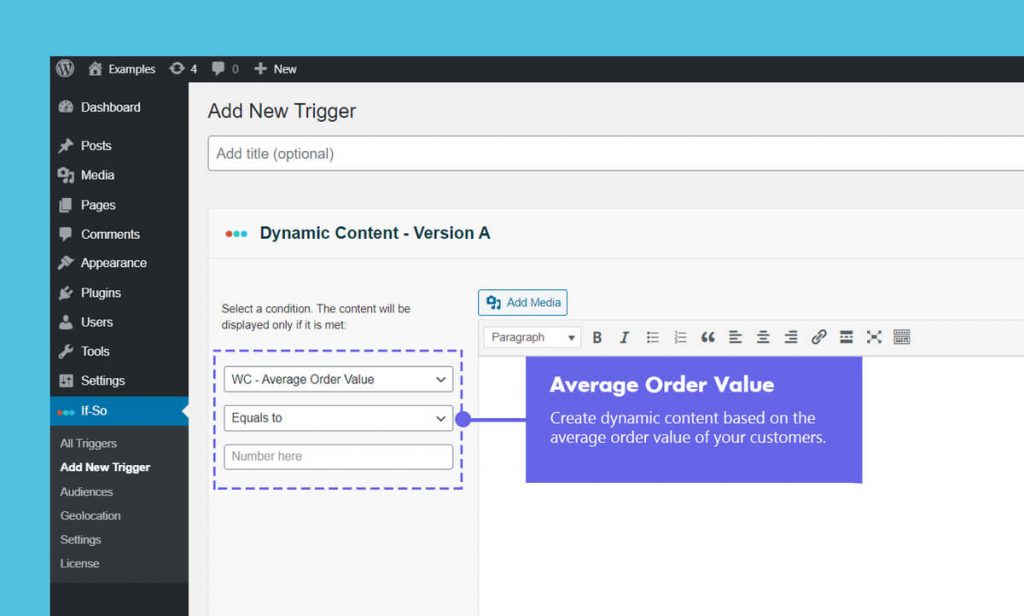
Average order value
Targets users based on their typical spending habits per transaction.
Use cases
- Show premium, high-end bundles to customers who historically have a high AOV.
- Offer budget-friendly suggestions to customers with a lower AOV to increase conversion.
Product last purchase date
Trigger dynamic content based on the amount of time that has passed since the customer’s most recent transaction.
Use cases
- Show a “Welcome Back” special offer or a deep win-back discount to users who haven’t placed an order in over six months.
- Present a “New Arrivals” gallery to active shoppers who have made a purchase within the last 30 days to keep them engaged.
Customer-based conditions
Shipping and billing address details
Displays specific content based on either the verified financial location of the payment method or the physical destination of the goods.
Use cases
- Show a “Free Local Pickup” option or a map to the nearest physical storefront only to customers within a specific shipping radius.
- Display a specific VAT or tax-compliance message to users whose billing address is located in a particular international jurisdiction.
- Alert customers shipping to remote regions or PO Boxes about potential delivery delays or restricted carrier options.
- Present a “Localized Support” banner with a regional phone number based on the state or country provided in the address fields.
Inventory-based conditions
Units in stock
Adjusts marketing and visibility based on real-time warehouse levels.
Use cases
- Display a “Low Stock – Only 2 Left!” urgency banner when inventory drops below a threshold.
- Automatically hide or disable “Sale” coupons for products that are almost out of stock.
Step-by-step: How to use WooCommerce conditions
- Download and activate the If-So Dynamic Content plugin and the If-So & WooCommerce integration.
- On your WordPress dashboard, go to If-So → Add New Trigger.
- Create the content versions you want to display.
- In each version, select the relevant WooCommerce condition, such as Product in Cart, Number of Orders, or Billing Country.
- Arrange the versions in the correct order. The first matching version is the one that will be displayed.
- Set a default version for visitors who do not match any WooCommerce condition.
- Place the trigger on your page using its shortcode or one of the supported display methods.
- Download and activate the If-So Dynamic Content plugin, the Conditional Elementor elements integration and the If-So & WooCommerce integration.
- Open the page where you want the content to appear and edit it with Elementor.
- Add a text element and enter the content you want to appear when the condition is met.
- Select the element, then open the If-So Conditions tab.
- Select the relevant WooCommerce condition (such as Product in Cart, Number of Orders, Billing Country, etc.).
- Click Publish to apply the conditions.
- Download and activate the If-So Dynamic Content plugin and the If-So & WooCommerce integration.
- Open the page where you want the content to appear and edit it with the Block Editor (Gutenberg).
- Add a block (e.g., Paragraph, Heading, or any other block) and enter the content you want to appear when the condition is met.
- In the block settings sidebar, open the If-So Conditions panel.
- Select the relevant WooCommerce condition such as Product in Cart, Number of Orders, or Billing Country.
- Click Save to apply the conditions.
Screenshots
FAQ
Does it work with page caching solutions?
Yes, If-So is 100% compatible with caching solutions. While servers deliver static versions of cached pages, our system uses AJAX to bypass the cache for dynamic sections. This ensures users see the correct content without sacrificing site speed.
Is this compatible with my specific theme or page builder?
Our WooCommerce conditions are designed to work seamlessly with all standard-compliant WordPress themes and page builders,
Troubleshooting
- Can I set up conditional upsells and cross-sells on my WooCommerce website?
Upsells and cross-sells are effective strategies to boost revenue and increase the average order value.
If you are using WooCommerce, If-So enables you to display customized special offers based on the products in the user’s cart or their previous purchase history, either before or after the checkout process. Learn more.
Didn’t find what you need?
If-So & WooCommerce Integration
Price: FreeRequirements: If-So Pro