How to Set Up a Geo Redirect with If-So
This page covers how to build a geo redirect in If-So, run it alongside page caching, choose the right redirect type, set up a cross-site redirect, and confirm it fires correctly.
For a feature overview, see the Geo Redirect feature page →
What Do I Need Before I Start?
- The If-So plugin (free version) installed and active on your site
Step-by-step: How Do I Set Up a Geo Redirect?
The setup involves two steps: (1) creating a trigger with a geolocation condition, and (2) adding a redirect shortcode that sends matching visitors to the target URL.
- Download and activate the If-So Dynamic Content WordPress plugin.
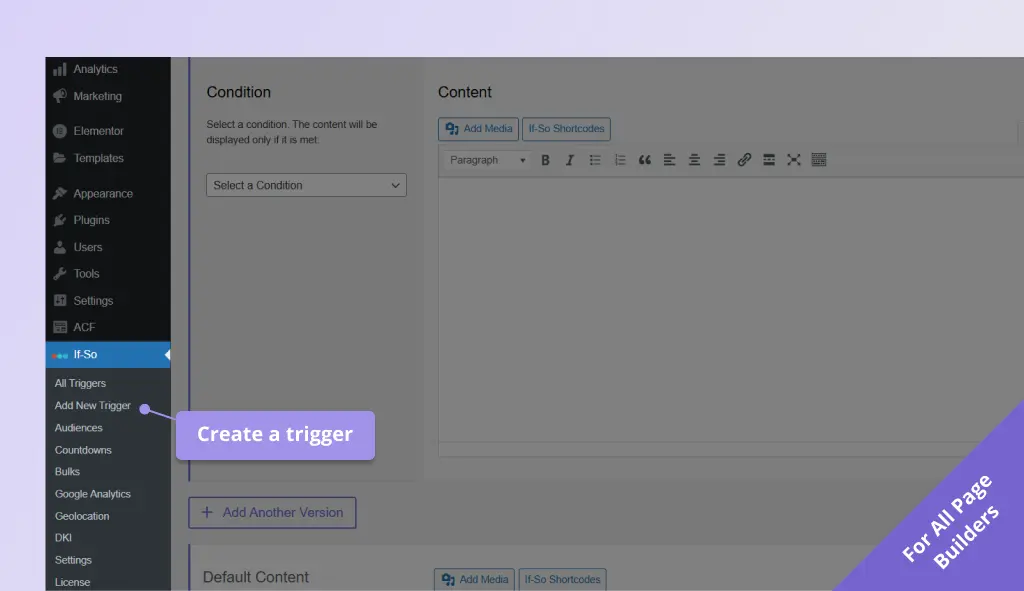
- On your WordPress dashboard, go to If-So → Add New Trigger. Screenshot
- In Version A, select the Geolocation condition and choose the continent, country, state, city, or timezone you want to target. Screenshot
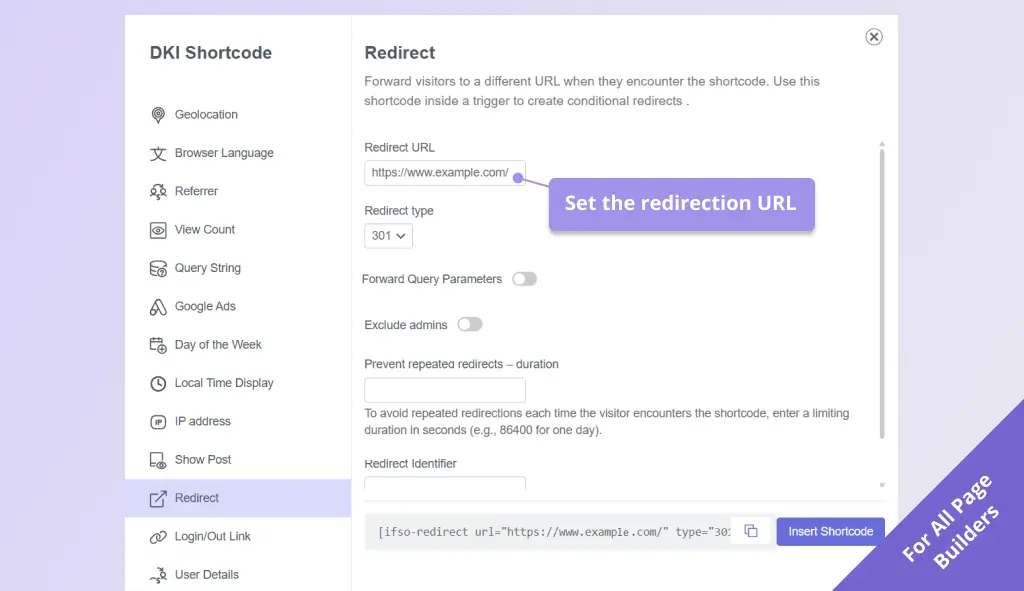
- Click the If-So shortcodes button above the content field and select Redirect. Screenshot
- Enter the redirect URL and the rest of the redirection options. Screenshot
- Leave the Default version empty if you do not want any action when the condition is not met.
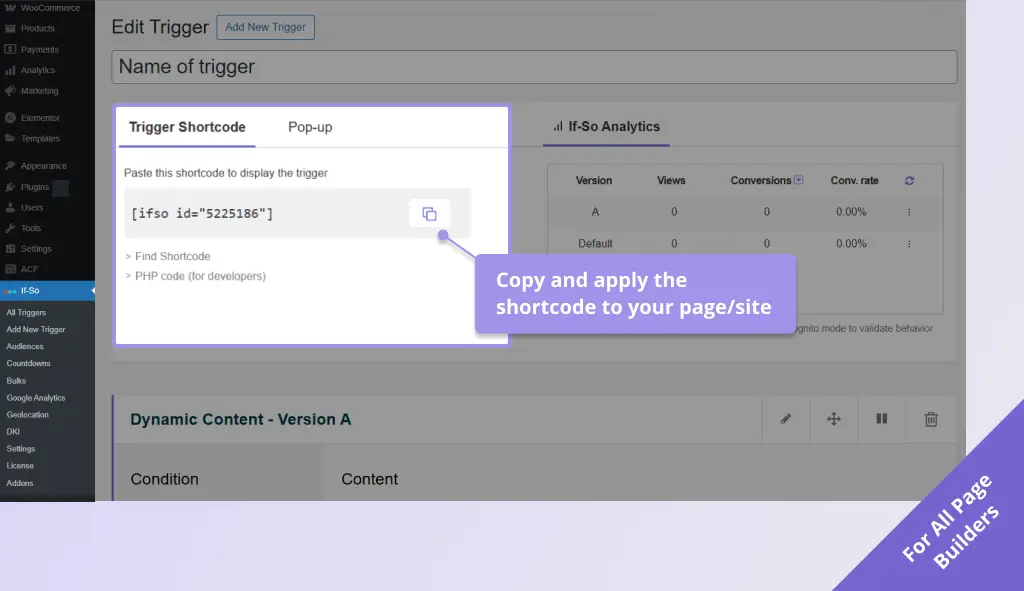
- Click Publish and paste the trigger’s shortcode as high as possible on the page you want to redirect from. Screenshot
- Download and activate the If-So Dynamic Content WordPress plugin and the Conditional Elementor elements integration.
- Use the shortcode generator below to generate your Geolocation Redirect shortcode.
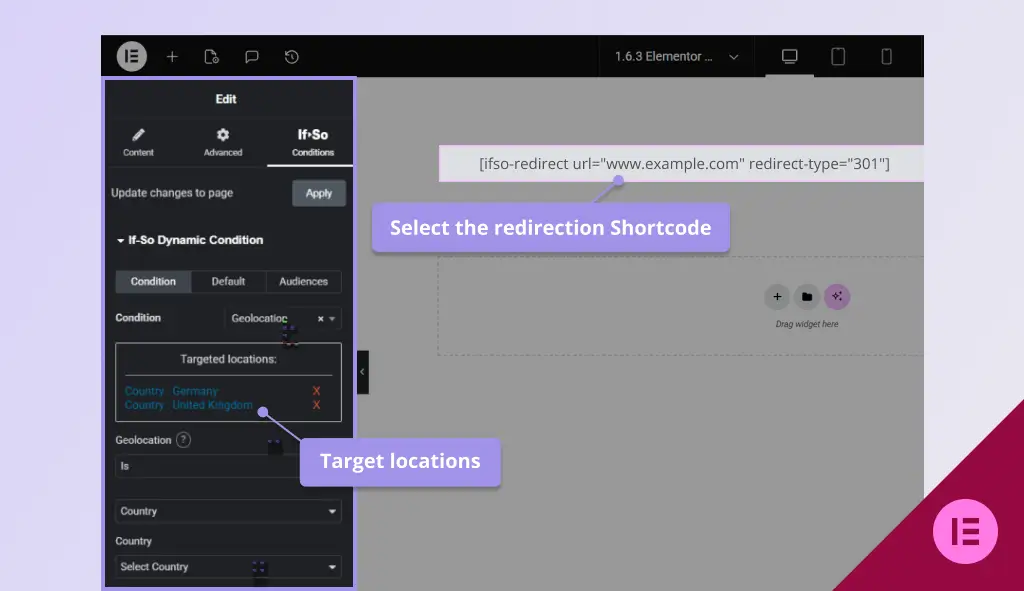
- On the page where you want to redirect users, drag an Shortcode widget to the top of the layout and paste your redirect shortcode.
- With the Shortcode widget selected, go to the If-So conditions tab and open the If-So Dynamic Content section.
- Choose the Geolocation condition and select the countries / states / cities you want to redirect. Screenshot
- Click Update to save the page.
Redirection Shortcode Generator
Generate your redirection shortcode and insert it into a conditional If-So version to set up a conditional redirect.
All set? Copy the shortcode and use it in a conditional If-So version.
- Download and activate the If-So Dynamic Content WordPress plugin.
- Use the shortcode generator below to generate your Geolocation Redirect shortcode.
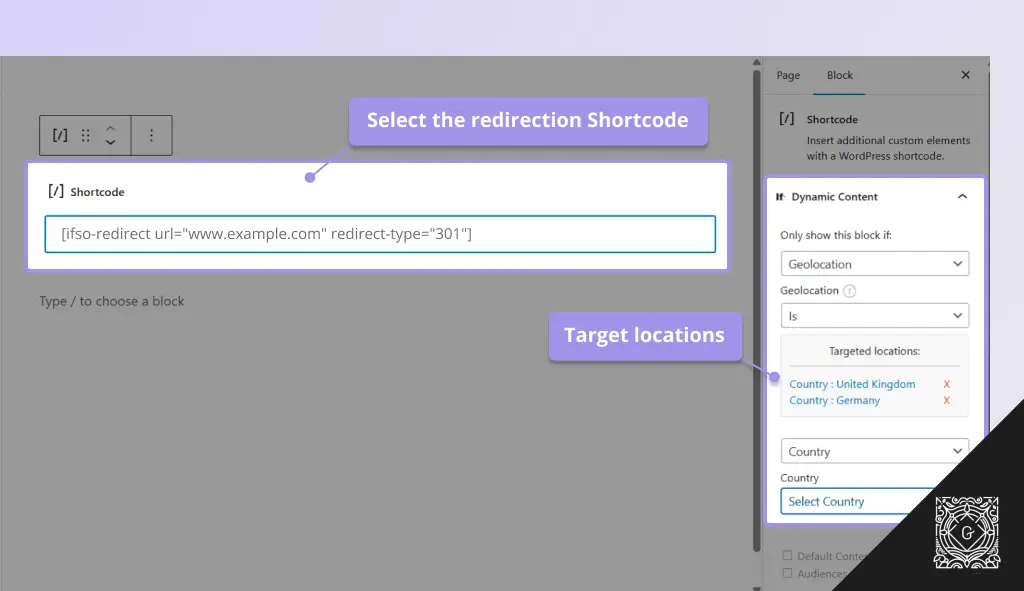
- On the page you want to redirect users from, add a shortcode Gutenberg block and paste the redirect shortcode.
- With the shortcode block selected, open the block settings in the right sidebar and locate the If-So Dynamic Content panel.
- In the If-So panel, select the Geolocation condition and choose the locations that should trigger the redirect. Screenshot
- Click Update to save the page.
Redirection Shortcode Generator
Generate your redirection shortcode and insert it into a conditional If-So version to set up a conditional redirect.
All set? Copy the shortcode and use it in a conditional If-So version.
Geo Redirection options
Redirection types
There are three types of redirects you can use when creating a WordPress geo redirect:
- JavaScript redirect (default option) – Compatible with Ajax-loaded triggers and most caching setups. In most popular browsers, the referrer source is passed to the target page.
- 301 (permanent) redirect – Use a 301 redirect when you want a long-term redirect.
- 302 (temporary) redirect – Use a 302 redirect for temporary changes such as seasonal campaigns, tests, or maintenance pages.
Note: 301 and 302 redirects are PHP-based and cannot run when the trigger is loaded with Ajax. If you are using Ajax loading, either add ajax="no" to the trigger shortcode or use a JavaScript redirect instead.
Redirect once per user
This option works by giving the redirect a name and adding the do_once_per parameter. The value of do_once_per can be either the word session (to prevent the redirect for the entire browser session) or a numeric value that represents the number of seconds during which the redirect should not occur again.
Example:
[ifso-redirect url="https://example.com" code="301" name="geo-redirect-example" do_once_per="86400"]In this example, the visitor will be redirected to https://example.com once every 24 hours (86,400 seconds). If they visit the page again within that time, the redirect will not run.
The “Redirect once per user” option relies on a cookie to work. The cookie name is based on the name you assign to your redirect, starting with ‘ifso-rdr-‘ followed by your chosen name (i.e., ifso-rdr-yourname).
Geo Redirect Templates
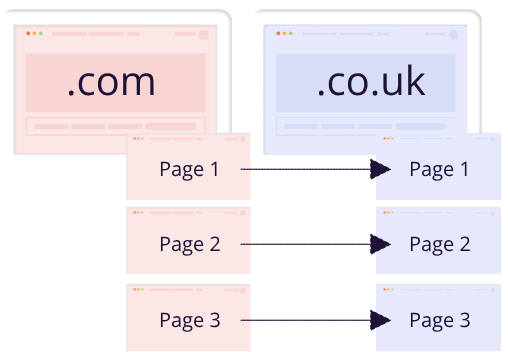
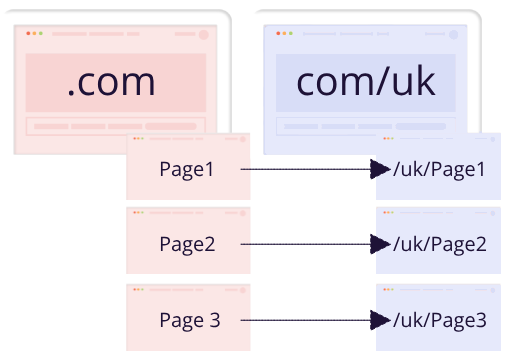
A simple setup to redirect users from any page on your WordPress site to an equivalent page on a parallel website.
- Redirect users from a .com/pageX to a .co.uk/pageX
- Redirect users from a .com/pageX to .com/uk/pageX
.com → .co.uk
.com/… → .com/uk/…
Click here to learn more about Geolocation Redirect Templates.
How Do I Make Geo Redirects Work With Page Caching?
By default, If-So evaluates the visitor’s location and fires the redirect when the page renders.
If your site does not serve cached pages, there is nothing to do.
For sites that serve cached pages, add ajax="yes" to the trigger shortcode. If-So then fires the redirect once the cached page has loaded. The attribute behaves identically across every caching solution, so there is one thing to change regardless of what you run.
[ifso id="TRIGGER_ID" ajax="yes"]That is the entire setup. If-So then fires the redirect once the cached page has loaded, and the attribute behaves identically no matter what is doing the caching — WP Rocket, LiteSpeed Cache, Cloudflare, other caching plugins and CDNs, or caching handled at the server or hosting level.
Nothing needs to be configured inside the caching plugin, the CDN, or your hosting panel, and no URLs need to be excluded from the cache.
When a geo redirect runs through Ajax, most visitors see no transition at all. On slower hosting, or on sites carrying heavy scripts, a brief moment on the original page can appear before the redirect fires.
For more on how Ajax delivery works across the plugin, see Ajax Loading (page caching compatibility) →
Should I Use a 301 or 302 Redirect?
302 (temporary) is the safer default for geo redirects. It preserves flexibility if your regional structure changes, and Google does not permanently associate the original URL with the destination.
301 (permanent) tells Google the redirect will not change. Use it only when you are certain the destination URL is permanent.
For most geo redirect implementations, 302 is the correct choice.
For Google’s own breakdown of how each redirect type is treated, see Redirects and Google Search →
How Do I Verify the Geo Redirect Is Working?
- Test from 2 different locations using a VPN or a browser geolocation override tool.
- Clear both the server cache and the browser cache between tests.
- Test on a cold cache (the first load after clearing) and on a warm cache (the second load).
- Confirm that the correct destination page loads for each location.
What About Visitors Using a VPN or Traveling?
If-So determines location from the visitor’s IP address. That has two consequences worth planning for:
- A visitor on a VPN is redirected based on the VPN server’s location, not their physical location.
- A traveler is redirected based on where they currently are, not their home country.
Give visitors a manual override (Optional)
Add a manual location selection so visitors can choose their own region and see the content that matches it. Setup is covered here: Manual User Location Selection →
Troubleshooting
- Redirect feels slow or delayed
If your redirect doesn’t fire immediately, the issue is usually related to how the trigger is loaded. Here’s how to ensure the redirect runs as quickly and smoothly as possible:
Why Ajax affects redirect speed
When a trigger loads with Ajax, the dynamic content is fetched after the static part of the page has already loaded from the cache. This means the redirect can only occur once the Ajax request finishes — resulting in a short delay.
Strong caching paired with inefficient site construction can cause redirects to feel slower.
How to speed it up
To make the redirect fire instantly:
- Make sure to load the trigger without Ajax. The best practice is to add the parameter ajax=”no” to the trigger’s shortcode so that even if you change the Ajax settings on your site in the future, the trigger with the redirection will not be affected.
Disabling Ajax means the page must be excluded from caching, so weigh this decision based on SEO needs, performance, your specific use case, and how well the page performs without caching - Use a 301 or 302 redirect (and not a JS redirect).
- Consider embedding the If-So trigger to the page using a PHP code directly in the page template.
- Make sure to load the trigger without Ajax. The best practice is to add the parameter ajax=”no” to the trigger’s shortcode so that even if you change the Ajax settings on your site in the future, the trigger with the redirection will not be affected.
- Conditional redirect not working
If your conditional redirect isn’t working as expected, don’t worry – follow the steps below to identify the issue and get it resolved quickly.
1. Isolate the problem
Test the redirect outside the trigger
Paste the redirect shortcode directly into the main content field of a new test page (without using a trigger).
- Create a new blank test page.
- Paste the redirect shortcode directly in the main content area (without using a trigger or dynamic content).
- Visit the page and see whether the redirect works.
Did it work?
✅ Yes → The redirect code works. Move on to checking your condition.
❌ No → The issue is likely with the redirect setup. Jump to the “Redirect shortcode issues” section.Verify that the condition is being met
- In your trigger (or dynamic content block), add a simple text indicator before the redirect — e.g., “This is a version A”.
- Add a text indicator to the default version — e.g., “This is the default version.”
- Visit the page in an incognito window (to avoid admin/existing-cookie interference).
Does it work?
✅ Yes → If you the correct version the issue is either the redirect type or a caching issue.
❌ No → If you don’t see the correct version → The condition may be misconfigured, or caching is preventing the dynamic version from loading.Works? The issue is likely related to the redirect shortcode itself, or a caching conflict.
❌ Didn’t work? The condition may be misconfigured or the content might be blocked by caching.2. Check caching settings
Caching is the most common reason redirects don’t fire as expected.
- Try loading the trigger with and without Ajax (Page Caching Compatibility) to determine if caching is interfering. How to enable/make sure the Ajax loading is enabled.
- Try switching to a JavaScript redirect by adding the parameter type=’js’ to your redirection shortcode. For example:
[ifso-redirect url='https://example.com' type='js']If JavaScript redirection works, the issue is almost certainly caching-related.
Try loading the content with and without Ajax (Page Caching Compatibility) to determine if caching is interfering. How to enable/make sure the Ajax loading is enabled.
Still not working? We’ll help!
If the issue persists, please contact our support and share the following:
- Where the redirect is placed (page, trigger, element, popup, etc.).
- Which condition you’re using.
- Whether the redirect works on a blank test page.
We’re happy to take a look and help troubleshoot further. Contact support
Screenshots