

Basic Graphic Asstes Google Drive)
Dynamic URL https://www.if-so.com/we-got-it/design-template-3-con-new-style/Slider Test (WebM + One Live Example Slide)

❌ ✅
Titles
H1 Heading Design
H2 Heading Design
H3 Heading Design
H4 Heading Design
H5 Heading Design
H6 title above list
✅ Bullets
- Replace the background of your website at night or when the business is closed.
- Change the design of your site based on the season of the year.
- Bullet with link (see how we dressed up our homepage for Halloween).
- External link that opens in a new tab example
✅ Text
If-So is the most comprehensive WordPress personalization plugin. We continuously develop new features and options to meet the diverse needs of our real-life users.
Standard text introduction of bullets:
Bold Text Title 1
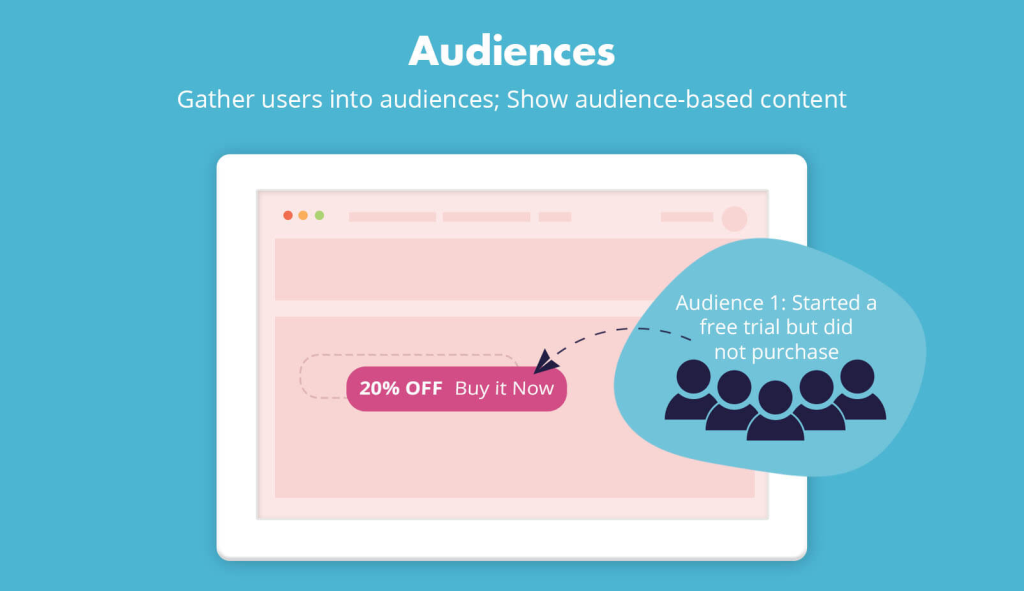
Assign users into predefined audiences based on the user’s interaction with the site and then show content based on the user’s audience.
Learn more >>
Bold Text Title 2
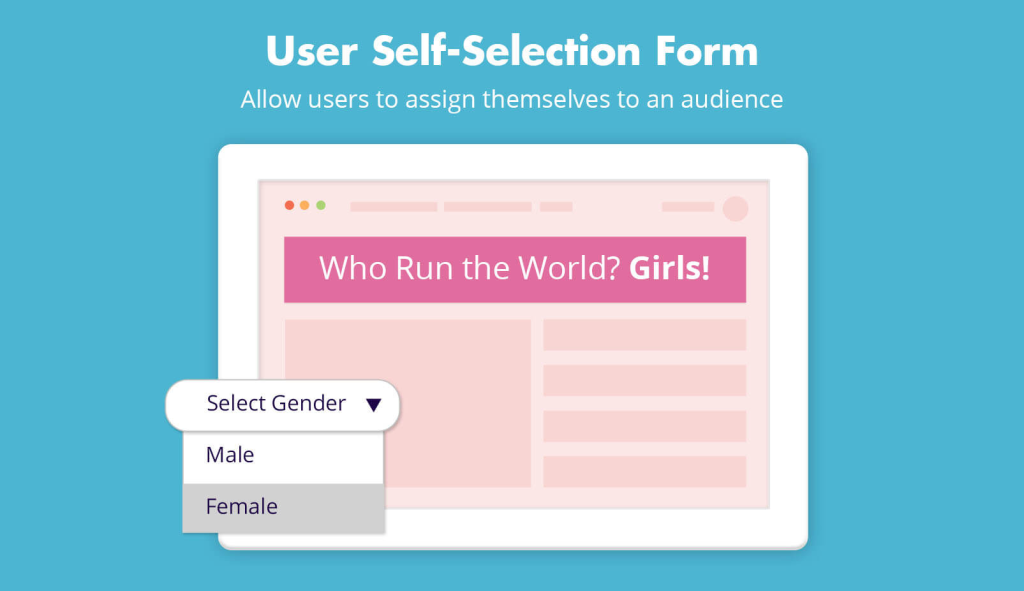
Allow users to select the content they will see by assigning themselves to an audience (segment).
Learn more >>
Bold Text Title 3
Create pop-ups that will be displayed based on any If-So condition.
Learn more >>
✅ Numbered List
- Create a trigger
- Select a condition and set the personalized content version
- Optional – create more dynamic versions and set the default content
- Paste the shortcode wherever you want to display the content
Every time a page with the shortcode is loaded, one of the content versions will be displayed accordingly.
✅ Numbered List
- Create a trigger
- Select a condition and set the personalized content version
- Optional – create more dynamic versions and set the default content
- Paste the shortcode wherever you want to display the content
Every time a page with the shortcode is loaded, one of the content versions will be displayed accordingly.
❌ Live Demo
 Live Example: Click to load this page again with a different style
 Fill in your name to see it in action
Try it Out:
Selection Field
Select your gender:
Radio Buttons
Select your gender:
Buttons
Select your gender:
Dropdown
Radio Buttons
Buttons
❌ Notifications
Inline Examples
Common Use Cases – 2 columns
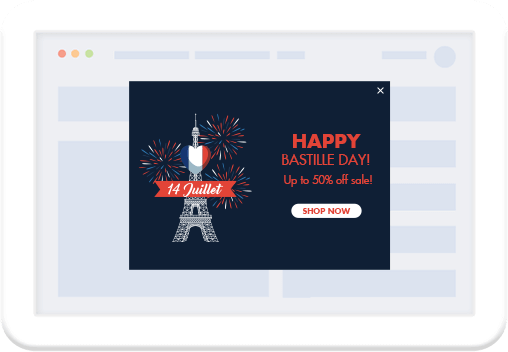
Create promotions in specific countries
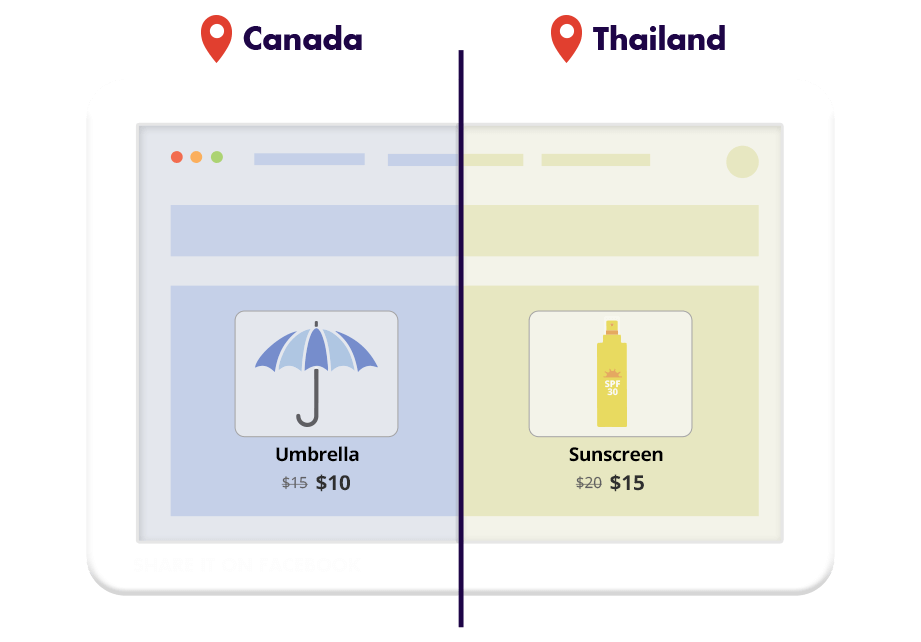
Highlight different products in chosen locations
Direct visitors to the closest branch

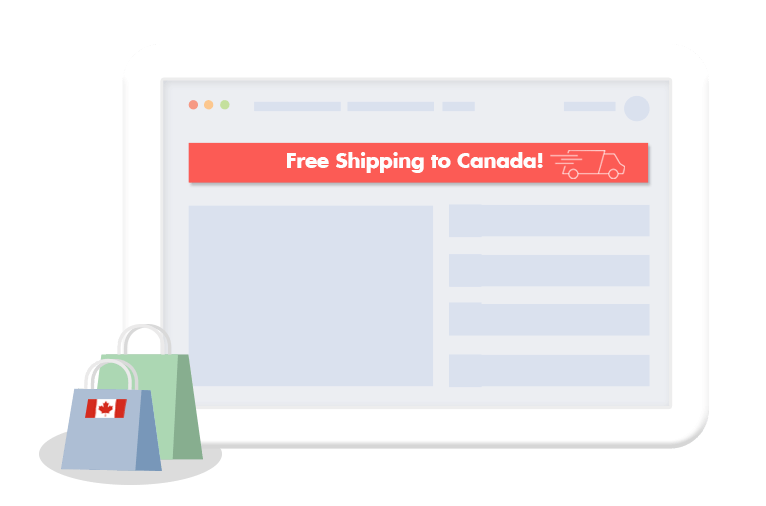
Show personalized messages to visitors from certain locations
Examples – Content Aside
Limited-time offer
Create a sense of urgency with a limited-time offer.
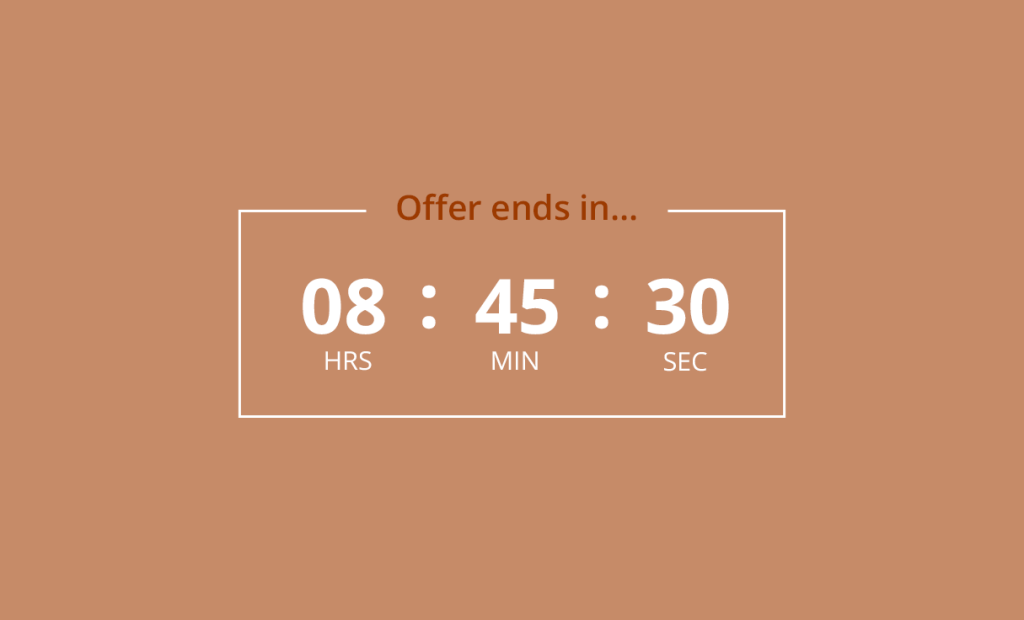

Recurring countdowns
Add a sense of urgency by showing a timer that will start counting down an hour before closing.
Conditional timers
Start counting down from the moment the user has visited a certain page or committed a purchase.
✅ Intro 1-2-3 → Elaboration
Creating a user selection form involves three steps:
STEP 1 Create audiences (groups of users)
STEP 2 Ceate the selection form
Step 1: H3 title – content, bullets
- On your WordPress admin page, go to If-So > audiences.
- Type your desired audience name and click “Create a new audience.”
- Repeat this action as necessary to create additional audiences
Step 2: H3 title – Shortcode and attributes
Use the following shortcode to create a selection form:
✅ Shortcode & Parameters
[ifso_group_selection type='select' options='Male, Female' default-option='Gender' ajax="yes" button='Go']You can control the form’s appearance using the following parameters:
Options – Include the audience names as created in Step 1. When a user selects an audience, they will be removed from all other audiences in this list.
Type
- Type=”radio” – This option creates a form with radio buttons instead of a select field.
- Type=”Button” – Create a button that adds users to an audience.
Button=”text you choose” – Remove this parameter if you don’t want to use a button. Change the parameter value to set the text of the button
An example of a self-selection form with a button:
ajax=”yes” – add this parameter if you don’t want the page to be reloaded automatically after the users submits their selection.
Example: Radio buttons without a button:
Default-option=”Text you choose” – The value of the parameter will be the default option of the form. This allows users to cancel their selection and view the default content.
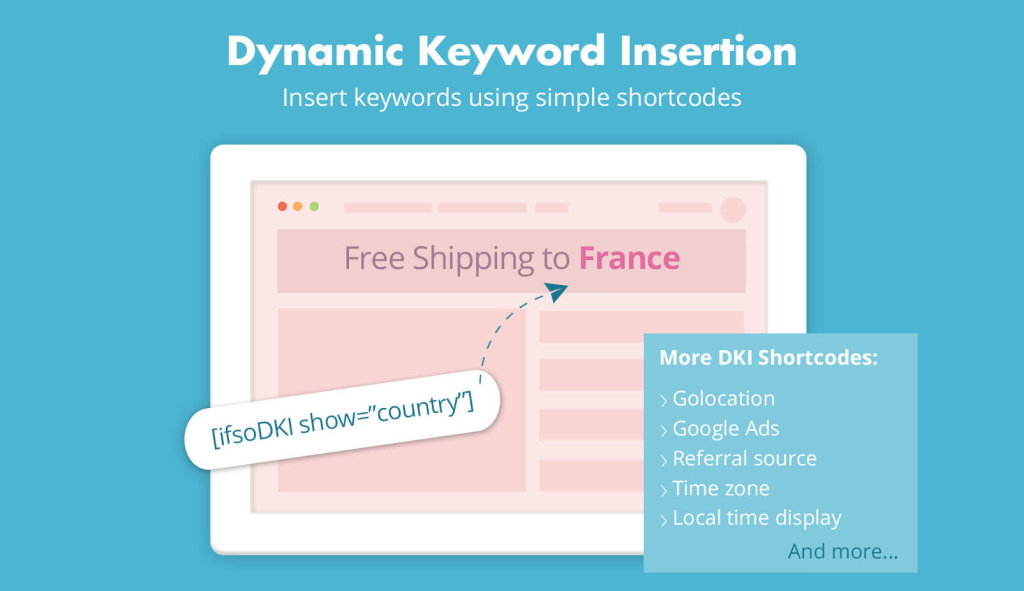
To use the Flags DKI Shortcode, you need to install the If-So Geolocation extension, which is available for free.

Below is the shortcode that displays the flags above:
[ifsoDKI type='geo' show='flag' width='50']Bullet List
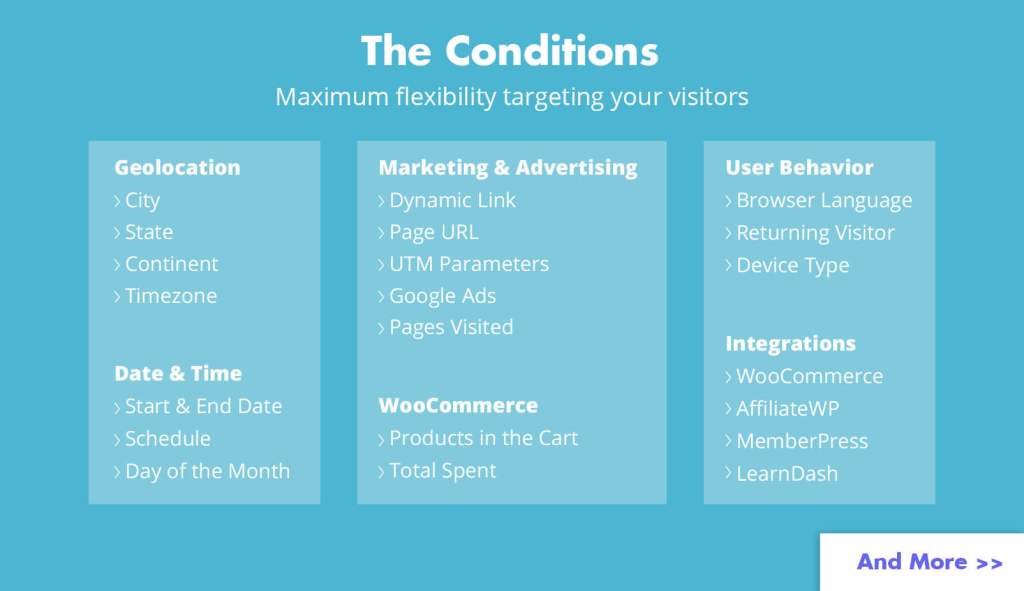
(What conditions are available?) If-So provides a diverse range of conditions. You can choose to display content based on one or multiple conditions. Here are some examples of commonly used conditions:
Geolocation
User Behavior
- Browser Language
- Returning Visitor
- Device Type
- Logged-in User
- User Details
- Pages Visited
- Referral Source
- Browser Type
- Operating System
- Number of Version Views
- Trigger visited
Date & Time
Marketing & Advertising
WooCommerce
- Products in the Cart
- Products Purchased
- Units in Stock
- Total Spent
- Average Order Value
- Customer Details
Integrations

Dynamic keyword insertion boosted our PPC campaigns.
Conversion rates improves by 13%!

Mike D Digital Marketer
✅ Table Design
| Specifier | Description | Example Output |
|---|---|---|
| d | Day of the month, 2 digits with leading zeros | 01 to 31 |
| D | A textual representation of a day, three letters | Mon through Sun |
| j | Day of the month without leading zeros | 1 to 31 |
| l (lowercase ‘L’) | A full textual representation of the day of the week | Sunday through Saturday |
| N | ISO-8601 numeric representation of the day of the week | 1 (for Monday) through 7 (for Sunday) |
| S | English ordinal suffix for the day of the month, 2 characters | st, nd, rd or th. Works well with j |
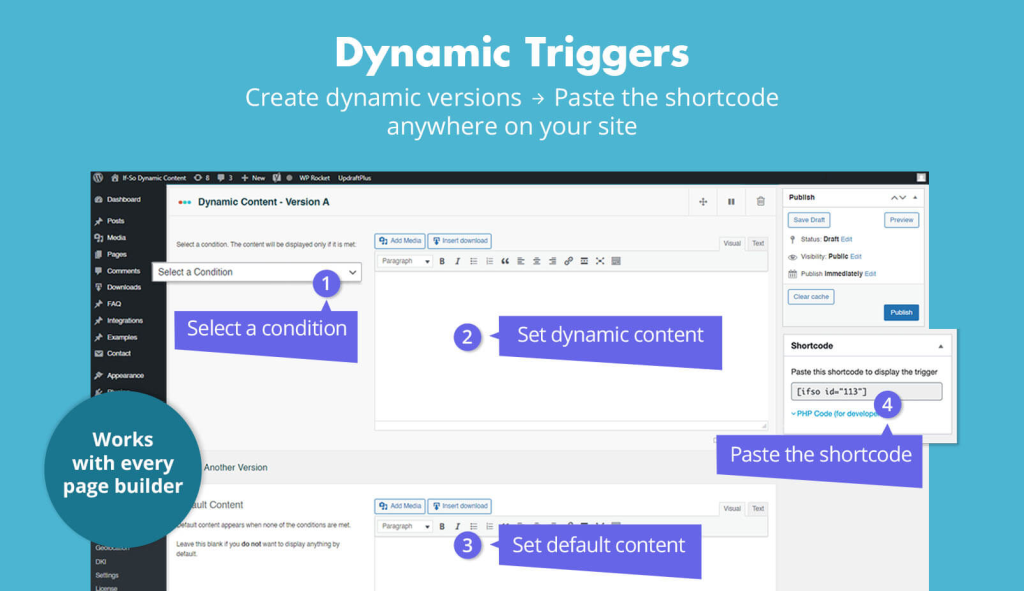
Conditional trigger – How does it work?
Setting up conditional content using a trigger is extremely simple, no coding is required. Simply:
- Create a new trigger
- Select a condition/s and set the personalized content for each version
- Paste the trigger’s shortcode wherever you want to display the content
Every time a page with the shortcode is loaded, one of the content versions will be displayed accordingly.
If you need to create conditional content with a lot of different versions (dozens or even thousands), please check out our CSV extension. The extension allows you to create dynamic content directly from a CSV file and manage the different versions in a simpler way.
Notices
TIP
Display dynamic content on parameters other than “?ifso=”
Use the Page URL condition instead and set it as follow
- Select the block or element
- On the side menu, select the condition to display the block/element
Note
Gutenberg & Elementor users
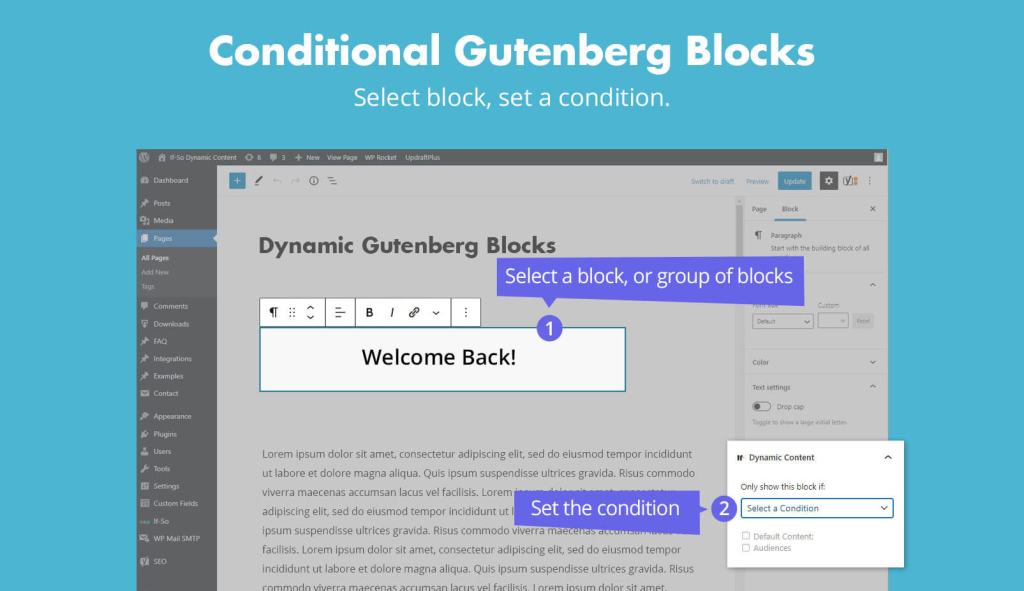
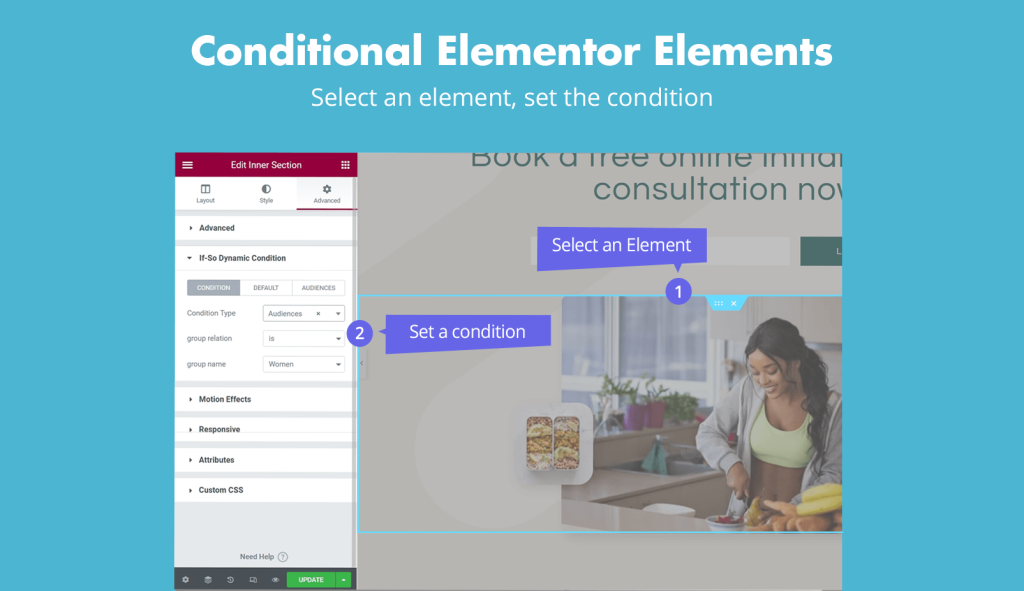
Gutenberg and Elementor users may create dynamic content in an alternative way:
- Select the block or element
- On the side menu, select the condition to display the block/element
More about conditional Elementor Elements
More about conditional Gutenberg Blocks
Tip
Display dynamic content on parameters other than “?ifso=”
Use the Page URL condition instead and set it as follow
- Select the block or element
- On the side menu, select the condition to display the block/element
Screenshots
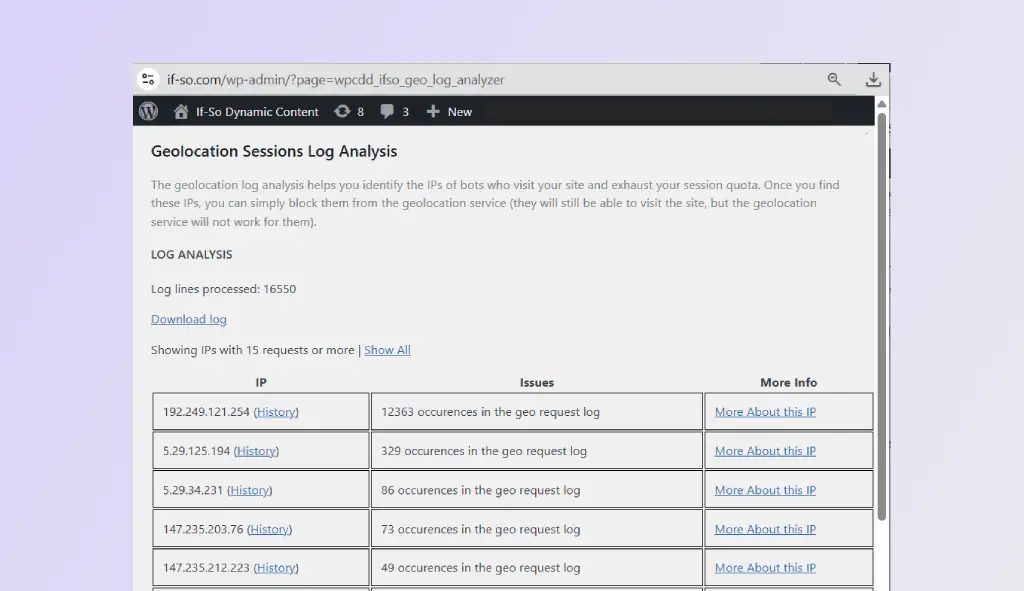
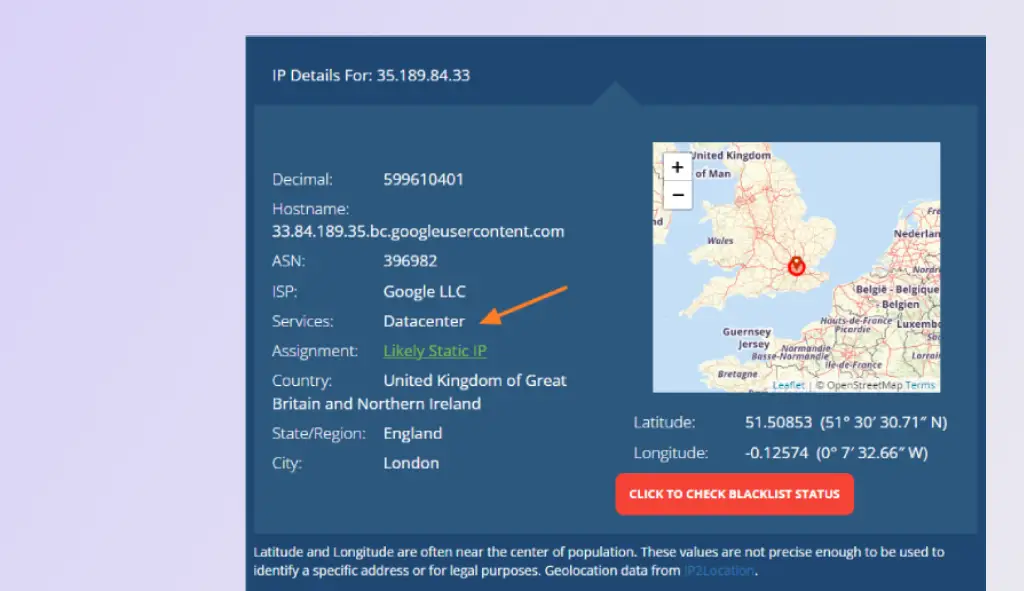
Screenshots with caption
FAQs
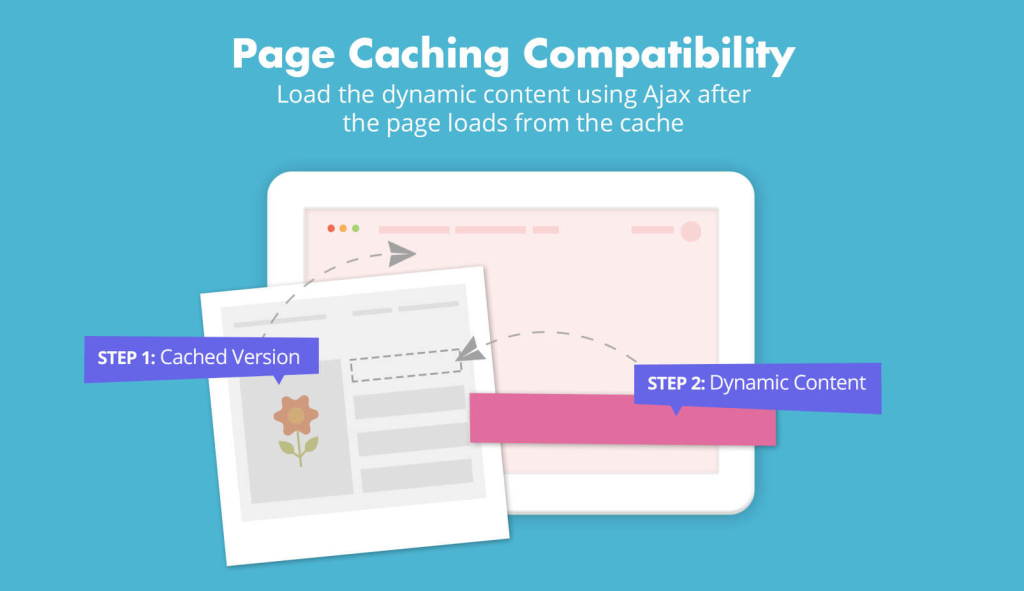
- Does If-So work with caching plugins and server-side caching?
Yes.
Whether you are using a caching plugin or server caching, you can navigate to the plugin settings and enable the “Page Caching Compatibility” option.
With the option enabled, dynamic triggers will be rendered in a separate request that will take place after the loading of the cached version.
- Is it possible to set up conditional redirects (redirecting users to different pages based on conditions)?
Yes, you can set up conditional redirects based on any If-So condition.
FAQs
How can I change the user self-selection form design?
When you generate the self-selection form using our form generator, you can also set a design for the form, and the CSS will be generated for you.
Applying the CSS to your site is possible in several different ways, and having development skills is not a requirement. How to add custom CSS to your WordPress site
Does the user’s self-selection carry across all pages of the site?
Yes, once a user self-selects, the selection is carried across all pages of the site. The solution is based on a cookie. If the user deletes the cookie or visits the site using another browser, the selection will not be saved.
Related content
- The Query-string DKI shortcode
- The UTM Parameters condition
- The Page URL condition
- The Google Ads Condition
Related content
DKI Generetor
Geolocation
Display the visitor`s location name (country, state, city, conteinet, or timezone).
Browser Language
Display the visitor`s browser-defined language/s.
Referrer
Display the referring URL or domain that led the user to the site. Demo.
View Count
Visit Count – The total number of pages visited by a specific user.
Trigger View Count – The number of times a specific trigger was seen by a visitor.
Query String
Displays a value from a URL parameter. Example: domain.com?firstname=David – shows “David”. Demo.
Google Ads
Display a value from Google Ads tracking parameters. The value can display the triggered keyword automatically or be set manually. Learn More.
Day of the Week
Insert the current day (e.g. Tuesday).
Local Time Display
Automatically shows the event time in the visitor’s local timezone.Demo.
IP address
Show the visitor’s IP address.
Show Post
Displays content from another post or page. Handy for designing dynamic content with your page builder and injecting it into a trigger. Learn More.
Redirect
Forward visitors to a different URL when they encounter the shortcode. Use this shortcode inside a trigger to create conditional redirects .
Login/Out Link
Show a login or logout link based on the user
User Details
Display data from the logged-in WordPress user. Learn More.
Step-by-step: How to generate a manual user location selection form
The location override functionality requires the User Self-selection Extension and the geolocation extension to work.
Once you have those installed, follow these steps:
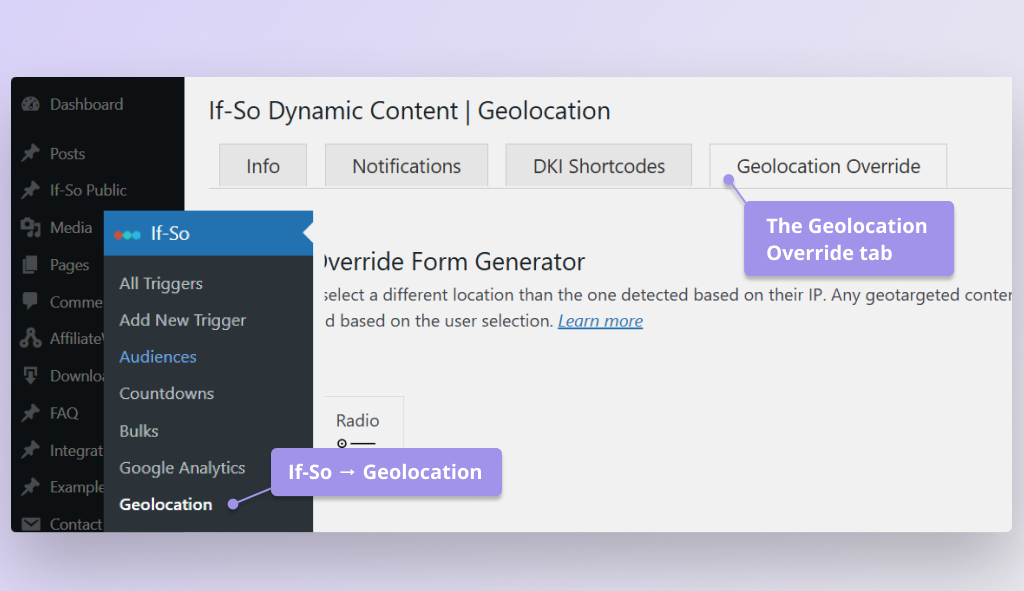
- In your WordPress dashboard, go to If-So → Geolocation, then click the Geolocation Override tab. Screenshot
- Choose the form type: Dropdown, Radio Buttons, or Buttons.
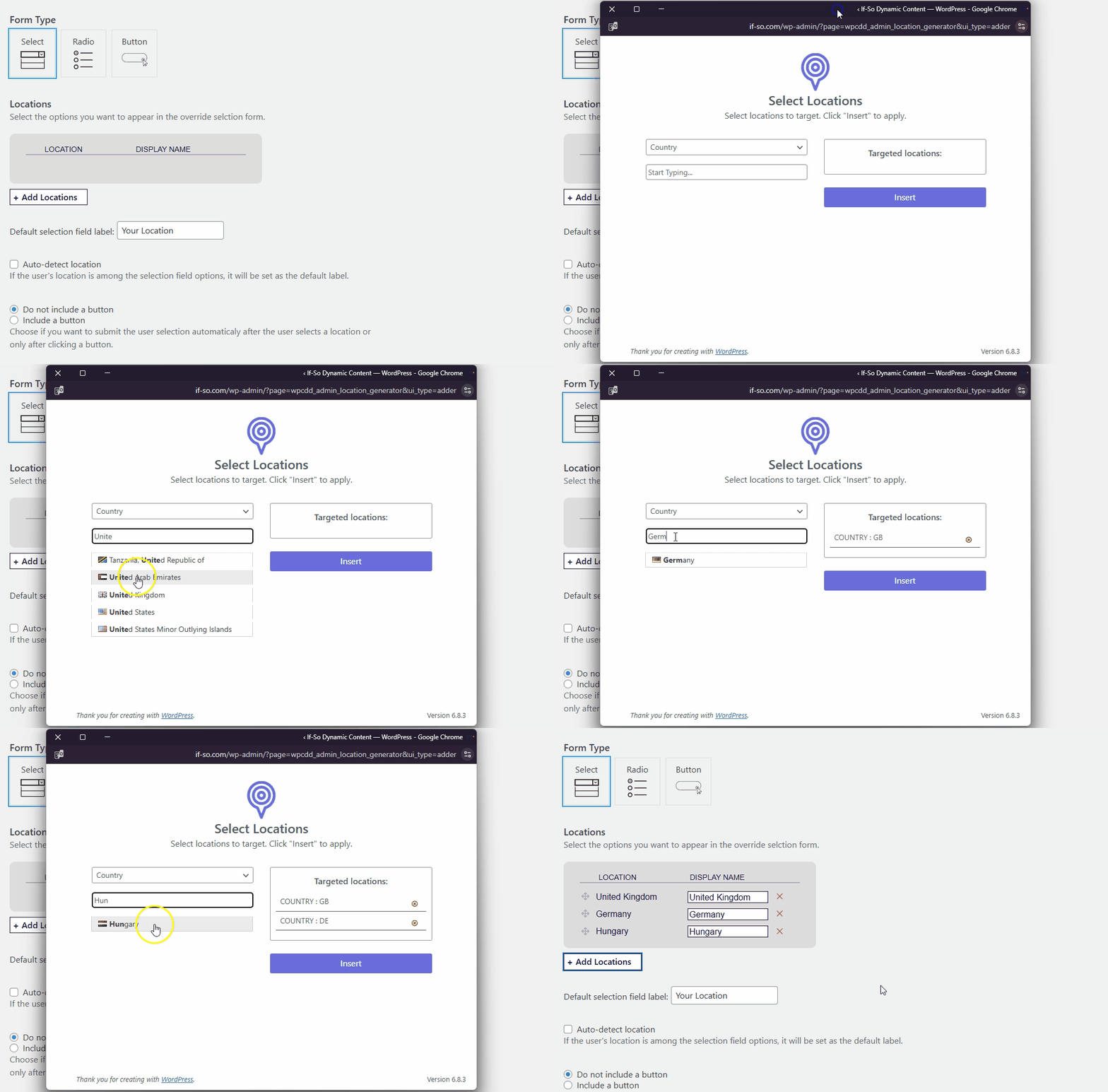
- Click Add location, then select the locations to include. Screenshot
- Optional: Change/translate each location’s Display name (the front-end label). Screenshot
- Complete the remaining generator fields as prompted.
- Copy the generated shortcode and paste it wherever you want the form to appear on your site.
Styling your form
By default, the form’s design inherits your theme’s styling. For your convenience, if you’d like to override the default appearance, we’ve included a built-in CSS generator in the form editor.
Simply customize your form using the generator, then copy the generated CSS and paste it into your theme’s style.css file or directly into the page using an HTML block wrapped in <style> tags.
Step-by-step – all methods (tabs)
The location override functionality requires the User Self-selection Extension and the geolocation extension to work.
- In your WordPress dashboard, go to If-So → Geolocation, then click the Geolocation Override tab. Screenshot
- Choose the form type: Dropdown, Radio Buttons, or Buttons.
- Click Add location, then select the locations to include. Screenshot
- Optional: Change/translate each location’s Display name (the front-end label). Screenshot
- Complete the remaining generator fields as prompted.
- Copy the generated shortcode and paste it wherever you want the form to appear on your site.
Styling your form
By default, the form’s design inherits your theme’s styling. For your convenience, if you’d like to override the default appearance, we’ve included a built-in CSS generator in the form editor.
Simply customize your form using the generator, then copy the generated CSS and paste it into your theme’s style.css file or directly into the page using an HTML block wrapped in <style> tags.
- In your WordPress dashboard, go to If-So → Geolocation, then click the Geolocation Override tab. Screenshot
- Choose the form type: Dropdown, Radio Buttons, or Buttons.
- Click Add location, then select the locations to include. Screenshot
- Optional: Change/translate each location’s Display name (the front-end label). Screenshot
- Complete the remaining generator fields as prompted.
- Copy the generated shortcode and paste it wherever you want the form to appear on your site.
Styling your form
By default, the form’s design inherits your theme’s styling. For your convenience, if you’d like to override the default appearance, we’ve included a built-in CSS generator in the form editor.
Simply customize your form using the generator, then copy the generated CSS and paste it into your theme’s style.css file or directly into the page using an HTML block wrapped in <style> tags.
Once you have those installed, follow these steps:
Screenshots

Was this Helpful ?
We're sorry couldn’t be more helpful ☹️