Displaying Personalized Content Using Elementor

You asked for it, and our developers made a huge effort and got it done quickly! We are proud to present our new Elementor widget and to show you a simple way to use any Elementor element inside If-So – NO CODING REQUIRED!

Introducing the New Elementor Widget

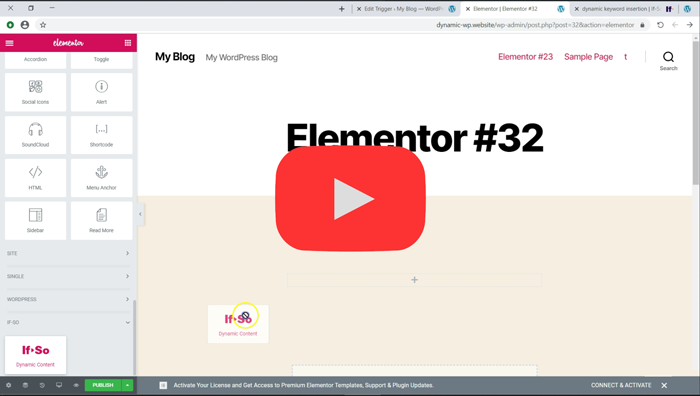
The new Elementor widget makes it easier to add an If-So trigger to your page, manage your dynamic versions, and best of all, see the results!

Meet the new Elementor Widget

Elementor video

Creating content in Elementor and using it in If-So

To design and create content with Elementor and use it inside If-So:
1. Create the content with Elementor
2. Save the content as a template
3. Go to the templates section on your WordPress dashboard
4. Copy the template shortcode and paste it within the If-So version content field

The option to apply a template using a shortcode is only available on Elementor Pro. If you are using the free version, there are some free plugins, like piotnet, that can add the same functionality.

The option to apply a template using a shortcode is only available on Elementor Pro. If you are using the free version, there are some free plugins, like piotnet, that can add the same functionality.

How to Create Dynamic Content in the Gutenberg Editor

Creating Dynamic Content on Gutenberg Page Editor with If-So

If-So Dynamic Content provides an effortless way to design a personalized experience while building your page in Gutenberg. You simply create several versions of any element on your site. Then set up the conditions in which each version should show. Using the dedicated Dynamic Content Gutenberg block, you then add the dynamic trigger to your post or page.

Let’s look closer at how this works in practice:

Step 1: Creating a Dynamic Trigger

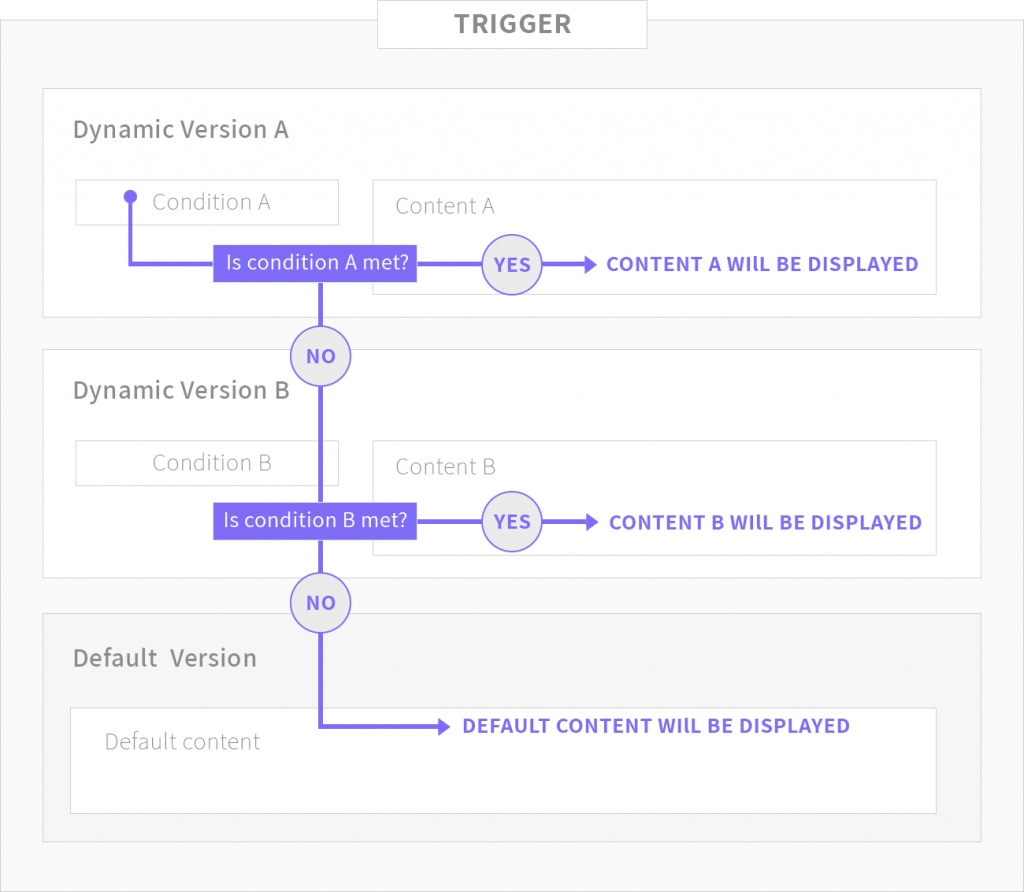
Creating a dynamic trigger takes less than a minute. After activating If-So on your site, you’ll have the option to create a new dynamic trigger. A dynamic trigger is made up of one or more dynamic versions, and default content. Each dynamic version has a condition that is checked when a page on the site is rendered. If the condition of the first dynamic version is met, the version is displayed. If it is not met, If-So will check the condition of the next dynamic version. If none of the conditions are met, the default content will be displayed.

The following chart explains the basics of creating a dynamic trigger: 

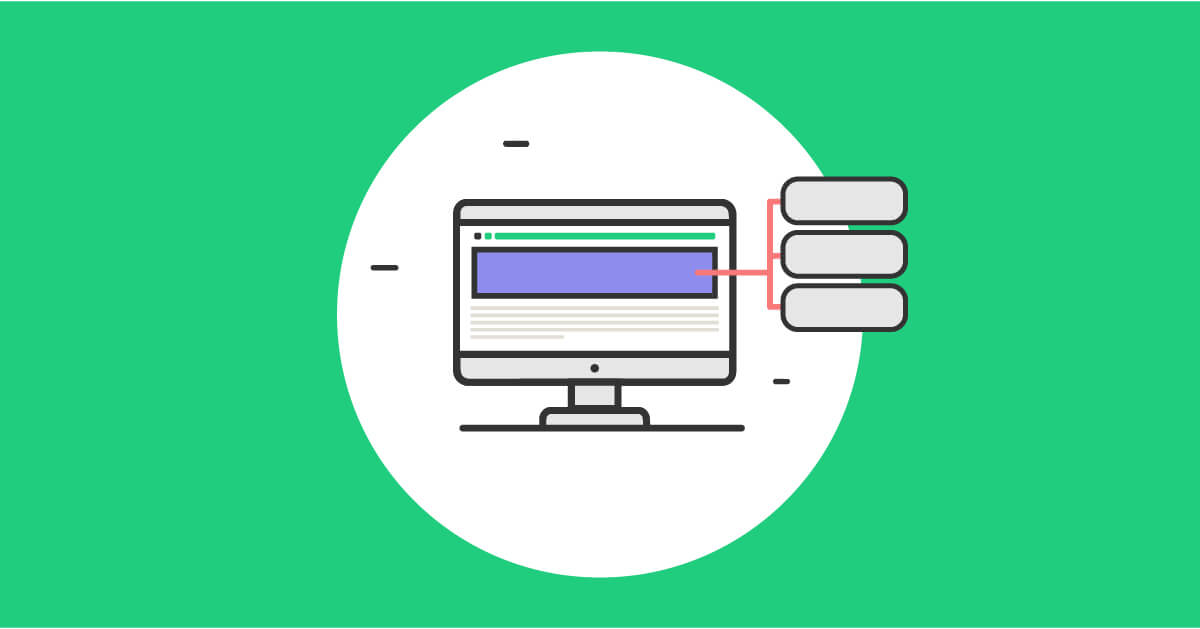
Creating a trigger with multiple versions. If the condition of version A is not met, the condition of version B will be checked and so on

Step 2: Adding Dynamic Content to your Site with Gutenberg

As with any other block, there a couple of ways you can add the Dynamic Content Block in the Gutenberg Editor:

  1. Click on the (+) icon, search for “Dynamic” and select the dynamic content block.
  2. Hit “Enter” at the end of the content, and a new paragraph block will be automatically added. Type “/” and you will see an autocomplete menu with the list of available blocks. Just type “dynamic” for the Dynamic Content Block. 

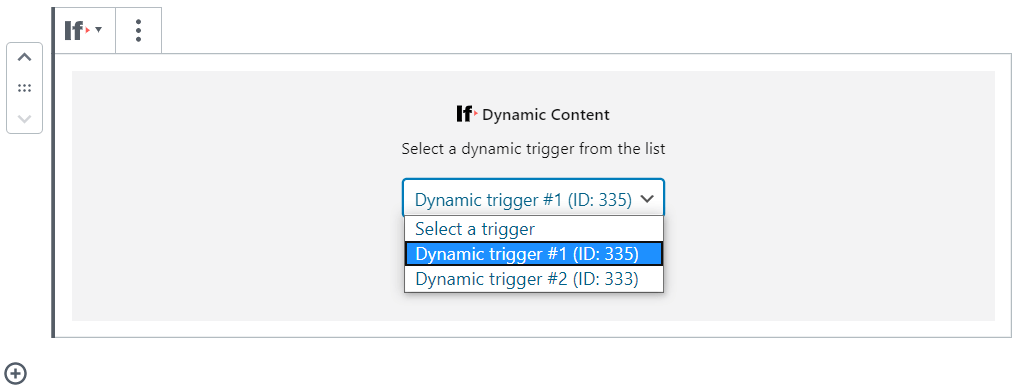
The Dynamic Content Gutenberg Block

The Dynamic Content Gutenberg block shows a list of your dynamic triggers. Select a trigger and update the page. This will result in one of the trigger’s content versions to pop up upon page rendering. 

The Dynamic Content Block includes two buttons that will make it easy to add and manage the dynamic content:


1. Edit Trigger – This button will open the trigger’s editing page in a new tab, so you can easily edit and update the trigger. You can also apply changes in your dynamic versions.

2. View Trigger – The button allows you to see all the dynamic versions of the trigger exactly as they’ll appear when rendered on your site.  

A screenshot of the Dynamic Content Gutenberg Blog

Tracking the Performance of your Dynamic Content

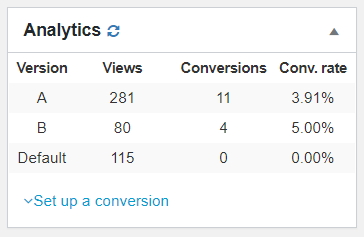
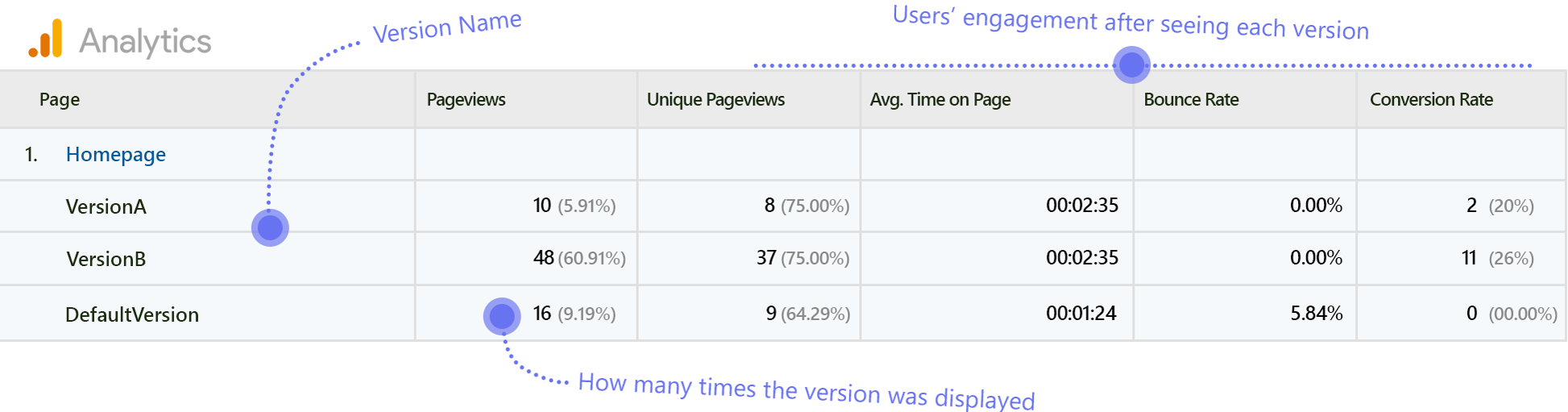
On each trigger editing page, If-So allows you to track the success of each dynamic version. A built-in analytics system allows you a simple view of how many times each version was displayed, and how many conversions occurred as a result.

A screenshot of the analytics widget

The Dynamic Content on Gutenberg Page Editor is a major step forward for improving your UX, conversion rate, and personalization. The If-So Plugin saves you time and budget by offering a simple solution on a familiar interface. 

Download If-So for free from the WordPress directory and open countless new possibilities by providing your visitors a personalized, exciting, content experience.

How to create search term-based content: A step by step guide.

The Google Ads Condition allows you to change content on your website according to the user’s search term to users arriving from Google Ads campaigns.

Make your visitors feel like they have found exactly what they are looking for!

The Google Ads condition is extremely powerful and practical. Setting it up only takes a few minutes and the results are amazing and immediate! By making a minor change to your landing page title or image, you can make any user feel like they have found exactly what they are looking for, which will greatly improve your ROI from Google Ads campaigns.

For example, If a user searches for your product name + recommendations, you can indicate in the headline that your product received particularly high recommendations. If they searched for the product name+price, present price-related information (Graphics: mobile phones, starting at $ 69) and so on, for every product.

How to set up search term-based content using If-So?

Setting up dynamic content according to the search term is extremely simple. No coding is involved.

First, you’ll have to create a Dynamic Trigger using If-So, a dynamic trigger consists of a condition (or several conditions) and a version of the content that will be displayed if it is met.

The second step will be to tell Google Ads which content version to display for each search term. This is done by simply pasting a short string of text that will be generated by If-So during the creation of the dynamic version.

Part 1: Creating dynamic content versions

In this step, we will create two (or more) content versions. It can be versions of any element of your site: Title, text, images, etc.

The dynamic version will be displayed based on a query string that will be added at the end of the URL. For example:

Users who visit the URL your-site.com will see a standard version of your website, while users who visit the URL your-site.com?ifso=red will get to the exact same page with the dynamic content replacing one of the elements or added to the standard version of the page.

  1. On your WordPress dashboard, go to “If>So → Add New Trigger
  2. Click on “Select a condition” and select “Advertising Platforms“.
  3. Select “Google Ads” (it should be the default selection, just make sure it is selected)
  4. Type in a keyword. It can be a word, phrase or one letter. This keyword will be the value of the query string that will eventually be added to the Final URL (ex. If you type “red” the dynamic version will be displayed if the query ?ifso=red will be added at the end of your page URL).
  5. In the content field of the version, set up the dynamic content.
  6. In the default content field, set content to be displayed as default, to users who do not arrive from your ads campaign. This field can be left blank if you don’t want to display anything by default.
  7. Press “Publish” and paste the shortcode generated by If>So in your website.

Part 2: Tell Google Ads when to show each version

There are to ways to set Google Ads to show the dynamic version:
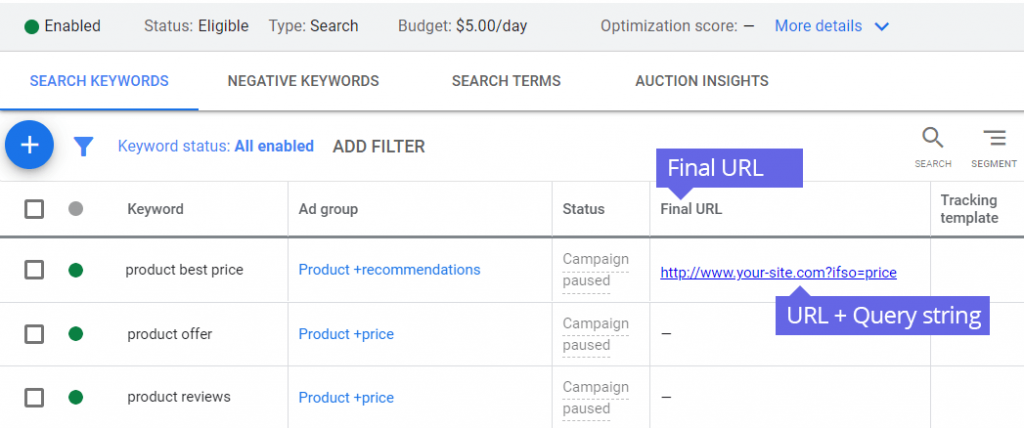
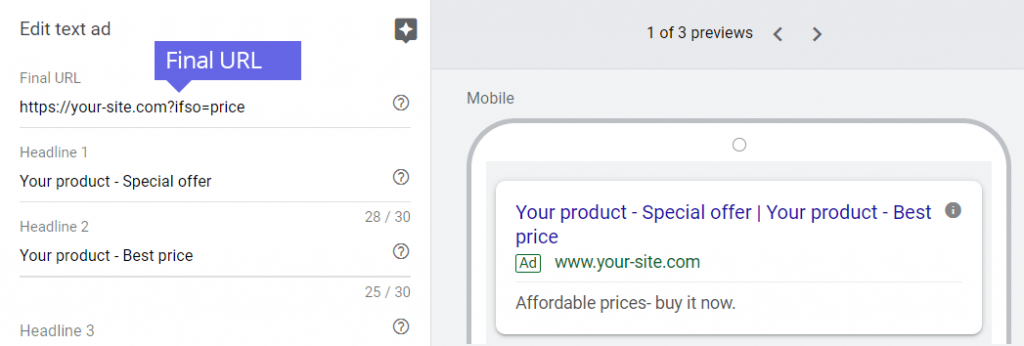
1. Pasting the URL that includes the query string directly in the final URL field.
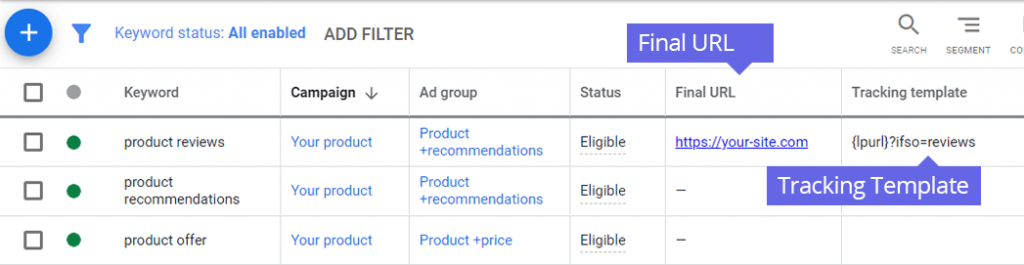
2. Using the “Tracking Template” field to make Google Ads adding the query string automatically a the end of the Final URL.

Option 1: Using the Final URL field

The Final URL is the URL address of the page on your website that people reach when they click your ad. Its value is set while creating your ad, but can be overridden if you fill it in the keyword level.

Google Ads Final URL 1

Setting up the Final URL in the Keyword-level:

  1. In the page menu, click Keywords
  2. Add the “Final URL” column if needed. Learn more.
  3. Scroll over the “Final URL” column of the keyword you’d like to specify a landing page for and click the pencil icon when it appears.
  4. In the Final URL field, enter your landing page URL with the addition of the query string (i.e. your-site.com?ifso=value)

  5. Click Save.

Setting up the Final URL in the Ad-level:

  1. Find the ad you’d like to edit.
  2. Hover your cursor over the ad’s name and click the pencil icon.
  3. Select Edit.
  4. In the Final URL field, enter your landing page URL with the addition of the query string (i.e. your-site.com?ifso=value)
Google Ads Ad level Final URL

Option 2: Using the Tracking Template field

The Tracking Template field exists in every level of your account (Account, Campaign, Ad-Group, Ad, and Keyword). It allows you to enter parameters the will be added to the Final URL you have set. In order to use the tracking template option in one of the levels of your account, you must first set up the final URL at that same level. More about tracking template at the Google Ads help center.

Google Ads Tracking Template at the Keyword Level

Setting up URL options at the ad group, campaign, or account level means that you can update your tracking information without resubmitting your ads for approval. However, if you set up or edit at the ad, keyword, or sitelink level, they will still need to go through review.

How to set up the Tracking Template in the Keyword-level:

  1. Click on the Keywords page menu.
  2. Add the “Tracking Template” column if needed. Learn more.
  3. Hover over any entry in the new “Tracking template” column, and click when the pencil appears.
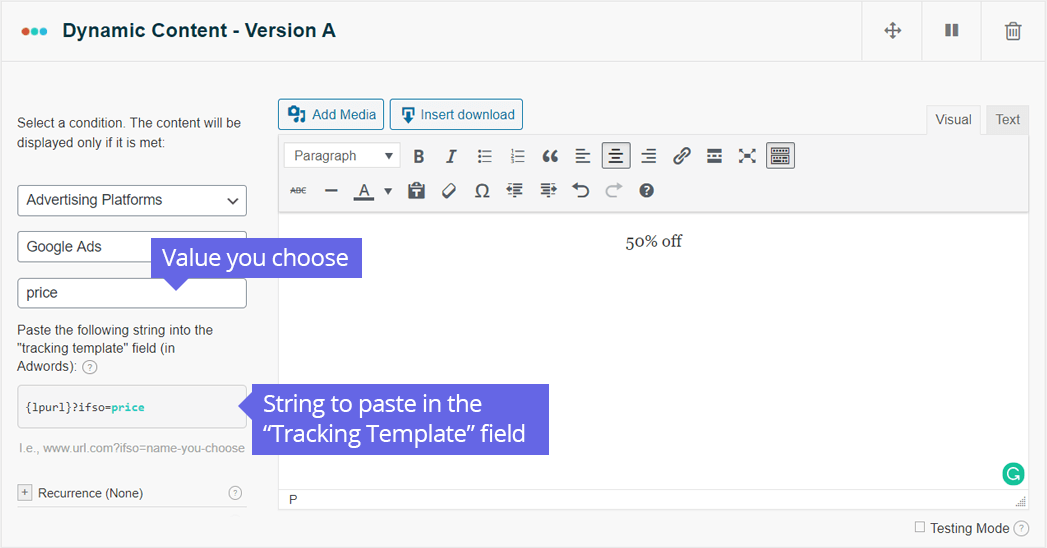
  4. Paste the string found below the condition of the version from your If-So trigger. Paste the entire string, including the {lpurl}, the question mark, and then any ValueTrack parameter.
    Google Ads Condition string to paste
  5. Click Save.

How to set up the Tracking Template in the Ad-level:

  1. Click on the Ads & extensions page menu.
  2. Hover over the ad.
  3. Click the pencil icon when it appears.
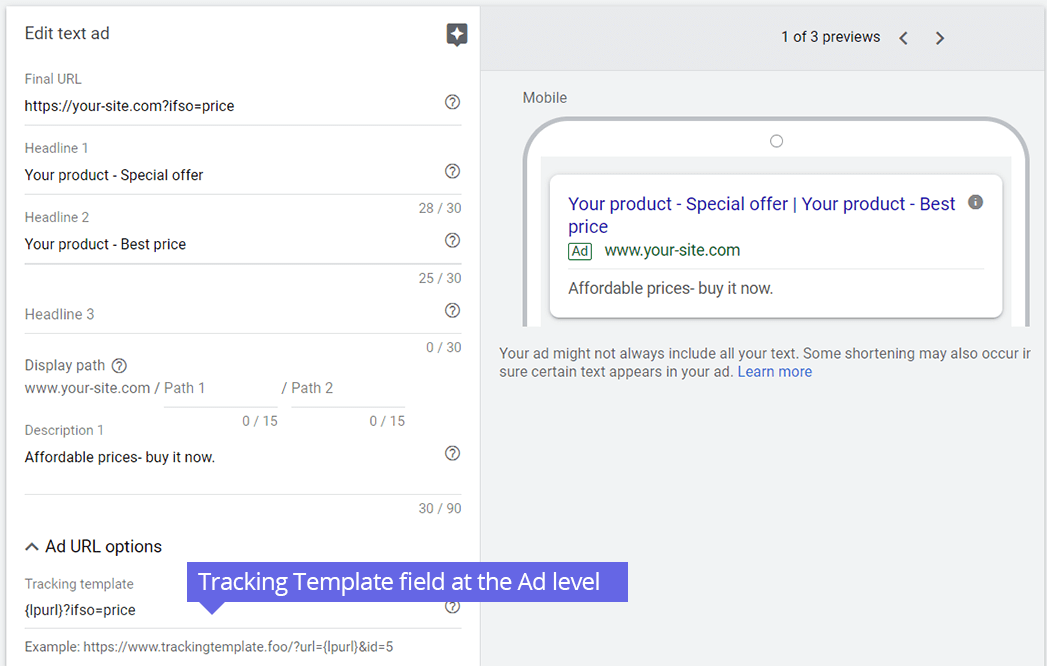
  4. Expand Ad URL Options.
  5. Paste the string found below the condition of the version from your If-So trigger. Paste the entire string, including the {lpurl}, the question mark, and then any ValueTrack parameter.
    Google Ads Tracking Template field at the Ad Level
  6. Click Save.

How to set up the Tracking Template in the Ad group-level:

  1. Click on the Ad groups page menu.
  2. Add the “Tracking Template” column if needed. Learn more.
  3. Hover over any entry in the “Tracking template” column.
  4. Click the pencil icon when it appears.
  5. Paste the string found below the condition of the version from your If-So trigger. Paste the entire string, including the {lpurl}, the question mark, and then any ValueTrack parameter.
  6. Click Save.

How to set up the Tracking Template in the Campaign-level:

  1. Click on the Settings page menu.
  2. Hover over any entry in the “Tracking template” column.
  3. Click the pencil icon when it appears.
  4. Paste the string found below the condition of the version from your If-So trigger. Paste the entire string, including the {lpurl}, the question mark, and then any ValueTrack parameter.
  5. Click Save.

You can use the “Test” button to check that your tracking is set up correctly. Once you click “Test,” Google Ads will combine your final URL with any tracking you set up to make sure your ad will lead to a landing page URL. Learn more.

Gender Differences in Digital Marketing: Why should men and women be handled differently?

The world of digital marketing is focused on developing a message around your product or service and delivering that message to a targeted audience—at scale. Often, this targeted audience is extremely granular. Facebook ads, for instance, let clients target based on things like interests, activities, or locations. That said, gender is something that digital marketers cannot ignore. Simply put, in some cases, men and women should be handled differently when marketing products or services.

Research proves that digital marketers should pay close attention to these gender differences. According to Gloria Moss’s Gender, Design and Marketing: How Gender Drives our Perception of Design and Marketing, males and females shop differently. They don’t analyze a product or service in the same way and their motives for shopping can significantly differ.

The fact remains that digital marketers must take a nuanced approach when marketing to both genders. By doing so, they will ultimately find more success in selling their product or service. In this article, we will further explore certain gender differences that marketers must take into account when communicating with their audiences.

Men and Women Have Varying Motives for Shopping

One of the biggest differences between male and female shoppers centers on their motives for shopping. Even though it is easy for marketers to focus on a single value proposition for their product or service, men and women often look at these offerings in a different way.

According to a study by The Mediterranean Journal of Sciences, men take a more utilitarian approach to shopping while women are more hedonistic. By utilitarian, we mean that these male shoppers are focused more on the practical elements of the product or service. They are shopping to “get something done” and solve an underlying job in their lives. By contrast, by arguing that females are hedonistic, we mean that they are more likely to rely on their intrinsic or emotional responses when contemplating a purchase.

Addressing Varying Motives in Your Marketing Campaigns

This difference can play a large part in whether your digital marketing message properly resonates with your audience. For instance, if your product or service targets men (like men’s clothing or even a product for his car), you are going to want to be biased toward delivering a utilitarian message. You should show how your specific product will solve the current pain point in their lives. The pain point may be small, but by framing your message in this way, statistics show that your message will be stickier. If you are targeting women, appeal to their emotional or intrinsic side. Explain how your product or service is going to make them feel. Convince them that it is going to improve their lives in a dramatic way. Doing this will increase the odds that your targeted women will make the purchase.

Visual storytelling can be powerful in reaching this segment. Using tools like Picsart can assist marketers to quickly modify an image, perhaps pulling attention to ways your product or service enhances feelings of joy or offers comfort. Such emotive imagery showcases that the product is not just a purchase, but a significant addition to their lifestyle.

Men and Women Arrive at Decisions Differently

Digital marketers must also account for the different ways that men and women arrive at decisions. While all of us make that final choice of purchasing or not purchasing the product, we come at it from different angles.

Let’s start with the ladies. Women embrace a holistic approach to making a shopping decision. They integrate all of the elements before signing on the dotted line. They are more than happy to take their time and look at the big picture. Men take a much more direct route. Generally speaking, their approach takes advantage of elimination. They decide which parts of a product or service matter most and then eliminate those products or services that don’t have those elements. They eliminate the competition until one product or service remains.

Creating More Inclusive Campaigns by Recognizing Gender Differences

Like motive, these decision-making approaches can have large consequences when marketing to different genders. Let’s say that you are trying to sell a kitchen appliance to a woman and a man. When marketing that appliance to a woman, it would be in your interest to explain how each positive element of your product creates a comprehensive plethora of value to that shopper. In other words, you will want to paint the metaphorical tapestry for the female shopper.

As for men, you need to gain an intimate understanding of what men are looking for in the appliance generally. From there, show how your appliance contains those elements and that your competitors’ appliances don’t have those elements. You’ll increase the odds of having your message stick with your male targets.

Men and Women Differ on Where the Final Purchase Occurs

While both genders are obsessed with online shopping, there are some gender differences in their attitudes toward shopping on different types of devices. Surveys show that men are more likely to use their mobile phones to shop than women. And as far as tablet shopping, 20.4 percent of male respondents said that they have used tablets like iPads to purchase goods or services while only 16.9 percent of female respondents have done the same. When purchasing through mobile devices, men want an experience that saves them money and time. Women are looking for experiences that let them browse catalogs and products and easily share their finds with others.

Reaching Men and Women Where They Love to Shop

Even though digital marketers may not be intimately involved with the design of their mobile websites and apps, they must do the best they can to account for these behavioral differences. For instance, if your product or service is more catered toward men, work with your colleagues to ensure that the mobile versions of your website are free of bugs. Do your best to make sure the checkout funnel is as clear and short as possible. Feel free to entice male customers with financial incentives on your app. If you are targeting women, make sure that your mobile website and app let them easily share targeted items with friends and family.

How Men and Women Perceive Trust

Another dimension to consider is perceived trust and authority: research shows that trust plays a significant role in purchase decisions, and what builds trust for one gender group may be different from another. For instance, women may prefer testimonials and social proof, while men might respond more to data-driven benefits or expert endorsements. Incorporating both — depending on the gender segment you’re targeting – can help broaden appeal and strengthen conversion across the board.

Gender Differences in How Men and Women Respond to Presented Informatio

Finally, one key gender difference that digital marketers should account for is gender differences related to communication. It’s quite obvious, but it is worth repeating: you cannot use the same message when trying to sell your products to both genders. In a general sense, men like receiving all important information upfront and then obtaining background information later. For women, however, the process is more effective when it is reversed. Women like receiving background information first and then receiving the important information that can lead to the sale. Because women embrace this holistic approach and make decisions on a deeper level, providing thorough background information earlier in the pitch can pay off in spades down the road.

Communicating Your Pitch to Men and Women

Therefore, when marketing your product or service to men, don’t hesitate to get straight to the point. Be direct and show how your offering can make a tangible difference in their lives. For women, don’t hesitate to take it slow. Paint the entire picture for them and close with the most important information.

Using If-So to Address Gender Differences

When applying insights about gender differences in digital marketing, personalization is key. One effective way to do this is by connecting your ad campaigns directly to on-site content.

With If-So, you can use the Google Ads or Facebook Ads condition to detect the source of each visitor and display tailored messages accordingly.

For example, if a visitor arrives through a women-focused Facebook campaign, you can show content that highlights community and trust. If they land via a men-focused Google Ads campaign, you can emphasize performance, efficiency, or data-driven benefits.

This approach bridges the gap between ads and landing pages, turning awareness of gender differences into higher engagement and conversions.

Conclusion: Taking Advantage of Gender Differences

While some digital marketers view gender differences as an obstacle they need to overcome when making a sale, the more appealing perspective is that gender differences can be a massive opportunity. By understanding the differences outlined above and iterating your pitch to account for them, you will find more success when marketing to both genders.

Ultimately, the best time to get started is today. Whether you run a small experiment on a new product or service you are marketing or take a larger, more comprehensive approach to account for these differences, taking action today will lead to massive benefits in the future.

What is Dynamic WordPress Content?

What is dynamic WordPress content?

At its core, dynamic content for WordPress can be described as a type of content that changes its behavior depending on several factors. The factors might include the user’s profile, as well as their interests, engagement with the website, and more. Dynamic content is very effective, and even though it might sound complicated, it is not.

Dynamic WordPress website examples

Dynamic content has many purposes, and there are many examples of how it can be used to enhance a website with some intelligence features. E-commerce websites are classic examples of dynamic content implementation.

Take a look at reverb.com, for example. This is a website that provides marketplace solutions for musical instruments, similar to eBay. If more people are looking at an item or have placed a bid, the page will show different information and notify visitors of any bids or offer in progress, as well as giving them a detailed breakdown of how many people are watching the item. This is meant to create a sense of urgency, which can help maximize sales and drive the market for any given item.

Dynamic content can also be used to create a personalized experience for visitors when they enter the website. For example, users getting to the page from a specific source, such as an email list, can get a customized experience by retrieving their names or by showing them special offers or exclusive content 

Dynamic content vs. static content

Even though dynamic content is quite different from static content, it doesn’t necessarily mean that one is better than the other. In fact, it is really about using the right content typology based on your particular needs and situation. In other words, it is important to understand that both dynamic and static content are very important when it comes to designing a successful website. You could think of dynamic content as that part of the design that caters to the user experience, making it more personal and unique to each visitor. However, the static content is just as important, and you could see it as the “skin and bones of your website.”

Dynamic content for small businesses

Today, most websites, emails and marketing content relies heavily on dynamic content. WordPress plugins like If-So Dynamic Content enable users to create dynamic content easily. Site admins can even see statistics, indicating how many times each version of the content was displayed, and how users engaged with the site after seeing it. In conclusion, dynamic content features make for an excellent solution to the web design needs of many customers, including smaller businesses.

WordPress Super Cache and Dynamic content

Important update! If-So is now complitely compatible with page caching!!! You can keep using cache as ususal and load the dynamic content using Ajax.Learn more about dynamic content and page caching →

WordPress Super Cache is a popular free caching plugin for WordPress users. Like most WordPress caching plugins, it is used to improve load times and enhance the overall user experience by presenting your web content more quickly. By default, WordPress neutralizes the ability to serve dynamic content, some simple settings will allow you to do so.

WordPress Super Cache – page caching

One way this works is through a concept called page caching.

The plugin generates a cached file when a page is requested for the first time, stores it for a pre-defined duration, and then provides it to the next visitor who requests the page. Serving the cached version instead of fully rendering it all over again cuts down on how long it takes to load a website.

While it is easy to see why this is such a helpful tool, it is important to understand that using page caching eliminates the ability to use dynamic content and cookies. Dynamic content, which is designed to provide a more custom user website experience based on certain inputs, means that a web page might not look the same way for every user. Consequently, when the WordPress super cache serves the cached version, it might not match the version that should have been presented to the user.

The solution, use both page caching and dynamic content

Fortunately, WordPress makes it easy for you to benefit from both page caching and dynamic content. The approach is easy, all you have to do is turn off page caching for the web pages with dynamic content and cookies. This way, you can keep using it to provide a quality user experience, that is also custom at the same time.

How to exclude pages from the cache while using WordPress Super Cache

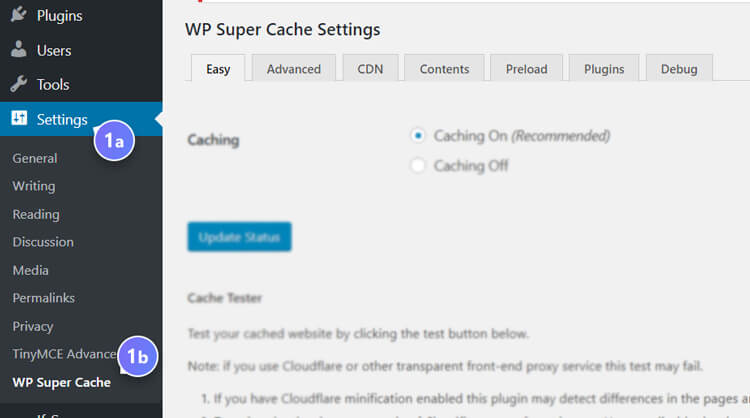
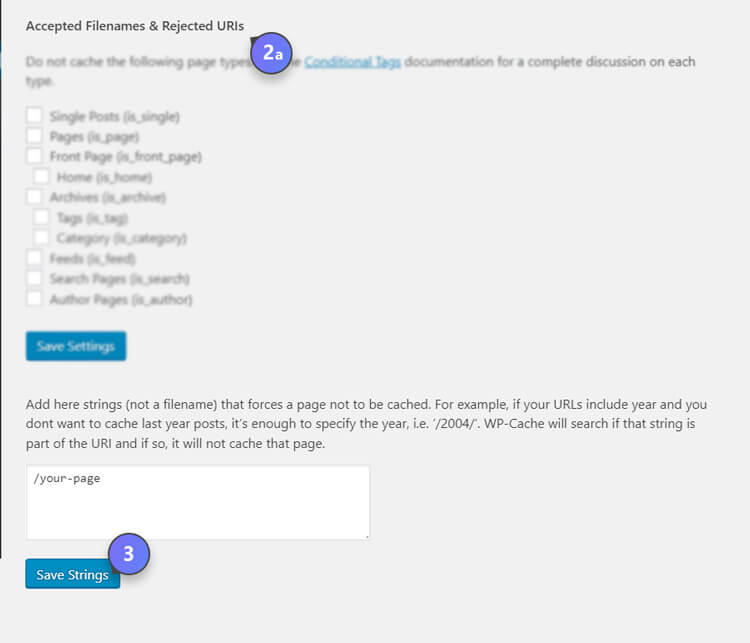
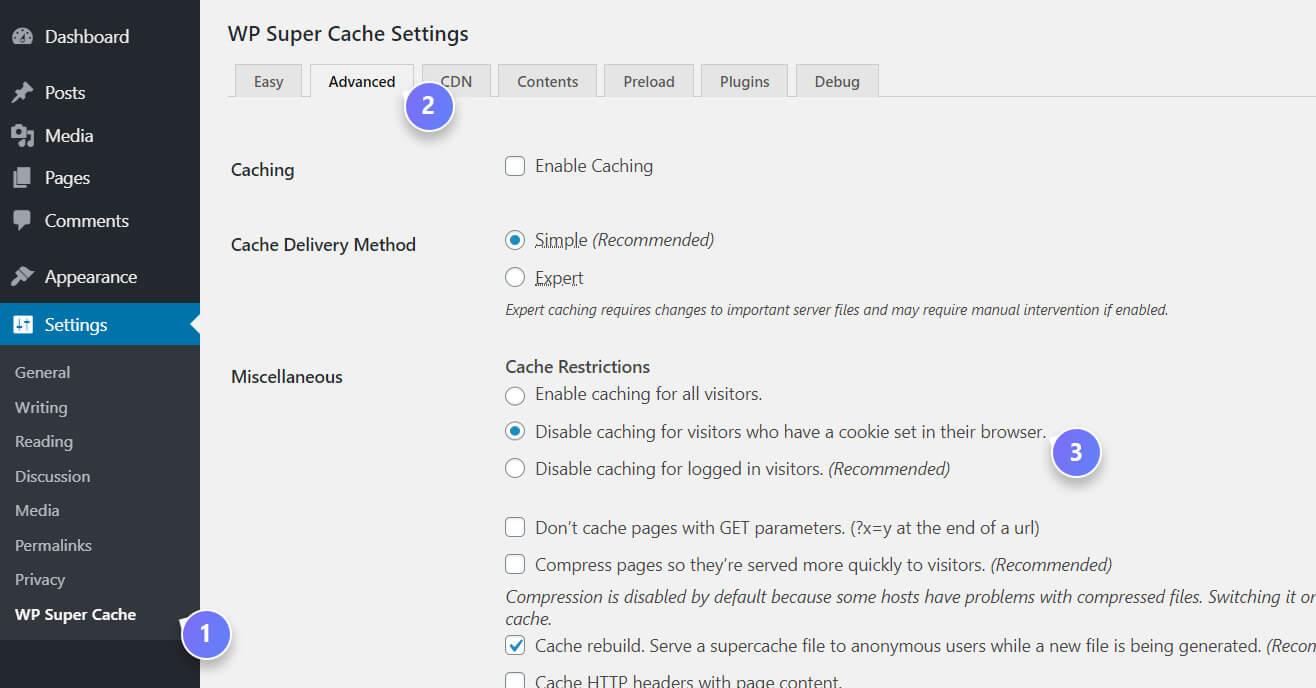
  1. On your WordPress dashboard, go to Settings → WordPress Super Cache → Advanced (tab).WP Super Cahce step1
  2. a. Find the “Accepted Filenames & Rejected URIs” section.
    b. Select the relevant pages .
    WP Super Cahce step2
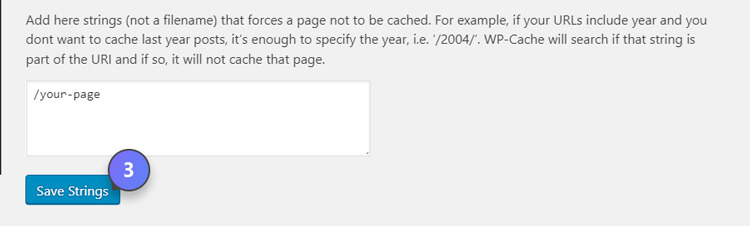
  3. Click “Save settings”
    WP Super Cahce step3
  1. On your WordPress dashboard, go to Settings → WordPress Super Cache → Advanced (tab).
  2. a. Find the “Miscellaneous” section.
    b. Select “Disable caching for visitors who have a cookie set in their browser”.
  3. Click “Save settings”
    WordPress Super Cache Cookies

Need help configuring WordPress Super Cache on your site? If you’re considering hiring a developer, here’s how to choose a quality WordPress developer.

WordPress Personalization – Advantages

Are you looking for a cost-effective way to get a killer website done while retaining a personalized content experience? WordPress personalization might be the best solution for you. This free and open-source content management system started out as a blogging platform. Today, it is so much more than that. Individuals, businesses and organizations use it as a platform to build and host websites.

If this wasn’t enough, the main advantage of WordPress is the ability to easily add extra functionality to your site. Using a WordPress personalization plugin can be an amazing way to add more functionality and character to your website.

WordPress personalization plugin

The main benefit of WordPress personalization is that you can use a plugin to do the work for you. In fact, one of the best aspects of using personalization plugins for WordPress is that you do not need to know coding or web design to achieve excellent results. You can add the plugin to any site and the process is very simple, with no coding skills required whatsoever.

WordPress personalization advantages

Personalized WordPress websites have many advantages:

Better results: More conversions, less bounce rate, improved ROI

The first and probably most important advantage is that the user can get it right from the start. Customized content makes users feel like they have found exactly what they were looking for, without too much effort. In addition, personalization can be a fantastic way to increase the conversion rate of your website, as well as improve your return on investment (ROI), bounce rate and productivity overall.

Uniqueness and memorability

Personalized websites are more unique and memorable. With some customization, you can enhance the appeal and impact of your site. People will remember it’s uniqueness and connect with it on a more personal level.

Are you looking for additional tips and information about Personalization in WordPress? If so, feel free to reach out!

Already own a WordPress website? Download If-So for free from the WordPress library and provide your visitors with a personalized content experience within minutes.

Displaying Dynamic Content on a Webpage Using UTM Parameters

UTM parameters are a valuable tool that you can use to gain useful insights into which of your marketing efforts are bringing in the right traffic to your website. With the help of the If-So WordPress plugin, you can now get the very most out of UTM parameters and customize your web page content based on the UTMs.

In this article, we will be exploring the importance of UTM parameters and how you can use them for tracking. We will also explain how you can use If-So to easily add or replace content based on the UTM codes already in use to track campaign performance.

What are UTM Parameters?

What are UTM Parameters

UTM (Urchin Tracking Module) parameters are short strings of text that you can add to a URL in order to track the effectiveness of online marketing campaigns across traffic sources and publishing media. Each time that a URL with a UTM parameter is clicked, data is automatically sent to Google Analytics for you to review. This is valuable because it returns data that not only shows where your website visitors are coming from but also how visitors arriving from a particular marketing effort interact with your site.

The structure of UTM parameters

UTM parameters are initialized by the question mark “?” at the end of the URL. Each parameter starts with its name and is followed by equals sign “=” and its value without spaces. Several UTMs are divided by an ampersand sign “&”.

Example URL, UTM parameters highlighted, after the question mark (?):

https://www.example.com/page?utm_medium=social&utm_source=facebook

In total, there are 5 variants of UTM parameters that you can track including:

  • utm_source– This UTM parameter is used to show where traffic is coming from
    (e.g. Google, Newsletter).
  • utm_medium– A utm_medium parameter returns data that identifies the marketing channel. Social, Organic, Paid, Email, Affiliates, are all core marketing channels that include multiple traffic sources.
  • utm_campaign– This UTM parameter is the overall campaign you are launching. This depends on a specific goal. If your business is launching a new product, this UTM parameter would be displayed as something like “newproduct_launch”.Feel free to fill this in however it makes sense to you. Names that allow you to easily identify product launches, promotional campaigns, individual emails or posts, etc. are all good.
  • utm_term– When conducting keyword research, this UTM parameter can be very helpful. When participating in paid search advertising, a utm_term parameter is used to identify the search term that your ad was bidding on.
  • utm_content– This is an optional field. If you have multiple links in the same campaign, like two links in the same email, you can fill in this value so you can differentiate them.

How to Use UTM Parameters For Tracking

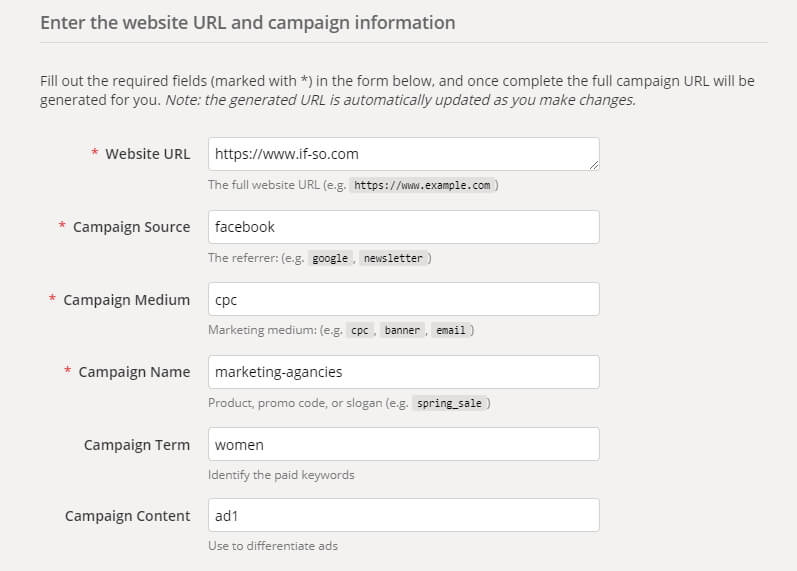
Now that you understand what UTM parameters are, you may be wondering how to use them for tracking. Luckily, the process is actually very simple. When working with Google Analytics, you can implement UTM parameters by using the Google Analytics URL Builder.

The Google Analytics URL Builder displays an easy-to-use form where you will enter your website’s information as prompted. This includes factors such as website URL, campaign source, medium, term, content, and name. After submitting your inputs, you will simply take the link that the URL Builder has generated and attach it to the element you want to track.

a screenshot of the Analytics url builder

One of the best things about UTM parameters is that they can be easily edited if you end up needing to change factors as you continue tracking elements of your website over time. To do so, you just have to generate a new link by changing the necessary factors and attaching it to the right element.

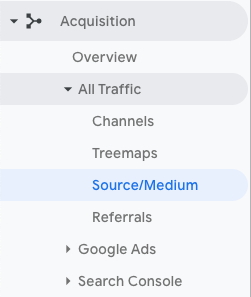
Where do I find UTM data in Google Analytics?

In your Google Analytics dashboard, go to the left sidebar and click “Acquisition”, in that menu click “All Traffic”, and from there click “Source/Medium”.

A screenshot of Google Analytics menu - acquisation report

How to Display dynamic content based on URL parameters

By using UTM parameters, you can gain insight on what users are interested in. To get the most out of UTM parameters, use the If-So Dynamic Content WordPress plugin to create UTM based content. This makes your website more user-friendly because the right content will be shown to visitors based on what data suggests about their interests. If-So’s WordPress plugin is user-friendly and takes a matter of minutes to set up.

UTM based content may be useful on any marketing channel. Just as an example:

  • Email marketing and newsletters– show specific content to visitors that are directed to your website through emails and newsletters.
  • Social media platforms– show exclusive content to visitors arriving from social media platforms. An example of this is visitors directed to your website from a specific Facebook advertisement or post.
  • Google Ads– show predetermined content to visitors that arrive through a specific campaign or ad group in Google Ads.

Powerful Examples of Using Dynamic Content Based on URL parameters

To give you a better idea of the power of UTM based content, let’s take a look at a few examples. Each of the websites in the examples resulted in increased traffic, more conversions, and insight that could be used to improve marketing efforts overall.

Example 1 – Focused content based on the user search on Google

A restaurant that offers both vegetarian and meat-based dishes is advertising on Google Ads. The restaurant is using UTM parameters to track visitors arriving from each ad group. One of the ad groups is dedicated to keywords relating to vegetarian foods.

In an effort to result in better conversion rates and ROI, the restaurant replaces the main banner. When users are directed to the website from search terms based around vegetarian foods. The banner dedicated to vegetarians is placing emphasis on the restaurant’s vegetarian options.

Example 2 – Showing a festive website banner to users on their birthday

A clothing company is sending out automated emails containing a special discount to users on their birthday.

When users click the link found in the email, they are then directed to a festively designed version of the website that features a personal birthday message for them. This resulted in not only a better user experience but also a higher rate of sales conversions based on the offered special discounts.

Example 3 – Adding a unique message to women, arriving from a dedicated Facebook Ads campaign

A ticket office employs the use of an ad targeted to married women on Facebook Ads in preparation for an upcoming stand-up show. When directed to the ticket office’s website through this campaign, users will be greeted with a message (and even a personalized design with the power of the If-So WordPress plugin) that prompts women to action: “If you’ll wait for your husband to do it it will never happen. Order now.”

This humourous UTM based content properly conveyed the tone of the standup show itself and spoke to the women it was targeted to. This resulted in an increase in ticket sales and it was all thanks to the implementation of content based on UTM parameters.

If-So 1.4.2: Import and export triggers, an easier way to edit triggers, and more…

Import and Export triggers from one property to another, or just save them on your drive for future projects

We value your time! The new Export & Import option allows you to save triggers and implement them on other web properties.

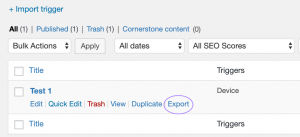
To export a trigger, simply go to the “All Triggers” list and hover over a trigger, then click the “Export” button. A file with the same name will be automatically downloaded to your PC.

Export Trigger Button Circled

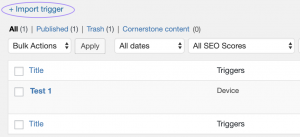
To import the downloaded trigger press the “+ Import trigger” button on the top of the “All Triggers” list. The trigger will be uploaded as a draft version that you can edit and publish anytime.

Import Trigger Button Circled

“All Triggers” modal on page and post editor

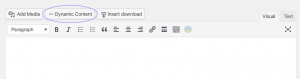
Implement your ideas for dynamic content on-the-go! A new button that opens a modal box with a list of all your triggers was added to the top of the classic editor. Use this modal to edit or add a new trigger without having to open a new browser tab or exit the page you are editing.

Dynamic Content Button on Edit Post Page

This will save you time spent entering the plugin menu, searching for the needed shortcode and then opening the editor once more. At the moment the feature is only available for the Classic WP Editor, but we are working on making it compatible with Gutenberg, Elementor, Divi and other page builders.

Implement If-So on your website right now and raise the productivity of your pages for free.

Related Articles

The Impact of Dynamic Content on SEO – Best Practices and Potential Risks You Should Know

Google encourages constructive testing and ongoing optimization efforts for every website owner and marketer. As John Mueller, Google’s Webmaster Trends Analyst, had this to say in a Reddit AMA:

“Personalization is fine, sometimes it can make a lot of sense.”
John Mueller, Google’s Webmaster Trends Analyst

It should be noted, that while Google is a proponent of efforts to improve the overall experience of each customer and transform websites for the better, in a technical sense, there are some guidelines to follow in order to properly utilize dynamic content. These guidelines should be kept in mind during each and every effort to optimize and personalize web pages so that you can reap the fullest benefits of dynamic content!

Dynamic Content Contributes to SEO Success!

Dynamic content (aka adaptive content) refers to web content that changes based on the behavior, preferences, and interests of the user. As such, it is much more efficient in delivering a higher standard of quality than typical, static content.

Higher-quality content creates a very positive snowball effect as it improves the overall user experience which, in turn, improves Google organic rankings. Where static content remains the same regardless of a user’s unique interests, dynamic content delivers the types of content that each particular user is most likely to enjoy. This plays a key role in producing more user engagement, returning user visits, an increase in the average time spent on your site and, ultimately, an increase in sales and conversions.

Potential Risks of Dynamic Content on SEO and How to Avoid Them

It is evident that the use of dynamic content can play a dramatically important role in your search engine optimization efforts overall. Nevertheless, when making use of dynamic content, you utilize different versions of web content to offer each of your users a personalized experience. The question that arises is which version search engines, like Google, will see when crawling your website. Questioning even further, will the same version of the content be displayed to search engines on each crawl?

From a technical point of view, there are five main risks that need to be taken into consideration when using dynamic content:

  1. Cloaking
  2. Duplications
  3. Keyword cannibalization
  4. Page load speed
  5. Redirection

To give you the truest understanding of dynamic content and how to use it in a way that aids your SEO efforts rather than hinders them, let’s explore the five risks. In doing so, you will have all of the necessary information to use dynamic content to your full advantage!

Risk #1: Cloaking

What is Cloaking

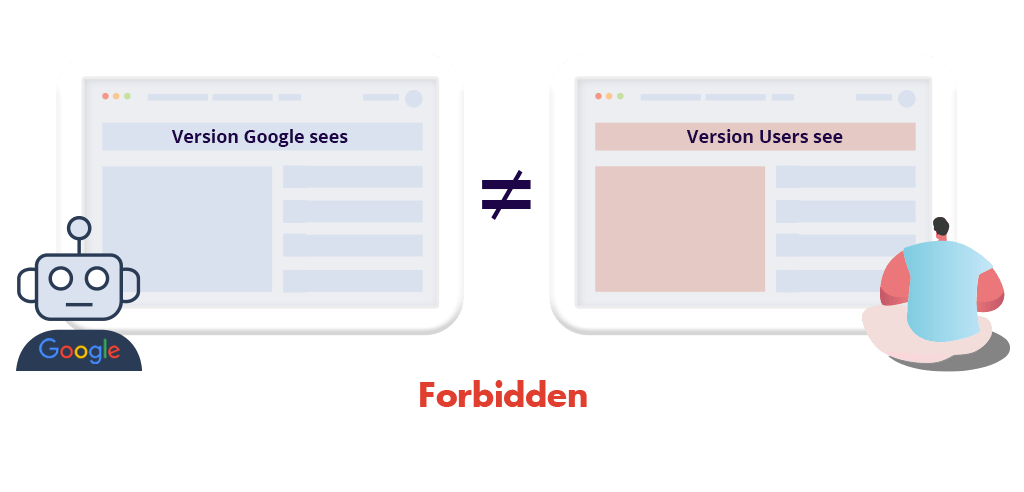
As it turns out, cloaking is essentially exactly what it sounds like: displaying content to your users that differs from what Googlebot is shown. Cloaking is an incredibly high-risk behavior when it comes to dynamic content creation as it is a big no-no when it comes to Google’s quality guidelines.

With cloaking being strictly against Google’s quality guidelines and presenting a terrible user experience to visitors of your site, it’s obvious that your website could be subject to serious consequences if Google catches on. Both a breach of quality guidelines and a consistently poor user experience indicated by low user engagement/high bounce rate are surefire ways of destroying your rankings.

How to Avoid Cloaking While Using Dynamic Content

Googlebot expects to view the same content that any average visitor to your webpage would see. In order to ensure that your content is displayed to Googlebot appropriately, there are 3 steps you should follow:

  1. Make sure that your site displays enough non-personalized, static content, to assist Googlebot in determining the relevancy of the webpage so that it can route queries accordingly.
  2. Make the dynamic parts of the page minimal as possible
  3. Keep your titles static, especially H1s. If you do turn your title to dynamic ones, make sure to include the focused keyword on each version and make sure the meaning of the title is not completely different on each version

Risk #2: Duplications

What is duplicated content and how to avoid it

While duplicate content is unlikely to earn you a penalty from Google, it can be hugely impactful to your website’s overall quality score- and not in a good way. It is easy to see where the problem lies in this situation as your Google ranking is based around a number of determining factors with one of the largest being your site’s quality score.

Duplicate content can be defined as multiple webpages that lack any significant change (or any distinguishable changes at all) when Googlebot indexes them. Whether the creation of duplicate content can be attributed to a reposting of the content elsewhere on the web or a rewriting of the original content, Google isn’t a fan.

How to Avoid Duplication While Using Dynamic Content

Of the five potential risks that dynamic content can pose, the creation of duplicate content is one of the easiest mistakes to make. With that being said, duplicate content is also one of the easiest risks to avoid.

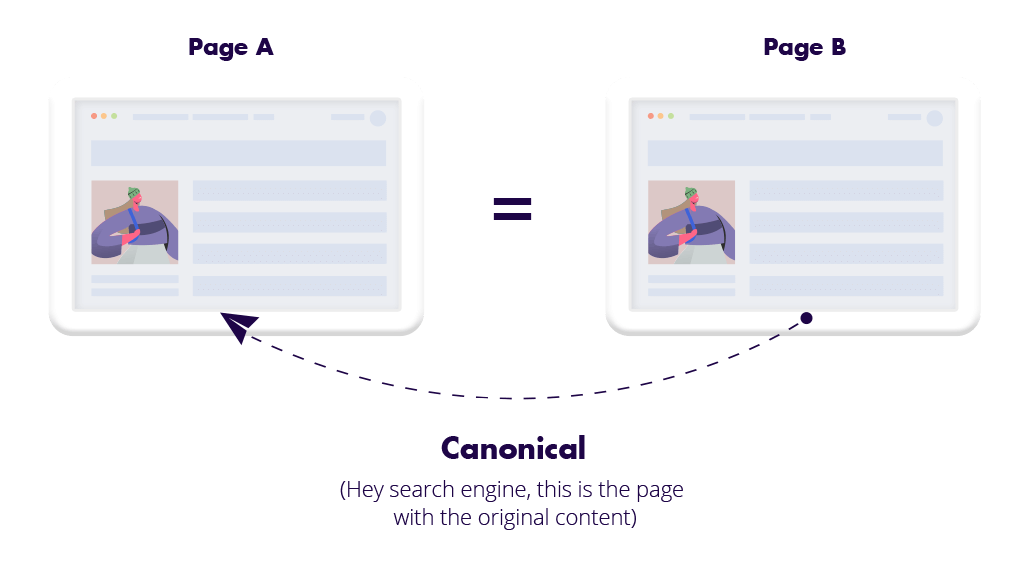
Duplicated content might be created while using query strings (URL parameters). As default Google and other search bots relate to URL with a query string as a different URL. Meaning the URL example.com and the URL example.com?color=red are two different URLs (though on the website’s admin side only one page exists).

Avoiding duplicate content is done by applying canonical tags. Canonical tags indicate to search engines that certain pages should be treated as copies of a certain URL and that any rankings should actually be credited to the original page.

Risk #3: Keyword Cannibalization

What is keyword canibalization

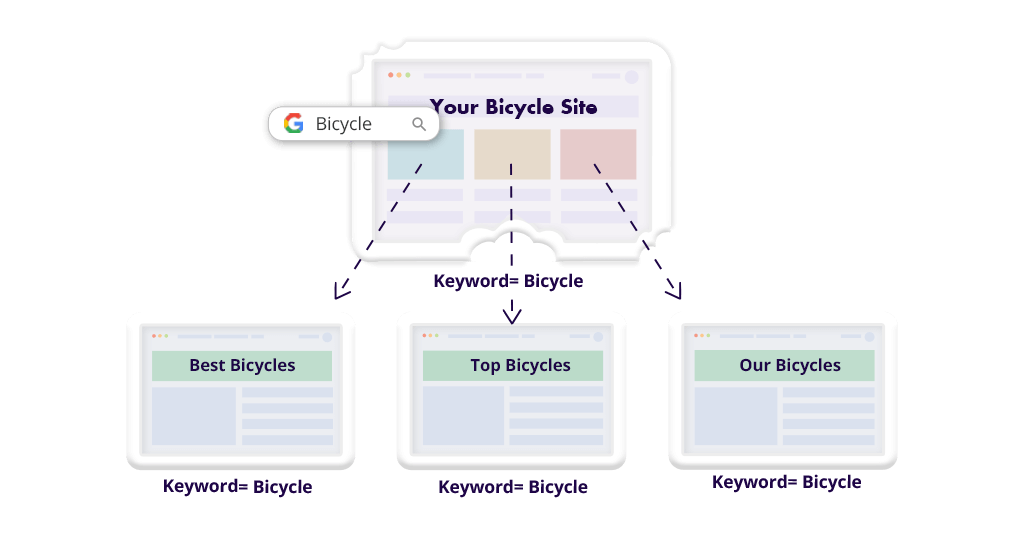
Keyword cannibalization is a problem that lies in relatively the same vein as a duplicate content. Keyword cannibalization can be defined as query strings that generate a large number of webpages that target the same keyword or keyword phrase. When your site consists of multiple pages that are all competing for a top spot in the rankings of a singular keyword or keyword phrase, they basically “eat” each other up in the process.

When it comes to the use of dynamic content in your SEO practices, keyword cannibalization can prove damaging as you will be inhibiting the webpage you would most prefer to rank well for a keyword to effectively compete. In fact, you are essentially competing with yourself.

How to Avoid Keyword Cannibalization While Using Dynamic Content

As the reason for keyword cannibalization is similar to content duplications, the solution is also the same – applying canonical tags (as described above).

Risk #4: Page Load Speed

the affect of Page load time on SEO

When a customer’s search for a particular subject is halted for more than 2-3 seconds due to slow page load speed, they are likely to move on and never return to that site. This highlights the importance of optimizing your web page for page load speed. Every effort should be made to ensure that your site loads quickly and gives the user what they’re looking for.

When a user bounces off of your page due to an unsatisfactory page load speed, this essentially tells Google that you are undeserving of ranking for those important search queries. After all, a bad page load speed means bad user experience.

How to Avoid Slow Page Load Speed While Using Dynamic Content

Though there is no way to avoid long page load times when you add an extra capability like dynamic content, some plugins or software may be more effective than others. Naturally, the preferred option is to use a service like If-So dynamic content that processes the dynamic content on your server, without requiring calls to an external server.

Risk #5: Redirection

How Redirection  affects SEO

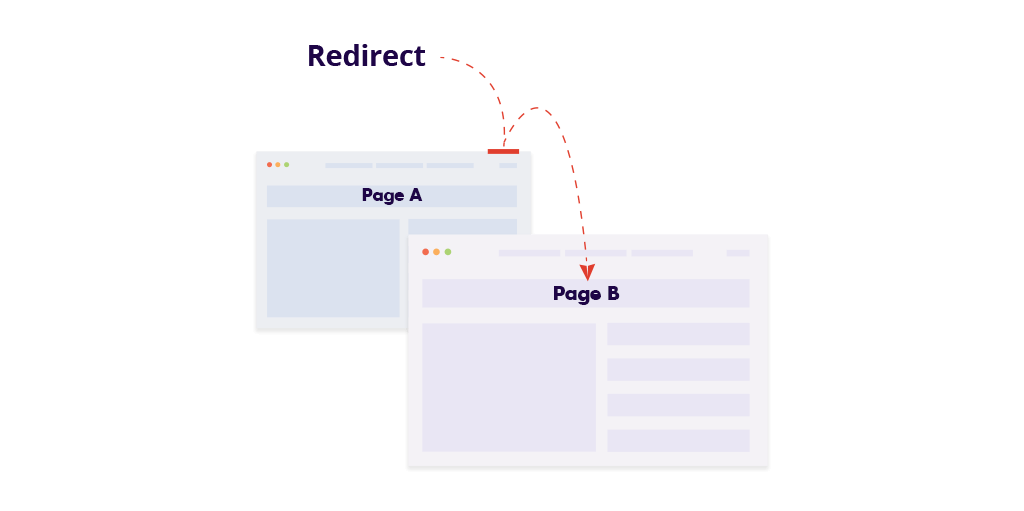
Redirection occurs when you create a response status code that is triggered whenever a visitor attempts to view content that has been relocated to a different URL. Redirection may be used in a variety of situations including split testing, for example.

There are two methods to create redirections are by JavaScript or by using an HTTP response.

How to Properly Create Redirections While Using Dynamic Content

Google’s guidelines for redirection clearly state that either a JavaScript-based redirect or a temporary HTTP response status code known as “302 Found” be used when redirecting users. This will be effective in communicating to Google that this redirection is only temporary and that the content’s original URL should be indexed as opposed to the temporary redirecting source. This will minimize the chances of both duplicate content and keyword cannibalization which is, as you now understand, very important when using dynamic content.

Conclusion – Guidelines for Using Dynamic Content without Causing SEO Issues

Always make a conscious effort to take the necessary precautions that can provide you with a safeguard against the unfortunate, potential risks of dynamic content on SEO.

The article specifies seven useful guidelines effectively avoid the repercussions associated with the five SEO vulnerabilities of dynamic content:

  1. Make sure that your site displays enough non-personalized, static content, to assist Googlebot in determining the relevancy of the webpage so that it can route queries accordingly.
  2. Make the dynamic parts of the page as minimal as possible.
  3. Keep your titles static, especially H1s. If you do turn your title to dynamic ones, make sure to include the focused keyword on each version and make sure the meaning of the title is not completely different on each version.
  4. Remember, Googlebot expects to view the same content that any average visitor to your webpage would see.
  5. If you redirect users to a different page – always use 302 redirects
  6. Always apply canonical tags if you are using URL parameters or if you redirect some users to a different page
  7. Use an on-site dynamic content service. Make sure the service you use doesn’t slow down the page load speed drastically.

When your rankings skyrocket thanks to the improved user experience that dynamic content provides, you’ll be glad you knew what you were doing!

FAQ – Which If-So version do search engines crawl?

If-So is a server-side solution. Conditions are checked when a page with dynamic content is loaded, and content is displayed accordingly. Only one version of the content is rendered (loaded). Learn more.

New release: UTM-based content, shortcode usage in titles, DKI, and more

A New Condition – Add or replace content according to UTMs

You asked for it, here it is! The UTM condition allows you to add or replace content according to UTM parameters: source, medium, campaign, term, and content.

If you are already using UTMs, this new condition is perfect for you. If not, it’s time to start! You get a two in one deal – Tracking the performance of different audiences, and providing the audience with a personalized content experience.

For example, you create an email campaign and want to offer a special promotion. You then add UTM parameters to all the links on your mail (i.e. yourdomain.com?source=newsleter….). The UTMs allow you to segment your analytics reports to track the behavior of users arriving through your emails. With the new If-So UTM condition, you can now be based on the same UTMs, and also display a special promotion banner that will only be visible to users arriving through this email.

There is no limit to what you can do! You can make a Facebook campaign to a specific gender, or different age groups only and customize key content on your landing page accordingly. You can use the condition to show unique offers to users arriving from your Google remarketing campaign and more…

Learn more about the UTM condition

More free stuff!

The IP and Start and End Date conditions are now available for use completely free of charge! These new conditions join the Device Type, Logged-in Users, Geolocation (250 monthly sessions) and Referral Source conditions which were already free

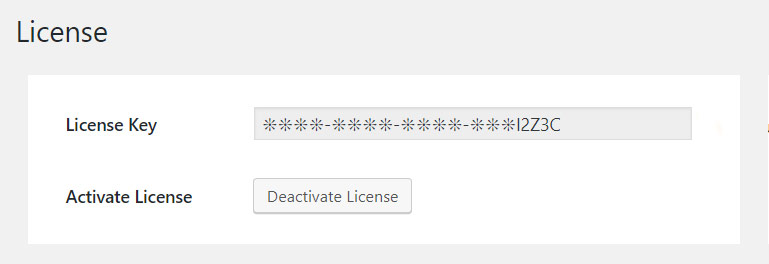
The License Key is now hidden

A screenshot of the license field showing that the license is hidden


Until today, when web developers and marketing agencies activated the License Key on customers’ websites, the license was visible to the customer. From now on, the license key will be hidden and safe. Not the customers nor third parties who have access to the site can use the license on a different website.

Use If-So on pages and posts titles

The true power of If-So is that it lets you personalize specific elements on your site. Choosing the right elements will maximize results while keeping the effort invested minimal. Titles are probably one of the most effective elements driving visitors into action. As a default, WordPress does not support using shortcodes in page titles. A new option that was added to the plugin’s settings changes that.

A screenshot fro the plugin's settings showing the "allow shortcodes in the title" option.

Duplicate triggers

A duplicate button was added below each trigger on the “All triggers” page. Thank us later if you need to create several triggers with similar condition 🙂

Duplicate

Disable the Pages Visited cookie

Users who don’t use the Pages Visited condition but are concerned about privacy regulations can disable the pages visited cookie. If the cookie is disabled, If-So will skip dynamic content versions with the Pages Visited condition (the next versions, if such exist, will be checked as usual).

A screenshot showing the option to disable the pages visited cookie

Recurrence override

The recurrence option allows you to control the consistency of a user’s experience. Once a user has visited the website and saw a certain dynamic version, the same version will be displayed every time they return to the website.

The ‘Recurrence Override’ feature allows you to choose versions that will override other versions that should have been displayed due to recurrence (in case their condition is met).

If-So DKI (Dynamic Keyword Insertion)

If-So Dynamic Keyword Insertion lets you insert keywords related to your If-So conditions into your webpages using a simple shortcode.

With If-So DKI you can display:

  • The user’s location: country, state, city, or continent
  • The user’s time zone
  • The referrer source
  • The browser language

For example: Let’s say you are selling a product and you offer free shipping to Europe, and you want to display the content “Free shipping to {Country name}”. Instead of creating a content version for each country in Europe, now you can create just one version, targeted to Europe using the Geolocation condition. All you need to do is to set the content as follows: “Free shipping to Unknown.” The shortcode will be replaced with the country’s name when the page is rendered.

Click here to read more about If-So DKI and the available shortcodes.

Track dynamic content with Google Analytics

The result you will get:

Analytics report - dynamic content
Learn how to track your dynamic content with Google Analytics:

Personalized content is great. With little effort, it increases conversion and engagement rates and can decrease bounce rates drastically. In this guide, we are going to show you an easy way to track dynamic content results using Google Analytics and Google Tag Manager.

This setup is divided into two steps:

Step 1: Create an Analytics event to track when a dynamic version is visible.
Step 2:  Segment the Analytics reports to separate the data of users who saw the dynamic content version.

Let’s Get Started!

STEP 1: Create a Google Analytics event to track when a dynamic version is visible.

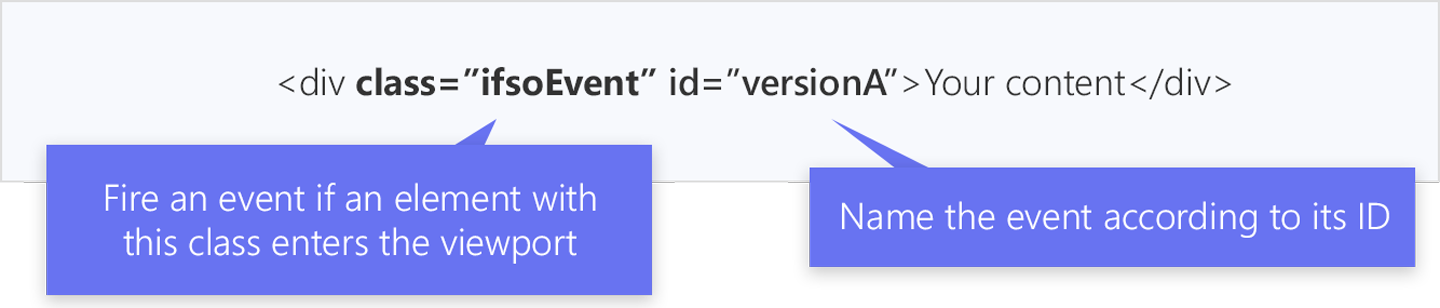
To see how dynamic content affects users engagement, we first need to set up an Analytics events collection every time a dynamic version is displayed. To do this, we will first add a class and an ID to each content version. We will then ask Google Analytics to collect an event every time an element with the class is visible in the user’s browser and to name the event according to the element’s ID.

In our example, we are going to name the class “ifsoEvent” and the IDs “versionA”, “VersionB,” etc. You can choose different names if you want to.

Analytics event by class

Adding Class and ID to the content’s versions

  1. On your WordPress dashboard, go to If-So > Triggers and select the trigger you want to track with Analytics
  2. Switch the content field to HTML mode
  3. Assign the class ifsoEvent to the wrapping element of the content. Analytics will track an event every time an element with this class is visible at the browser viewport
  4. Assign an ID to the wrapping element – The ID name you set here will be the name of the event on your Analytics reports.

* If you switch the editor to text mode and you don’t see any wrapping HTML element around your content, you’ll need to wrap the text in a P tag and assign the class and ID.

You can copy and paste the following code and just replace the text “your content” with your own content.

<div class="ifsoEvent" id="versionA">Your content</div>

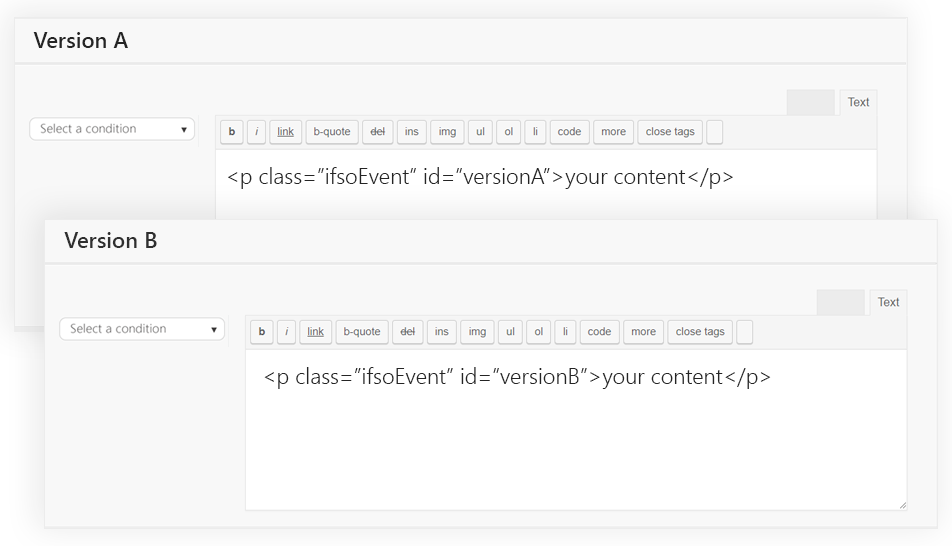
Hereinafter is an example showing how it should look like:

analytics event class and id

Setting up event tracking using Google Tag Manager

Creating a tag

  1. Go to your Google Tag Manager dashboard
  2. Navigate to Tags.
  3. Click New and name the tag “If-So tracking
    (The name is for your own convenience; you can choose a different name if you want).
  4. Click Tag configurations google tag manager new trigger
  5. Select Google Analytics – Universal Analytics as the tag type and set up the event parameters as follows:
    – Track type: Event
    – Category: ifso_tracking (you can choose a different name if you want to)
    – Action: view
    – Label: Click the ‘+’ sign and select {{Click ID}}.
    – Non-interaction hit: TrueYour tag should look like this:
    – Under Google Analytics settings select {{Google Analytics settings}}
    google tag manager event

Creating the trigger

  1. Click the triggering box.
  2. Click the ‘+’ sign and name your trigger (we named ours ‘ifso_tracking’. You can choose a different name if you want; it’s for your own use only).
  3. Click Trigger Configuration.
  4. Choose Element Visibility as the trigger type.
  5. On the selection method field, select “CSS Selector”.
  6. 6. On the element selector field, type the class you have chosen for your element (We did it in the first step of this guide. In our example, we assigned the class “.ifsoEvent”). Make sure to write the class name with a dot at the beginning.
  7. Save! You should now hit the save button 3 times: on the trigger configurations window, the trigger container, and the tag window
  8. Click the submit button google tag manager trigger

Note that changes on Google Tag Manager are applied only after hitting the submit button!

That’s it! If you followed the steps above, the events should now appear on your Google Analytics reports.

Step 2 -Viewing results for each version on Google Analytics

After completing the steps above, events with different names will be collected every time a version is displayed. The events label is defined by the ID we assigned to the version. Next, we are going to create users segmentation on Google Analytics so that we can compare users’ behaviors based on the content version they saw.

Segment users by the content version they saw:

  1. On your Google Analytics account, go to the section you want to examine ( for example Behavior → Site Content → All Pages).
  2. On top of the Google Analytics, click +Add Segment. Analytics user segmentation
  3. Click + New segment.
  4. Name the segment. For example, we named ours “versionA” but you can choose any other name; it’s for your own use only.
  5. At the side menu, click Conditions.
  6. Set up a filter as follows:
    – In the first drop-down menu, choose event label.
    – In the second, select exactly matches.
    – In the type-form, insert the version ID (in our example – “versionA”).
  7. Click Save Analytics segmentation condition

Voila! You’ve created a new segment that shows only users who watched version A. Repeat the last 7 steps to create segments for other content versions. Now you can track dynamic content across your entire website. Watch your conversion rates and ROI increase! 

Gender differences in digital marketing

Out of the many aspects that can influence a customer’s decision making behaviour, one of the major factors is gender. Men and women approach shopping with different motives, perspectives, rationales and considerations.

According to Mpinganjira, M (2014) research shows that customers have a range of underlying motivations triggering their shopping behaviours, but there are essentially two types of shopping motives:

  1. Utilitarian: The conscious pursuit of an intended consequence. Essentially, meaning you’re shopping “to get something done”.
  2. Hedonic: Related to intrinsic and emotional responses. In other words, you’re shopping because you love it.

Men tend to follow a utilitarian, more logic-based approach. You need to tell them why they should buy your products and why it makes sense for them to purchase it. Get to the point quickly, focus on the products, and use active statements that demonstrate value.

Women are mostly hedonic shoppers. To reach and engage women, you will have to create emotive shopping experiences that resonate with them. A purely functional approach can fall flat pretty quickly. Women want to know more about you, your brand, the lifestyle you sell and how your products are going to make them feel.

Example: asos

Women make decisions on a more emotional level, whereas men approach decision-making with facts and data

Once a consumer recognizes the need for a certain product or service, information needs to be gathered and processed to evaluate alternatives. Research shows that men and women differ dramatically in their strategies for information processing and decision-making.

Women tend to be more comprehensive and take both subjective (customer reviews) and objective information into consideration, while men tend to favour objective information (make, model, speed etc.) over subjective information.

Men are loyal to brands, women are loyal to good service

The findings suggest that when advertising to women, it is important to use marketing to build a personal relationship with female customers while when marketing to men, you should highlight the advantages and benefits of your products.

7. Good customer service? Woman want to feel important, Men want to get out fast

Providing good service and maintaining a high level of customer satisfaction, regardless of gender, is one of the most important KPI’s in contemporary marketing, because satisfied customers tend to be more loyal and consume more.

For men, good services means helping them find the right item and helping them get through checkout quickly.

Male consumers would benefit by:

  • Being More Price Conscious and Less Time-Sensitive. When purchasing personal products, men should apply the same techniques they use when making business purchases: understanding how the product is used, who uses it, which features are necessary, and what is offered at different price points. This process takes longer, but results in more effective product purchasing.
  • Anticipating Future Needs. Unlike women who shop based on future needs (food for next week, a dress for an upcoming anniversary), men tend to purchase when the need is immediate, limiting the ability to compare or take advantage of discounts, deals, or out-of-season sales.

Communicating Information

Differences exist between men and women in terms of communication

marketing for men might simply explain the benefits of buying the latest car. To market to women, showing a mother putting her child in the car first sets up an emotional context some women might relate to

Shopping Experiences

Men prefer such concrete elements as parking accessibility and store inventory. Women prefer interaction with salespeople

Fundamental gender differences may affect how we shop

Did you like what you read?

Have the next blog posts delivered to your inbox! Subscribe and never miss an interesting article.